Enable Cursor Blinking in Ubuntu for Better Accessibility


- 6 steps
- Needs administrator rights
Cursor blinking in Ubuntu 22.04 LTS and newer versions turns your text cursor into a flashing line, so you can spot it much faster on your screen. The cue helps you follow where your typing will appear. That makes reading and editing text easier if you have low vision.
You turn it on in Settings Accessibility The change takes effect immediately. You don’t need to restart or sign out. This guide shows each click, how to adjust the blink speed and how to switch the feature off again.
Cursor blinking in Ubuntu 22.04 LTS and later is turned on in Settings Accessibility. Open Settings, click Accessibility, scroll to the Typing group, click Cursor Blinking and move the toggle to On. The change applies straight away, with no restart or administrator rights needed. Use the Speed slider to adjust the blink rate.
How to turn on or off cursor blinking in Ubuntu Linux
A blinking cursor makes it easier to track your text position while you type in documents, text editors and form fields. The setting lives in the built-in Settings app, and the steps below use that app. In short, open Settings, go to Accessibility, find the Typing section and switch Cursor Blinking on or off to suit you.
It is a system-wide default for your desktop session. A few apps keep their own cursor options and may ignore it, so if one program still shows a steady cursor, check that program’s preferences.
Changing the blink rate takes only a few moments. You turn blinking on first, then move a slider to make the flash faster or slower.
Ubuntu keeps its main configuration options in the Settings app, including all the accessibility features. You can open it from the Activities overview or from the System menu in the top bar. Both routes end up in the same place.

The quickest alternative is the System menu, which holds the network, sound and power controls.
- Click the System menu in the top-right corner of the desktop.
A small panel drops down with the volume slider, network and power buttons, and a row of icons along the bottom.
- From the System menu, select Settings, as shown in the screenshot below.
In Ubuntu 22.04 and later, it lists the categories down the left side. If you can’t find the Settings icon in the menu, press the Super key (the Win on most keyboards), type “Settings” and press Enter.

- In the Settings app, click Accessibility to open that section.
The Accessibility panel opens and groups its options by area: Seeing, Hearing, Typing and Pointing & Clicking. On a small window you may need to scroll down the sidebar or the panel to reach everything.

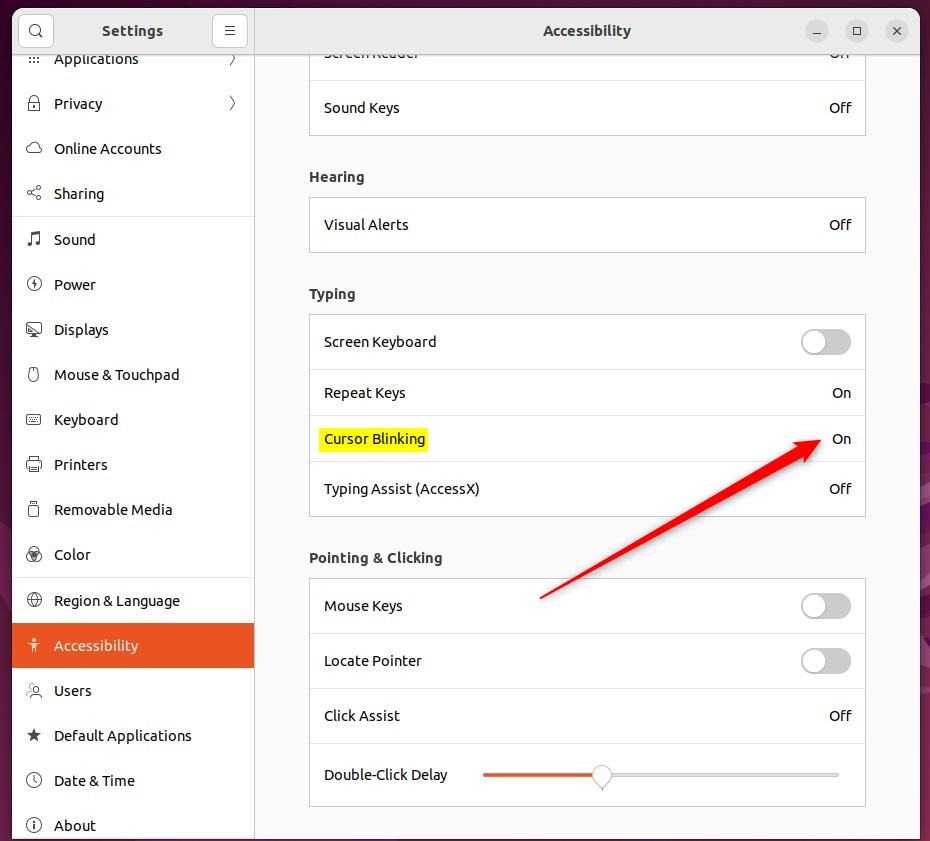
- In Settings Accessibility, scroll to the Typing group and click Cursor Blinking, which is highlighted below.
A small window titled Cursor Blinking opens on top of the Settings app. If you don’t see the Typing group, scroll further down the panel, since it sits below the Seeing and Hearing options.
The Cursor Blinking window controls whether the feature is active. Use it to turn the blinking on, then check the result.
- Move the Cursor Blinking toggle to the On position.
The toggle changes colour to show it is active. To see the effect, click in any text field, such as the search box at the top of the Settings window. The cursor now flashes, which makes it much easier to find during fast typing.
To undo the change, open the same window and move the toggle to the Off position. The cursor goes back to a steady line straight away.
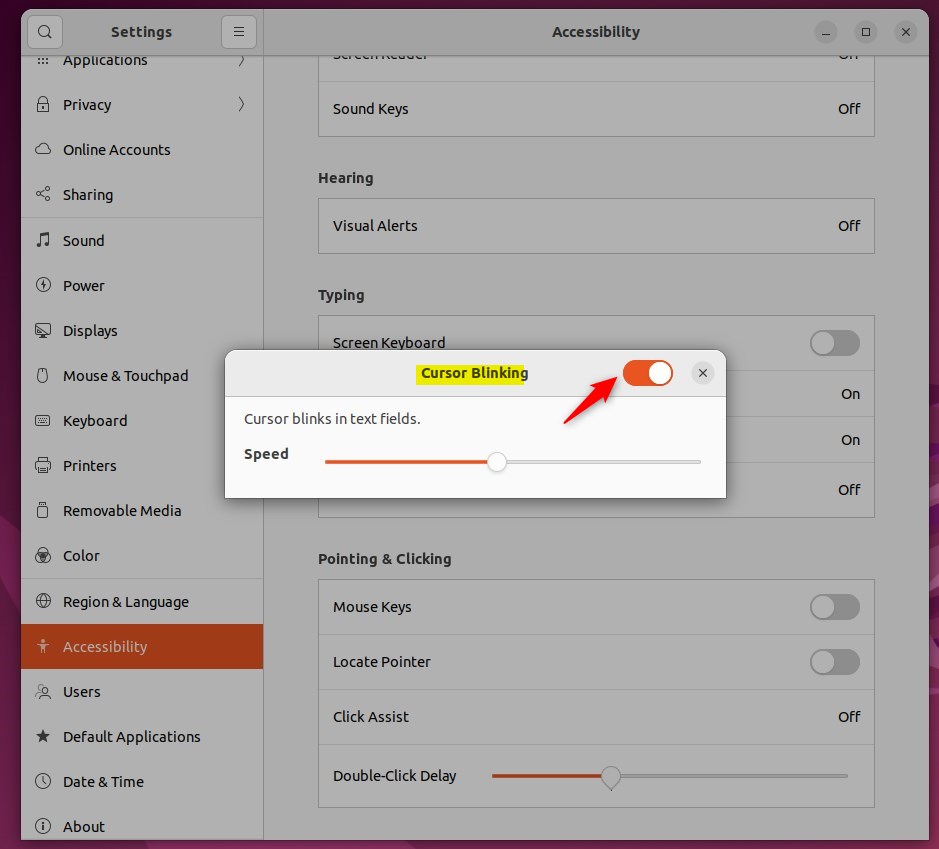
- Once blinking is enabled, drag the Speed slider to adjust how quickly the cursor blinks.
Move it one way for a slower flash and the other way for a faster one. If the slider is greyed out, the toggle above it is still off. Switch the toggle on first. Click in a text field after each change to see the new speed, and keep adjusting until it feels comfortable. A very fast blink can be tiring to look at, so a middle setting often works best.
The configuration is now complete, and you can close the Settings app. Ubuntu saves your choice automatically, so there is no Apply or Save button to press.
A blinking cursor helps you spot your text pointer faster in text fields. The main points from this guide:
- Enabling cursor blinking can be helpful for users with poor vision, making it easier to locate the keyboard cursor in a text field.
- Ubuntu Linux offers a centralized location for adjusting accessibility settings, including the cursor blinking feature.
- Users can easily toggle the cursor blinking on or off and adjust the blinking speed according to their preferences through the System Settings panel.
- This accessibility feature, along with others like increasing the mouse pointer size and enabling the pointer locator, aims to improve the user experience for individuals with visual challenges.
Have a question about this guide?
Answered by AI from this guide. Good questions may be added to this page — please don't include personal details.
Did this guide fix your problem?

About the Author
Richard
Tech Writer, IT Professional
Richard is a writer at Geek Rewind who turns complex IT tasks into clear, step-by-step guides. He draws on years of hands-on experience in system administration and enterprise IT operations, focusing on Windows, Linux and WordPress: the problems people actually run into, and the fixes that work. His server and WordPress guides come from systems he runs himself. Richard builds and maintains the platform behind Geek Rewind, from its Ubuntu servers and Nginx configuration to its custom WordPress plugins. Many new tutorials start with readers' questions, and he's always glad to answer them in the comments.
No comments yet — be the first to share your thoughts!