How to Create Custom Voice Shortcuts in Windows 11


Custom voice shortcuts in Windows 11 let you open apps, folders, and files by speaking a phrase instead of using a mouse or keyboard. Voice access, a built-in accessibility tool, powers this hands-free control. It arrived with Windows 11 version 22H2 in 2022, so older builds of Windows 11 will not have it.
Saying a short phrase like “Open Browser” runs a command straight away. That speeds up the tasks you repeat every day. You do not have to hunt through menus or remember a long keyboard combination.
Turn on Voice access in Settings Accessibility Speech, say “What can I say” to open the command list, click Voice Shortcuts in the sidebar, select Create New Shortcut, enter your spoken phrase, link it to an app or file path, then save and test it by speaking the phrase.
Why Create Custom Voice Commands?
A custom command replaces several steps of navigation with one phrase. That cuts down on mouse and keyboard use, which helps if you have a repetitive strain problem or limited hand mobility. It also helps if you simply repeat the same routine many times a day.
You choose the phrase, so it can be whatever you will actually remember. Short, distinct phrases work best.
How to List Voice Access Commands
Follow these steps to start it:
- Open Settings Accessibility Speech
- Turn on the Voice access toggle. The first time, Windows may download a speech model, so wait for it to finish. A bar with a microphone button then appears at the top of the screen.
- Click the microphone button, or say “Voice access wake up”, to make Voice access listen. The bar shows that it is listening.
- Say “What can I say” to open the full command list on screen.
The first-run download needs an internet connection. After that, speech recognition runs on your PC.
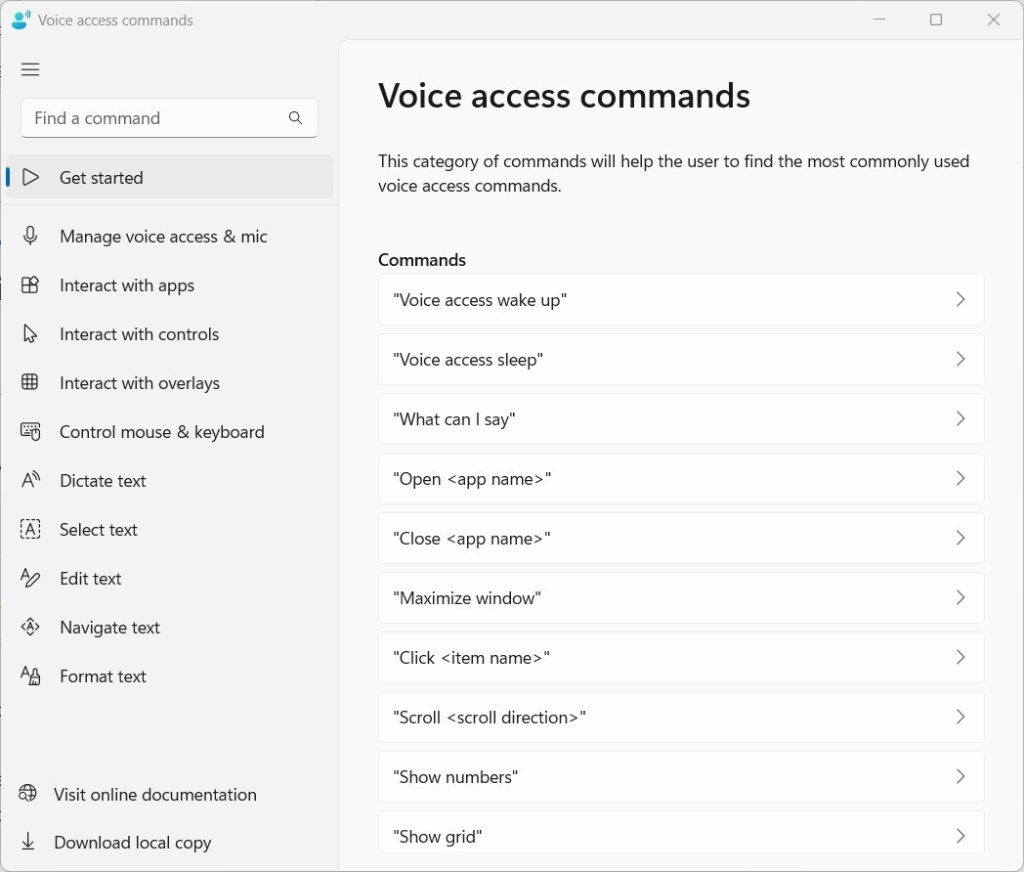
How to Create Custom Command Shortcuts
A custom voice shortcut makes your computer run a specific action when you say a phrase you chose. In short: turn on Voice access, open the main command list, click Voice Shortcuts in the sidebar, and select Create New Shortcut. This lets you replace a long keyboard shortcut or a run of mouse clicks with one word or short phrase that feels natural to you.
- Turn on Voice access.
- Open the Voice access command list.
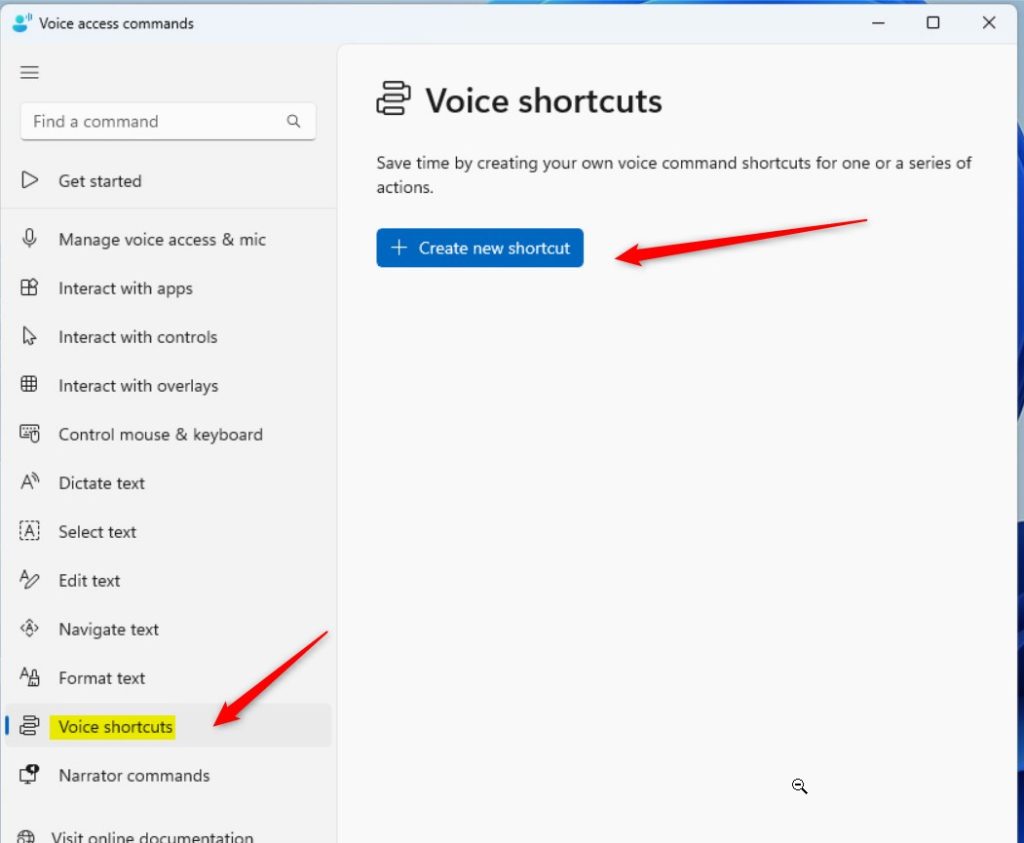
- Click Voice Shortcuts in the left menu.
- Select Create New Shortcut.
Here is the process in order:
- Turn on Voice access and say "What can I say" to open the main command list.
- Click Voice Shortcuts in the left menu. You should see any shortcuts you have already made, or an empty list if this is your first.
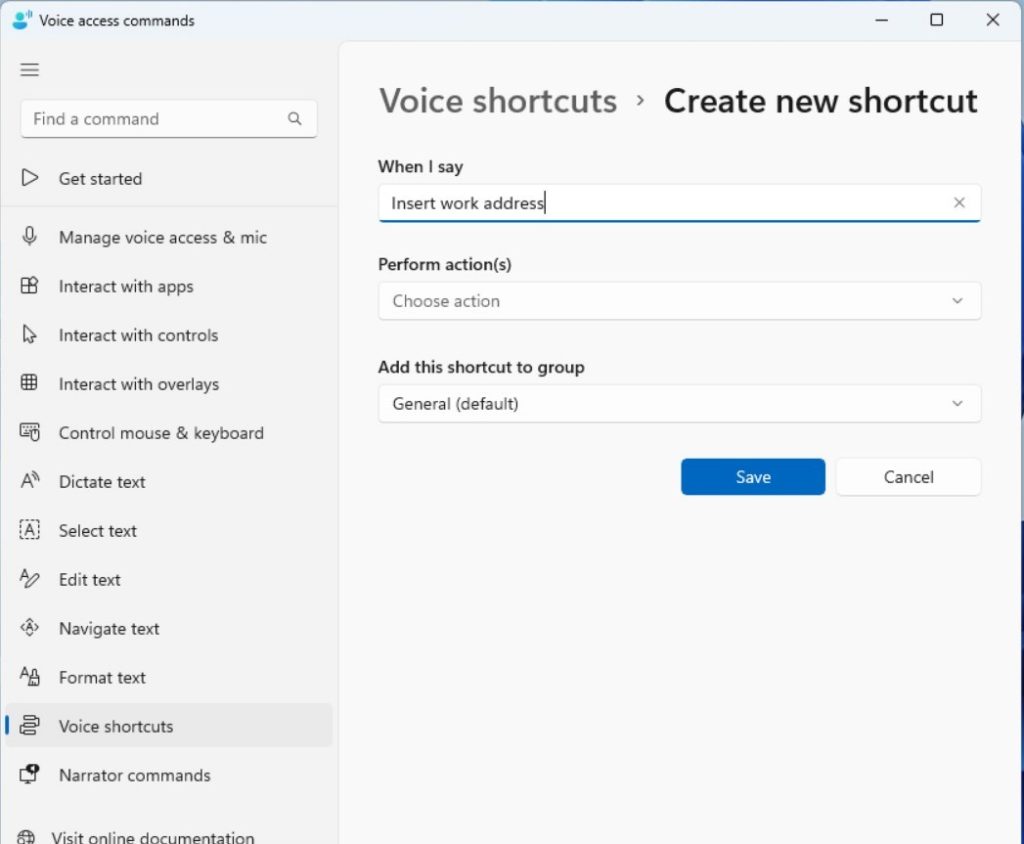
- Select Create New Shortcut. A form opens for the new command.
- Follow the on-screen prompts to name your command. This is the phrase you will say, so pick something short that Voice access will not confuse with a built-in command.
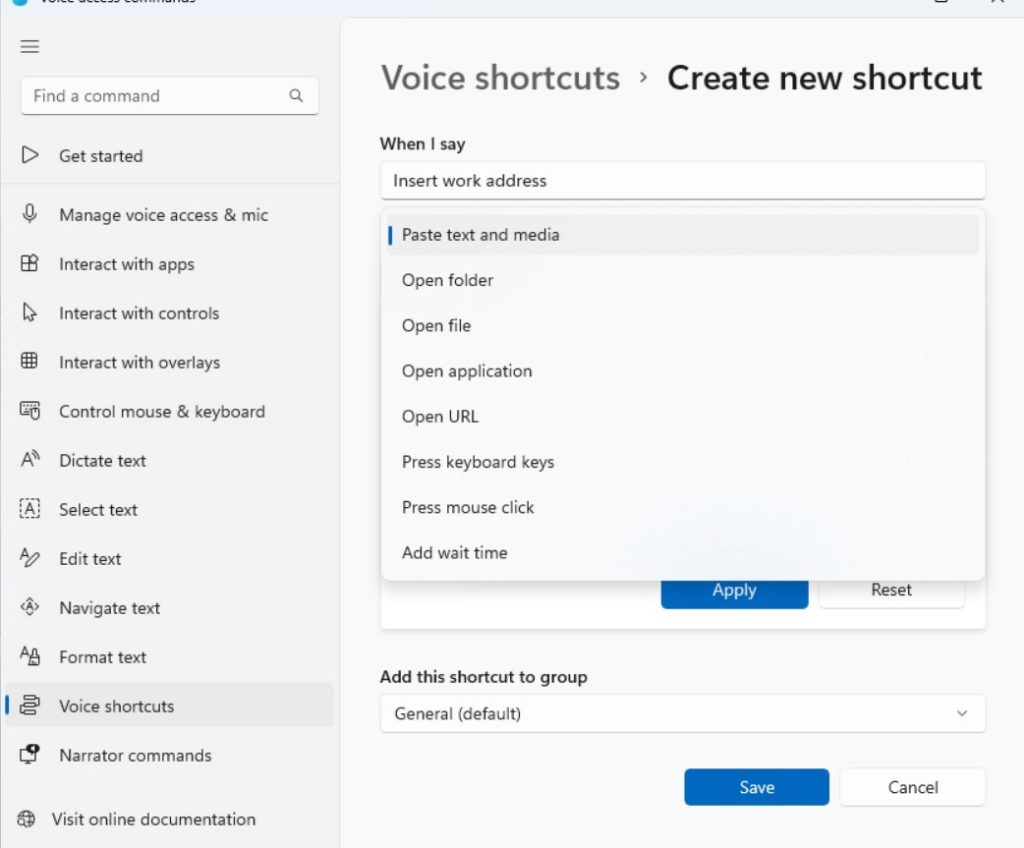
- Choose the action the command performs. You can link it to a specific file or system path, such as `C:\Windows\System32\notepad.exe`.
- Save the shortcut. It should now appear in the Voice Shortcuts list.
- Say the phrase to test it. If the action runs, the shortcut works.
Practical Use Cases and Examples
Custom voice shortcuts suit everyday workflows, such as launching a specific folder or website. For example, you could make one phrase open your project folder and another open the web page you check every morning. Give each one a distinct name so Voice access never has to guess between two similar phrases.
Managing and Editing Shortcuts
To change an existing shortcut, follow these steps:
- Say "What can I say" and return to the Voice Shortcuts menu.
- Select the command you want to change.
- Click the edit icon.
- Update the trigger phrase or the action, then save.
To remove a shortcut, select it in the same list and delete it. Removing shortcuts you no longer use keeps the command list tidy and lowers the chance of a phrase being misheard as the wrong command. You can undo a bad edit by editing the shortcut again and restoring the old phrase or action.
Troubleshooting Voice Access Issues
If a command is not recognized, work through these checks:
- Check your microphone settings and make sure the right microphone is selected and not muted.
- Speak clearly, and reduce background noise where you can.
- Make sure Voice access is awake and listening, not asleep.
- Verify that the assigned path or action is accurate. A mistyped path or a moved file will make the shortcut fail.
- Try a different trigger phrase if it keeps being mistaken for a built-in command.
Some tasks may need administrator privileges, meaning an account that can make system-wide changes. If a shortcut opens something that needs elevated rights, it may fail or prompt for approval when you run it from a standard account.
Summary
Custom voice shortcuts in Windows 11 give you hands-free control over the apps, folders, and files you use most. Start with two or three phrases for your most repeated tasks, and add more once they feel natural.
Reference: Official Microsoft Voice Access Command List
Was this guide helpful?

About the Author
Richard
Tech Writer, IT Professional
Richard is a writer at Geek Rewind who turns complex IT tasks into clear, step-by-step guides. He draws on years of hands-on experience in system administration and enterprise IT operations, focusing on Windows, Linux and WordPress: the problems people actually run into, and the fixes that work. His server and WordPress guides come from systems he runs himself. Richard builds and maintains the platform behind Geek Rewind, from its Ubuntu servers and Nginx configuration to its custom WordPress plugins. Many new tutorials start with readers' questions, and he's always glad to answer them in the comments.


[…] start it up before signing on, stop it from starting automatically, install additional languages, list and create custom commands, and […]