Windows 11 Speech Recognition and Text-to-Speech Settings

Speech recognition turns your voice into text, and text-to-speech reads text aloud. Windows 11 handles both, but the settings are spread across Time and Language, Accessibility, and the Voice Access app. This makes it hard to know where a given option lives. The guides below are grouped by what you are trying to do, from choosing an engine to removing stored speech data. Start with the engine choice if you are not sure which features you need. Each section says who needs it, so you can skip to the task you came for.
Choose how speech recognition works
Start here if you are deciding how your PC should process your voice. These guides cover the recognition engine, whether it runs offline, and whether it sends audio to online services. Read them before you change other settings, because the choices here affect the rest.
 Which Speech Recognition Engine Should You Use in Windows 11 Accessibility Speech Settings Stuck between Voice Access and Voice Typing? Compare the Windows 11 Accessibility speech settings options to pick the right one for your daily tasks.
 Should You Enable Speech Recognition Offline Mode in Windows 11 Language Settings Weigh the pros and cons of enabling offline speech recognition in Windows 11 language settings. Check storage use, privacy impact, and speed.
 Enable or Disable Online Speech Recognition in Windows 11 Enable or disable online speech recognition in Windows 11 for improved voice command accuracy.
Turn voice features on or off
Use these guides when you want Voice Access or voice typing to run, or stop running, on your PC. Voice Access can start on its own when you sign in, and you can turn that off separately. Each guide covers one switch, so change only the one you need.
 How to Enable or Disable Voice Access in Windows 11 Enable or disable Voice Access in Windows 11 to control your PC hands-free.
 How to Disable Voice Access Auto Start In Windows 11 Disable voice access auto start in Windows 11 for a quieter login experience. Follow our simple steps to enhance your PC control.
 How to Enable Voice Typing Launcher in Windows 11 Enable voice typing in Windows 11 with our step-by-step guide.
 How to Enable or Disable Voice Clips in Windows 11 Disable voice clips in Windows 11 to control your privacy. Follow our simple steps to manage your voice data and enhance your experience.
Teach Voice Access your own words and commands
These guides help you extend Voice Access with words and commands it does not know by default. Read them if Voice Access misses names, jargon or the actions you repeat most. You can also remove custom commands you no longer want.
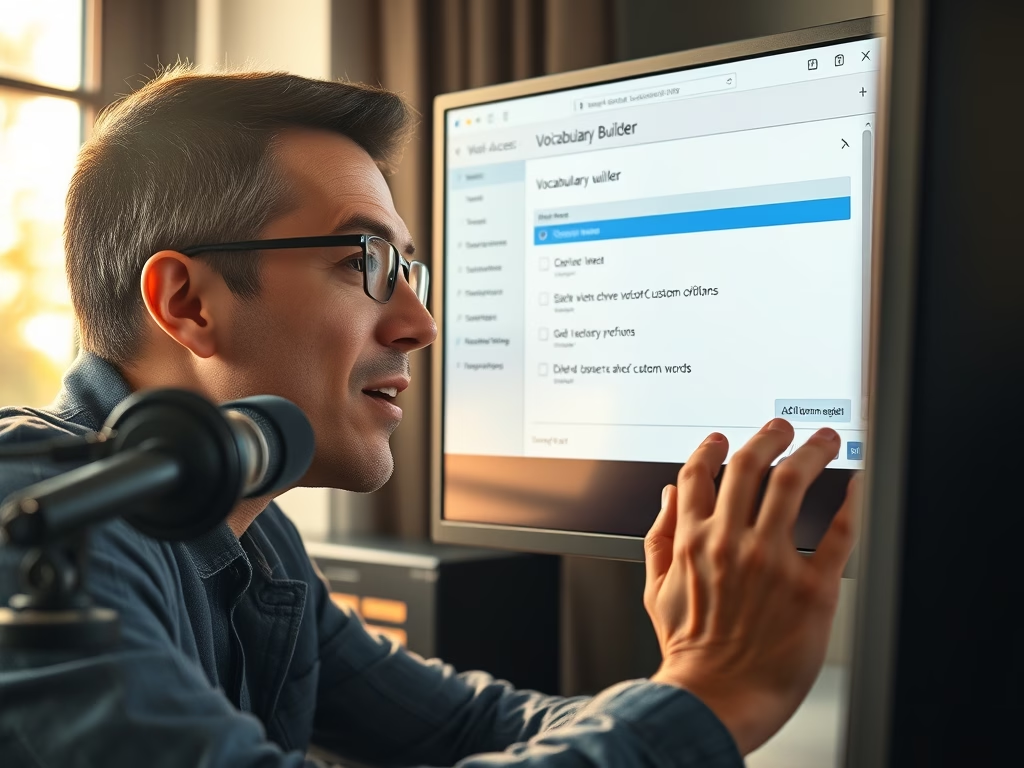 How to Add Custom Words to Voice Access in Windows 11 Add custom words to Voice Access in Windows 11 for better accuracy. Learn how to teach your PC unique names and pronunciations for seamless voice control.
 How to Create Custom Voice Shortcuts in Windows 11 Boost your productivity with custom voice shortcuts in Windows 11. Control your PC using Voice access and tailor commands to your needs. How to Disable Custom Voice Access Commands in Windows 11 Disable Voice Access commands in Windows 11 to streamline your experience. Follow our simple steps to manage custom command shortcuts.
Improve recognition accuracy and captions
Use these guides if Windows keeps mishearing you or your live captions are hard to read. Profiles and microphone gain both change how well your voice is picked up. Caption style and position control how the text appears on screen.
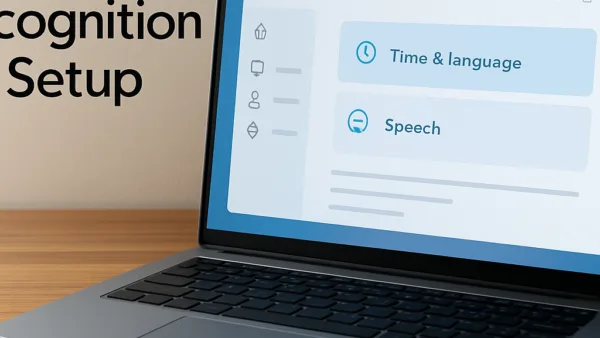 How to Set Up Custom Speech Recognition Profiles in Windows 11 Time and Language Speech Settings Improve dictation accuracy by setting up custom speech recognition profiles in Windows 11 Time & language settings. Train your PC for your voice.
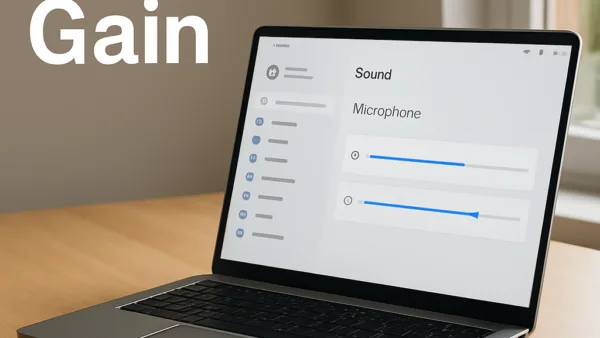 How to Configure Speech Recognition Microphone Gain Levels in Windows Time and Language Microphone too quiet for voice typing or speech recognition? Adjust your Windows input levels and language settings to fix low audio.
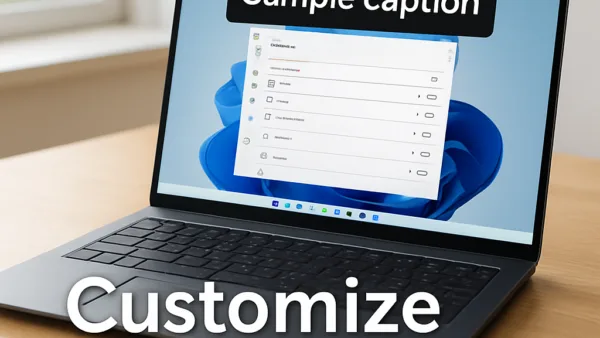 How to Customize Live Captions Style and Position in Windows 11 Accessibility Settings Make Windows 11 live captions bigger, change text colors, and move the caption window out of your way using Accessibility settings.
Change the voice that reads text aloud
These guides cover the voice Windows uses when it reads text to you. You can choose a default voice from those installed, or add a new voice from the Time and Language settings. Pick the voice first, then test it with a short piece of text.
 How to Change the Default Speech Synthesis Voice in Windows 11 Time and Language Hate the robotic text-to-speech voice in Windows 11? Switch to a natural-sounding option through the Time and Language settings menu.
 How to Add Custom Text-to-Speech Voices in Windows 11 Time and Language Settings Add new text-to-speech voices in Windows 11 through Time and Language settings to get natural-sounding narration without third-party tools.
Remove speech features or clear their stored data
Use these guides when you want to free disk space, troubleshoot a broken speech feature, or stop Windows keeping your speech data. Clearing stored data cannot be undone, so only do it if you are sure you no longer need the saved data. Removing speech packages or turning off speech recognition completely can stop features from working, so read the matching guide before you start.
 What Breaks When You Disable Windows Speech Recognition Completely What breaks when you disable Windows Speech Recognition completely? Lose voice navigation, dictation, and spoken commands across your system.
 What Breaks When You Remove Speech Recognition Packages in Windows 11 What breaks when you remove speech recognition packages in Windows 11? Find out which older voice tools, dictation apps, and commands stop working.
 How to Clear Automatic Speech Recognition Data in Time and Language Settings Clear automatic speech recognition data in Time & language settings to delete saved voice recordings and stop cloud tracking on Windows.
 How to Clear Cached Speech Model Data in Windows 11 Language Settings Free up drive space and fix broken voice features by clearing cached speech model data in Windows 11 Language settings. Follow the step-by-step guide.
Have a question about this guide?
Answered by AI from this guide. Good questions may be added to this page — please don't include personal details.

About the Author
Richard
Tech Writer, IT Professional
Richard is a writer at Geek Rewind who turns complex IT tasks into clear, step-by-step guides. He draws on years of hands-on experience in system administration and enterprise IT operations, focusing on Windows, Linux and WordPress: the problems people actually run into, and the fixes that work. His server and WordPress guides come from systems he runs himself. Richard builds and maintains the platform behind Geek Rewind, from its Ubuntu servers and Nginx configuration to its custom WordPress plugins. Many new tutorials start with readers' questions, and he's always glad to answer them in the comments.
No comments yet — be the first to share your thoughts!