What Breaks When You Disable Windows Speech Recognition Completely

Traditional Windows Speech Recognition is the older, built-in accessibility tool that lets you control a Windows PC by voice instead of a mouse or keyboard. Turning it off stops you from using spoken commands to open programs, click buttons, and move through menus.
Windows actually has three different voice tools, and people mix them up all the time:
- Windows Speech Recognition is the classic accessibility tool for controlling the whole PC by voice. This is the one this article is about.
- Voice Typing dictates text into documents and text boxes. You start it with the Win plus H.
- Voice Activation lets apps listen for a trigger word so they can wake up.
Disabling traditional speech recognition only shuts down the older accessibility control system. Windows 11 also has a newer voice control feature called Voice access, which is separate again. Turning off the old tool does not switch it off.
Disabling Windows Speech Recognition removes your ability to control your PC by voice commands, stops dictation into documents and text boxes, and disables custom voice macros or accessibility shortcuts. Your microphone continues working for video calls and recording software since speech recognition is just an interpretation layer, not the audio input itself.
What Breaks When You Disable Windows Speech Recognition Completely?
When you completely turn off Windows Speech Recognition, you give up some specific voice-driven features. The rest of the computer keeps working as normal. Here is what breaks, and what only breaks if you also change the privacy settings covered later.
1Complete Loss of Voice Navigation
You will no longer be able to control your desktop, open folders, click menus, or manage windows with spoken commands. If you use voice navigation to browse the web or start programs, that goes away entirely. You will need a mouse, keyboard, or touch instead, or another tool such as Voice access if you want to keep controlling the PC by voice.
2Voice Typing and Dictation Failure
Dictation through the classic speech tool stops, so you cannot speak text into word processors, email programs, or text boxes that way. Every document and message has to be typed on your physical keyboard.
It relies on online speech recognition, though. Once you switch that off in the steps below, the shortcut stops being useful and Windows will prompt you to turn it back on.
3Voice-Controlled Accessibility Shortcuts
If you set up custom voice macros or accessibility commands to make Windows easier to use, those shortcuts stop working. The computer ignores any spoken commands you give it. Nothing is deleted, so if you turn the feature back on later, you will have to check whether your custom setup still behaves as you expect.
What Stays Working?
You might worry that turning off speech recognition will break your microphone or stop video calls. It will not. Your microphone still works for video chat programs, voice recording software, and online meetings. Basic audio input and output are completely unaffected.
The reason is simple. Speech recognition is a layer that listens to the microphone and interprets what it hears. Turning that layer off does not disable the microphone itself.
How to Turn Off Speech Features Safely in Windows
There is no need to edit the registry or remove system components. Every change below can be reversed by flipping the same switch back on.
The steps below cover Windows 11. Some pages and options differ slightly between builds, and I point out where.
Turning Off Speech Recognition via Settings
This first set of changes is in the Time & language area of Settings. It controls how Windows handles speech and the microphone for speech services. Use these steps:
- Click the Start button on your taskbar and open the Settings app (the gear icon). The Settings window opens.

- Click Time & language in the left-hand menu. The page on the right shows date, language, and typing options.

- Select Speech from the options.
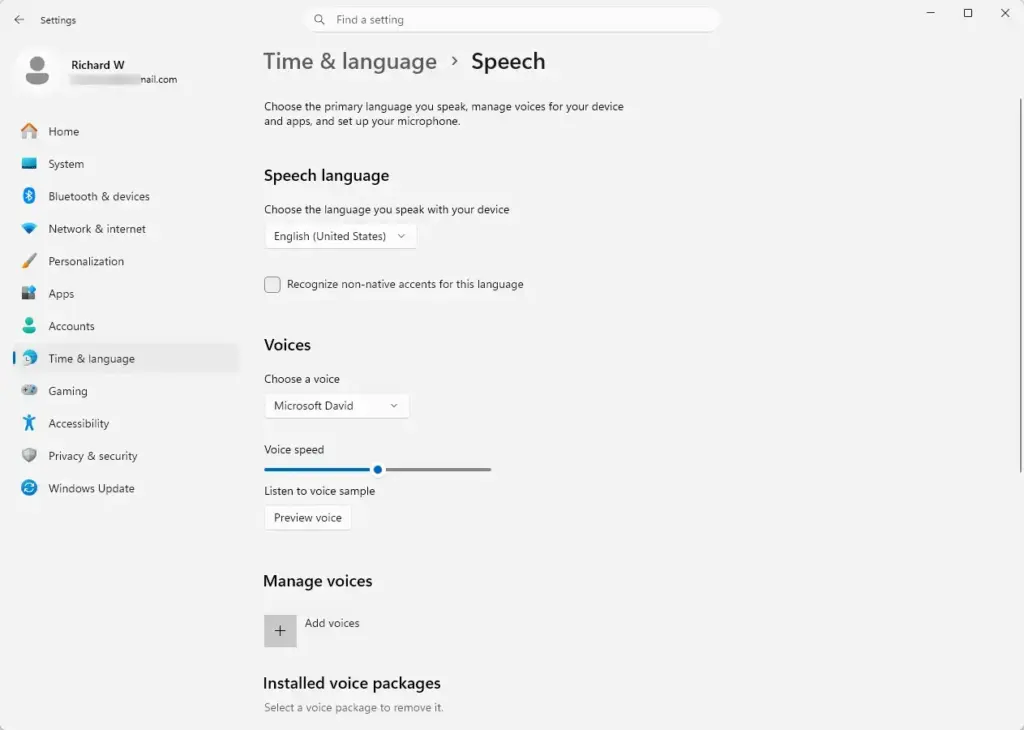
Settings › Time & language › Speech - Turn off any settings related to speech services and microphone use for speech.
The options on this page vary a little between Windows 11 versions. The switch for online speech recognition is in Privacy & security, so do not worry if you do not see it here. The next section covers it.
Managing Privacy Settings for Speech and Voice Activation
The privacy settings decide whether online speech features and apps can listen through your microphone. Switching them off stops Microsoft and third-party tools from collecting your voice data. It does not turn off the microphone hardware, so calls and recordings still work. Follow these steps:
- Open the Settings app from your Start menu .

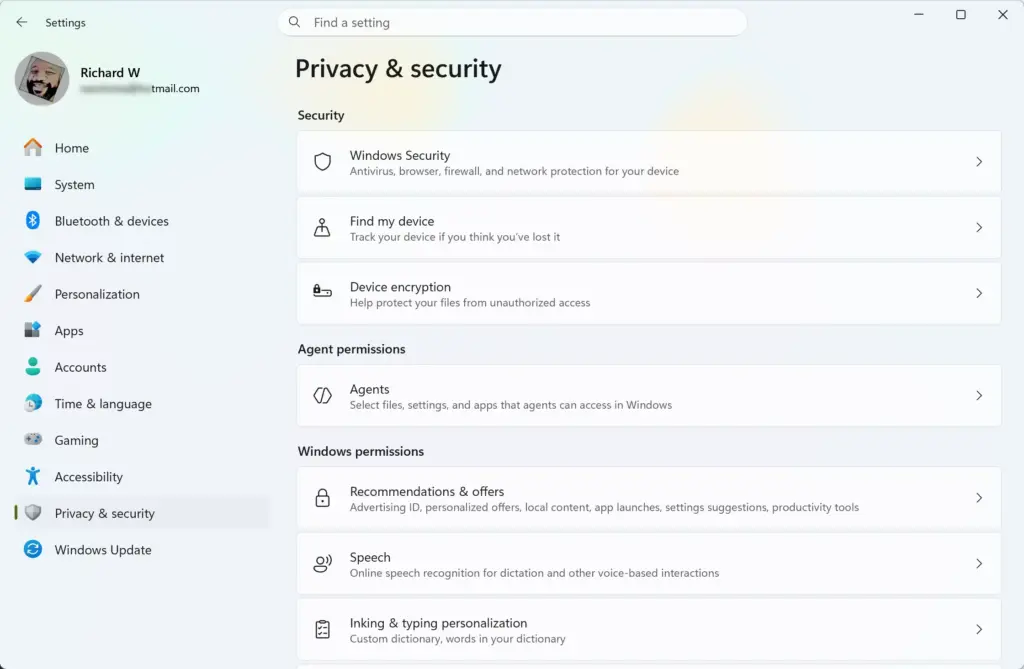
- Click Privacy & security in the left-hand menu.
- Click Speech and turn the switch to Off to stop online speech recognition.
- Go back to Privacy & security, click Voice activation, and turn off the apps that are allowed to use voice activation.
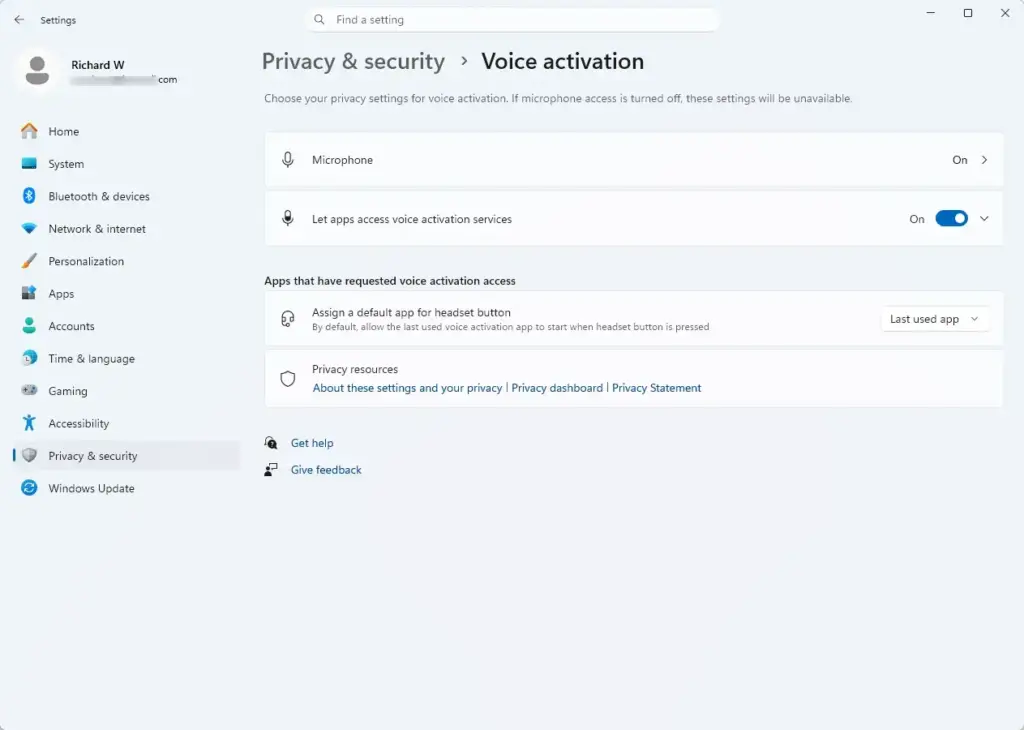
Settings › Privacy & security › Voice activation - Go back to Privacy & security again, click Inking & typing personalization, and turn it off. This stops your computer from learning your typing and handwriting habits.
If a page is missing, you are probably on an older Windows 11 build, or Windows has moved or renamed it. Voice activation only appears on newer builds, and the Inking & typing personalization page has changed in recent updates. Skip any option your version does not show. To undo any step, go back to the same page and switch the setting on again. No restart is needed.
Unique Expert Tips: Hidden Speech Triggers and Background Services
Even with the main settings off, a few hidden triggers can still bring voice tools up unexpectedly. The most common one is the Win plus H shortcut. Closing these off makes sure the PC really stops listening.
Pressing the Windows key plus H by accident opens the Voice Typing window. To stop that, switch off online speech recognition as described above. That is the most reliable fix. You can also open the Voice Typing window, click its gear icon, and look for the launcher and auto punctuation options. If your build shows them, switch them off. You can also check Time & language and then Typing for any related speech or automatic punctuation options.
Also check your startup apps. Third-party voice tools and leftover assistant software sometimes launch every time you sign in. To review them, open Settings, go to Apps, then Startup, and turn off anything voice-related you do not use. Keeping startup clean means no unwanted listening tools wake up in the background without your permission. This does not uninstall anything, and you can turn an app back on at any time.
Summary
Turning off Windows Speech Recognition stops your computer from listening for voice commands and from dictating text through the classic tool. Your microphone still works for video calls and audio recording apps. You can turn these features off safely from the Privacy & security and Time & language pages in the Settings app, and you can reverse every change by switching the same setting back on.
Have a question about this guide?
Answered by AI from this guide. Good questions may be added to this page — please don't include personal details.
Did this guide fix your problem?

About the Author
Richard
Tech Writer, IT Professional
Richard is a writer at Geek Rewind who turns complex IT tasks into clear, step-by-step guides. He draws on years of hands-on experience in system administration and enterprise IT operations, focusing on Windows, Linux and WordPress: the problems people actually run into, and the fixes that work. His server and WordPress guides come from systems he runs himself. Richard builds and maintains the platform behind Geek Rewind, from its Ubuntu servers and Nginx configuration to its custom WordPress plugins. Many new tutorials start with readers' questions, and he's always glad to answer them in the comments.
No comments yet — be the first to share your thoughts!