Should You Enable Handwriting Recognition Learning in Windows 11 Inking and Typing Personalization

Handwriting recognition learning in Windows 11 stores your pen strokes and typing habits so the touch keyboard and handwriting panel can match your personal style. Windows saves your custom words and the corrections you make, and builds a personal dictionary from them. Over time, that dictionary helps the system read your writing more accurately.
Microsoft turns this learning on by default to improve language features. You can turn it off at any time in your privacy settings if you would rather keep your writing habits to yourself. Turning it off does not break pen input or the touch keyboard. They keep working, just without the personalization.
Yes, you should enable handwriting recognition learning in Windows 11 if you regularly use a pen or touch keyboard, as it improves accuracy and reduces correction time by building a custom dictionary of your words. Turn it off in Settings Privacy & security Inking & typing personalization if you prioritize privacy over personalization or rarely use pen input.
The Benefits of Enabling Handwriting Recognition Learning
Leaving handwriting recognition learning on improves text accuracy and helps Windows adapt to your handwriting style over time. The feature builds a custom dictionary of the words, names and slang you use, so Windows makes fewer mistakes when you write on the screen. It matters most on touch screens, tablets and 2-in-1 laptops where you use a pen or the on-screen keyboard.
- Better Accuracy: The more you write, the better Windows gets at reading your handwriting. It guesses fewer letters and symbols wrong.
- Custom Dictionary Growth: If you often use industry terms, medical words or nicknames, the personal dictionary learns them. You do not have to fix them over and over.
- Faster Text Entry: Converting handwritten notes to typed text goes faster when the computer does not have to guess what you meant, because you spend less time correcting.
- Seamless Integration: It runs quietly in the background. There are no practice sessions or tests to complete.
The Risks and Privacy Concerns of Enabling This Feature
Windows collects personal data about what you write and type. It tracks your custom phrases, everyday words and text corrections to improve its predictions. That can feel invasive if you prefer to keep your typing habits private.
- Data Collection: To personalize your experience, Windows tracks how you type and write. That includes the words you write, the fixes you make and the phrases you use.
- Cloud Syncing: Your personal dictionary and writing profile can sync across the devices connected to your Microsoft account. If you want your personal info to stay on one computer, this is a downside. It is also worth knowing about on a shared or work-issued PC.
- Diagnostic Telemetry: General data about your typing and handwriting style might be sent to Microsoft to help improve future updates for everyone.
If you mostly type on a physical keyboard and rarely use a stylus or touch screen, the trade-off is poor. You get almost no benefit, and the feature just collects data you do not need. In that case, turn it off.
How to Turn On or Turn Off Inking and Typing Personalization in 🪟 Windows 11
The easiest way to turn handwriting recognition learning on or off is the Windows 11 Settings app . The Inking & typing personalization page controls whether your computer saves your handwriting and typing history to give you better suggestions. The steps below apply to current Windows 11 (Home and Pro are the same here). Labels can differ slightly between builds.
Step-by-Step Instructions Using Windows Settings
- Click the Start button and pick Settings (the gear icon). You can also press the Win+I to open it faster. The Settings window opens.
- In the menu on the left, click Privacy & security. The privacy options appear on the right.
- Scroll down to the Windows permissions section and click Inking & typing personalization. The page for that feature opens.
- Find the switch for the custom dictionary. Depending on your build it may be labeled Custom inking and typing dictionary, Personalization or Custom dictionary.
- Set the switch to On if you want Windows to learn your handwriting and typing habits. Set it to Off if you want to protect your privacy and stop the data collection. The change applies right away, and you do not need to restart.
To undo the change, come back to the same page and flip the switch the other way. If the switch is greyed out or you see a note that some settings are managed by your organization, a work or school policy controls it. Only an administrator can change it in that case.
Alternative Method: Managing Personalization via the Windows Registry
Advanced users can manage this setting in Registry Editor, a database for system and app settings. This is useful when you need to check or change the setting directly, or when you are managing several computers. For most people, the Settings app above is safer and just as effective.
Follow these steps carefully. You do not need administrator rights for settings under your own user account, but system-wide changes might need an administrator account.
- Press the Win+R to open the Run box.

Run dialog - Type regedit into the box and press Enter. If Windows asks whether to allow the app to make changes, click Yes. Registry Editor opens.
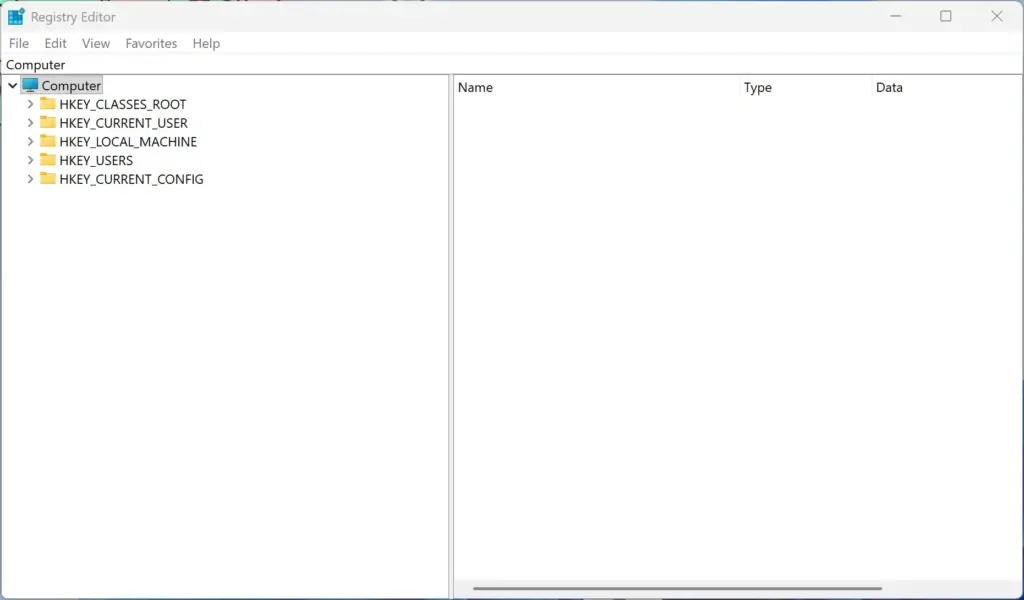
Registry Editor - Before you change anything, consider backing up. Right-click the key you are about to edit and choose Export, so you can restore it later.
- In the left sidebar, go to this location: 🗝️HKEY_CURRENT_USER\
Software\ Microsoft\ InputPersonalization - In the right pane, find the value connected to handwriting or typing data collection. Double-click it to open its properties.
- Change the data value to 0 to turn off data collection, or 1 to turn it on. Check the value’s name first. If it begins with “Restrict”, the meaning is reversed, because 1 restricts collection and 0 allows it.
- Click OK, close Registry Editor, and restart your computer to apply the change.
If something goes wrong, double-click the exported .reg file to restore the old values, or set the value back to what it was and restart.
Unique Expert Tips: Optimizing Your 🪟 Windows 11 Writing Experience
If you keep handwriting recognition learning on, a few extra steps give you the best results without leaving your privacy to chance. Two habits matter most. Clean out the personal dictionary now and then, and limit how much diagnostic data leaves your PC.
1Regularly Clear Your Personal Dictionary
Clearing your personal dictionary stops Windows from suggesting old typos, misspelled words or slang you no longer use. This is useful if the dictionary learned a mistake you made repeatedly. To clear it, open your language settings, open the options for your language, and use the clear dictionary tool. The exact location of that button can differ between Windows 11 builds, so look for it in the language options if you do not see it at first.
Clearing the dictionary only removes what has been learned so far. Windows will start learning again unless you also turn off the custom dictionary switch described earlier.
2Balance Diagnostic Data Settings
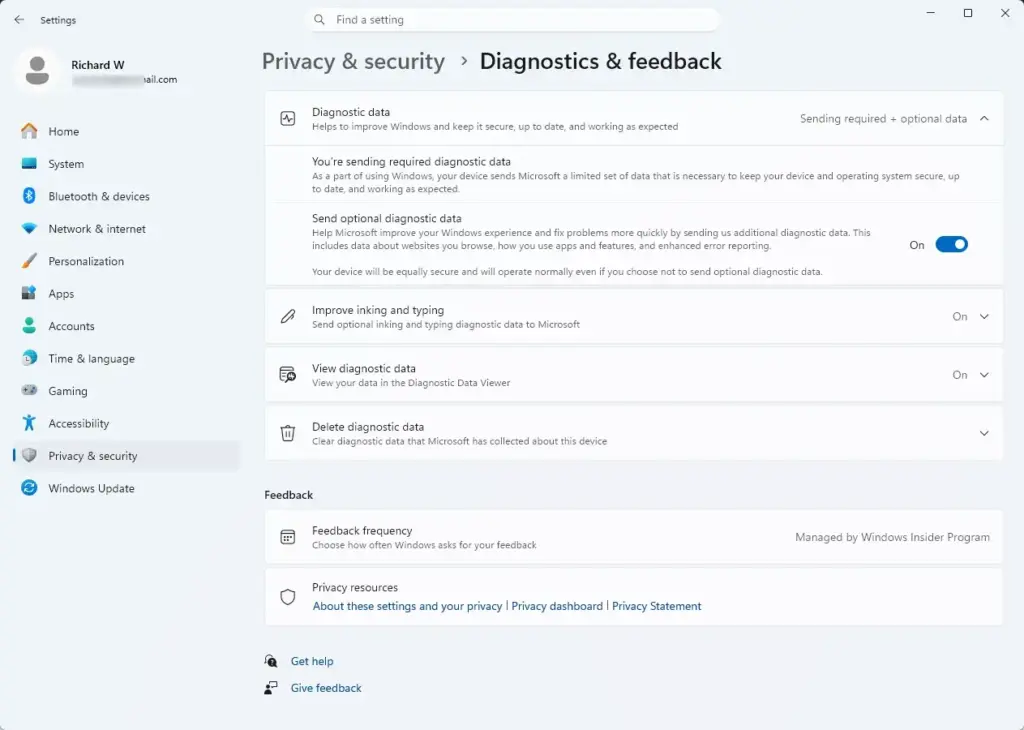
Balancing your diagnostic data settings lets Windows learn your handwriting on your device without sending extra reports to the cloud. Go to Settings, then Privacy & security, then Diagnostics & feedback. Switch your diagnostic data to required only instead of optional by turning off Send optional diagnostic data. This limits what Microsoft collects. Windows will still send the required data it needs to stay secure and up to date.
On the same page, look for the Improve inking and typing option and turn it off if you do not want your writing samples used to improve Microsoft products. If these options are greyed out, your organization is managing them. You can switch them back on at any time from the same page.
Summary
Handwriting recognition learning trades privacy for better pen accuracy. It is worth keeping on if you write on your screen often. It is easy to turn off if you do not. You can control it from the Settings app or the registry. You can also keep it on and manage the risk by clearing your personal dictionary and limiting your diagnostic data.
Have a question about this guide?
Answered by AI from this guide. Good questions may be added to this page — please don't include personal details.
Did this guide fix your problem?

About the Author
Richard
Tech Writer, IT Professional
Richard is a writer at Geek Rewind who turns complex IT tasks into clear, step-by-step guides. He draws on years of hands-on experience in system administration and enterprise IT operations, focusing on Windows, Linux and WordPress: the problems people actually run into, and the fixes that work. His server and WordPress guides come from systems he runs himself. Richard builds and maintains the platform behind Geek Rewind, from its Ubuntu servers and Nginx configuration to its custom WordPress plugins. Many new tutorials start with readers' questions, and he's always glad to answer them in the comments.
No comments yet — be the first to share your thoughts!