Clear Personal Dictionary Data Stored in Windows 11 Inking and Typing Personalization Settings

- 21 steps
- Needs administrator rights
- Includes a restart or sign-out
Inking and Typing Personalization in Windows 11 builds a custom dictionary on your hard drive. It learns your writing style, spelling habits and favorite words. The setting lives at Settings Privacy & security Inking and typing personalization.
Windows builds this personal dictionary by watching what you type on your physical keyboard, touch keyboard or digital pen. Microsoft uses the saved data to improve text suggestions and handwriting recognition. You can turn the feature off and clear the data at any time, which stops Windows from tracking your typing habits.
The data can live in three places: the local dictionary on your PC, a few registry values that control collection, and your Microsoft account in the cloud. The sections below cover each one.
To clear personal dictionary data in Windows 11, open Settings, go to Privacy & security, click Inking and typing personalization, then click the button that says Clear personal dictionary. This removes all custom words Windows learned from your typing. To prevent the dictionary from refilling, turn off the main Inking and typing personalization toggle.
How to Clear Personal Dictionary Data in 🪟 Windows 11 Settings
Clearing the personal dictionary removes every custom word your PC has learned from your typing. You do this from the Settings app. It works the same on Windows 11 Home and Pro, and no restart is needed.
One thing to know before you start: on recent Windows 11 builds, the Inking and typing personalization page may not show a Clear personal dictionary button at all. Microsoft has changed this page between releases. If you don’t see the button, use the fallback described after the steps.
- Click the Start button on your taskbar and select the Settings app icon, which looks like a gear. You can also press Win+I to open Settings directly.

The Settings window opens with a list of categories on the left.
- Click Privacy & security in the left-hand menu.

The privacy options appear in the main window.
- Scroll to the Windows permissions section in the main window and click Inking and typing personalization.
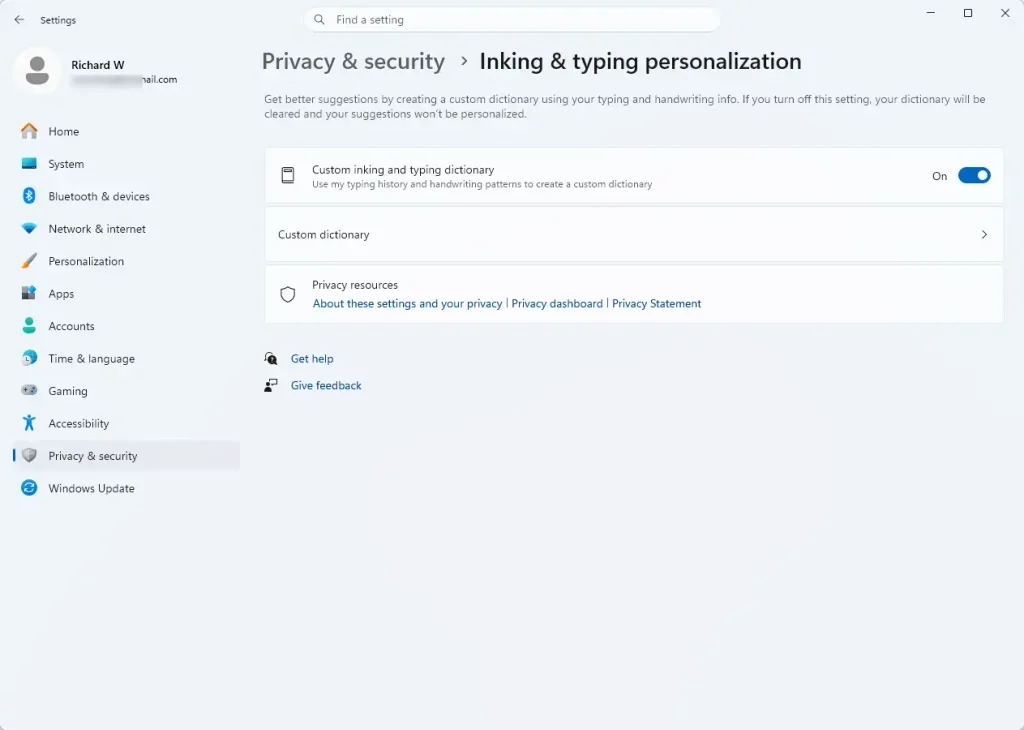
- Find the toggle switch labeled Custom dictionary. On some builds the label reads slightly differently, for example “Custom inking and typing dictionary”. This switch controls whether Windows learns your words.
- Click the button that says Clear personal dictionary. Windows deletes the learned words right away.
That’s it. Windows has deleted all the words your computer learned from your typing and handwriting, and your personal dictionary is empty and back in its original state.
If you can’t find the clear button on your build, turning the dictionary toggle off is the usual way to remove the learned words. Section two covers the toggles. As an extra step, you can go to Settings Privacy & security Diagnostics & feedback Delete diagnostic data. That button removes the diagnostic data Windows has sent to Microsoft from this device. It is not the same as the local dictionary, so treat it as a companion cleanup, not a replacement.
The dictionary starts filling up again if you turn the feature back on. Clearing is therefore not permanent unless you also turn collection off.
How to Turn Off Inking and Typing Data Collection
Turning off inking and typing data collection stops your computer from saving the words you type and write over time. This is the most direct way to keep the dictionary from filling up again after you clear it. The steps are the same on Windows 11 Home and Pro.
- Open the Settings app by pressing Win+I.
- Click Privacy & security on the left side of the screen.
- Click Inking and typing personalization under the Windows permissions list.
- Locate the main toggle switch at the top of the page, under the heading Inking and typing personalization.
- Click the toggle switch to change it from On to Off. The switch moves to the left and the label changes to Off.
That’s it. With this setting off, Windows stops sending information about your typing and handwriting to Microsoft. It also stops building your custom local dictionary.
To undo the change, return to the same page and switch the toggle back to On. Windows then starts learning your words again from scratch.
Clearing Personal Dictionary Data via the Windows Registry
Advanced users can control typing personalization directly through the Windows Registry, the database where Windows stores its settings. Use the graphical Registry Editor rather than typing registry commands. A wrong edit in the registry can cause problems, so take it slowly.
Back up first. This is strongly recommended before you change anything. You have two options, and using both is even safer:
- Export the key. In Registry Editor, select the key you plan to change, click File, then Export, and save the .reg file somewhere safe. Double-clicking that file later restores the key.
- Create a System Restore point, a saved snapshot you can roll back to. Search for “Create a restore point” in the Start menu and open it. On the System Protection tab, click Create. If protection is off for your system drive, click Configure first and turn it on.
- Press Win+R to open the Run dialog box.
- Type regedit into the box and press Enter. (Note: This step requires administrator privileges.)
- If the User Account Control prompt appears asking if you want to allow this app to make changes to your device, click Yes. The Registry Editor window opens, with a folder tree on the left and values on the right.
- In the Registry Editor window, use the left-hand panel to navigate to the following path: 🗝️HKEY_CURRENT_USER\
Software\ Microsoft\ InputPersonalization - Look for the value named RestrictImplicitInkCollection or RestrictImplicitTextCollection in the right-hand panel. (Note: If these specific value names are not visible in your registry, do not create them manually. This information cannot be confirmed from the default system template.)
- Make sure your backup is done. Then double-click the value name to open its properties, change the Value data to 1 to restrict data collection, and click OK.
That’s it. Registry changes are saved as soon as you click OK, and closing Registry Editor afterwards is safe. In current Windows 11 versions (24H2 and 25H2), this change should apply without restarting your computer. If Settings still shows the old state, sign out and back in. To undo the change, set the value back to 0, or double-click the .reg file you exported.

Clearing Your Cloud-Based Personal Dictionary Data
Windows can sync your typing history to your Microsoft account, so clearing the local dictionary may not remove everything. To delete the copy on Microsoft’s servers, use the online privacy dashboard in a web browser. Any browser on any device works, and you do not need to be at the PC itself.
- Open your web browser and go to the Microsoft Privacy Dashboard website at https://account.microsoft.com/privacy.
- Sign in using the same email address and password you use for your Windows 11 computer (for example, user@example.com). Use the Microsoft account linked to your PC. A different account won’t show this device’s data.
- Look for the section titled Cortana or Inking and typing. (Note: Menu labels on the Microsoft privacy site change frequently, so you may need to look around for the closest match.)
- Click View and clear data, or the specific option for typing and handwriting data.
- Select the button to clear or delete your stored data, and confirm if the site asks.
You should now have no typing or handwriting data stored in your Microsoft account. This removes your custom dictionary from Microsoft’s cloud servers, which prevents other devices from downloading your typing habits. If you use more than one PC with the same account, clear the local dictionary on each one as well.
Summary
Clearing the personal dictionary protects your privacy by erasing the custom words your computer remembers. Your PC tracks your typing to improve word suggestions. You can wipe this history through the main privacy settings, through the registry for finer control, or through your online Microsoft account.
For a complete cleanup, clear the local data, turn collection off, and then delete the cloud copy. If the clear button is missing on your build, switch the dictionary toggle off and use Delete diagnostic data as a companion step.
Have a question about this guide?
Answered by AI from this guide. Good questions may be added to this page — please don't include personal details.
Did this guide fix your problem?

About the Author
Richard
Tech Writer, IT Professional
Richard is a writer at Geek Rewind who turns complex IT tasks into clear, step-by-step guides. He draws on years of hands-on experience in system administration and enterprise IT operations, focusing on Windows, Linux and WordPress: the problems people actually run into, and the fixes that work. His server and WordPress guides come from systems he runs himself. Richard builds and maintains the platform behind Geek Rewind, from its Ubuntu servers and Nginx configuration to its custom WordPress plugins. Many new tutorials start with readers' questions, and he's always glad to answer them in the comments.
No comments yet — be the first to share your thoughts!