How to Turn On or off Custom Inking and Typing Dictionary in Windows 11

Windows 11 keeps a list of words you use often with a digital pen or a physical keyboard. This list is called the Custom Inking and Typing Dictionary. It applies to handwriting recognition and to text suggestions as you type.
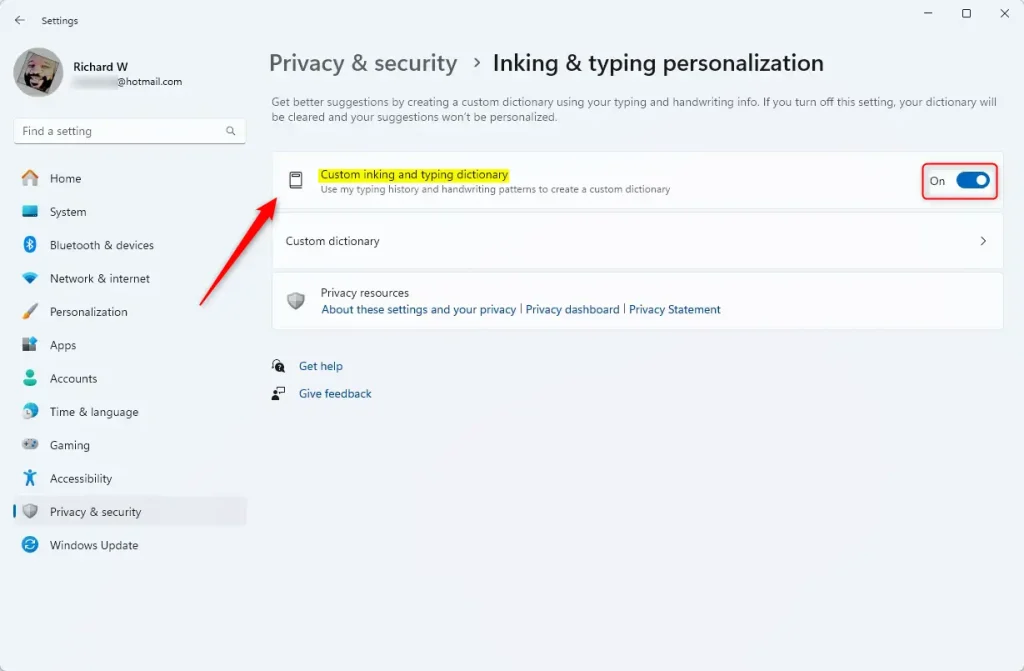
Open Settings Privacy & security Inking & typing personalization and toggle Custom inking and typing dictionary to On or Off. The change takes effect immediately with no restart needed.
What is the Custom Inking and Typing Dictionary?
Think of it as a personal word list. It picks up names, unusual place names, product terms and slang that a standard dictionary would not know, so suggestions and corrections fit the way you write. The more you type or write, the more useful it gets.
Suggestions go back to general vocabulary. The setting works the same on Windows 11 Home and Pro. Turning it back on later does not restore the old list. Windows starts learning again from scratch.
Think twice if you have a lot of specialist terms or names you would not want to retrain.
How to Turn On or Off the Custom Inking and Typing Dictionary (Using Settings)
- Press Win+I on your keyboard. The Settings app opens.
- In the left pane, click Privacy & security. The privacy options appear on the right.
- On the right, click Inking & typing personalization. This page holds the dictionary switch.
- Find the switch for the dictionary and set it the way you want. It is labeled Custom inking and typing dictionary; some builds call it Personal inking and typing dictionary. Set it to On to let Windows learn your words, or Off to stop it and clear what it has learned. The change takes effect straight away, and you do not need to restart.
- Close the Settings window.
The path is Settings Privacy & security Inking & typing personalization. If the switch is greyed out or you cannot change it, the PC is probably managed by an organization, such as a work or school account. Ask your administrator in that case. To undo the change, go back to the same page and flip the switch again.

The Registry method makes the same change as the Settings switch. It is mainly useful if you want to apply the setting on more than one PC, or if you prefer working outside the Settings app.
How to Turn On or Off the Custom Inking and Typing Dictionary (Using Registry Editor)
A heads-up: editing the Registry suits more experienced users. A wrong change can cause problems that are hard to trace. Before you start, create a System Restore point or export a backup of the Registry so you can roll back if something goes wrong. Sign in with an administrator account, because standard accounts cannot save changes in the system areas of the Registry. If the new setting does not show up in Settings right away, sign out and back in, or restart the PC.
Turn Off
Disabling the Custom Inking and Typing Dictionary in Windows 11 via the Registry Editor requires running a command that sets the dictionary value to '0'. This action turns off the feature and clears any words the PC learned, removing personalization from typing and inking suggestions.reg add "HKEY_CURRENT_USER\Software\Microsoft\Windows\CurrentVersion\CPSS\Store\InkingAndTypingPersonalization" /v Value /t REG_DWORD /d 0 /f
reg add "HKEY_CURRENT_USER\Software\Microsoft\Personalization\Settings" /v AcceptedPrivacyPolicy /t REG_DWORD /d 0 /f
reg add "HKEY_CURRENT_USER\Software\Microsoft\InputPersonalization" /v RestrictImplicitInkCollection /t REG_DWORD /d 1 /f
reg add "HKEY_CURRENT_USER\Software\Microsoft\InputPersonalization" /v RestrictImplicitTextCollection /t REG_DWORD /d 1 /f
reg add "HKEY_CURRENT_USER\Software\Microsoft\InputPersonalization\TrainedDataStore" /v HarvestContacts /t REG_DWORD /d 0 /f
Summary
- The Custom Inking and Typing Dictionary helps Windows 11 give you better typing and handwriting suggestions by learning from your writing habits.
- You can turn this feature on or off easily in the Settings or by using the Registry Editor.
- Turning it off will delete all saved words, so your suggestions won’t be personalized.
- It’s a good idea to check your privacy settings regularly to control what data Windows collects.
The Custom Inking and Typing Dictionary in Windows 11 refines typing and handwriting suggestions by learning what gets written. Users can control this feature through Settings or the Registry Editor. Turning it off erases saved words, making suggestions less personal.
Speech, voice activation, inking, typing, and privacy - Microsoft Support
Turn On (Default Setting)
Enabling the Custom Inking and Typing Dictionary in Windows 11 via the Registry Editor requires executing a specific command. This command instructs Windows to set the dictionary value to '1', letting your PC learn personalized words and improve suggestions.reg add "HKEY_CURRENT_USER\Software\Microsoft\Windows\CurrentVersion\CPSS\Store\InkingAndTypingPersonalization" /v Value /t REG_DWORD /d 1 /f
reg add "HKEY_CURRENT_USER\Software\Microsoft\Personalization\Settings" /v AcceptedPrivacyPolicy /t REG_DWORD /d 1 /f
reg add "HKEY_CURRENT_USER\Software\Microsoft\InputPersonalization" /v RestrictImplicitInkCollection /t REG_DWORD /d 0 /f
reg add "HKEY_CURRENT_USER\Software\Microsoft\InputPersonalization" /v RestrictImplicitTextCollection /t REG_DWORD /d 0 /f
reg add "HKEY_CURRENT_USER\Software\Microsoft\InputPersonalization\TrainedDataStore" /v HarvestContacts /t REG_DWORD /d 1 /fTurn Off
Disabling the Custom Inking and Typing Dictionary in Windows 11 via the Registry Editor requires running a command that sets the dictionary value to '0'. This action turns off the feature and clears any words the PC learned, removing personalization from typing and inking suggestions.reg add "HKEY_CURRENT_USER\Software\Microsoft\Windows\CurrentVersion\CPSS\Store\InkingAndTypingPersonalization" /v Value /t REG_DWORD /d 0 /f
reg add "HKEY_CURRENT_USER\Software\Microsoft\Personalization\Settings" /v AcceptedPrivacyPolicy /t REG_DWORD /d 0 /f
reg add "HKEY_CURRENT_USER\Software\Microsoft\InputPersonalization" /v RestrictImplicitInkCollection /t REG_DWORD /d 1 /f
reg add "HKEY_CURRENT_USER\Software\Microsoft\InputPersonalization" /v RestrictImplicitTextCollection /t REG_DWORD /d 1 /f
reg add "HKEY_CURRENT_USER\Software\Microsoft\InputPersonalization\TrainedDataStore" /v HarvestContacts /t REG_DWORD /d 0 /f
Summary
- The Custom Inking and Typing Dictionary helps Windows 11 give you better typing and handwriting suggestions by learning from your writing habits.
- You can turn this feature on or off easily in the Settings or by using the Registry Editor.
- Turning it off will delete all saved words, so your suggestions won’t be personalized.
- It’s a good idea to check your privacy settings regularly to control what data Windows collects.
The Custom Inking and Typing Dictionary in Windows 11 refines typing and handwriting suggestions by learning what gets written. Users can control this feature through Settings or the Registry Editor. Turning it off erases saved words, making suggestions less personal.
Speech, voice activation, inking, typing, and privacy - Microsoft Support
Have a question about this guide?
Answered by AI from this guide. Good questions may be added to this page — please don't include personal details.
Did this guide fix your problem?

About the Author
Richard
Tech Writer, IT Professional
Richard is a writer at Geek Rewind who turns complex IT tasks into clear, step-by-step guides. He draws on years of hands-on experience in system administration and enterprise IT operations, focusing on Windows, Linux and WordPress: the problems people actually run into, and the fixes that work. His server and WordPress guides come from systems he runs himself. Richard builds and maintains the platform behind Geek Rewind, from its Ubuntu servers and Nginx configuration to its custom WordPress plugins. Many new tutorials start with readers' questions, and he's always glad to answer them in the comments.
No comments yet — be the first to share your thoughts!