How to Find Microsoft Account Benefits in Windows 11 Settings

Microsoft account benefits in Windows 11 Settings is a new discovery feature that lists the services your Microsoft account unlocks on a PC. The quickest way to find it is to open Settings on a Windows Insider preview build and look for the Microsoft account benefits welcome page.
Microsoft announced the feature in the release notes for Experimental build 26340.9882, dated November 6, 2026. It is in Windows Insider preview builds only so far. It may change before it reaches the public release of Windows 11, and Microsoft has not said when that will happen.
This guide shows how to check whether your PC has it and where to look. It also says plainly what Microsoft has and has not published.
Microsoft account benefits is a new feature in Windows Insider preview builds, not regular Windows 11 yet. Microsoft’s release notes for Experimental build 26340.9882 say it lives in Windows Settings but do not name the exact page. To check your PC, press Win+I, go to Settings System About, and compare your OS build number with 26340.9882.
What Microsoft Has Announced
Microsoft’s release notes say Windows Settings now makes it easier to discover the benefits and services available with your Microsoft account. The notes also say the feature includes a Microsoft account benefits welcome page. Microsoft lists the location as Windows Settings.
That is the full description. Microsoft does not name the exact Settings page, the button that opens the welcome page, or the list of benefits it shows. This guide does not guess at any of those. Where a detail is missing, this page says so.
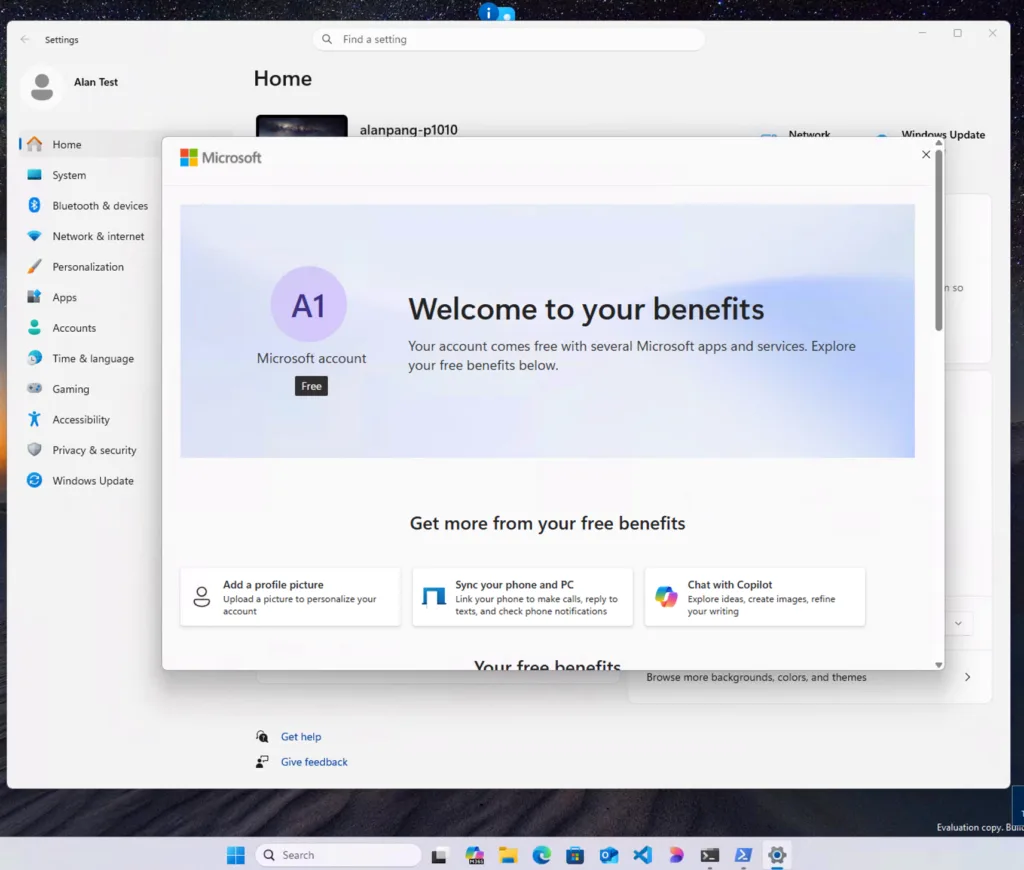
A “welcome page” is an introductory screen that appears the first time you reach a feature. A welcome page usually summarises what a feature offers. Here, it should introduce what your Microsoft account adds to Windows 11.
Which Windows Builds Include It
The announcement comes from the Experimental channel, one of the test groups in the Windows Insider Program, which gives early access to preview builds. The Windows Insider Program (Microsoft’s early-access programme) lets you install preview builds before the general release. The note covers build 26340.9882.
If you run a regular release of Windows 11, you will not see this feature yet. Microsoft can change, delay or remove preview features before release, so the page may look different later or never reach your PC.
You do not need to join the Windows Insider Program to follow this guide. Without a preview build, the steps below confirm that the feature is not on your PC yet.
How to Find Microsoft Account Benefits in Settings
Follow these numbered steps to find the welcome page. Each step says what it checks before it tells you where to click. Because Microsoft has not named the exact page, the last steps are a search of Settings, not a fixed path.
- Open Settings. Press Win+I, or right-click Start and choose Settings. The Settings window opens on the System page.
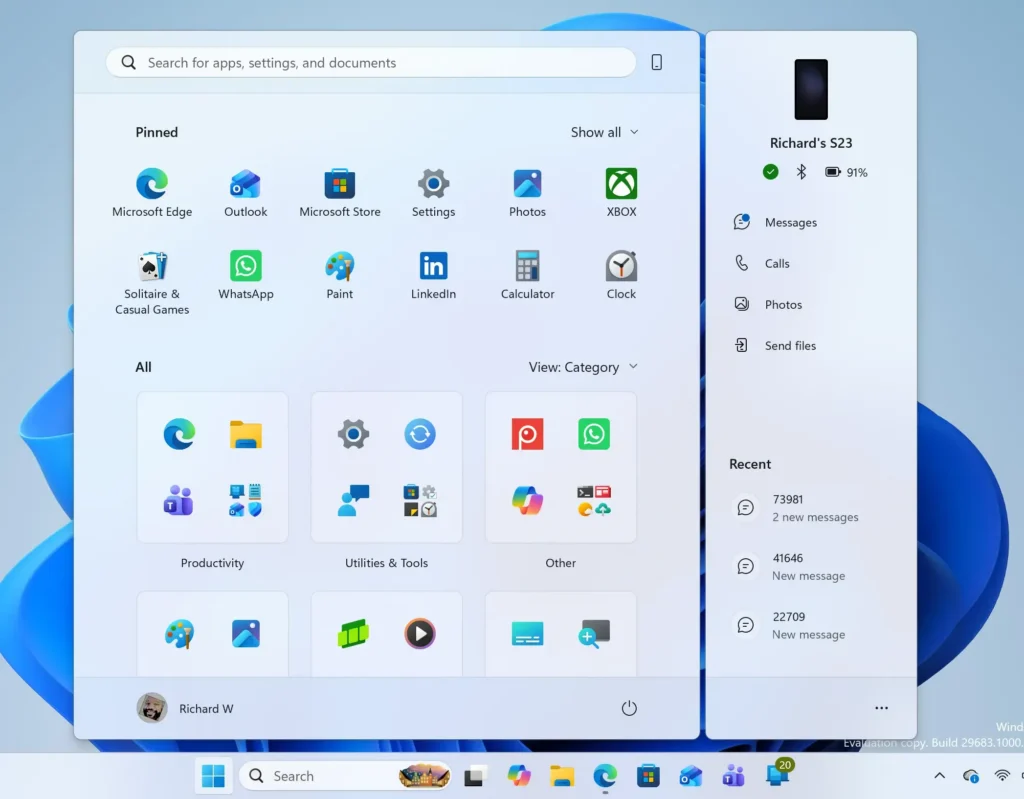
Windows 11 Start menu search panel for opening OpenSSH Client settings - Open the About page. Go to Settings System About. The page lists your device specifications and Windows specifications.
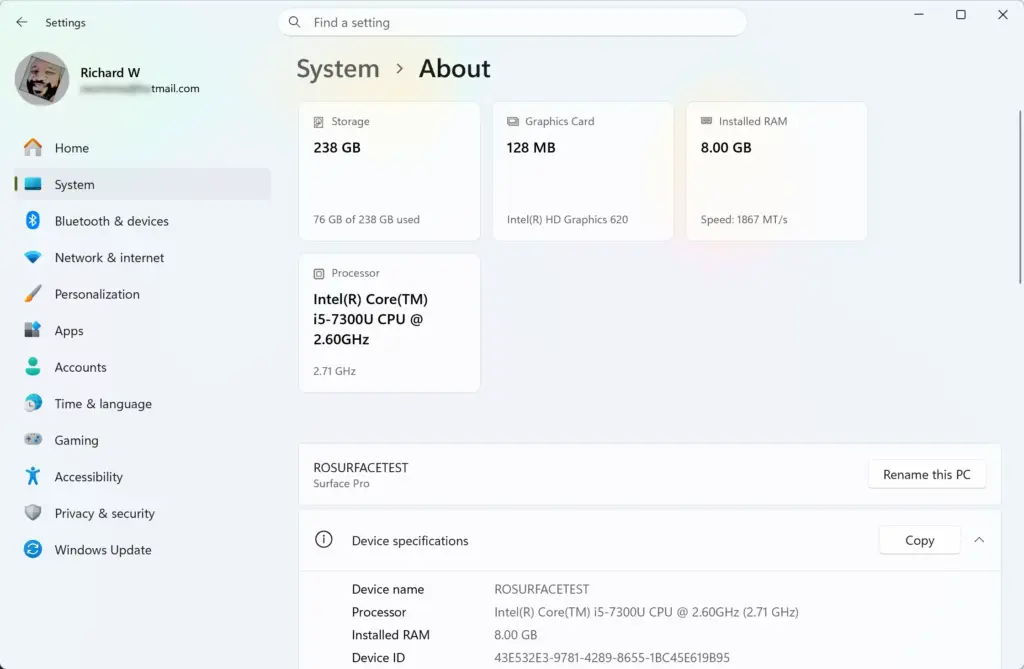
Settings › System › About - Check your OS build number. Look under Windows specifications for OS build. Microsoft’s release notes name build 26340.9882, so compare your number with it. If your build is a regular release, you are not on a build that Microsoft’s notes cover.
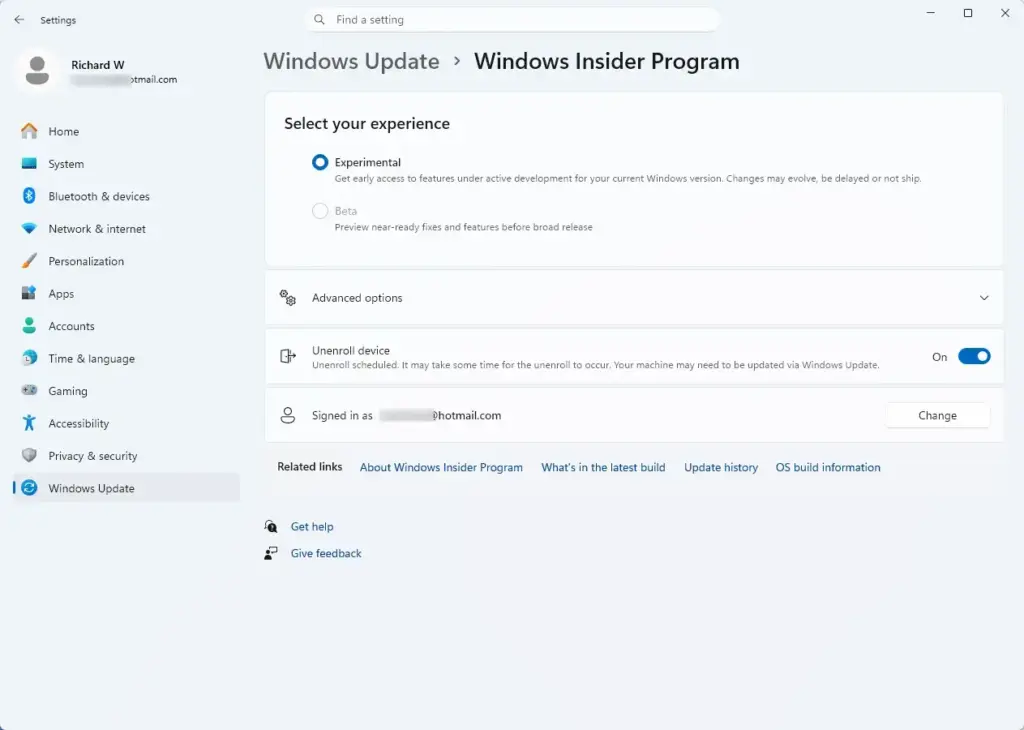
- Check your Insider enrolment. Go to Settings Windows Update Windows Insider Program. The page shows whether your PC receives preview builds and from which channel. The release notes place this feature in the Experimental channel.
Settings › Windows Update › Windows Insider Program - Confirm which account you use. Go to Settings Accounts and open the page at the top, which shows your account details. If you sign in with a local account, the benefits are about a Microsoft account, so switch first. The links in the next section cover both ways.
- Look through the Settings home page. Select Home at the top of the left pane. Check the account area and any cards for a mention of Microsoft account benefits. Microsoft says only that the feature is in Windows Settings, so the entry point is unconfirmed.
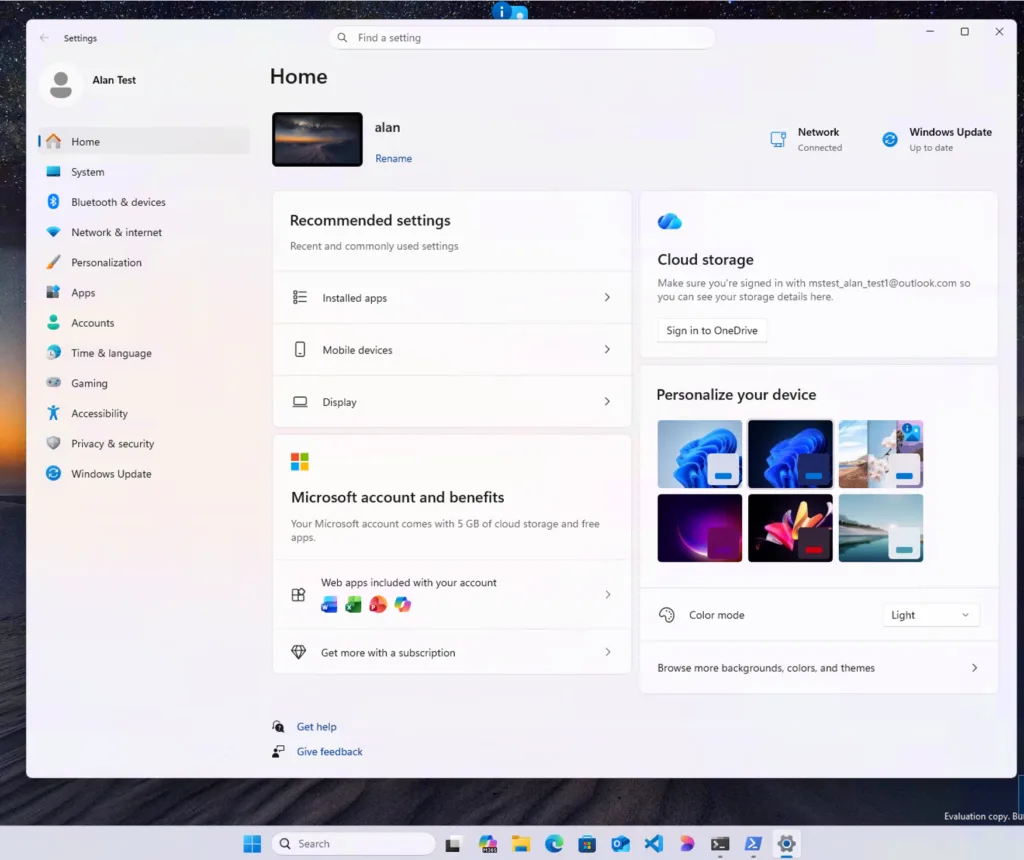
Settings - Search Settings for the page. Click the search box at the top of Settings and type Microsoft account benefits. If your build includes the feature, a matching result may appear. Settings search only lists pages that exist on your build, and Microsoft has not said the page is searchable.
- Open the welcome page. Select the result or card if you find one. The Microsoft account benefits welcome page should appear and describe the services your account offers.
Viewing these pages changes nothing on your PC, so there is nothing to undo. The one change in the steps above is switching to a Microsoft account if you currently use a local account. That is reversible, and the links in the next section explain how.
If You Do Not See the Benefits Page
Your build does not include the feature
This is the most likely reason. Microsoft documents the feature only for the Experimental preview build named in the release notes. A regular Windows 11 release has no such page yet, and a different preview channel may not have it either. Check the OS build number again (the number Windows shows for your version) in Settings System About and compare it with the build in the notes.
You sign in with a local account
A local account (a sign-in that exists only on your PC, with no online account behind it) has no Microsoft account benefits to show. Microsoft has not said whether the page appears for local accounts. If you want to test with an account, read how to switch from a local account to a Microsoft account in Windows 11. If you do not have an account yet, create a Microsoft account first.
If your account is already linked to the PC but Settings does not show it, see how to sign in to a Microsoft account in Windows 11. People who want to use a Gmail address as the login can read sign in to a Microsoft account with Gmail.
The feature has not reached your PC yet
Microsoft often turns on new preview features in stages, so two PCs on the same build can behave differently. The release notes do not say whether that applies here. If your build matches and you are signed in with a Microsoft account, the page may appear after a later update. Check Settings Windows Update for a newer preview build, and look again after it installs.
Another Insider feature in the current notes is controlled by a feature flag (a switch Microsoft uses to turn a feature on or off for some PCs) in Settings Windows Update Windows Insider Program Feature flags. Microsoft does not list a feature flag for the Microsoft account benefits page, so do not expect to turn this one on there.
What a Microsoft Account Already Does in 🪟 Windows 11
While the new page is in preview, you can already manage several account services through existing Settings pages and guides. These are not the contents of the welcome page, which Microsoft has not published. They are the account-related tasks Windows 11 supports today.
- Settings backup. Windows Backup can store your PC settings in your Microsoft account, so a new PC can restore them. To remove what is stored, read how to clear Windows Backup stored settings from your Microsoft account.
- Connected devices. Your account keeps a list of the PCs you have signed in to. See how to see devices connected to your Microsoft account.
- Payments. Purchases from Microsoft services use the payment method stored on your account. Read how to change your payment method for a Microsoft account.
- Notifications. Windows can show account-related messages in Settings. To control them, see how to turn Microsoft account notifications on or off.
- Family accounts. A child can sign in with their own Microsoft account. See how to add your child’s Microsoft account to Windows 11.
What Is Not Known Yet
Microsoft’s notes are short, so several things are unconfirmed. The exact Settings page that holds the welcome page is not named. The list of benefits and services it shows is not published. Microsoft has not said whether it appears only after a first sign-in, whether it appears again later, or whether it can be dismissed.
Microsoft also has not given a date for the feature to reach the regular release of Windows 11. Preview features may change in name, position or content before they ship. When Microsoft publishes more detail, this guide will need updating, and the menu path in the steps may be different by then.
What to Do Next
If the welcome page does not appear, check your OS build in Settings System About against the build in Microsoft’s Experimental release notes. Then look for a newer preview build in Settings Windows Update. If you want a feature you can use today, start with the Windows Backup guide linked above. It shows what your account stores about your PC and how to remove it.
Have a question about this guide?
Answered by AI from this guide. Good questions may be added to this page — please don't include personal details.
Did this guide fix your problem?

About the Author
Richard
Tech Writer, IT Professional
Richard is a writer at Geek Rewind who turns complex IT tasks into clear, step-by-step guides. He draws on years of hands-on experience in system administration and enterprise IT operations, focusing on Windows, Linux and WordPress: the problems people actually run into, and the fixes that work. His server and WordPress guides come from systems he runs himself. Richard builds and maintains the platform behind Geek Rewind, from its Ubuntu servers and Nginx configuration to its custom WordPress plugins. Many new tutorials start with readers' questions, and he's always glad to answer them in the comments.
No comments yet — be the first to share your thoughts!