How to Use Windows Settings Backup in Windows 11

- 18 steps
- Needs administrator rights
Windows settings backup in Windows 11 saves supported Windows settings and your list of Microsoft Store apps to your Microsoft account. A new or reset PC can then pick them up again. Microsoft has announced that Windows 11, version 26H2 turns the feature on by default for eligible devices.
This post covers what is changing, who it affects, and how to check the setting in Settings Accounts Windows backup before it changes for you. Microsoft announced the change in its July 2026 news roundup. Its October 19, 2026 documentation describes it as rolling out with 26H2. Rollouts arrive in waves, so your PC may not have it yet, and details can change.
Open Settings Accounts Windows backup to check whether Windows settings backup is on. Windows 11, version 26H2 turns it on by default for eligible devices, so check before the update reaches your PC. The feature saves supported Windows settings and your list of Microsoft Store apps to your Microsoft account, then restores them on a new or reset PC.
What Windows settings backup does
Windows settings backup is part of Windows Backup, the Windows 11 feature that stores a copy of your setup in the cloud. The settings portion keeps supported Windows settings and the list of Microsoft Store apps you have installed. Microsoft describes the purpose as recovery and device replacement.
On a new or reset PC, Windows can read that saved copy and bring your preferences back. You skip the work of re-selecting a wallpaper, language options and similar choices by hand. Windows does not store the apps themselves, only the list of them.
Windows Backup also covers folders such as Desktop, Documents and Pictures through OneDrive. That is a separate part of the feature. For the folder side, see how to back up and restore with Windows Backup in Windows 11.
What is changing in 🪟 Windows 11, version 26H2
When it arrives
Microsoft’s October 19, 2026 documentation says Windows 11, version 26H2 is generally available and lists the default-on change as rolling out. Generally available means anyone can get the update. It does not mean every PC has it today.
Microsoft’s resources for 26H2 include updating through an enablement package. That is a small update that switches on features already delivered to your PC in earlier updates. If your PC runs a version that supports this route, the move to 26H2 can be quick.
Microsoft has not published a date for when each device receives the update. Check Settings Windows Update to see whether 26H2 is offered to you.
Who it affects
The change applies to eligible devices running 26H2. The rules for eligibility are not covered here, so this post does not guess at them. Two groups should check their settings:
- The first is Home users who never opened the backup page. Your settings may be copied to your Microsoft account without you choosing it. Review the setting once 26H2 arrives.
- The second is anyone still on version 24H2. Microsoft states that 24H2 Home and Pro editions reached end of updates on October 13, 2026. It recommends moving to 26H2 or 25H2. A PC that stays on 24H2 stops receiving updates and will not get this change.
What stays under administrator control
Microsoft says existing administrator-configured policies are still honored. A policy that enables Windows settings backup stays enabled. A policy that disables it stays disabled. The new default only applies where no administrator has made that choice.
If you manage several work PCs, check whether an administrator has already set backup on or off for each one before 26H2 reaches them. This post does not name the policy or say where to find it, because those details are not available here. Microsoft’s Windows settings backup and restore overview on Microsoft Learn covers system requirements, configuration, and conflicts between policy sources.
How to use Windows settings backup in 🪟 Windows 11
Check that Windows settings backup is on. Use the Windows backup page in Settings, and do this before 26H2 arrives so you know your starting point. If the setting turns on by default later, you will recognize what you are looking at. Menu labels can differ between Windows 11 versions and may change while the update rolls out.
- Open Settings. Press Win+I. The Settings app opens on the System page.
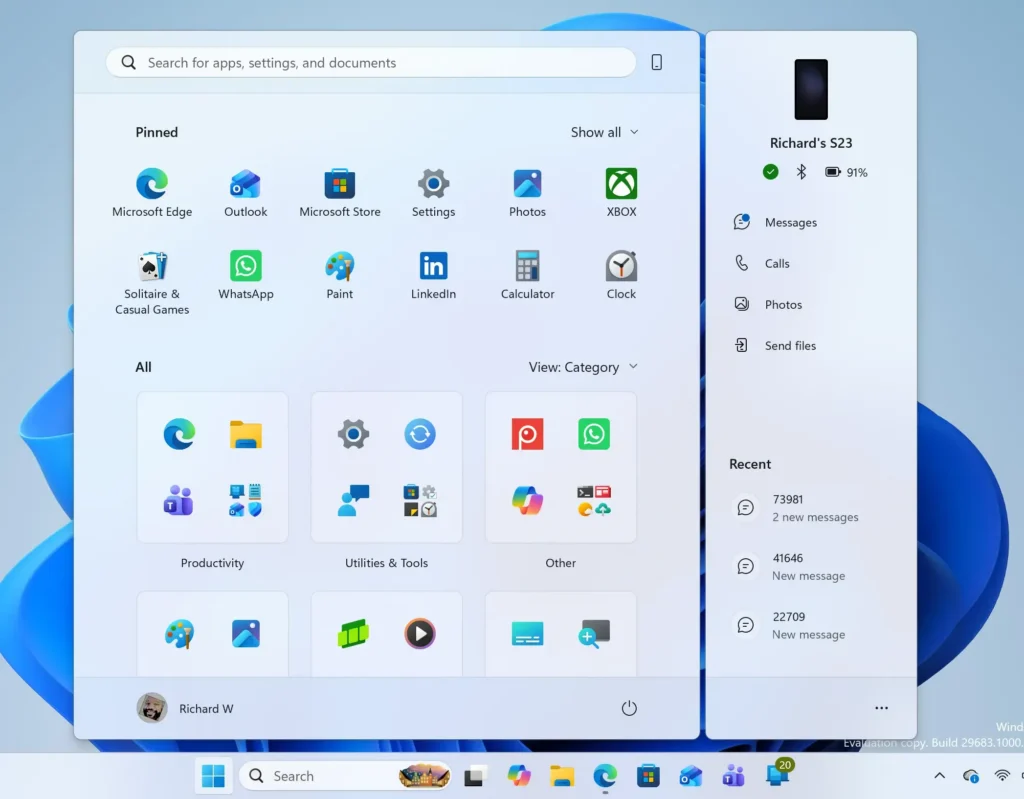
Start Menu - Select Accounts. It appears in the left-hand list. The Accounts page opens.
- Select Your info. Look under your name. A Microsoft account shows an email address. A local account shows the words Local account.
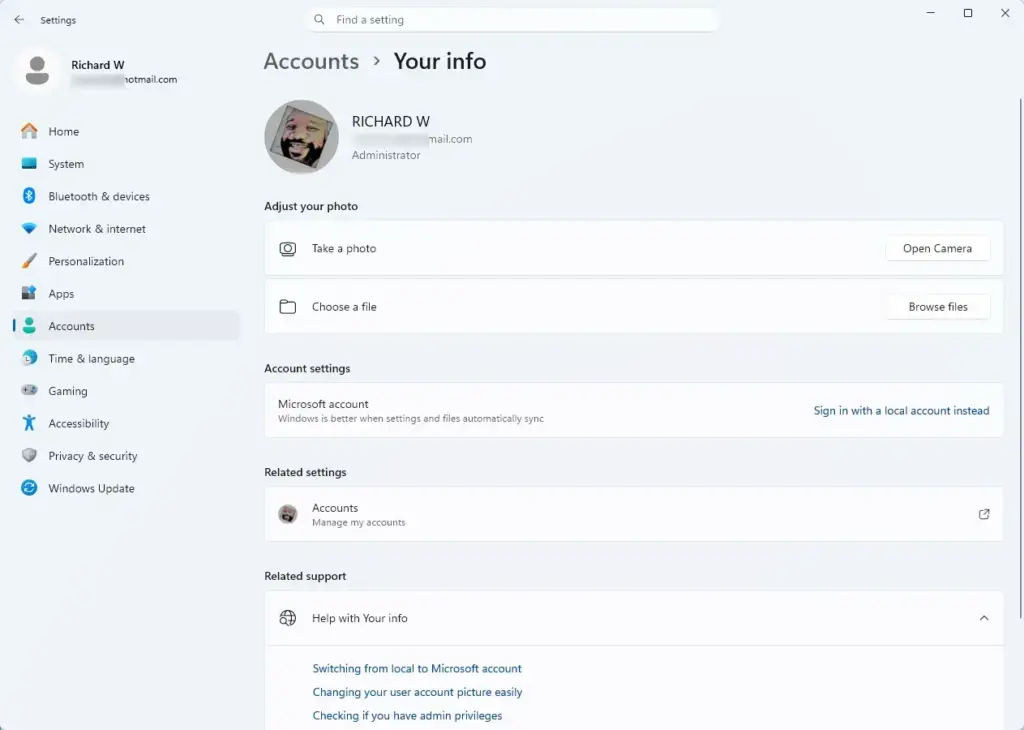
Settings › Accounts › Your info - Sign in with a Microsoft account if you use a local account. Settings shows a link on this page to switch. Follow the prompts, then return to Accounts. Without a Microsoft account, Windows has nowhere to store the backup.
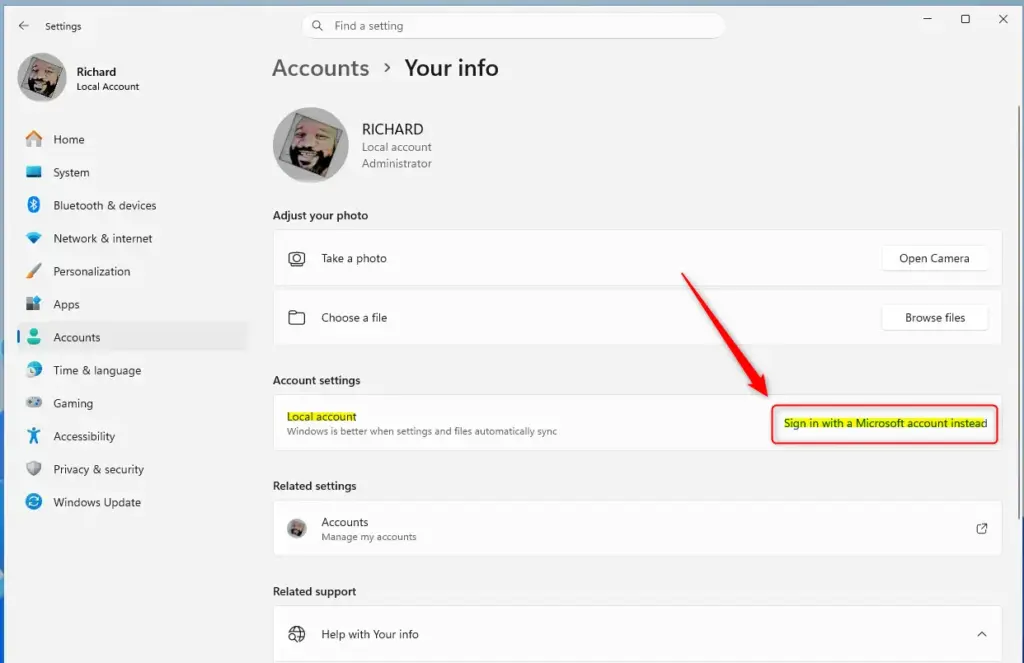
Windows 11 prompt to sign in with a Microsoft account. - Select Windows backup. It is on the Accounts page. The Windows backup page opens with its backup options.
- Find the settings and preferences option. On current builds, it is labeled Remember my preferences. If you see a different label, look for the toggle that covers settings and preferences.
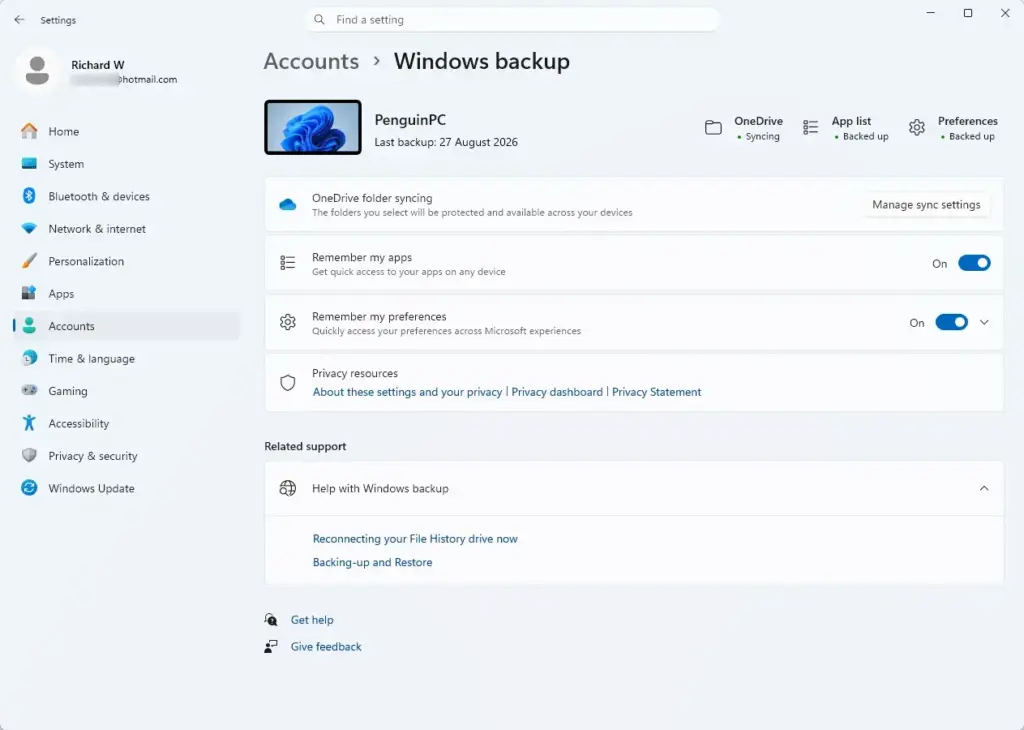
Settings › Accounts › Windows backup - Turn the toggle on. It switches to On. If it already reads On, leave it.
- Review what the page lists. Windows may show categories of settings that it saves. Read them so you know what leaves your PC.
- Close Settings. Windows saves your settings in the background. A restart is not part of the documented steps.
For details on the toggle itself, see how to turn Remember my preferences on or off for Windows Backup. To change which folders and apps Windows Backup covers, see how to modify your Windows Backup configuration. For more on preferences stored under your account, see how to manage Windows Backup preferences in Accounts settings.
Why the option is missing or greyed out
Most problems with the Windows backup page come from one of four causes. Check them in this order.
- You are signed in with a local account. The backup needs a Microsoft account. If you use a local account, switch to a Microsoft account first.
- Your organization manages the setting. On a work or school PC, an administrator policy can lock the toggle, and Settings may show a message that your organization manages some settings. Changing the policy needs an administrator, so ask your IT team. They can turn the backup on or off for you.
- The device is not eligible. Microsoft limits the default-on change to eligible devices. This post does not list the rules. If the page is missing entirely, confirm your PC is fully updated and try again after the next update.
- Your Windows version differs. Menu names and layout change between versions. Press Win+R, type winver, and press Enter to see your version. If the page does not match this post, you may be on an older build.
Home and Pro are both covered by Microsoft’s 24H2 end-of-updates notice. The documentation checked for this post shows no difference between Home and Pro for the backup itself.
How to prepare before 26H2 reaches your PC
Work through these checks before 26H2 reaches your PC. They take a few minutes and leave you in control of what Windows saves.
- Check your Windows version. Press Win+R, type winver, and press Enter. A dialog shows the version number.
- Update if you are on 24H2. Open Settings Windows Update and select Check for updates. Microsoft recommends 26H2 or 25H2 because 24H2 Home and Pro no longer receive updates.
- Decide which account holds the backup. Use the Microsoft account you want tied to this PC. Check it under Settings Accounts Your info.
- Open the Windows backup page. Go to Settings Accounts Windows backup and note the current state of each option.
- Turn the settings option off if you do not want it. Do this before 26H2 arrives so the new default does not apply to you. Check the page again after the update to confirm the setting stayed off.
IT staff managing many devices should confirm their existing policy is in place before the update. An administrator-configured policy, enabled or disabled, continues to apply. Devices with no policy follow the new default.
How a restore works
Restore options appear on screen at those moments. Follow the prompts to choose what comes back. The full process, including what you will see, is in how to restore a Windows Backup on Windows 11. If you are moving to new hardware, how to move files and settings to a new PC with Windows Backup walks through that case.
What Windows settings backup does not cover
Windows settings backup saves supported settings and a list of Microsoft Store apps. It does not save a copy of your whole system. It is also not the same as point-in-time restore, a separate Windows recovery feature. Point-in-time restore rolls a PC back to a recent automatic restore point (a saved snapshot of the PC’s system state), including apps, settings and personal files, and you start it from the Windows Recovery Environment (WinRE), a set of recovery tools that runs outside normal Windows.
If you need a full copy of your system, including installed programs, read how to create a full system backup in Windows 11. For a broader look at how the options fit together, see Windows 11 backup and recovery without losing files.
How to turn Windows settings backup off
You can reverse the change at any time on a PC that no administrator policy manages. This stops Windows from saving new settings changes to your account.
- Open Settings. Press Win+I.
- Select Accounts. The Accounts page opens.
- Select Windows backup. The backup options appear.
- Turn off the settings and preferences toggle. On current builds it is Remember my preferences. The switch moves to Off.
If the toggle is greyed out, an administrator policy controls it. Changing that policy requires administrator privileges, so contact your IT team. Microsoft Learn has a section on turning off Windows settings backup and deleting user data. This post does not confirm whether the user-side toggle also deletes data already saved, so check that section if deletion matters to you.
What to do next
After 26H2 arrives, open Settings Accounts Windows backup once to confirm the setting matches what you chose. If you want to restore on a new PC next, start with how to restore a Windows Backup on Windows 11. For a copy that also covers installed programs and files, see 3 Windows 11 backup and recovery methods to save files.
Have a question about this guide?
Answered by AI from this guide. Good questions may be added to this page — please don't include personal details.
Did this guide fix your problem?

About the Author
Richard
Tech Writer, IT Professional
Richard is a writer at Geek Rewind who turns complex IT tasks into clear, step-by-step guides. He draws on years of hands-on experience in system administration and enterprise IT operations, focusing on Windows, Linux and WordPress: the problems people actually run into, and the fixes that work. His server and WordPress guides come from systems he runs himself. Richard builds and maintains the platform behind Geek Rewind, from its Ubuntu servers and Nginx configuration to its custom WordPress plugins. Many new tutorials start with readers' questions, and he's always glad to answer them in the comments.
No comments yet — be the first to share your thoughts!