Which Features Are Turned On by Default in Windows 11 Version 26H2

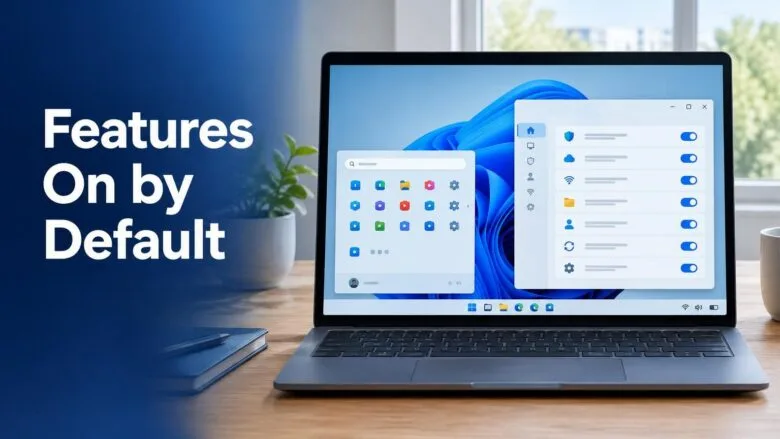
Windows 11 version 26H2 turns on by default a select group of features that shipped switched off in version 25H2. Microsoft released 26H2, branded the Windows 11 2026 Update, on September 29, 2026, and describes the change in its announcement for the Windows 11 2026 Update.
“On by default” means the feature starts in the enabled state without you opening a setting. This article lists the features Microsoft has named, shows how to check them on your PC, and explains why one may be missing.
Microsoft’s summary says “select features and enhancements,” not all of them. Treat any list, including this one, as partial.
Windows 11 version 26H2 turns on three features by default that shipped disabled in 25H2: Windows settings backup, app-specific actions from the taskbar , and File Explorer enhancements. Microsoft lists them in its Windows 11 2026 Update summary. Windows settings backup is on by default only for eligible commercial devices. Point-in-Time Restore is press-reported only and unconfirmed.
What “turned on by default” means in 🪟 Windows 11 26H2
A feature that ships disabled by default sits in the build but stays off until you or an administrator enables it. Microsoft used that approach for several features in 25H2. In 26H2, some of those features start in the on state instead.
The wording matters. Microsoft says the features first shipped disabled in 25H2. So this is not a list of brand-new 26H2 features. These features already existed. Their default changed from off to on.
A default is only the starting state. It does not describe a setting you or your organization has already chosen. If you set a feature on or off yourself, check the setting rather than assuming the new default applied.
Which features are turned on by default in 26H2
Microsoft’s what’s new page for IT pros groups the 26H2 defaults under a heading for features enabled by default. It names three items.
Windows settings backup
Windows settings backup saves your Windows settings so they can be restored on another device or after a reset. Microsoft states it is now enabled by default for eligible commercial devices.
The word “commercial” matters. This default targets work and school devices that meet Microsoft’s eligibility rules. A personal PC may not get it turned on automatically.
App-specific actions from the taskbar
Microsoft lists app-specific actions from the taskbar as a feature that is now on by default. The summary gives the name without describing how it behaves, so this article does not guess at the details.
To look for changes, open Settings Personalization Taskbar after you update and compare the options with what you saw on 25H2.
File Explorer enhancements
File Explorer enhancements are the third item on Microsoft’s list. Microsoft names the group without itemizing the individual changes in the summary.
The list of Windows 11 keyboard shortcuts for built-in features is a quick way to see whether the File Explorer keys you rely on still behave as before.
Point-in-Time Restore (reported, not confirmed)
News reports say 26H2 also turns on Point-in-Time Restore automatically. This recovery feature creates restore points so you can return a PC to an earlier state. Reports say it applies only when the PC meets the requirements.
The summary leaves this feature out. Check your own PC before you rely on it being active. No Settings path for it is confirmed here, so this article does not give one.
How to check which features are on after you update
These steps show whether your PC runs 26H2 and whether the Windows 11 26H2 features turned on by default appear on your device. None of them needs administrator rights.
- Open Settings . Press Win+I to open it directly.
- Go to Settings System About The page shows your device and Windows details.
- Find Version under Windows specifications. It should read 26H2. If it shows 25H2 or older, the new defaults do not apply yet.
- Open Settings Windows Update and select Check for updates . If 26H2 is offered, select Download & install. Restart when Windows asks.
- Open Settings Accounts Windows backup On current Windows 11 builds, this is where the backup options live. Look at which items show as on.
- Open Settings Personalization Taskbar. Compare the options with what you remember from 25H2.
- Press Win+E to open File Explorer . Select the three-dot menu in the toolbar, then select Options to review folder and search behavior.
When you finish step 3, look at the Version line. It should read 26H2. If you see a different number, repeat step 4 until the update finishes installing .
If the Windows backup page in step 5 is missing or limited, the device may be managed by an organization, or it may not be eligible. The next section explains why.
Why a feature may be missing or not turned on
A feature from the list may not show as on for a few reasons. The most common one is the device type.
The feature targets commercial devices
Windows settings backup is described as enabled by default for eligible commercial devices. A home PC that is not managed by an organization may not get it switched on by the update. Microsoft’s summary does not give a Home versus Pro breakdown, so do not assume either edition is excluded.
Your organization manages the setting
On a work or school PC, administrators control many defaults. Settings may show the message Some settings are managed by your organization. In that case, the toggle is not yours to change.
Microsoft’s IT page points administrators to Group Policy (a Windows tool that applies settings across many PCs). It does not give policy names in the summary, so check Microsoft Learn for the exact policy before changing anything.
The update has not installed yet
The new defaults apply only to 26H2. If your PC is still on 25H2, you will not see them. Use steps 2 to 4 above to confirm which version you run.
Microsoft says “select” features
Microsoft’s wording covers select features and enhancements that shipped off by default in 25H2. A feature that stayed off in 25H2 is not guaranteed to be on in 26H2. Check the setting itself.
How to reverse a default you do not want
Where Windows exposes a toggle in Settings, you can switch the feature back off. Return to the same page you used to check it, such as Settings Accounts Windows backup, and turn the option off.
If the switch is greyed out or missing, your organization controls it, and only an administrator can change it. Changing it through Group Policy requires administrator privileges.
A feature update can reset a setting later. After a future feature update, recheck any toggle you changed.
Features that are not part of this list
This article covers only features that shipped disabled in 25H2 and now start enabled in 26H2. Experimental features follow different rules. Microsoft keeps its experimental AI features behind a separate toggle, covered in how to turn experimental agentic features on or off in Windows 11.
Hidden features are a different category. They are included in the update but stay out of sight until someone turns them on. Some people use a third-party tool called ViVeTool to turn on these hidden features. Read how to discover hidden features in Windows 11 using ViVeTool for that, and note that it is separate from the default changes above.
Because some of these defaults affect recovery and backup, review the rest of your protection too. The Windows 11 built-in security features guide covers the other settings worth checking.
What to do next
If a feature you expected is missing, confirm that Settings System About shows 26H2, then run Check for updates again. For work devices, ask your administrator whether the feature is managed by policy.
Check Microsoft's what's new page for IT pros again after each cumulative update (the regular bundle of fixes Windows Update installs). Microsoft may add detail on the taskbar and File Explorer items there.
Have a question about this guide?
Answered by AI from this guide. Good questions may be added to this page — please don't include personal details.
Did this guide fix your problem?

About the Author
Richard
Tech Writer, IT Professional
Richard is a writer at Geek Rewind who turns complex IT tasks into clear, step-by-step guides. He draws on years of hands-on experience in system administration and enterprise IT operations, focusing on Windows, Linux and WordPress: the problems people actually run into, and the fixes that work. His server and WordPress guides come from systems he runs himself. Richard builds and maintains the platform behind Geek Rewind, from its Ubuntu servers and Nginx configuration to its custom WordPress plugins. Many new tutorials start with readers' questions, and he's always glad to answer them in the comments.
No comments yet — be the first to share your thoughts!