How to Check Windows Feature Experience Pack Version in Windows 11

The Windows Feature Experience Pack is a small software package that delivers new features and updates to Windows 11 outside of the major annual operating system upgrades. Microsoft uses these packages to send improvements such as the updated emoji panel and screen clipping tools straight to your PC. They arrive through Windows Update , so you don’t have to install a full feature update to get them.
Your pack has a build version, such as 1000.22691.1.3. That number tells you which features and stability fixes are currently installed. It is handy when you are comparing two PCs, following up on a bug report, or checking that a recent update actually installed. You can see it in under 30 seconds in the built-in Settings app . You don’t need admin rights, and the steps are the same on Windows 11 Home and Pro.
Open Settings with Win+I, go to System About, then scroll down to the Windows specifications section. Find the version number next to Windows Feature Experience Pack, listed as Experience with a number like 1000.22691.1.3.
How to Check Your Windows Feature Experience Pack Version
Here’s how to check which version is installed on your PC. There are three short steps: open Settings , go to the About page, and read the version number. You are only viewing information, so nothing changes on your system and there is nothing to undo.
Step 1Open the Settings App
- Click the Start button (the Windows logo in the bottom-left corner of the taskbar , or in the centre if you use the default layout), then click Settings. The Settings window opens with the left-hand menu showing. If you don’t see Settings in the pinned apps, click All apps and find it in the list.
- OR press
Windows key + Ion your keyboard to open Settings right away. This is the quicker route and works from almost anywhere in Windows.
Step 2Go to System > About
- In the Settings window, click System in the left-side menu. It is usually the first item and is highlighted when selected. The main pane on the right now shows the system options, such as Display, Sound and Notifications.
- Scroll down the list on the right and click About at the bottom. The list is long, so you may need to scroll a fair way. The About page opens and shows details about your device and Windows.
Step 3Find the Windows Feature Experience Pack Version
- Look under the Windows specifications section on the right side of the About page. You may have to scroll past Device specifications to reach it. It lists the Edition, Version, Installed on date and OS build.
- Find the version number listed next to Windows Feature Experience Pack. On most builds the row is labelled Experience, and its value reads “Windows Feature Experience Pack” followed by the number, for example 1000.22691.1.3. Don’t confuse this with the Version and OS build lines above it. Those describe the Windows release itself, not the Feature Experience Pack. If you need to share the number, use the Copy button in the section rather than retyping it.
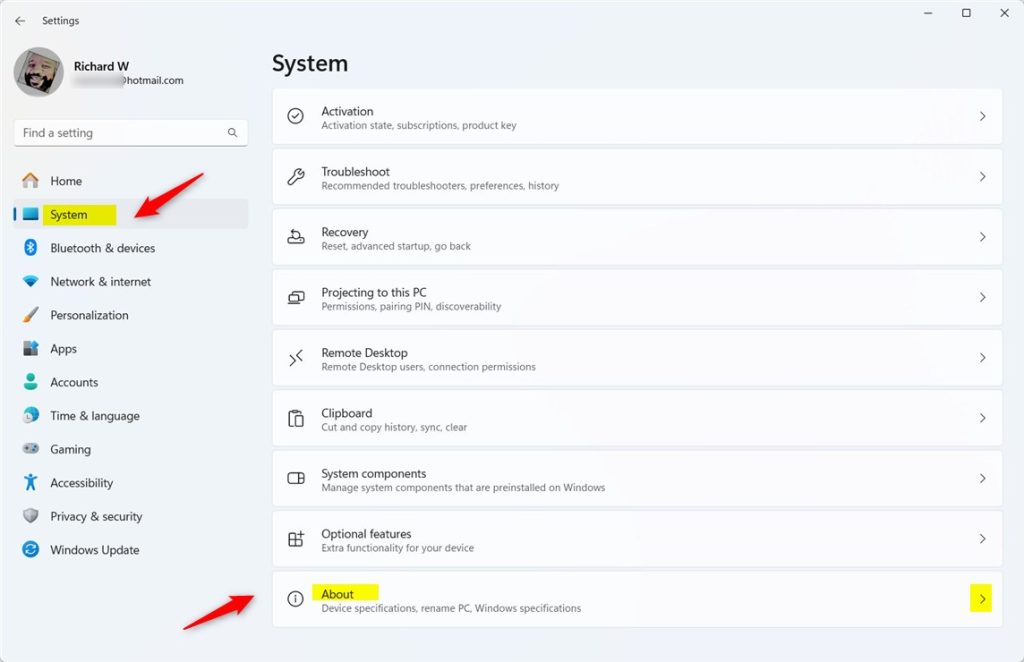
You can find your Windows Feature Experience Pack version by opening the Settings app, going to System, and selecting About. Scroll down to the Windows specifications section on that page to view the exact version number installed on your computer right now.
Feature Experience Pack updates are delivered there, and a restart may be needed before the new number appears on the About page.
Windows 11 Settings – System About
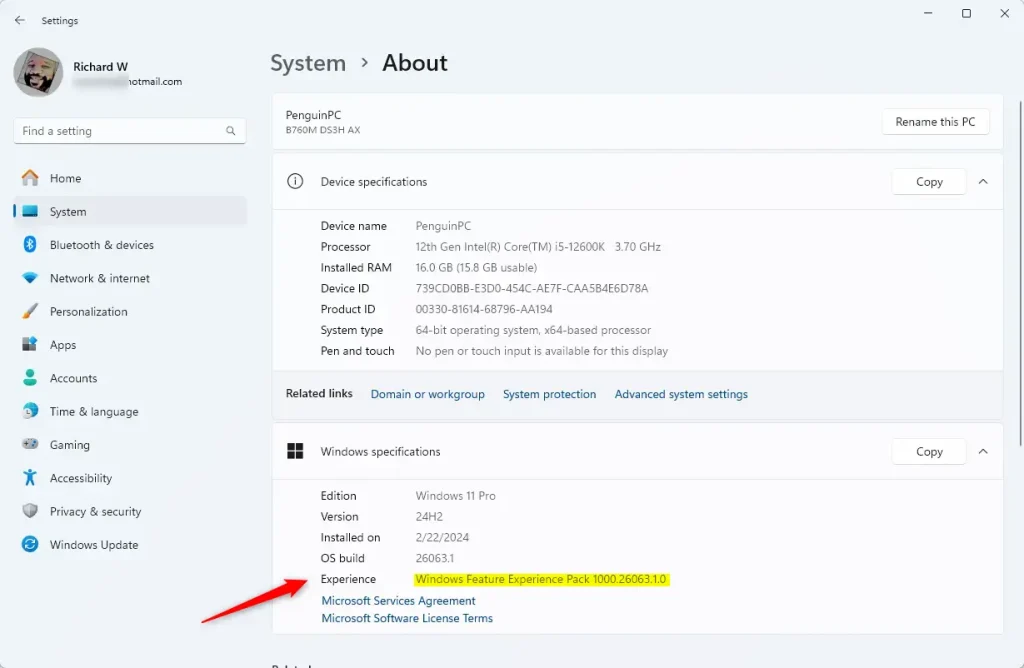
The same page shows the pack version in the Windows specifications area. Open Settings, select System, choose About, and scroll down until you see the version number on the Experience line. This is the exact build installed on your computer right now.
If it is still missing, scroll the whole page, because it can sit below the Edition and OS build rows.
Windows Feature Experience Pack version shown here
Now that you know how to locate the version number, let's look at why tracking it actually matters.
Why This Matters
Checking your Windows Feature Experience Pack version helps you see which recent improvements and features Microsoft has installed on your computer outside of major operating system updates. This information lets you know exactly what tools and interface updates are currently active on your system.
It also helps with troubleshooting. If a colleague has a feature you don't, comparing the pack versions on both PCs is a quick first check. It is also useful when a support article says a fix or feature needs a specific build.
Knowing your version can help you understand what features and improvements you have on your PC. Keep a note of it before and after a big update, so you can see what changed.
Checking via the Settings app takes moments, and it keeps you informed about what is installed without any extra tools.
For more Windows tips, visit the Geek Rewind website.
Summary
In short, checking your Windows Feature Experience Pack version provides a fast way to view active features directly within your system settings. Open Settings, go to System and then About, and read the number under Windows specifications.
Have a question about this guide?
Answered by AI from this guide. Good questions may be added to this page — please don't include personal details.
Did this guide fix your problem?

About the Author
Richard
Tech Writer, IT Professional
Richard is a writer at Geek Rewind who turns complex IT tasks into clear, step-by-step guides. He draws on years of hands-on experience in system administration and enterprise IT operations, focusing on Windows, Linux and WordPress: the problems people actually run into, and the fixes that work. His server and WordPress guides come from systems he runs himself. Richard builds and maintains the platform behind Geek Rewind, from its Ubuntu servers and Nginx configuration to its custom WordPress plugins. Many new tutorials start with readers' questions, and he's always glad to answer them in the comments.
No comments yet — be the first to share your thoughts!