How to Enable or Disable Open Apps Maximized by Default in Windows 11

Forcing apps to open maximized by default in Windows 11 makes programs launch full screen on their own, so you don’t have to click the maximize button every time. This feature works on Windows 11 version 24H2 and newer. If you are on an older build, the option may not appear in Settings. To check, go to Settings System About and read the version under Windows specifications.
You can turn this setting on or off in the Settings app or in the Registry Editor, a built-in tool for changing advanced system settings. The setting does not lock windows in place. You can still shrink, resize, or move any program window whenever you want. It works the same on Home and Pro, and neither method needs a third-party tool.
Open Settings Accessibility Visual effects and turn on Open apps maximized. This makes your apps open in full screen by default every time you launch them, saving you from having to resize them by hand.
Method 1Turn On Open Apps Maximized Using the Settings App
The Settings app is the easiest and safest way to change this. Windows 11 puts a direct switch for it in the Accessibility pages, so you don’t have to edit any system files. Use this method first. Only go to the registry if the option is missing.
- Press
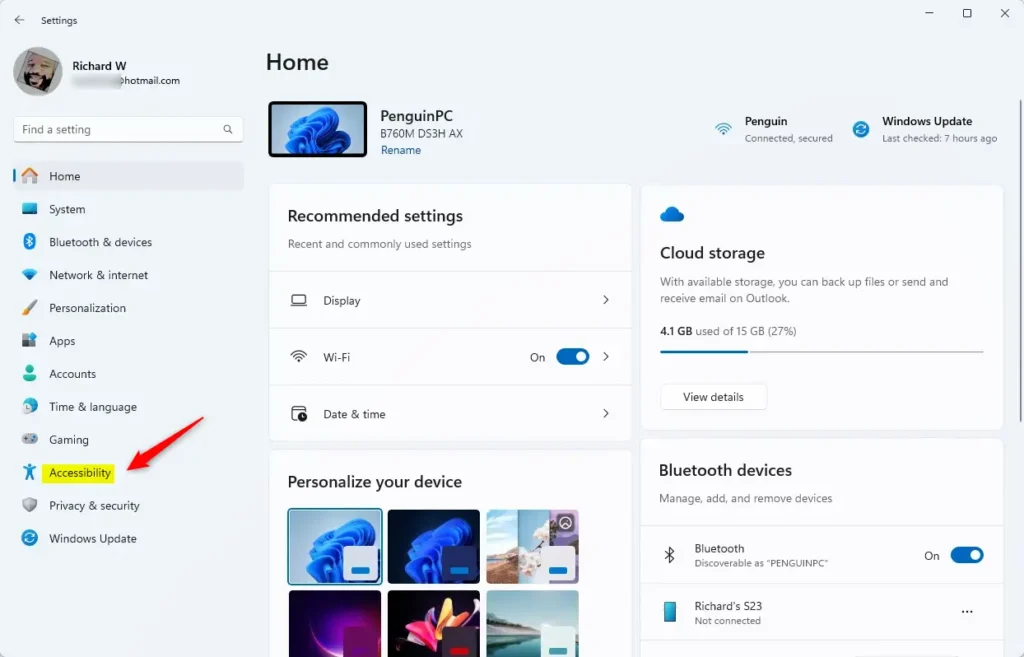
Windows Key + Ion your keyboard at the same time. The Settings app opens. - Click Accessibility in the list on the left side of the window. The accessibility options appear on the right.
- Under the “Vision” heading, click Visual effects. You now see the visual options, such as animation effects and transparency.
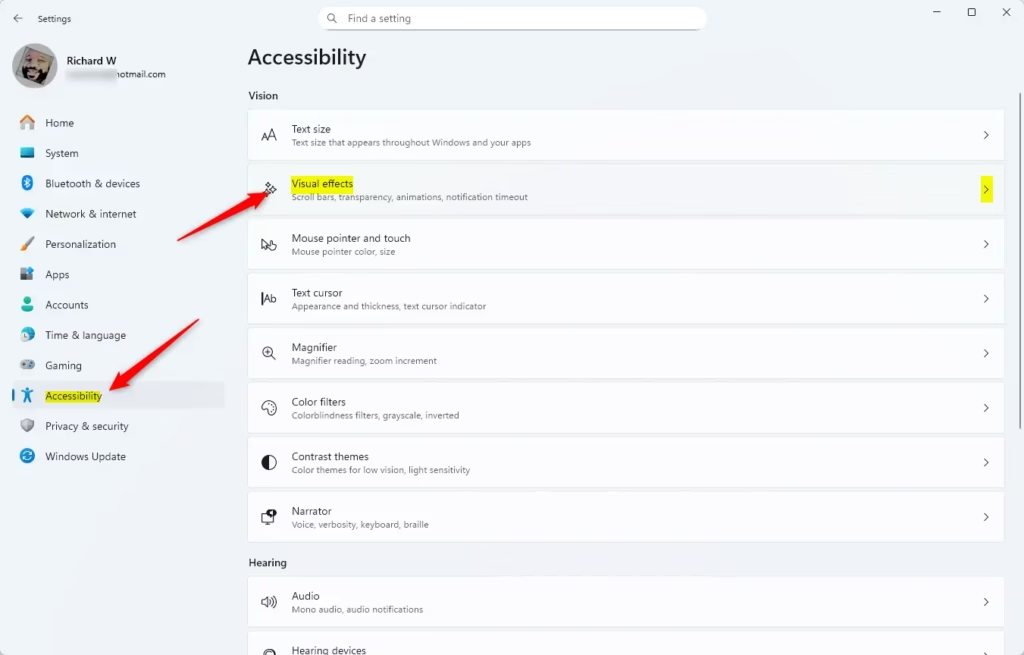
Windows 11 Accessibility settings with Visual Effects highlighted. - Find the option labeled Open apps maximized and click the switch next to it to turn it on. The switch moves to the right and shows On.
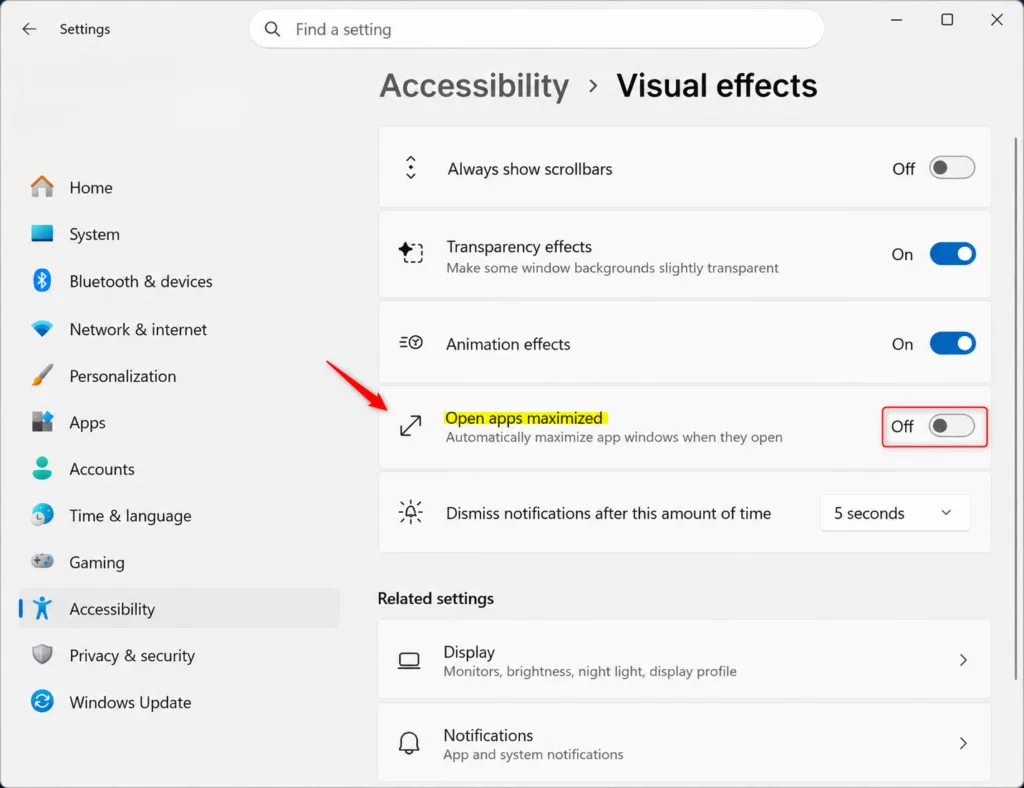
- To turn the feature off later, come back to Settings Accessibility Visual effects and click the same switch again. It shows Off when it is disabled.
- Click the “X” in the top right corner to close the Settings app. You don’t need to restart. The new preference applies right away to apps you open from now on.
Apps that are already open stay the way they are. Close them and launch them again to see the change. Some programs remember their own window size and may still open the way they did last time.
If you can’t find Open apps maximized, your PC is most likely on a version older than 24H2. Run Windows Update , then check again.
Method 2Force Full Screen Apps Using the Windows Registry
You can also set this in the Windows Registry Editor. This method is useful if the switch in Settings is missing or doesn’t work. The registry holds core system settings, so follow the steps carefully to avoid errors. You need an administrator account, or the password for one.
- Press
Windows Key + Ron your keyboard to open the Run box. - Type
regeditinto the text box and press Enter. - If a security prompt asks whether you want to allow the app to make changes to your device, click Yes. The Registry Editor window opens.
- Before you change anything, back up the registry. Click File Export, choose a location, give the file a name, and click Save. If something goes wrong, you can double-click that file later to restore the settings. Be careful here: changing or deleting the wrong key by accident can cause system issues, so stick strictly to the path below.
- Click the address bar at the very top of the Registry Editor window. Paste this path and press Enter:
HKEY_CURRENT_USER\Software\Microsoft\AccessibilityThis folder holds user-specific accessibility and visual preferences in Windows. The right pane now shows the values stored in it. - Look in the right pane for a value named
MaximizeWindowsByDefault. If it is there, go to the next step. - If you don't see that value, right-click any empty space in the right pane and hover over New. Choose DWORD (32-bit) Value. A new item appears with its name ready to edit.
- Name the new item exactly
MaximizeWindowsByDefaultand press Enter. The name must match exactly or Windows will ignore it. - Double-click the
MaximizeWindowsByDefaultvalue. A small box opens with a Value data field. - To turn the feature on, change the value data from 0 to
1and click OK. - To turn the feature off, double-click the same value, change it back to
0, and click OK. - Close the Registry Editor window.
- Restart your computer so the system fully applies your new preference.
After the restart, open the Settings page from the first method and check that the switch matches what you set. If it matches, the registry change worked. To undo everything, set the value back to 0 or import the backup file you exported.
Summary
You can make apps open in full screen by default in Windows 11 using either the Settings app or the Windows Registry. The Settings switch is quicker and carries less risk, so try it first. The registry method is a fallback. Either way, you no longer have to resize every window each time you launch a program, and you can turn the setting off at any time.
Frequently asked questions
How to make my apps full screen?
Turn on the Open apps maximized by default setting in Settings, and new app windows will fill your screen automatically. Go to Settings, open the Accessibility pages, and switch the option on. It works on Windows 11 version 24H2 and newer. You can still resize or move any window afterward.
How to automatically open apps in full window?
Open apps maximized by default makes each program launch at full size without a click. Open Settings, go to the Accessibility pages, and turn on the Open apps maximized by default switch. If the switch is missing, your Windows 11 build is older than version 24H2. Check under Settings System About
When I open an app how do I make it fill my screen?
Turn on Open apps maximized by default in Settings, and each app opens to fill the screen. Use the Accessibility pages in Settings to find the switch. The setting only changes the starting size. You can shrink or move a window any time after it opens, and you can maximize any window by clicking its maximize button.
Where to adjust the sizeof apps when I open them?
Adjust the starting size of apps in Settings with the Open apps maximized by default switch. Go to Settings, open the Accessibility pages, and set the switch to on for full-size windows or off for normal-size windows. Requires Windows 11 version 24H2 or newer.
How to have my computer window open large?
To have windows open large, turn on Open apps maximized by default. Open Settings, go to the Accessibility pages, and switch on Open apps maximized by default. Each program then opens filling the screen. This needs Windows 11 version 24H2 or newer. Check your version under Settings System About
How to stop apps from going into full screen on my PC 🪟 Windows 11?
Turn off Open apps maximized by default, and programs will open at their normal size again. Go to Settings, open the Accessibility pages, and switch the option off. Windows will stop forcing full-screen windows. You can still maximize any window by hand using its maximize button.
Still have a question?
Answered by AI from this guide. Good questions may be added to this page — please don't include personal details.
Did this guide fix your problem?

About the Author
Richard
Tech Writer, IT Professional
Richard is a writer at Geek Rewind who turns complex IT tasks into clear, step-by-step guides. He draws on years of hands-on experience in system administration and enterprise IT operations, focusing on Windows, Linux and WordPress: the problems people actually run into, and the fixes that work. His server and WordPress guides come from systems he runs himself. Richard builds and maintains the platform behind Geek Rewind, from its Ubuntu servers and Nginx configuration to its custom WordPress plugins. Many new tutorials start with readers' questions, and he's always glad to answer them in the comments.
No comments yet — be the first to share your thoughts!