How to Modify Your Windows Backup Configuration in Windows 11

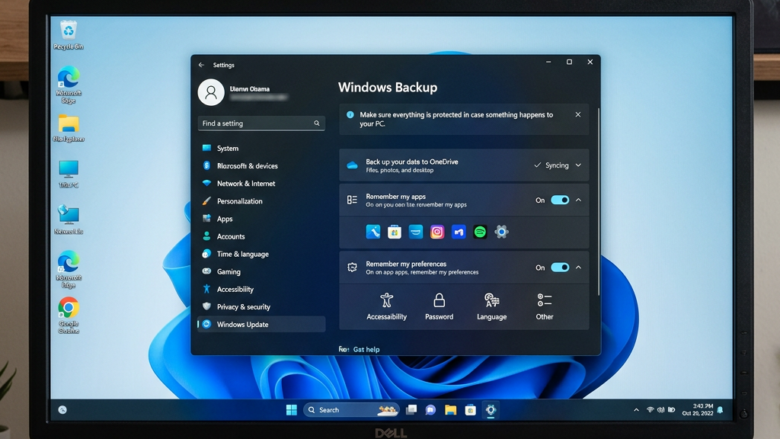
Windows Backup is a built-in tool in Windows 11 that saves your personal files, folders, and system settings to your OneDrive cloud storage account. Changing your backup configuration lets you stop your PC from using up space on items you do not need to save online. This matters most on a free Microsoft account, which includes only 5 GB of OneDrive storage.
You can open these settings in the Windows Settings app and pick or drop folders like Pictures or Documents in a few clicks. Keeping your saved items tailored saves storage space and makes restoring your files faster when you set up a new computer. This guide covers three things: which folders are backed up, whether Windows remembers your apps, and which settings travel with your account.
Modify your Windows backup configuration by opening Settings, navigating to Accounts, then Windows backup. Manage OneDrive sync for folders, toggle app backup remembrance, and select which Windows preferences to save.
Change Your Backup Settings
You manage backup preferences from the Windows Settings app or the Windows Backup app. Both lead to the same options. These settings control what data leaves your computer, so it is worth checking them even if you set up backup a long time ago.
You need to be signed in with a Microsoft account to use Windows Backup. If you use a local account, the backup options will not work until you sign in with a Microsoft account. On a work or school PC, your IT department may control some of these options.
How to Find Your Backup Settings
You can find your Windows backup settings in a few seconds with Start menu search. You can also reach them through the Settings app. Use whichever route you prefer.
Using the Start menu:
- Click the Start button.
- Type Windows Backup. The Windows Backup app appears in the search results.
- Click the app to open it. You should now see the main dashboard, where you control your cloud storage and restore preferences.
Using the Settings app directly:
- Click the Start button, then select the Settings cogwheel icon.
- Choose Accounts on the left side.
- Click Windows backup on the right side. The same backup options appear on this page.
The path is Settings Accounts Windows backup. The layout and labels can change slightly between Windows 11 builds. If an option is not where you expect, scroll through the whole page before assuming it is missing.

Change Which Folders Are Saved
Changing which folders are saved lets you choose exactly which personal documents, pictures, and desktop files upload to your Microsoft account. You do this from the OneDrive folder syncing section of the Windows Backup app. Choosing only the folders you need protects them from hardware failure without filling your OneDrive storage.
- Open the Windows Backup app.
- Find the setting for OneDrive folder syncing. OneDrive folder syncing is cloud storage that automatically mirrors files from your PC to your Microsoft account.
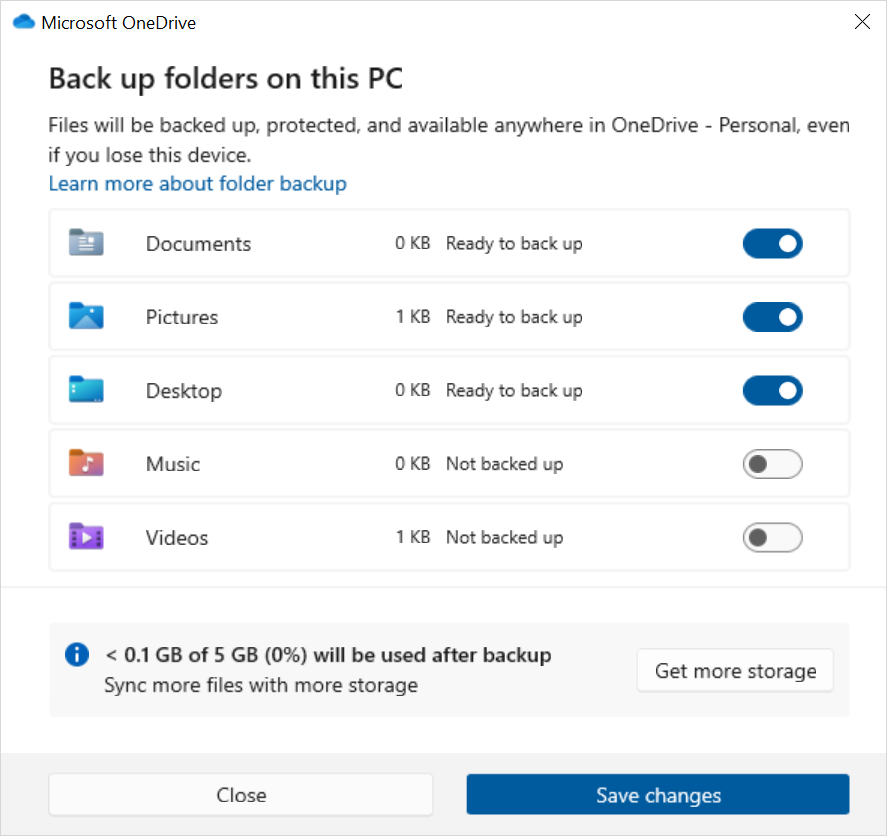
- Click Manage sync settings. A folder selector opens, which is the OneDrive backup window.
- Look at the list of main folders, such as Desktop, Documents, and Pictures. Depending on your build, you may also see Videos and Music. Each folder has its own toggle.
- Turn a toggle on to back up that folder to OneDrive. Turn it off to stop backing it up.
- Save your changes with the button at the bottom of the window. The label may read Save changes.
Turning a folder off stops updates for that folder. Files already uploaded stay in OneDrive. Check your OneDrive folder before you delete anything, so you know where your files are. To undo the change, open the same window and turn the toggle back on. OneDrive then uploads the folder contents again.
If Manage sync settings does nothing or the window is empty, OneDrive may not be running or may not be signed in. Check the cloud icon in the taskbar notification area and sign in if needed.
Manage App Backups
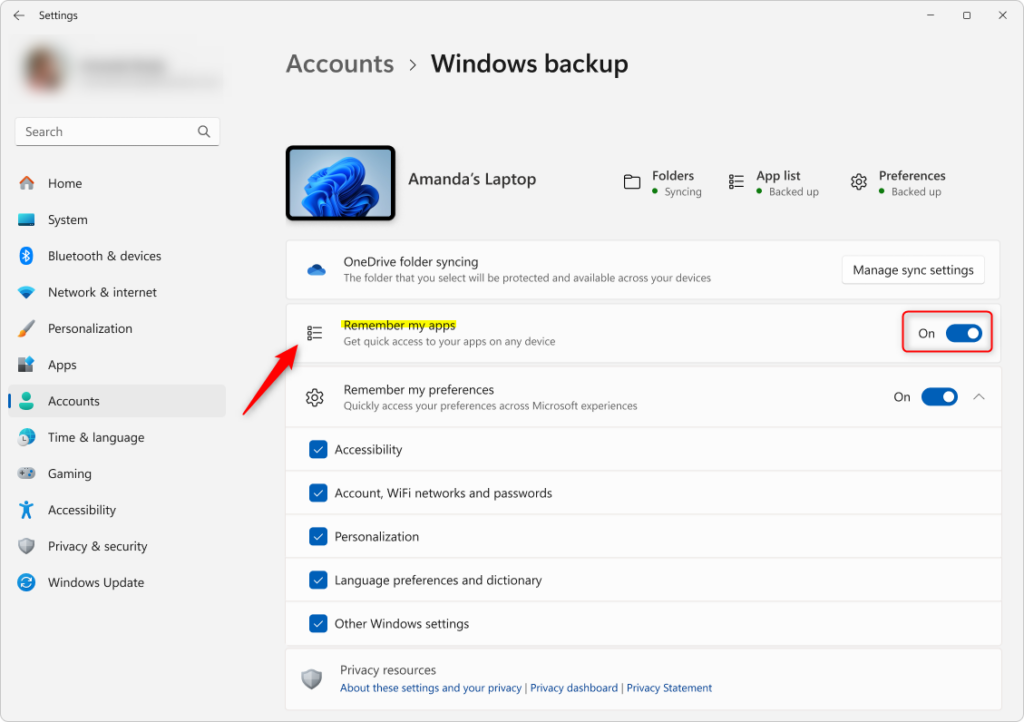
The app backup setting tells Windows to remember your installed software, so setting up a new computer takes less time. It records which apps you have. It does not copy the apps themselves. On the new PC, you see a list of apps to reinstall.
- Open the Windows Backup app and stay on the main dashboard.
- Find the application setting. The label may read Remember my apps or Get quick access to apps on Windows device, depending on your build.
- Turn the toggle on to let Windows track your installed apps. Turn it off if you do not want your app list saved.
Keeping this list on speeds up software setup on replacement hardware. You can turn it off again at any time with the same toggle. No restart is needed for this change.
Change Settings and Preferences Backups
The settings and preferences backup makes your Wi-Fi passwords, visual themes, and system configuration follow your account to new devices. You choose which categories Windows saves.
- Scroll down the backup dashboard.
- Find the section titled Remember my preferences. On some builds you may need to expand it with the arrow beside it.
- Look at the checkboxes. Each one covers a category of saved configuration.
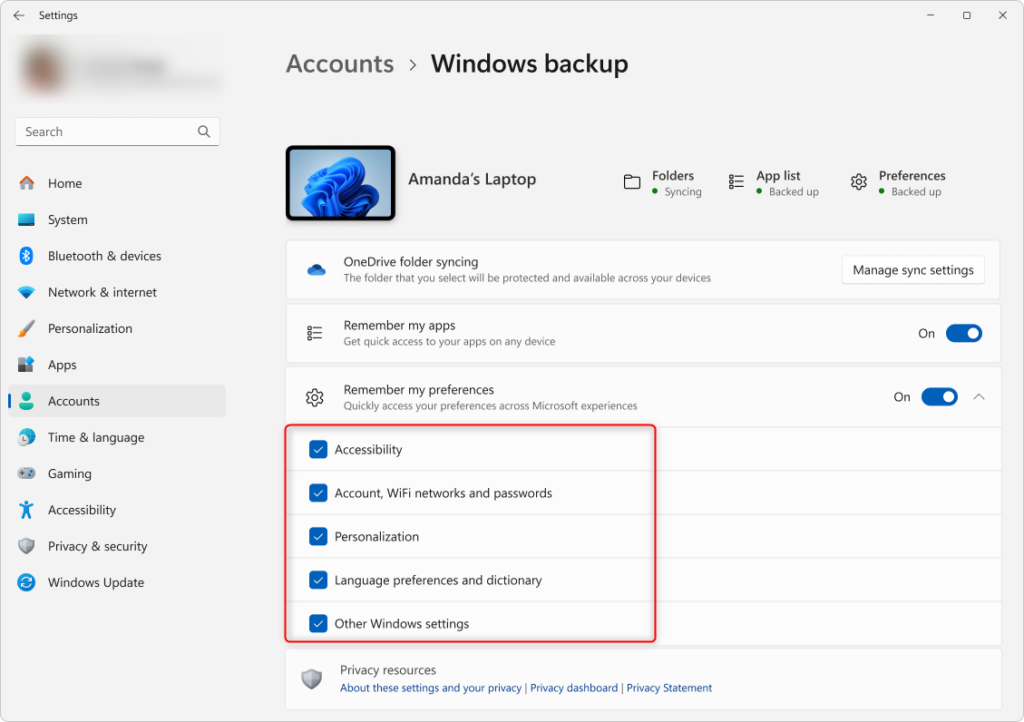
- Select the checkbox next to each configuration type you want to keep.
- Clear the checkbox for any category you want to exclude.
The change applies straight away, and you can reverse it by ticking the box again. Clearing a box stops future backups of that category. If the section is greyed out, check that you are signed in with a Microsoft account. A work or school account may also be limiting it.
What Is Saved?
Here is what each category covers:
- PersonalizationThis includes your wallpaper, accent colors, theme settings, and how your Start menu looks. It’s what makes your PC feel like yours.
- Accounts, Wi-Fi network, and passwordsVery useful! This means you don’t have to remember all those Wi-Fi passwords when you get a new computer.
- Language preferences and dictionaryIf you type in different languages or have custom words for your dictionary, this will save them.
- Other Windows settingsThis is a general category. It can include things like your File Explorer settings, notification choices, and some basic device settings like printer or mouse options. For work or school accounts, your IT department might control this setting.
Reference:
Summary
Modifying your backup settings controls three things: which folders are secured in OneDrive, whether Windows logs your installed applications, and which system preferences, such as Wi-Fi passwords, are archived. Review these three areas after any big change to your PC or storage plan.
Have a question about this guide?
Answered by AI from this guide. Good questions may be added to this page — please don't include personal details.
Did this guide fix your problem?

About the Author
Richard
Tech Writer, IT Professional
Richard is a writer at Geek Rewind who turns complex IT tasks into clear, step-by-step guides. He draws on years of hands-on experience in system administration and enterprise IT operations, focusing on Windows, Linux and WordPress: the problems people actually run into, and the fixes that work. His server and WordPress guides come from systems he runs himself. Richard builds and maintains the platform behind Geek Rewind, from its Ubuntu servers and Nginx configuration to its custom WordPress plugins. Many new tutorials start with readers' questions, and he's always glad to answer them in the comments.
No comments yet — be the first to share your thoughts!