How to Move Files and Settings to a New PC with Windows Backup in Windows 11

Windows Backup moves your files and settings to a new Windows 11 PC by saving them to your Microsoft account, then restoring them while you set up the new computer. Microsoft removed PC-to-PC Migration, the older feature that copied files and settings straight from one PC to another during setup. The removal appears in the release notes for update KB5124010, a Microsoft update number.
Microsoft recommends Windows Backup in its place. The process has two halves: back up the old PC from the Windows Backup app, then sign in with the same Microsoft account on the new PC and choose that backup on the setup screens.
This guide walks through both halves in one numbered list. It then covers what Windows Backup does not move and what to check if the restore option does not appear.
Open the Windows Backup app on the old PC and back up your folders, apps, settings and credentials to your Microsoft account. Then sign in with the same account on the new PC and choose that backup on the setup screens. PC-to-PC Migration was removed, so Windows Backup is the replacement. Both PCs need internet access.
What changed: PC-to-PC Migration is gone
Did Microsoft remove PC-to-PC Migration? Yes. The release notes for KB5124010 list it as removed, so current versions of Windows 11 do not include it. No setting or command brings it back. If an older tutorial mentions it, use Windows Backup instead.
PC-to-PC Migration pulled files and settings from a previous PC while you set up a new one. Windows Backup does the same job in a different way. It makes no direct connection between the two PCs. The old PC uploads its data to your Microsoft account, and the new PC downloads it.
That has two practical effects. Both PCs need an internet connection, and the old PC must finish its backup before you start the new one. Nothing travels over a cable or a local network, so the two PCs do not need to be in the same room.
If you want a deeper look at the app itself, see how to back up and restore with Windows Backup in Windows 11.
What Windows Backup moves, and what it does not
Windows Backup covers four categories. Each one has its own switch (called a toggle) in the app, so you can leave out anything you do not want on the new PC.
- Foldersyour Desktop, Documents, Pictures and Videos folders, and, on some Windows 11 versions, Music. The app saves these to OneDrive (Microsoft’s cloud storage service). The exact list of folders can differ between Windows 11 versions.
- Appsa list of the apps you have installed, so the new PC can bring them back.
- SettingsWindows preferences such as your personalisation choices and language settings.
- Credentialssaved sign-in details, including Wi-Fi networks and their passwords.
Some things fall outside that list. Windows Backup does not cover files in other folders, such as a custom Projects folder on another drive. Copy those to an external drive or into OneDrive yourself before you move.
Expect less from apps than from files. Windows Backup restores the app list, not every program’s installed files or licence. Apps from the Microsoft Store come back most reliably.
Desktop programs that you installed from other sources may need a fresh download and a new sign-in or licence key. Write down any licence keys before you move.
Before you start
A few checks save you from a failed backup. Most problems with this process come from one of the items below.
- Use a Microsoft account. Windows Backup stores your data in your Microsoft account. A local account (one that exists only on that PC) cannot use it. Step 2 below switches the old PC to a Microsoft account if needed.
- Check your OneDrive storage. Backed-up folders count against your OneDrive allowance. A free Microsoft account includes a small amount of space, and a large Pictures or Videos folder can exceed it. Windows Backup warns you when the selection is too big.
- Keep the old PC. Do not wipe, sell or recycle it until you confirm the new PC has everything you need.
- Plan for internet access on the new PC. The restore screens during setup need a connection, because the backup comes from your Microsoft account.
How to move files and settings to a new PC with Windows Backup
These steps back up the old PC and restore the result on the new one. That is how you move files and settings to a new PC with Windows Backup in Windows 11. Follow them in order, and do not start the new PC until you finish step 10.
- Open Settings Windows Update on the old PC and select Check for updates. Install anything that appears, and restart if Windows asks. A current build makes sure the Windows Backup app has all of its options. When the page reports that you are up to date, move on.

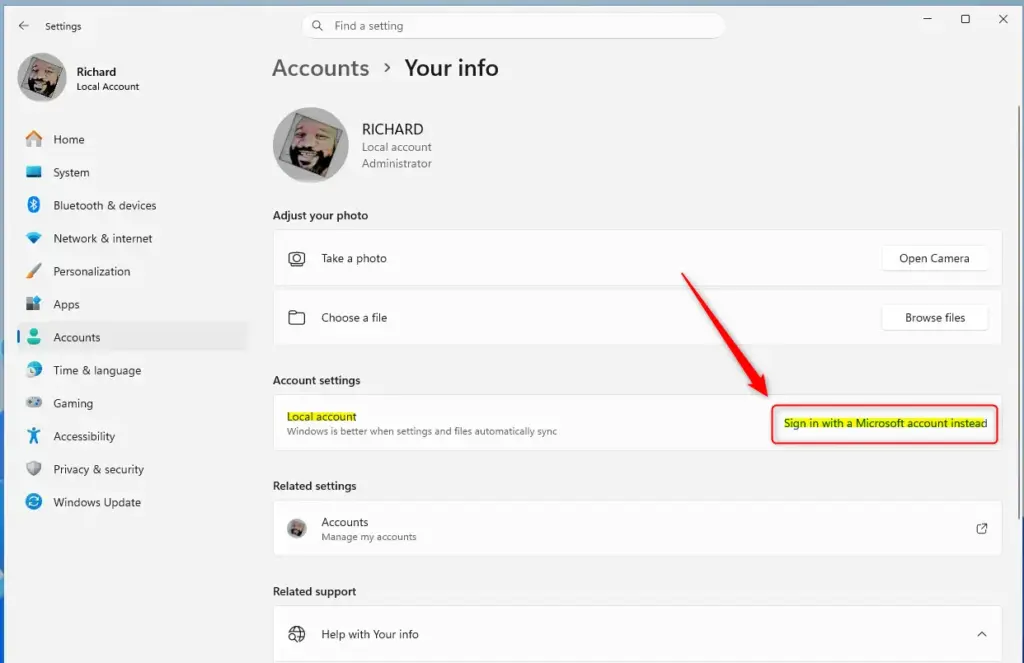
- Open Settings Accounts Your info on the old PC. If the page offers Sign in with a Microsoft account instead, select it and follow the prompts. If you already use a Microsoft account, your email address appears under your name, and you can move on.
- Select Start, type Windows Backup, and press Enter. The app opens with sections for Folders, Apps, Settings and Credentials.
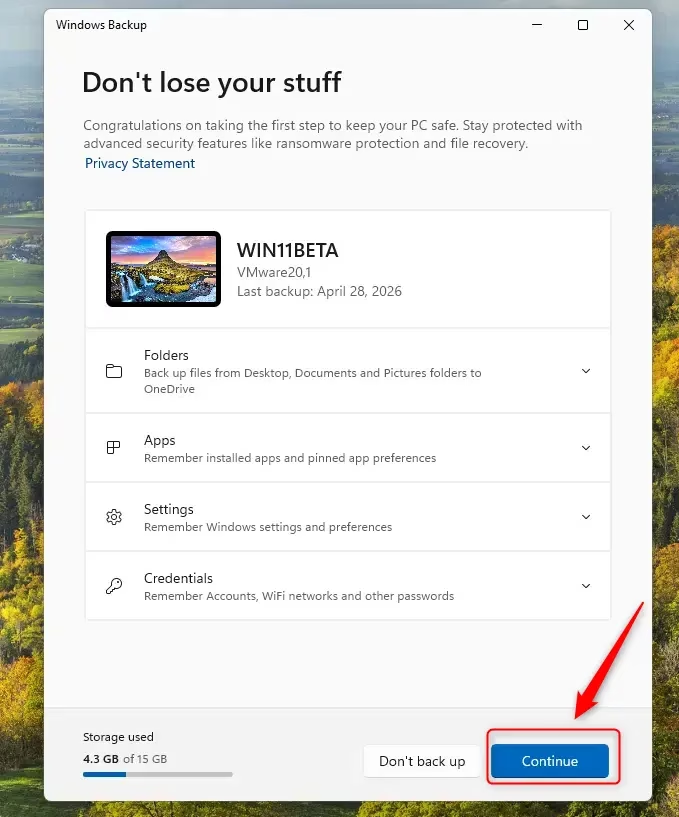
- Select the arrow next to Folders to expand that section. A list of folders appears, each with a toggle, along with a note showing how much OneDrive storage the selection uses.
- Switch on the toggle for each folder you want to move, such as Desktop, Documents and Pictures. If the app says you do not have enough storage, turn off a large folder or buy more OneDrive space.
- Turn on the Apps toggle. This saves the list of your installed apps so the new PC can bring them back during setup.
- Turn on the Settings toggle. This saves your Windows preferences. Expand the section if you want to see which preferences are included.
- Turn on the Credentials toggle. This saves your Wi-Fi networks and passwords, so you do not have to retype them on the new PC. Skip it if you prefer to enter them fresh.
- Select Back up. The app starts uploading and shows a progress indicator. The time depends on how much data you chose and how fast your connection is, so leave the PC on and connected until it finishes.
- Open Settings Accounts Windows backup and check that the choices match what you selected. Then sign in to OneDrive on the web and confirm that your folders appear. Keep the old PC until the restore is complete.
- Turn on the new PC and follow the first setup screens until you reach the network page. Windows calls this part of setup the out-of-box experience, or OOBE.
- Connect the new PC to the internet. Select your Wi-Fi network and enter the password, or plug in an Ethernet cable. The backup comes from your Microsoft account, so setup cannot continue without a connection.
- Sign in with the same Microsoft account you used on the old PC. Enter the email address and password, and complete any two-step verification prompt. A different account has no matching backup.
- Select your old PC’s backup. Setup shows a screen that lists the backups it found, usually named after the old computer. Choose the one you just made. The wording of this screen can differ between Windows 11 versions.
- Select Restore. Setup applies your settings and begins bringing back your apps and files. This can take a while, so do not turn off the new PC. If you would rather start clean, the same screen offers a way to set the PC up as new.
- Finish the remaining setup screens, such as privacy choices. When the desktop appears, your personalization settings, such as your background and taskbar choices, should look familiar.
- Open File Explorer and look in Desktop, Documents and Pictures. Large folders may take time to download, so give OneDrive a few minutes to catch up while it syncs.
- Open the Start menu and look through your apps. Microsoft Store apps usually reinstall on their own. Reinstall any desktop programs that are missing, and sign in to them again.
That’s it. Your files, settings and app list now live on the new PC, restored from the Windows Backup you made on the old one. Keep the old PC untouched until you have opened your key files and apps on the new machine.
If the restore option does not appear
The backup-selection screen only appears during setup of a new PC or one you have reset. If you already finished setup on the new computer, that screen will not come back on its own. Your two choices are to reset the PC so setup starts again, or to restore from inside Windows. The guide to restoring a Windows Backup on Windows 11 covers the second route.
If setup runs but shows no backup, check these causes in order:
- Confirm that you signed in with the same Microsoft account that made the backup. A different account shows no backups from the old PC.
- Go back to the old PC, open the Windows Backup app, and select Back up again. Wait for it to complete, then try setup on the new PC once more.
- Open Settings Accounts Windows backup on the old PC and make sure your selections are still saved. If a toggle has turned off, switch it on and run the backup again.
You should now know which of the three causes applies. If the files appear but the folders look empty, wait and check again. OneDrive downloads files in the background, and a large library can take time on a slow connection.
If you look for PC-to-PC Migration on the new PC and cannot find it, that is expected. Microsoft removed it in KB5124010, and no setting brings it back. Use the Windows Backup steps above instead.
How to change or stop what Windows Backup saves
You can adjust the backup at any time. Open the Windows Backup app on the old PC and switch the toggles for Folders, Apps, Settings or Credentials on or off. Then select Back up again to save the new selection. Turning a toggle off is also how you undo a choice you no longer want.
The app also has a Remember my preferences option. It decides whether Windows saves your settings choices. For detail on that option, read the guide on toggling Remember my preferences in Windows Backup. For broader changes to what the backup covers, see how to modify your Windows Backup configuration.
To review the backup from Windows itself, go to Settings Accounts Windows backup. The guide on managing Windows Backup preferences in Accounts settings explains each option on that page.
What to do next
Once the new PC is working the way you want, keep Windows Backup turned on so it stays current. A recent backup also saves time the next time you move to a new PC or repair this one.
For a wider view of recovery options, including file history and system protection, read Windows 11 backup and recovery without losing files. Wipe or recycle the old PC only after you have opened your key files and apps on the new one.
Frequently asked questions
How to adjust power and sleep settings in 🪟 Windows 11?
Open Settings, then select System Power & battery. Under Screen and sleep, choose how long Windows waits before turning off the screen and before putting the PC to sleep. Use the drop-down menus to set each time, or pick Never to turn off the feature.
How to encrypt files in 🪟 Windows 11?
Windows 11 Pro, Enterprise, and Education can encrypt individual files. Right-click the file, select Properties, click Advanced, and tick Encrypt contents to secure data. Windows 11 Home has no file-level option, so turn on Device encryption in Settings Privacy & security instead. Keep your recovery key safe, because a lost key can lock you out.
How to adjust display settings in 🪟 Windows 11?
Open Settings and select System Display. Use the Scale drop-down to change text and app size, and the Display resolution menu to change sharpness. To change the screen orientation, use the Display orientation menu. Changes apply right away, and you can revert them if the screen looks wrong.
How to move files?
Drag the file from one folder to another in File Explorer to move it. You can also select the file, press Ctrl+X, open the destination folder, and press Ctrl+V. Moving a file removes it from its original location, so copy it first if you want a backup.
Still have a question?
Answered by AI from this guide. Good questions may be added to this page — please don't include personal details.
Did this guide fix your problem?

About the Author
Richard
Tech Writer, IT Professional
Richard is a writer at Geek Rewind who turns complex IT tasks into clear, step-by-step guides. He draws on years of hands-on experience in system administration and enterprise IT operations, focusing on Windows, Linux and WordPress: the problems people actually run into, and the fixes that work. His server and WordPress guides come from systems he runs himself. Richard builds and maintains the platform behind Geek Rewind, from its Ubuntu servers and Nginx configuration to its custom WordPress plugins. Many new tutorials start with readers' questions, and he's always glad to answer them in the comments.
No comments yet — be the first to share your thoughts!