How to Enable or Disable Microsoft Accounts on Windows 11

- 18 steps
- Needs administrator rights
- Group Policy needs Windows 11 Pro, Enterprise or Education
- Includes a restart or sign-out
Switching to a local account on Windows 11 stops your PC from linking your login details to Microsoft’s cloud servers. A local account keeps all your profile data saved only on your specific computer.
You can turn off Microsoft account sign-ins on Windows 11 Pro and Enterprise editions using tools like the Registry Editor or the Local Group Policy Editor. Windows 11 Home does not include the policy editors, so Home users need the Registry Editor method later in this guide.
Control Microsoft account access on Windows 11 via the Local Security Policy Editor or Registry Editor. Open secpol.msc or regedit, navigate to the relevant policy or registry key, and modify the “Accounts: Block Microsoft accounts” setting or the NoConnectedUser value.
What is a Microsoft Account?
A Microsoft account is the single login username and password you use to access Windows 11, along with built-in services like OneDrive, Outlook, and Xbox. Understanding this login type helps you decide whether you want to block Microsoft accounts on shared computers to stop other users from adding new accounts or linking personal cloud services to your PC.
A local account is the opposite. The username and password exist only on this PC, and nothing signs you in to online services automatically.
Why would you want to block Microsoft accounts? On shared computers or work computers, you might want to stop people from adding new Microsoft accounts. That keeps personal cloud services, such as OneDrive sync or a personal email profile, off a machine that is not meant to have them. Windows 11 gives you tools to do this.
You have two main ways to control Microsoft accounts:
- Local Security Policy Editor (easier method for managing your PC)
- Windows Registry Editor (advanced method for power users)
How to Enable or Disable Microsoft Accounts Using Local Security Policy
Local Security Policy lets you block Microsoft accounts on Windows 11 by changing system rules that stop users from signing in with online credentials. You can use this built-in Pro feature to completely disable Microsoft accounts on your PC, forcing everyone who uses the computer to sign in with a standard offline user profile instead.
Before you start, make sure you are signed in as an administrator. Also make sure the PC has at least one working local administrator account. If you choose the strictest option below and your only admin account is a Microsoft account, you could lock yourself out.
Steps:
- Press
Windows + Ron your keyboard. The Run box opens. - Type
secpol.mscand press Enter. Approve the User Account Control prompt if one appears. The Local Security Policy editor opens. If Windows says it cannot find the file, you are on Windows 11 Home and should use the Registry Editor method instead. - In the left pane, select Local Policies Security Options. The right pane fills with a long list of security policies.
- Find and double-click “Accounts: Block Microsoft accounts”. A properties window opens with a drop-down list on the Local Security Setting tab.
- Open the drop-down list and choose one of these options:
- Disabled: Microsoft accounts work normally.
- Users can’t add Microsoft accounts: People cannot add new Microsoft accounts.
- Users can’t add or log on with Microsoft accounts: No one can use Microsoft accounts on this PC.
- Click OK to save your choice. The window closes and the policy list shows your new setting.
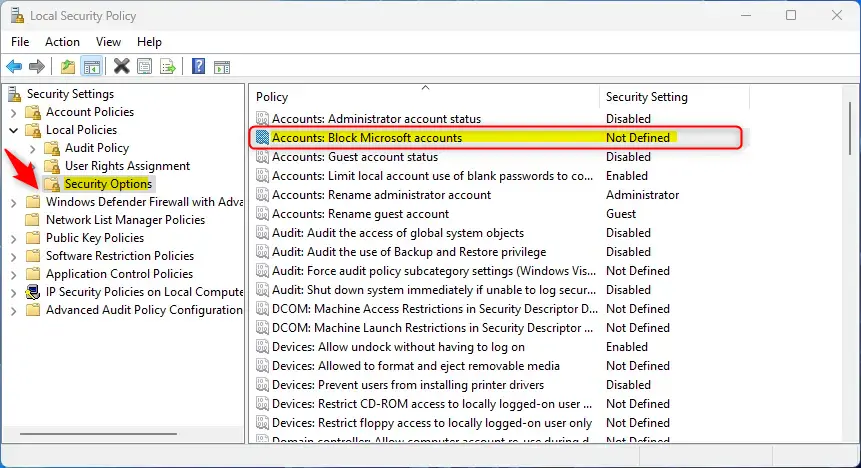
The change usually applies right away, but signing out or restarting the PC makes sure it takes effect everywhere. To undo it, open the same policy again and set it back to Disabled.
How to Allow or Block Microsoft Accounts Using the Registry Editor
Registry Editor lets you disable Microsoft accounts on Windows 11 by modifying system keys when the Local Security Policy tool is not available on your Home edition of the operating system. You can adjust these registry values to block Microsoft accounts and restrict how people sign in to your shared computer.
You need an administrator account for this. As with the policy method, keep a local administrator account available before you block sign-ins.
Steps:
- Press
Windows + R, typeregedit, and press Enter. Approve the User Account Control prompt. The Registry Editor opens. - [ADMIN REQUIRED] Navigate to this location:
HKEY_LOCAL_MACHINE\SOFTWARE\Microsoft\Windows\CurrentVersion\Policies\System. You can expand the folders in the left pane, or paste the path into the address bar at the top of the window and press Enter. The key opens and its values appear in the right pane. - Look for a value named NoConnectedUser in the right pane.
- If it is not there, right-click on a blank area of the right pane. Choose New DWORD (32-bit) Value. Name it NoConnectedUser and press Enter. The new value appears in the list.
- Double-click NoConnectedUser and set the Value data box to:
- 1 – Block adding new Microsoft accounts.
- 3 – Block adding and signing in with Microsoft accounts.
- To allow Microsoft accounts again later, right-click the NoConnectedUser entry, choose Delete, and confirm by clicking Yes. Deleting the entry removes the restriction.
- If you set a value in the earlier step, click OK in the edit window, then close the Registry Editor.
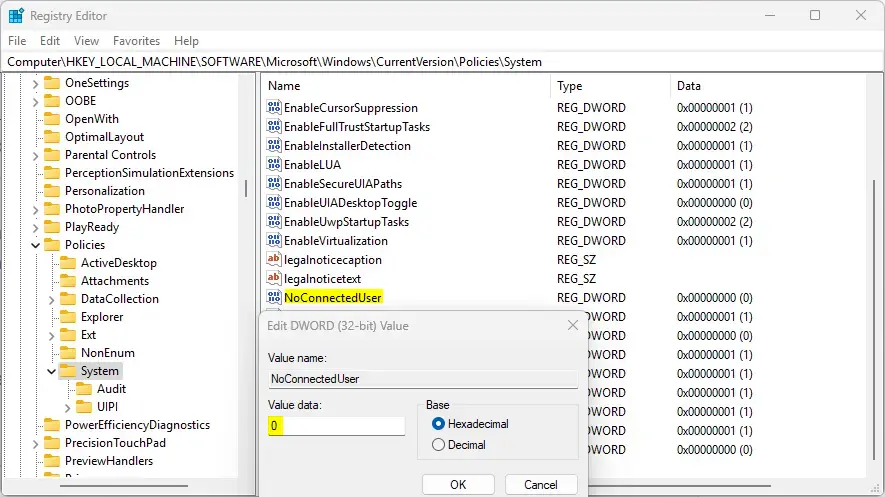
Sign out or restart your PC so Windows reads the new value. If you later need to reverse the change, delete NoConnectedUser as described above.
Please back up your PC before making any changes. Follow this guide if you want to learn how to safely back up your registry: How to Open the Registry in Windows 11.
Summary
Microsoft accounts connect you to Windows 11 services, and you can choose to allow or block them using simple tools.
Have a question about this guide?
Answered by AI from this guide. Good questions may be added to this page — please don't include personal details.
Did this guide fix your problem?

About the Author
Richard
Tech Writer, IT Professional
Richard is a writer at Geek Rewind who turns complex IT tasks into clear, step-by-step guides. He draws on years of hands-on experience in system administration and enterprise IT operations, focusing on Windows, Linux and WordPress: the problems people actually run into, and the fixes that work. His server and WordPress guides come from systems he runs himself. Richard builds and maintains the platform behind Geek Rewind, from its Ubuntu servers and Nginx configuration to its custom WordPress plugins. Many new tutorials start with readers' questions, and he's always glad to answer them in the comments.
No comments yet — be the first to share your thoughts!