How to Link Your Microsoft Account to a Digital License

- 14 steps
- Needs administrator rights
- Includes a restart or sign-out
Linking your Microsoft account to a Windows digital license ties your activation to your account instead of only to your PC’s hardware. The quickest route is Settings System Activation, then select Add an account and sign in with your Microsoft account.
A digital license (also called a digital entitlement) is a record of your activation that Microsoft stores online. It has no product key you type in. Once the license is linked, you can reactivate Windows 11 after a hardware change without calling support. If the option is missing, the section below explains why.
Open Settings System Activation and select Add an account, then sign in with your Microsoft account. Windows records the link on Microsoft’s servers, so the license can be reactivated after a major hardware change, such as a replaced motherboard. You need an administrator account, a Windows license that is already active, and an internet connection.
What linking a digital license does
When Windows activates on a PC, Microsoft’s activation servers record that the hardware has a valid license. This is the digital license. By default, Microsoft ties it only to the PC’s hardware, such as its motherboard, and nothing else.
Linking adds your Microsoft account to that record. The benefit shows up when something major changes, such as a replaced motherboard. Windows can then see that the license belongs to you, and you can reactivate through the Activation troubleshooter.
If the PC already signs in with a Microsoft account, the link usually exists already. Check the Activation page before you do anything else. The Microsoft account benefits page in Windows 11 Settings lists other perks that come with the account.
Before you start
Check these four things first. Most failed attempts trace back to one of them.
- Windows must be activated. Linking attaches an account to an existing digital license. It cannot create one.
- You need an administrator account. Standard users do not see the option. In Settings Accounts Your info, the word Administrator appears under your name when you have admin rights.
- You need a personal Microsoft account. If you do not have one, read how to create a Microsoft account in Windows 11 first. An address from another provider works, as covered in signing in to a Microsoft account with Gmail.
- The PC must be online. Windows contacts Microsoft’s servers to record the link.
How to link your Microsoft account to a digital license in 🪟 Windows 11
These steps link your Microsoft account to the digital license on a PC that is signed in with a local account. They require administrator privileges.
- Open Settings. Press the Win+I, or right-click Start and select Settings. The Settings window opens.
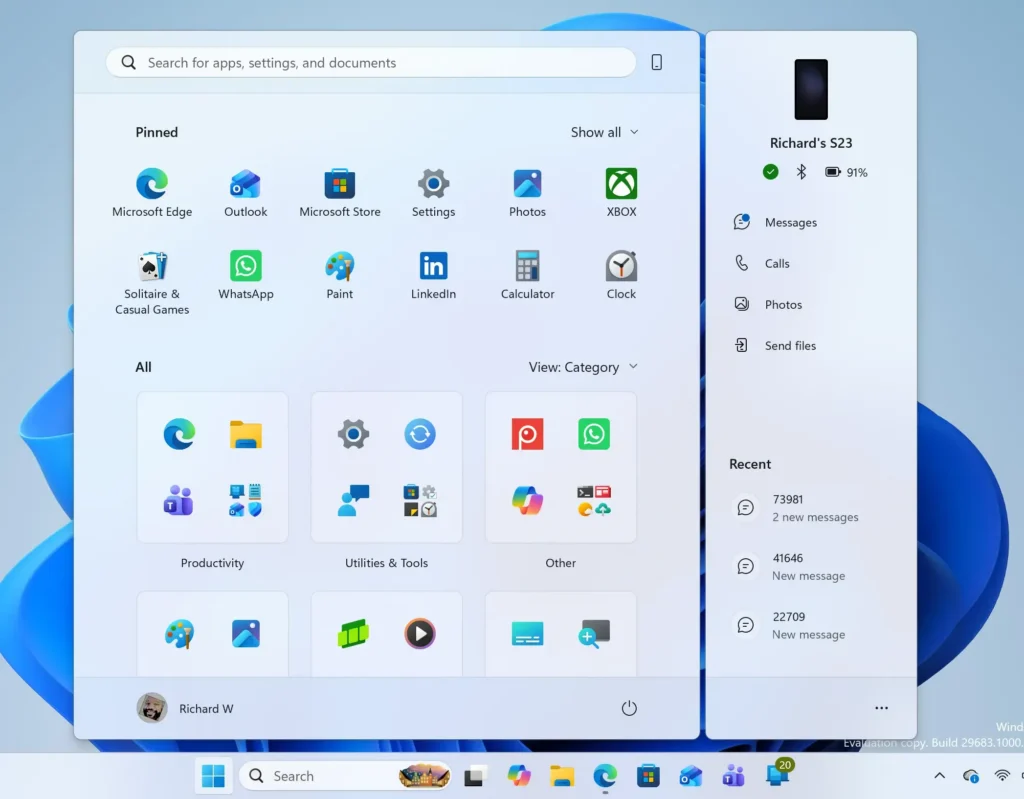
Windows 11 Start menu search panel for opening OpenSSH Client settings - Select Accounts, then Your info. Confirm that Administrator appears under your name. If it says anything else, sign out and sign in with an administrator account before you continue.
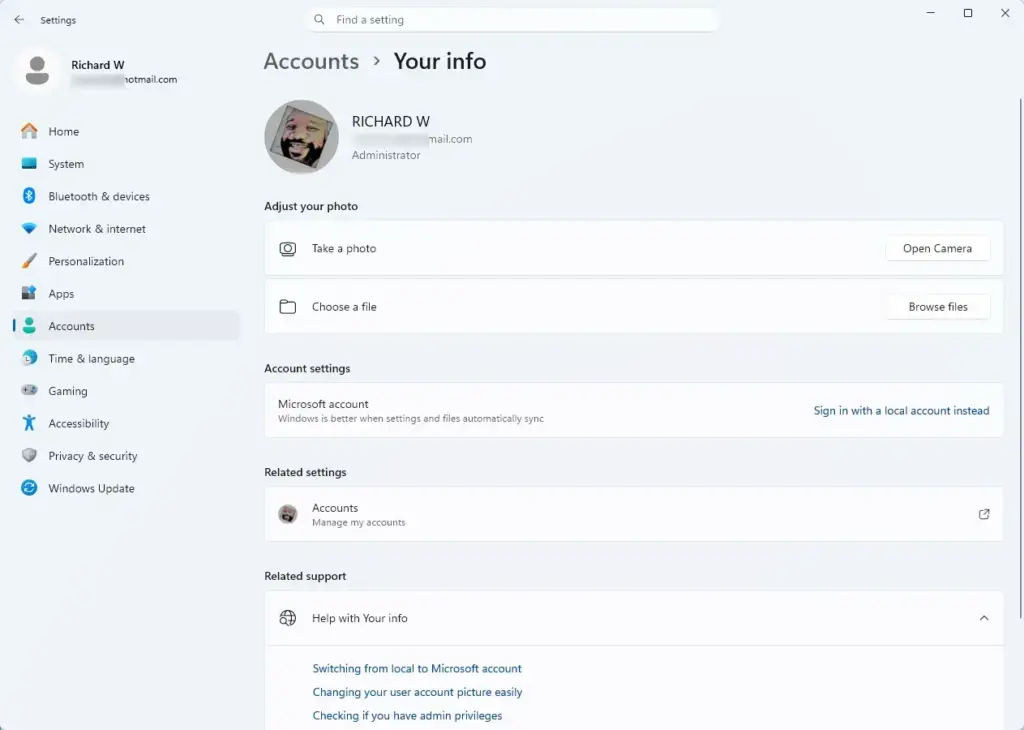
Settings › Accounts › Your info - Select System, then Activation. Both are in Settings. Select System in the left pane, then scroll down in the right pane and select Activation. The Activation page opens.
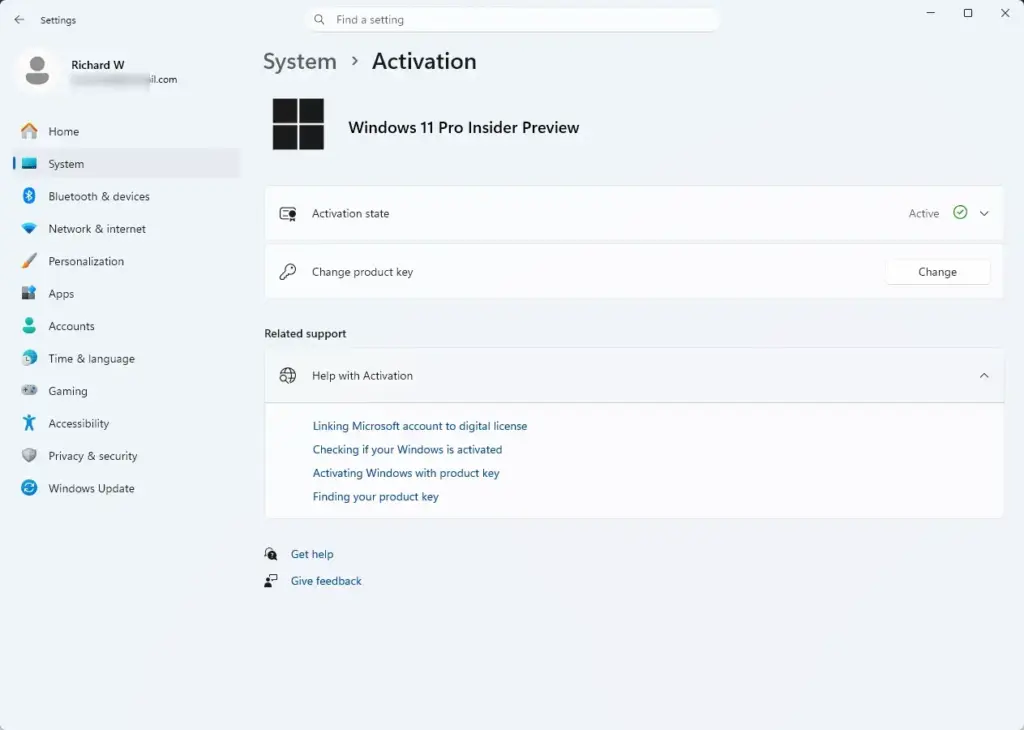
Settings › System › Activation - Read the Activation state message. You want Active next to Activation state, with text such as “Windows is activated with a digital license.” If Windows is not active, go to the troubleshooting section below. If the text already says the license is linked to your Microsoft account, you are done.
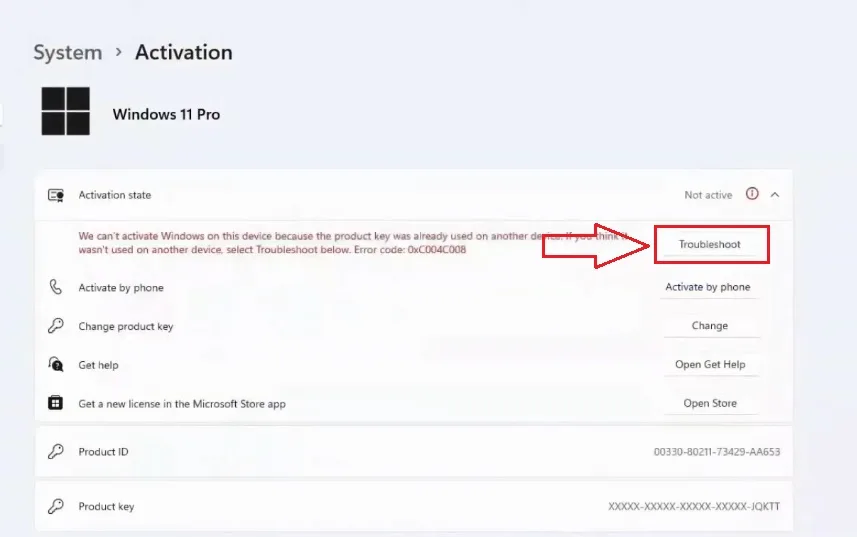
- Select Add an account. This link sits under the activation message. It appears only when the PC is activated with a digital license that has no account attached. A Microsoft sign-in window opens.
- Enter your Microsoft account email address. Type the address you use for Outlook, Xbox, OneDrive, or Microsoft 365, then select Next.
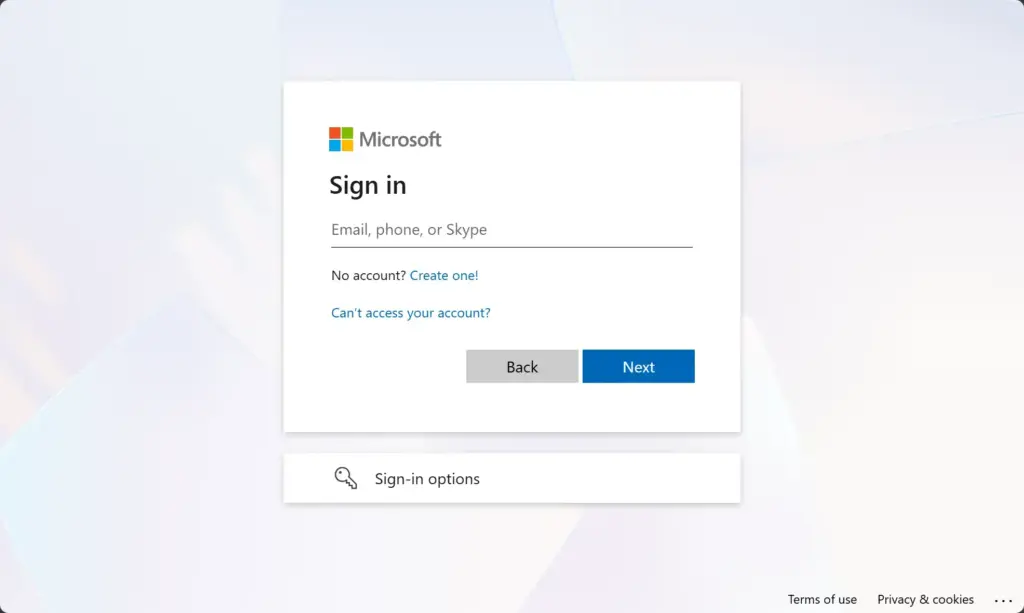
Microsoft account login page for signing in with email and password. - Enter your password and select Sign in. If the account uses two-step verification, approve the sign-in on your phone or enter the code when prompted.
- Enter your current Windows password if asked. Windows can request the password of the local account you are using right now. This confirms that you are the owner of the sign-in. Follow any remaining prompts until the window closes.
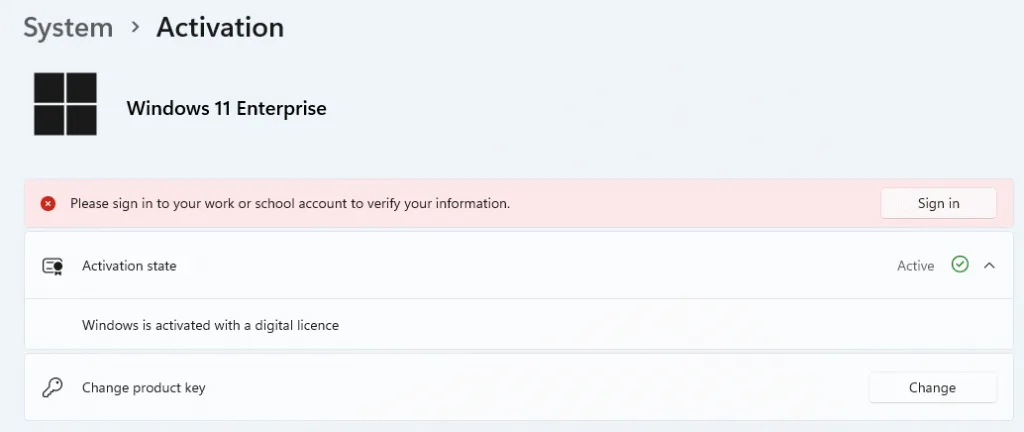
- Return to Settings System Activation. The page now reads “Windows is activated with a digital license linked to your Microsoft account.” The link is live and no restart is normally needed.
Confirm the link worked
The Activation page is the only place that confirms the link, so check it by name. Open Settings System Activation and expand the activation section if it is collapsed. Look for the exact words “linked to your Microsoft account.”
The message tells you which kind of activation you have. These are the three you are likely to see:
- Windows is activated means Windows is active, but the message does not name the method.
- Windows is activated with a digital license means the license exists but has no account attached. The Add an account link is available.
- Windows is activated with a digital license linked to your Microsoft account means the link is complete.
For a second check, sign in to the same Microsoft account on another PC or in a browser and look at your devices list on account.microsoft.com. The PC you linked normally appears there. I can’t confirm when each PC appears in that list, so use the Activation page as the final check.
If Add an account is missing or greyed out
Add an account appears only when the PC meets the conditions below. If you cannot find it, work through these causes in order.
Windows is not activated
With no active license, there is nothing to link. The Activation page shows Not active, and Windows offers a Troubleshoot button or a place to enter a product key. Select Troubleshoot first. If Windows reports that it cannot activate, enter a valid product key under Change product key, then return to this guide once the status turns to Active.
You are not an administrator
Standard accounts cannot change activation details. Sign out, sign in with an administrator account, and open Settings System Activation again. If you manage the PC for a family, adding a child’s Microsoft account to Windows 11 shows how standard accounts relate to the administrator.
The license is already linked
When the PC already signs in with a Microsoft account, Windows usually links the license automatically. The Activation page then shows the linked message and no Add an account option at all. This is the most common reason the link looks “missing.” Nothing needs fixing.
Your organization manages the license
PCs activated through a company or school (a volume license, which an IT department deploys across many machines) do not use a personal digital license. The Activation page may mention your organization, and you cannot attach a personal account to it. Ask your IT department. A personal Microsoft account does not replace that activation.
The edition does not match the license
The Windows 11 edition on the PC must match the edition the license covers. A Home license does not activate a Pro installation, and the reverse is also true. Open Settings System About and check the Edition line under Windows specifications. The same rule applies to Home and Pro: both can have a linked license, but each only for its own edition.
The sign-in fails
If the Microsoft sign-in window rejects your details, check the address and password by signing in at account.microsoft.com in a browser. If that works but the window still fails, restart the PC and repeat the steps. A walkthrough for signing in to a Microsoft account in Windows 11 covers other sign-in errors.
Link the account on 🪟 Windows 10
The same feature exists on Windows 10, with a different menu location. Open Settings Update & Security Activation, then select Add an account. The sign-in prompts match the Windows 11 steps above.
Windows 10 no longer receives regular security updates, so plan a move to Windows 11 if your hardware supports it. A linked license makes that move smoother, because your account already holds the activation record.
Use the Activation troubleshooter after a hardware change
The main payoff of a linked license comes after a major hardware change, usually a new motherboard. After you replace a part such as the motherboard, Windows may report that it is not activated. The troubleshooter uses your linked account to find the license and reattach it. This takes administrator privileges and works only if you linked the account before the change.
- Open Settings System Activation. The page shows Not active after a hardware change.
- Select Troubleshoot. Windows runs a check and may report that it cannot activate.
- Select I changed hardware on this device recently. A sign-in window opens.
- Sign in with the linked Microsoft account. Use the same account you linked earlier.
- Select the device from the list. Pick the entry that matches this PC, check This is the device I’m using right now, and select Activate.
If your PC does not appear in the list, the account used is not the one with the link, or the edition does not match the license. Sign in with any other Microsoft accounts you own and try again.
Undo or change the linked account
The Activation page has no button to unlink a Microsoft account. Switching the PC back to a local account changes how you sign in, as described in changing from a Microsoft account to a local account in Windows 11. The Activation page does not say whether that also removes the link. Check the page afterward.
If you linked the wrong account, sign in to the PC with the right one and check the Activation page again. I could not find a supported way to move a link from one account to another using Settings alone.
What to do next
Keep a note of which Microsoft account holds the link. You need that same account for the troubleshooter after a hardware change. If you want to review what else the account provides on this PC, find your Microsoft account benefits in Windows 11 Settings. To manage payment details tied to the same account, see changing your payment method for a Microsoft account in Windows 11.
Have a question about this guide?
Answered by AI from this guide. Good questions may be added to this page — please don't include personal details.
Did this guide fix your problem?

About the Author
Richard
Tech Writer, IT Professional
Richard is a writer at Geek Rewind who turns complex IT tasks into clear, step-by-step guides. He draws on years of hands-on experience in system administration and enterprise IT operations, focusing on Windows, Linux and WordPress: the problems people actually run into, and the fixes that work. His server and WordPress guides come from systems he runs himself. Richard builds and maintains the platform behind Geek Rewind, from its Ubuntu servers and Nginx configuration to its custom WordPress plugins. Many new tutorials start with readers' questions, and he's always glad to answer them in the comments.
No comments yet — be the first to share your thoughts!