Sign In to a Microsoft Account with Gmail in Windows 11

- 29 steps
- Needs administrator rights
Windows 11 has no “Sign in with Google” option, but you can still use a Gmail address to sign in. You do this by making a Microsoft account that uses your Gmail address as its name.
Microsoft handles the sign-in, not Google. You set a new Microsoft password for the account when you create it. Windows then checks that password, so your Gmail password plays no part in signing in.
The quickest way is to open Settings, go to Accounts, then Your info, and select Sign in with a Microsoft account instead. Windows walks you through creating the account with your Gmail address.
You can sign in to Windows 11 with a Gmail address by creating a Microsoft account that uses it as the username. Open Settings, select Accounts, then Your info, and choose Sign in with a Microsoft account. Microsoft sends a verification code to your Gmail inbox, and Windows uses a new Microsoft password, not your Gmail password.
What a Microsoft Account with a Gmail Address Does
A Microsoft account is the online account Windows 11 uses. It syncs settings, licenses apps, and connects to OneDrive (Microsoft’s cloud storage), Microsoft Store, and Microsoft 365. Microsoft lets you use any existing email address as the account name, so a Gmail address works. Your Gmail inbox is where Microsoft sends verification codes and security alerts.
Two accounts exist side by side after this:
- Your Google account, which keeps its own password and its own two-step verification (a second check, such as a code, when you sign in).
- Your Microsoft account, which uses the same address as its name but has its own password.
Before You Start
They prevent most of the failures covered later: – Internet connection: Windows must reach Microsoft’s servers to verify the account. – Access to your Gmail inbox: Microsoft sends a verification code there. – An existing Microsoft account: if you already use Xbox, Outlook, OneDrive, or Microsoft 365 with this address, sign in to it instead. – Your current account type: check it under Settings Accounts Your info.
- Internet connection. Windows has to reach Microsoft’s servers to verify the account.
- Access to your Gmail inbox. Microsoft sends a verification code to the address. You need to open Gmail on a phone or another browser tab.
- Whether the address already has a Microsoft account. If you ever signed up for Xbox, Outlook, OneDrive, or Microsoft 365 with this Gmail address, the account already exists. You sign in to it instead of creating a new one.
- Your current Windows account type. Open Settings Accounts Your info. If you see an email address under your name, you are already using a Microsoft account. If you see Local account, you can switch it.
A local account (an account that exists only on this PC and has no online connection) keeps its files and settings when you switch. Windows links the existing profile to the Microsoft account. It does not create a new profile.
Create a Microsoft Account with Your Gmail Address
Skip this section if you know your Gmail address already has a Microsoft account. This step creates the account in a browser, which is easier to troubleshoot than creating it inside Windows setup.
- Open a browser and go to
account.microsoft.com. - Select Sign in. A sign-in box appears asking for an email, phone, or Skype name.
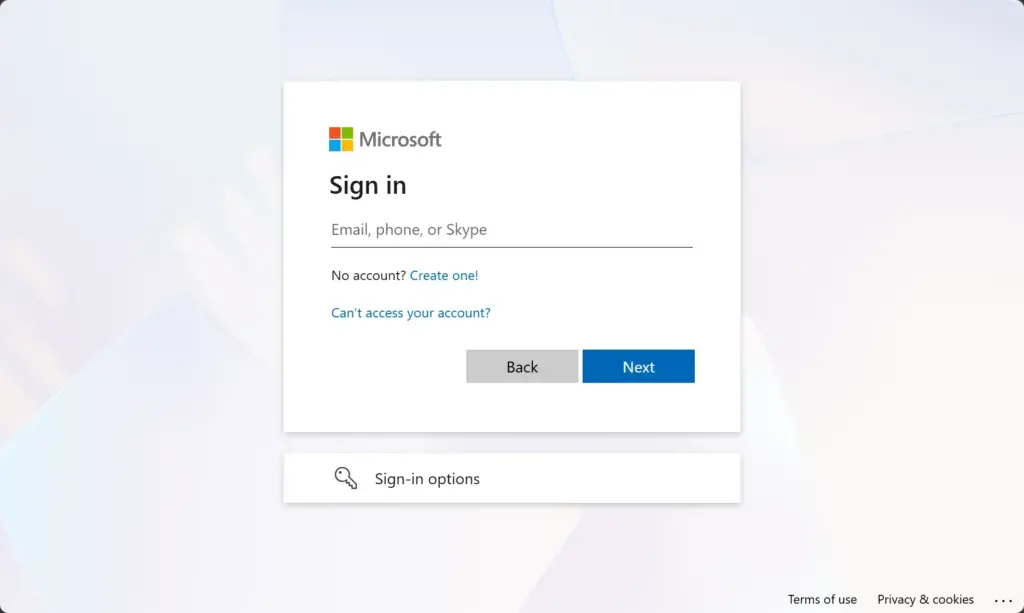
Microsoft account login page for signing in with email and password. - Select Create one! below the box. The screen now asks you to choose an email address.
- Select the option to use your own email address instead of getting a new Outlook address. The exact wording varies by release. Look for a link below the email field, such as Use your existing email., such as Use your existing email or similar.
- Type your full Gmail address, for example
user@example.com, and select Next. If the address already has a Microsoft account, Microsoft tells you so and sends you back to sign in. In that case, use the existing account. - Type a new password for the Microsoft account and select Next. Use a password you do not use for Google. Reusing it defeats the point of keeping the two accounts separate.
- Enter your name and date of birth if asked, then select Next.
- Open your Gmail inbox. Find the message from Microsoft account team and copy the verification code. It is a short number.
- Return to the browser, paste the code into the box, and select Next. Microsoft may show a short challenge to confirm you are not a bot. Complete it.
You should now land on the Microsoft account page, signed in with your Gmail address. The account exists and is ready to use in Windows.
If the code does not arrive: wait a minute, then check the Spam folder and the Promotions and Updates tabs in Gmail. Gmail often files automated messages there. If nothing is there, go back and select the option to send a new code. Also confirm you typed the address correctly, since a typo sends the code to someone else or nowhere.
Sign In to 🪟 Windows 11 with the Account
Pick the method that matches your situation. The three methods are switching an existing local account, signing in during setup, and adding the account as another user.
Switch an Existing Local Account to Your Gmail Microsoft Account
Use this if you already use Windows 11 with a local account and want to link it to your Microsoft account. Your files, desktop, and installed apps stay as they are.
- Open Settings. Press Win+I.

Windows 11 Start menu with Settings gear icon highlighted. - Select Accounts in the left pane.
- Select Your info. Your name and the label Local account appear.
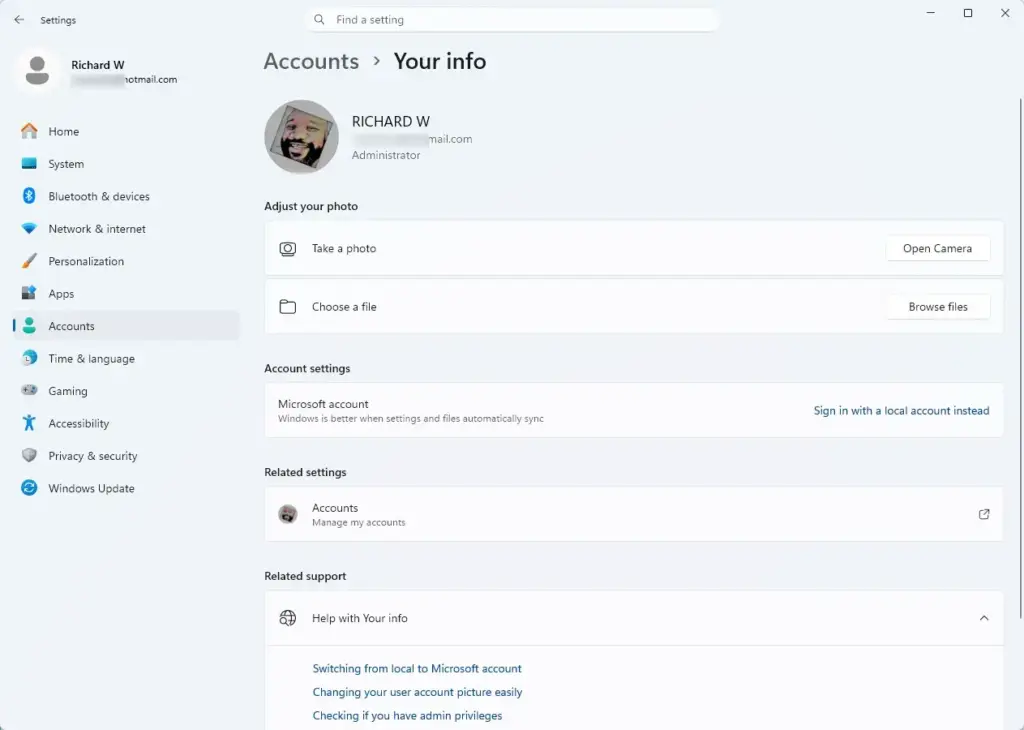
Settings › Accounts › Your info - Select Sign in with a Microsoft account instead. A Microsoft account sign-in window opens.
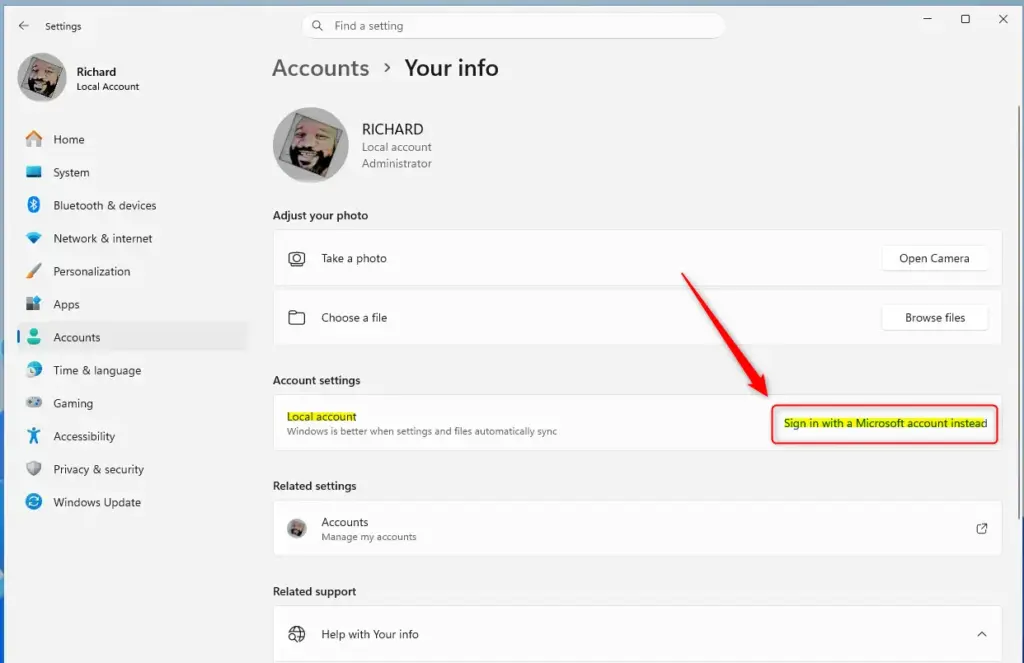
Windows 11 prompt to sign in with a Microsoft account. - Type your Gmail address in the email box and select Next.
- If a screen asks which type of account to use, select Personal account for a normal Gmail address. This screen appears only when the address is linked to more than one kind of account, such as a personal one and a work or school one.
- Type your Microsoft account password and select Sign in or Next. Use the password you set in the previous section, not your Gmail password.
- Enter your current local account password when Windows asks for it. This confirms it is really you. If your local account has no password, leave the box empty and select Next.
- Create a PIN when prompted. A PIN is the short code you type at the sign-in screen. It is part of Windows Hello (Microsoft’s sign-in system for PINs, fingerprints, and face recognition). Select OK after you enter it twice.
Go back to Settings Accounts Your info. Your Gmail address now appears under your name, and the label Local account is gone. Windows signs you in with the new account from the next restart.
If the button is missing: there are two common reasons. First, you are already signed in with a Microsoft account, in which case your email shows under your name. Second, the PC belongs to a work or school organisation and is managed by it. Managed PCs often restrict the account type, and you need to ask your IT department.
Sign In During 🪟 Windows 11 Setup
Use this when you set up a new PC or reset one. This applies to Windows 11 Home, which requires a Microsoft account and an internet connection during setup.
- Connect to a network when the setup screen asks. Windows cannot continue past this point on Home without one.
- Wait for the sign-in screen. It asks for an email address or phone number. Check the exact label on your screen, since some versions still mention Skype.
- Type your Gmail address and select Next.
- Type your Microsoft account password and select Next.
- Follow the prompts to create a PIN. Windows may also offer to restore settings from a previous PC or set up OneDrive backup. Choose what suits you.
Setup finishes at the desktop, and you are signed in with your Gmail Microsoft account.
Home and Pro differ here. Windows 11 Pro gives you extra setup choices, such as joining the PC to an organisation’s domain (a network an IT team manages) or setting it up for work or school. Home does not offer those choices. If you do not see the option you expect, check your edition at Settings System About.
Add Your Gmail Account as Another User on the PC
Use this to give your Gmail Microsoft account its own profile alongside an existing account. This step needs administrator privileges. Sign in with an administrator account (an account allowed to change settings for the whole PC) before you start.
- Open Settings Accounts Other users. A list of existing users and an Add account button appear.
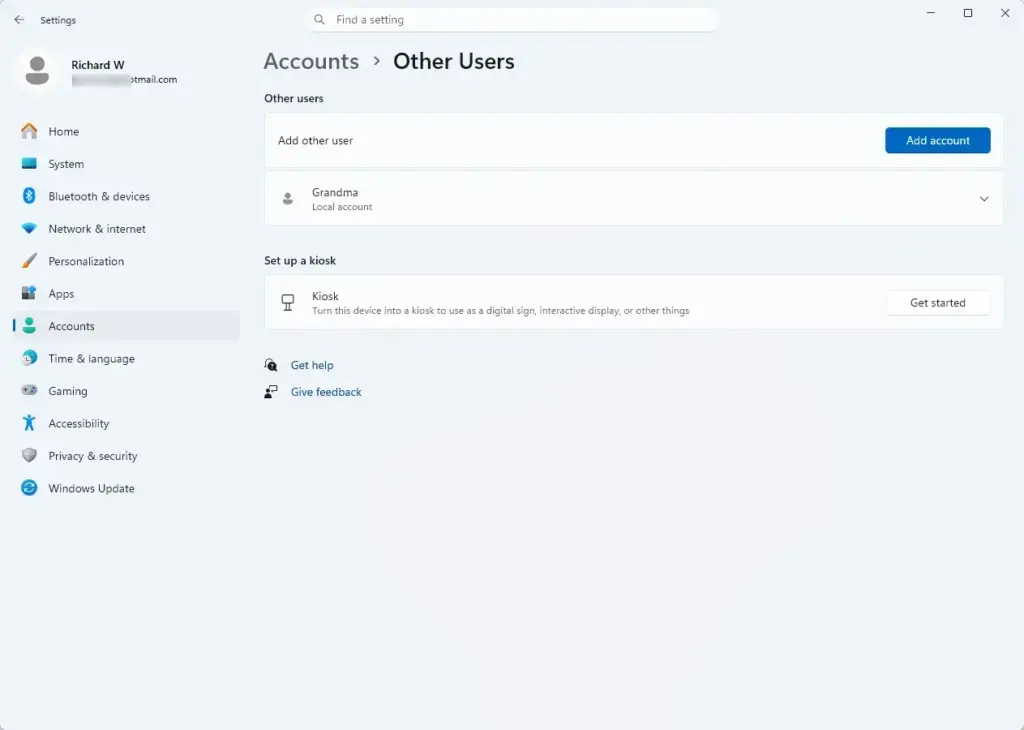
Settings › Accounts › Other users - Select Add account next to Add other user. A Microsoft account window opens.
- Type the Gmail address and select Next.
- Select Finish when Windows confirms the account is added.
- Sign out or select Switch user from the Start menu. The new account now appears at the sign-in screen.
- Select the new account and sign in with its Microsoft password. Windows builds a new profile on this first sign-in, which takes a minute or two.
The new user is a standard user by default. To change that, return to Settings Accounts Other users, select the account, and choose Change account type.
Sign In Faster with a PIN or Windows Hello
After the first sign-in, you use the PIN at the sign-in screen instead of typing the Microsoft password every time. The PIN works only on this PC. It does not work on another device or on the Microsoft website.
To change or add a sign-in method, open Settings Accounts Sign-in options. You see the methods your hardware supports, such as PIN (Windows Hello). Fingerprint and face options appear only when the PC has a compatible sensor or camera.
Switch Back to a Local Account
You can reverse the change if you decide you do not want the PC tied to your Microsoft account. Windows 11 usually offers this under Settings Accounts Your info, as the option Sign in with a local account instead. Select it and follow the prompts. Windows asks you to confirm your Microsoft password and to choose a local user name and password.
The exact wording and availability of this option vary between Windows 11 versions and editions, and managed PCs may hide it. If you do not see it on your PC, If this option is missing on your PC, check your version at Settings System About. Managed PCs may hide the option altogether. at Settings System About before looking further.
Switching back does not delete your Microsoft account or your Gmail account. Both stay as they were. It only removes the link between this PC’s profile and the online account.
What to Do Next
Open Settings Accounts Sign-in options and confirm a PIN is set, so you do not need to type the Microsoft password each time you sign in. If you reset the PC, run a feature update, or create a new user profile later, Windows may ask you to sign in to the Microsoft account again. Use your Gmail address and the Microsoft password when that happens. Review your account’s security details at account.microsoft.com, and add a phone number or an authenticator app (a phone app that creates sign-in codes) there, so you can still recover the account if you lose access to your Gmail inbox.
Frequently asked questions
Can I sign into Microsoft with Gmail?
Yes. Create a Microsoft account that uses your Gmail address as its name. Microsoft accepts any email address for this. You then choose a new Microsoft password, and Windows checks that password when you sign in. Your Gmail password is not used.
How to login to 🪟 Windows 11 without email?
Use a local account, which needs no email address. If you already use a Microsoft account, open Settings, go to Accounts, select Your info, and choose Sign in with a local account instead. You can also choose a local account during setup if the Microsoft sign-in screen appears.
How do I find my Microsoft account?
Open Settings, go to Accounts, and select Your info. The email address under your name is your Microsoft account. To check it online, sign in at account.microsoft.com with the email and password you use for Windows.
How do I link my work email to my Google account?
You cannot turn a work email into your Google sign-in name. You can add it as a recovery email under Personal info, then Contact info, in your Google Account. To read and send work mail in Gmail, open Settings, go to Accounts and Import, and add it under Send mail as.
Still have a question?
Answered by AI from this guide. Good questions may be added to this page — please don't include personal details.
Did this guide fix your problem?

About the Author
Richard
Tech Writer, IT Professional
Richard is a writer at Geek Rewind who turns complex IT tasks into clear, step-by-step guides. He draws on years of hands-on experience in system administration and enterprise IT operations, focusing on Windows, Linux and WordPress: the problems people actually run into, and the fixes that work. His server and WordPress guides come from systems he runs himself. Richard builds and maintains the platform behind Geek Rewind, from its Ubuntu servers and Nginx configuration to its custom WordPress plugins. Many new tutorials start with readers' questions, and he's always glad to answer them in the comments.
No comments yet — be the first to share your thoughts!