How to Enable or Disable Improve Inking and Typing in Windows 11

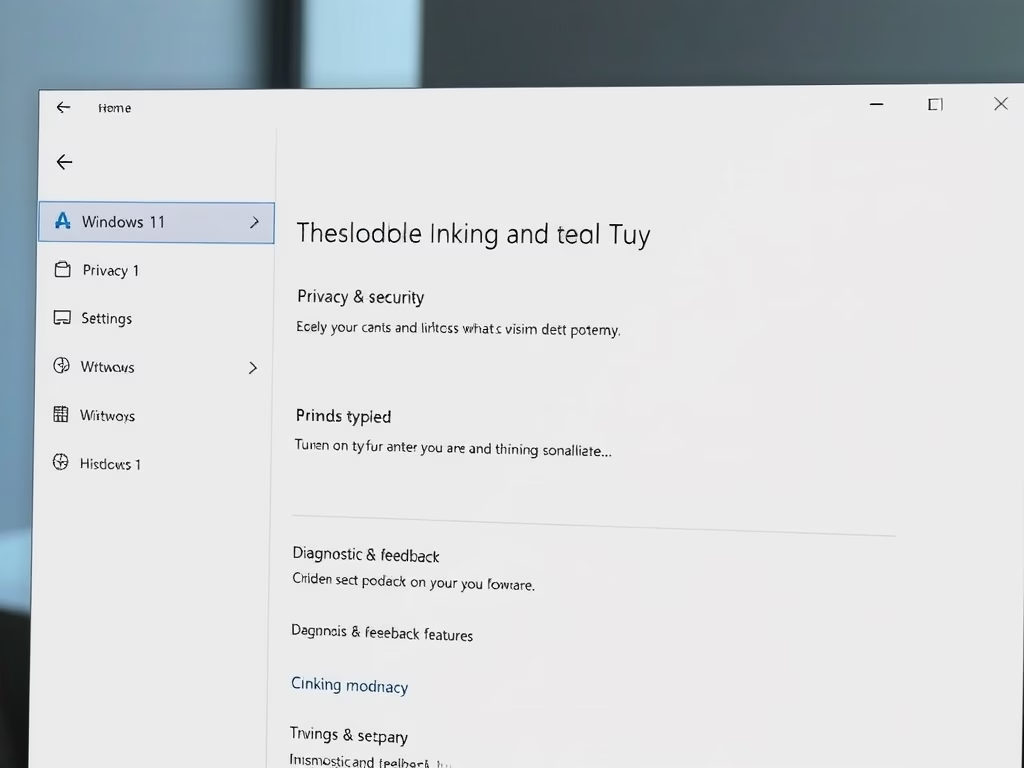
Improve Inking and Typing is a Windows 11 privacy setting that sends samples of your handwriting and the words you type to Microsoft. Microsoft uses them to help Windows learn your personal writing style. Windows turns on this data collection by default during setup, with the exact behavior depending on the privacy choices you made then. The aim is better spelling checks and text suggestions on touchscreens and physical keyboards.
You can turn this feature off at any time in the Settings app if you prefer that Microsoft does not receive samples of your typing habits. Disabling it stops Windows from sending those samples. Your normal typing tools, such as autocorrect, the touch keyboard and handwriting input, keep working. Suggestions may just be a little less tailored to you over time. Turning it back on is the same process in reverse.
Open Settings , navigate to Privacy & security, then Diagnostics & feedback, and toggle “Improve inking & typing” on or off. This setting personalizes your Windows experience by collecting typing and inking data.
Option One
Turn On or Off Improve Inking and Typing Using Settings
This is the easiest way to change the setting. It works the same on Windows 11 Home and Pro, and you do not need to restart afterward.
- Press Win+I to open Settings .
- Click Privacy & security on the left side. The privacy options appear on the right.
- Click Diagnostics & feedback on the right side. (see screenshot below)
- Click Improve inking & typing to expand it. A short description of the setting and a toggle appear. (see screenshot below step 4)
- Turn Improve inking and typing on or off as you wish. The toggle should switch between On and Off straight away. (see screenshot below)
- Close Settings. The change is saved as soon as you flip the toggle.
If the toggle is greyed out, or you see a note that some settings are managed by your organization, a work or school policy is controlling it. Only an administrator can change it in that case. You can also check whether your PC is linked to a work or school account in Settings Accounts Access work or school.

To recap, the switch controls whether Microsoft collects your handwriting and typing samples to improve future language recognition. It lives in the diagnostics section of the privacy options, which is why you open Settings , go to Privacy & security, and choose Diagnostics & feedback to reach it.
Option Two
Turn On or Off Improve Inking and Typing Using Registry
You can also change this setting by editing the registry. This skips the Settings menus and applies the change directly, which helps advanced users who need to update several computers without clicking through the menus on each one. Back up the registry or create a restore point before you change anything, and run the commands with administrator rights. If you see an access denied message, that is usually the reason.
Use the first entry below to turn the feature on and the second to turn it off. Each one reverses the other, so you can switch back at any time.
Turn On Improve Inking and Typing:
reg add "HKEY_CURRENT_USER\Software\Microsoft\Input\TIPC" /v Enabled /t REG_DWORD /d 1 /fTurn Off Improve Inking and Typing:
reg add "HKEY_CURRENT_USER\Software\Microsoft\Input\TIPC" /v Enabled /t REG_DWORD /d 0 /fSummary
After you apply the change, open Settings Privacy & security Diagnostics & feedback and expand Improve inking & typing to confirm the toggle shows what you expect. If it still shows the old value, close Settings and open it again. If that does not help, sign out and back in.
Whichever method you use, this setting puts you back in control of what writing habits leave your machine.
Have a question about this guide?
Answered by AI from this guide. Good questions may be added to this page — please don't include personal details.
Did this guide fix your problem?

About the Author
Richard
Tech Writer, IT Professional
Richard is a writer at Geek Rewind who turns complex IT tasks into clear, step-by-step guides. He draws on years of hands-on experience in system administration and enterprise IT operations, focusing on Windows, Linux and WordPress: the problems people actually run into, and the fixes that work. His server and WordPress guides come from systems he runs himself. Richard builds and maintains the platform behind Geek Rewind, from its Ubuntu servers and Nginx configuration to its custom WordPress plugins. Many new tutorials start with readers' questions, and he's always glad to answer them in the comments.
No comments yet — be the first to share your thoughts!