How to Block Application Camera Access Globally in Windows 11 Privacy Settings

Blocking camera access globally in Windows 11 turns off the webcam for every app on your computer at once. The switch lives in the privacy settings, and it stops unwanted software from using your camera until you turn the switch back on.
When the main Camera access switch is off, Windows stops background programs and newly installed apps from opening your camera. You can undo the change at any time by turning the switch back on. No restart is needed, and the steps are the same on Windows 11 Home and Pro. This guide was written for Windows 11 version 23H2. Menu wording can differ slightly in other builds.
Open Settings by pressing Win+I, then go to Privacy & security Camera. Click the Camera access switch at the top of the page to turn it Off. Windows now blocks all apps from using your camera globally until you turn the switch back on.
How to Access Privacy Settings in 🪟 Windows 11
You reach the privacy settings through the Settings app. The quickest way is to press the Win and I together. You can also open Settings from the Start button .
- Click the Start button on the taskbar .
- Select Settings, the small gear icon. You can also press the Win and the letter I at the same time. The Settings window should now be open.
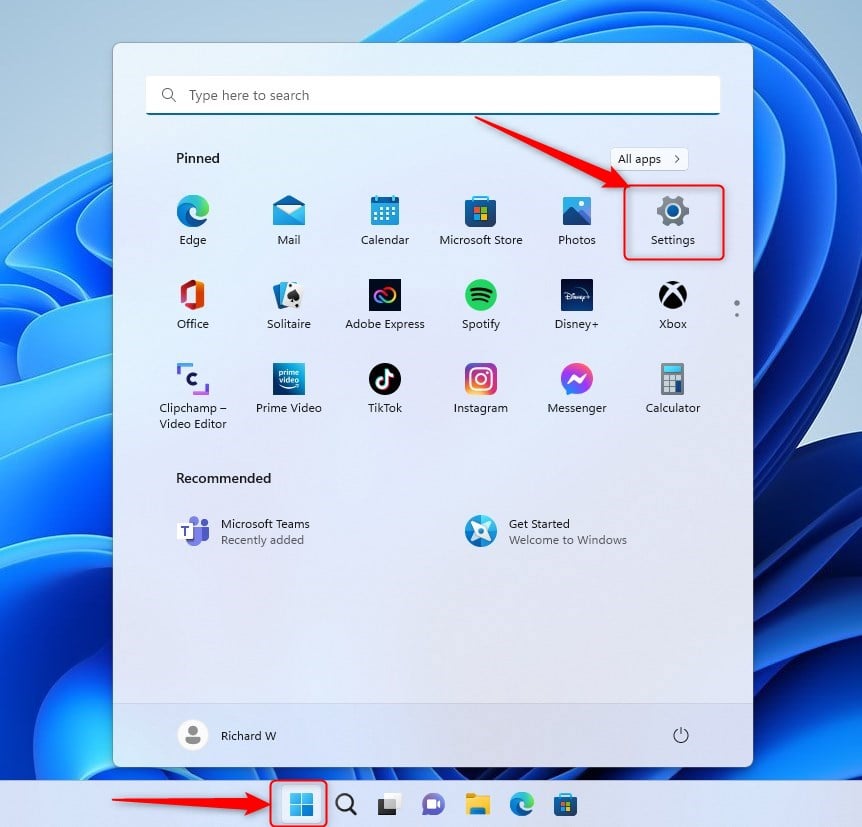
windows 11 new settings button - Look at the menu on the left side of the window and scroll down until you see Privacy & security.
- Click Privacy & security. The main privacy options now appear on the right.
How to Block Application Camera Access Globally
Turning it off cuts off your webcam for apps and services on the whole device. It does not change the individual app settings further down the page, so those are all still there when you turn the camera back on.
- In Privacy & security, scroll to the section called App permissions.
- Click Camera. The camera privacy page opens.
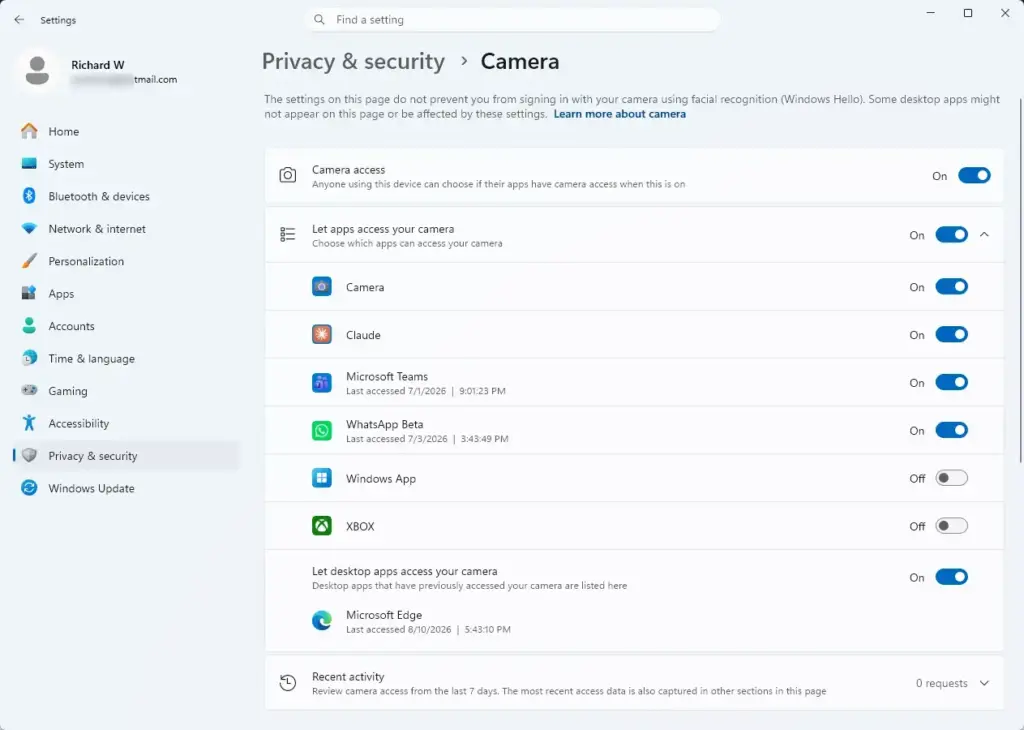
Settings › Privacy › Camera - Find the switch next to Camera access at the top of the page.
- Click the switch to change it from On to Off. The label should now read Off, and the settings below it are greyed out or no longer apply.
With the master switch off, Windows blocks apps and services from using your camera. An individual app can have its own switch set to On lower down the page, but the master switch overrides it. Nothing can use the camera until you set Camera access back to On.
If the switch is greyed out or missing, your PC is probably managed by an employer or school and a policy controls it. Ask your IT administrator. If you don’t see any camera options at all, Windows may not detect a camera. Check Device Manager or your laptop’s function keys, since some laptops have a key that disables the camera.
Allowing Specific Apps While Keeping Global Blocking
A global block and per-app control are two different approaches. If you turn the master switch off, nothing can use the camera, including your trusted video chat app. If you want some apps to work, leave the master switch on and turn off the apps you don’t want. This keeps your webcam restricted to the programs you pick.
Controlling access this way stops unauthorized programs from recording video without your permission. You manage it on the same page: open the Start menu , go to Settings, select Privacy & security, then Camera.
- Keep the main Camera access switch turned On.
- Scroll down the Camera page to the section called Let apps access your camera.
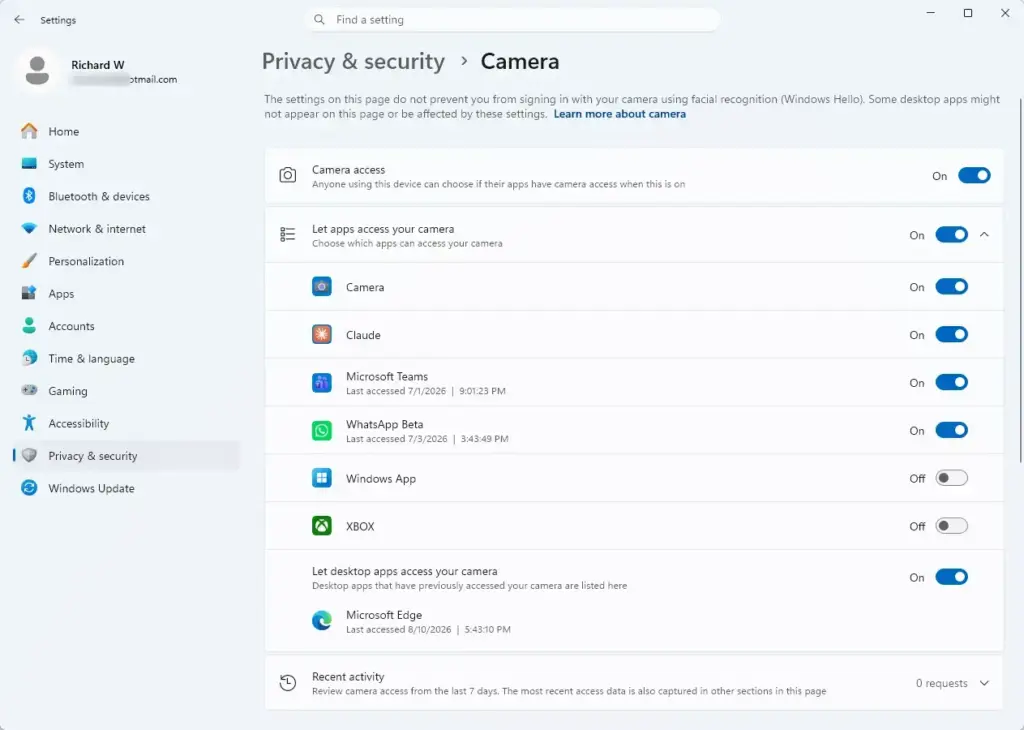
Settings › Privacy & security › Camera - Leave this secondary switch turned On so apps are allowed to ask for permission. If you turn it off, every Microsoft Store app loses camera access.
- Scroll further down to the list of individual apps on your computer, such as video chat tools or photo programs. Each one has its own switch.
- Find an app you do not trust and click the switch next to its name to turn it Off.
- Leave the switches for trusted apps turned On.
The result is a custom setup where only the programs you choose can use your webcam. Remember that these settings are a strong barrier against ordinary apps, but they are not a guarantee against malware that has already taken over your system. That is one reason the physical measures in the last section are worth using.
Expert Tip: Checking Desktop App Permissions
Traditional desktop programs, the ones installed from downloaded installers rather than the Microsoft Store, are handled separately. Windows 11 groups them in their own section at the bottom of the camera page. Check it so your webcam is covered for both kinds of software.
To make sure downloaded desktop programs cannot use your camera either, follow these steps:
- Open Settings, go to Privacy & security, and click Camera.
- Scroll all the way down to the bottom of the page.
- Look for the section titled Let desktop apps access your camera. You may also see a list of desktop apps that have used the camera recently.
- Turn the switch next to this section to Off. This blocks all traditional desktop programs from using your webcam at the same time.
Unlike the Store app list, this is one switch for all desktop apps, so you can’t choose individual programs here.
Unique Angle: Checking Camera Hardware Indicators and Physical Covers
Software settings are not the only protection you can use. A physical indicator light and a lens cover add a layer that no software can switch off. This matters if a program ever bypasses your settings.
Most laptop webcams have a small light next to the lens that turns on when the camera is recording or streaming. If you see it glowing when you are not on a video call, an application may be using your camera in the background. Look at your open programs and your running processes in Task Manager right away. Not every camera has a light, and some external webcams don’t, so don’t rely on it alone.
A sliding webcam cover or a small piece of dark tape over the lens offers extra protection. When you finish using your computer, close the cover. Nobody can see through the lens even if software settings fail or malware gets around your system controls. Combining the global software block in Windows 11 with a physical cover gives you the strongest level of camera privacy you can reasonably get.
Summary
You can stop all programs from using your webcam in Windows 11 with just a few clicks. This guide covered how to find your privacy controls, use the master switch, manage individual apps, check desktop programs, and use physical covers to keep your computer secure. To reverse any of it, go back to Settings, then Privacy & security, then Camera, and turn the switch back on.
Have a question about this guide?
Answered by AI from this guide. Good questions may be added to this page — please don't include personal details.
Did this guide fix your problem?

About the Author
Richard
Tech Writer, IT Professional
Richard is a writer at Geek Rewind who turns complex IT tasks into clear, step-by-step guides. He draws on years of hands-on experience in system administration and enterprise IT operations, focusing on Windows, Linux and WordPress: the problems people actually run into, and the fixes that work. His server and WordPress guides come from systems he runs himself. Richard builds and maintains the platform behind Geek Rewind, from its Ubuntu servers and Nginx configuration to its custom WordPress plugins. Many new tutorials start with readers' questions, and he's always glad to answer them in the comments.
No comments yet — be the first to share your thoughts!