What Breaks When You Disable the Windows Camera Privacy Permission

Turning off the camera privacy permission in Windows 11 and Windows 10 blocks apps from using your webcam. The result is frozen video feeds, blank screens, and failed video calls in programs like Zoom and Microsoft Teams. Windows sits between your hardware and your software to guard your privacy, so the video feed is cut the moment you flip the main switch to off.
You can check or change these permissions at any time in Settings Privacy & security Camera. Blocking specific apps stops camera access for just those programs. Turning off the master switch shuts down the webcam for every app on your system until you turn it back on. No restart is needed in either case, but an app that is already open may need to be closed and reopened before it sees the camera again.
Disabling the Camera privacy permission in Settings Privacy & security Camera blocks every app from using your webcam, so Zoom and Microsoft Teams show black video, browsers fail on web video chats, and Windows Hello face sign-in stops working. Video stops for each app, but the Windows error shown is misleading: nothing else holds the camera. Turn the master switch back on to restore access.
What Happens to Video Conferencing Apps?
Video conferencing apps like Zoom, Microsoft Teams, and Skype stop working properly when you disable the Windows camera privacy permission. They depend on your webcam for video, so with system access off, your feed stays black and the app cannot see your hardware at all during online meetings.
What you see depends on the app, but these are the common symptoms:
- A black or blank video preview, even though the meeting itself connects.
- An error saying Windows cannot find your camera, or that another app is using the camera. The second message is misleading. Nothing else has the camera. Windows is simply refusing access.
- A working microphone with video that stays off. Camera and microphone are separate permissions, so blocking one does not affect the other.
Changing the video settings inside the meeting app will not help. The app has no way to override the block, so you have to fix the master privacy switch in the Windows Settings app. The steps are further down in this tutorial.
Web Browsers and Website Video Feeds
Web browsers lose access to your webcam for online video chats, identity checks, and job interviews when you turn off the main camera permission in Windows. Even if you click Allow on a website permission pop-up, the browser cannot bypass the system block, and the page will fail to show your video feed.
On the web page you will usually see a generic camera error, such as “camera not found” or “could not start video source”. The site is not at fault, and the browser’s own setting is not either. Windows is blocking the request before it reaches the camera.
Website permissions are a separate layer on top of the Windows one. Both must allow the camera. To manage website permissions in Microsoft Edge, open Settings and more (the three-dot menu), then select Settings and look for the site permissions options. If a site still cannot reach the camera after you allow it there, check the Windows switches first.
Security Features and Windows Hello Face Recognition
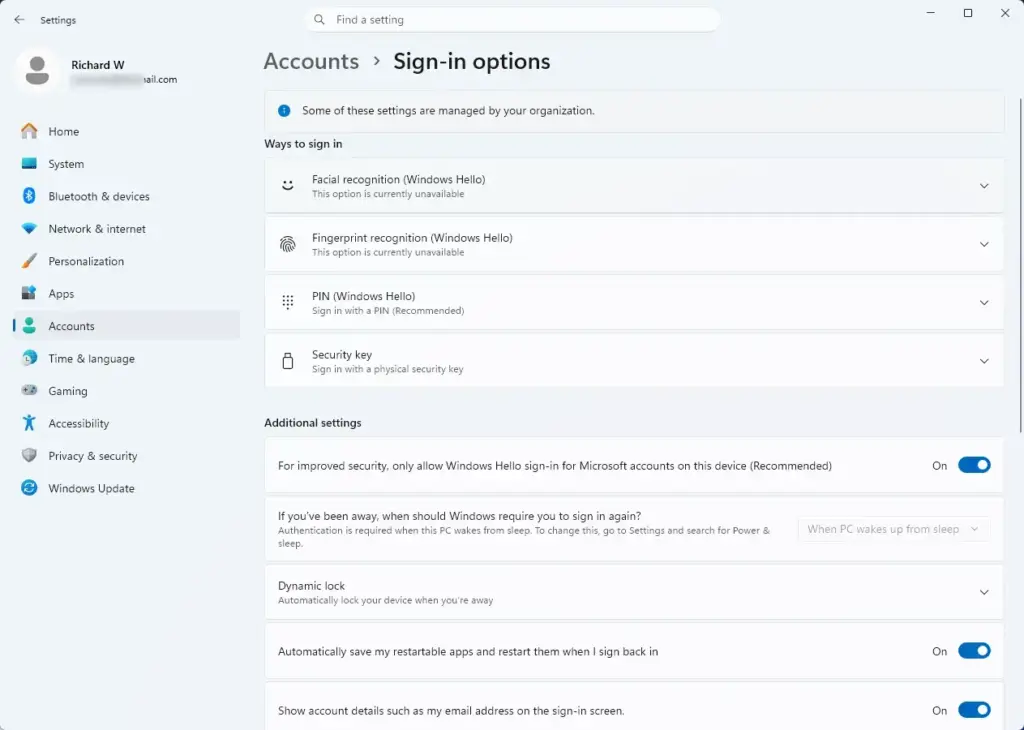
Windows Hello facial recognition stops working right away if you turn off camera access everywhere on your computer. The lock screen will no longer recognize your face to sign you in, because the feature depends on the same camera permissions as standard video apps.
When Windows Hello cannot use the camera, you will see an error message on the lock screen saying the system cannot turn on the camera. Your face is not rejected. The camera simply never starts.
You can still sign in by typing your password or PIN, so you are not locked out. If you rely on facial recognition for fast and secure sign-ins, keep the camera permission turned on. If face sign-in suddenly stops working after a privacy cleanup, check these switches before you re-run the Windows Hello setup.
How to Turn On Camera Access in Windows
If you have broken apps or missing video feeds, you can turn camera access back on from the main Windows settings. These steps are for Windows 11. Windows 10 has the same page under Settings Privacy Camera, but the wording of the switches differs slightly.
- Click the Start button and select Settings (the gear icon). The Settings window opens.
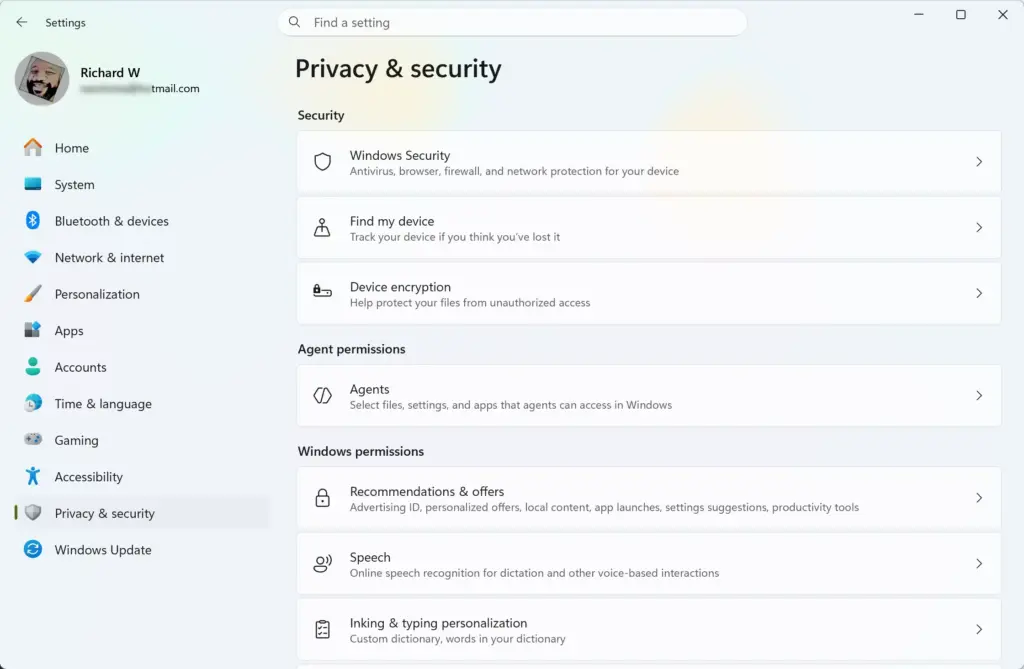
- Click Privacy & security in the left-hand menu.
- Scroll down to the App permissions section and click Camera. The camera options appear.
- Find the main switch labeled Camera access and turn it to On.
- Make sure the switch for Let apps access your camera is also turned On. The list of individual apps below it becomes active.
- Review the list of individual apps and turn on the switch for any app you want to use.
How to Control Camera Access for Specific Apps
- Open the Start menu and go to Settings Privacy & security Camera.

- Make sure both global camera access switches are turned on. In Windows 11 these are Camera access and Let apps access your camera. If either one is off, the per-app switches below it have no effect.
- Scroll down to the list of apps installed on your computer.
- Find the app you want to change, such as a video player or social media tool.
- Toggle the switch next to that app to On or Off, depending on your preference. The change applies right away.
To undo a change, return to the same page and flip the switch back. Classic desktop programs are generally covered by a separate Let desktop apps access your camera switch further down the page rather than by individual toggles, so check it if a desktop program is still blocked.
Summary
Blocking camera access protects your privacy, but it breaks video conferencing software, web browsers, and Windows Hello facial recognition. Weigh those consequences before you block your webcam. For most people, leaving the master switch on and turning off only the apps they do not trust is the safer middle ground, and it keeps the programs you rely on working normally.
Frequently asked questions
How do I fix camera permission denied?
Open Settings Privacy & security Camera. Turn the camera on if it's off. Then scroll down and enable camera access for the specific app that needs it. If the app is already enabled, try disabling and re-enabling it.
How do I fix the "You Require Permission from system to Make Changes to this folder" error in 🪟 Windows 11?
Right-click the folder and select Properties. Go to the Security tab, click Edit, select your username, check Full Control under Allow, then click Apply and OK. You may need admin approval to confirm the change.
Why is my location sharing permission denied?
Open Settings Privacy & security Location. Turn location on. Scroll down and enable location access for apps that need it. If an app is blocked, toggle it back on to restore permission.
How do I fix the "App Permission Denied" error in Google Maps?
Open Google Maps, click your profile picture, go to Settings Apps & notifications Permissions Location. Toggle location on. If Maps still can't access it, turn the permission off and back on again.
Still have a question?
Answered by AI from this guide. Good questions may be added to this page — please don't include personal details.
Did this guide fix your problem?

About the Author
Richard
Tech Writer, IT Professional
Richard is a writer at Geek Rewind who turns complex IT tasks into clear, step-by-step guides. He draws on years of hands-on experience in system administration and enterprise IT operations, focusing on Windows, Linux and WordPress: the problems people actually run into, and the fixes that work. His server and WordPress guides come from systems he runs himself. Richard builds and maintains the platform behind Geek Rewind, from its Ubuntu servers and Nginx configuration to its custom WordPress plugins. Many new tutorials start with readers' questions, and he's always glad to answer them in the comments.
No comments yet — be the first to share your thoughts!