What Breaks When You Disable Camera Access System-Wide in Windows 11

- 10 steps
- Needs administrator rights
- Group Policy needs Windows 11 Pro, Enterprise or Education
Disabling camera access system-wide in Windows 11 turns off camera permission for every app on your PC at once, not just selected ones. One toggle in Settings Privacy & security Camera switches off camera access for the whole system. This single change breaks Windows Hello face sign-in, the Camera app, and all video calling tools.
Before you disable it, it helps to know what stops working and why. Many apps rely on camera permission without you realizing it, and turning it off affects far more than you might expect.
You can turn camera access back on at any time, either for all apps or for just the ones you trust. Knowing what breaks first saves you from finding the problems later, usually in the middle of a meeting.
Disabling camera access system-wide in Windows 11 means turning off Settings Privacy & security Camera Camera access, which blocks every app from using the camera at once. This breaks Windows Hello face sign-in, the Camera app, and all video calling tools. To turn it off, open Settings with Win+I and switch off the master toggle.
Where the Camera Master Switch Lives in 🪟 Windows 11
There are two different ways to disable a camera “system-wide,” and they don’t behave the same way.
The first is the privacy toggle in Settings. It blocks every app, Store apps and most desktop apps alike, from requesting a camera feed. The camera hardware still works. Windows just refuses to hand it to anything.
The second is disabling the device itself, which switches off the camera at the driver level. The driver is the software layer that tells Windows how to talk to the hardware. You can do this in Device Manager, and on current builds of Windows 11 also from the Cameras page under Settings Bluetooth & devices. Once the device is disabled, nothing on the PC can use the camera, including tools that try to bypass app-level permissions.
Which one you want depends on why you’re doing this. If you want to stop apps from spying on you while keeping the option to turn the camera back on easily, use the Settings toggle. If you want the camera unusable, say on a shared or kiosk PC, disabling the device is the stronger option.
If you only want to stop one or two apps, you may not need either method. See the per-app option after the steps below.
How to Turn Off Camera Access for Every App (Settings Method)
Before you start: the Camera access toggle applies to the whole device, not just your own account, so Windows may require an administrator account to change it. If the toggle won’t move, or you’re asked for credentials, sign in with an admin account and try again. Disabling the camera in Device Manager definitely requires administrator rights (covered in the next section).
- Open Settings by pressing Win+I. The Settings home page appears with a list of categories on the left.

Windows 11 Start menu with Settings gear icon highlighted. - Select Privacy & security from the left-hand menu. You’ll see a list of app permission categories on the right, including Camera.
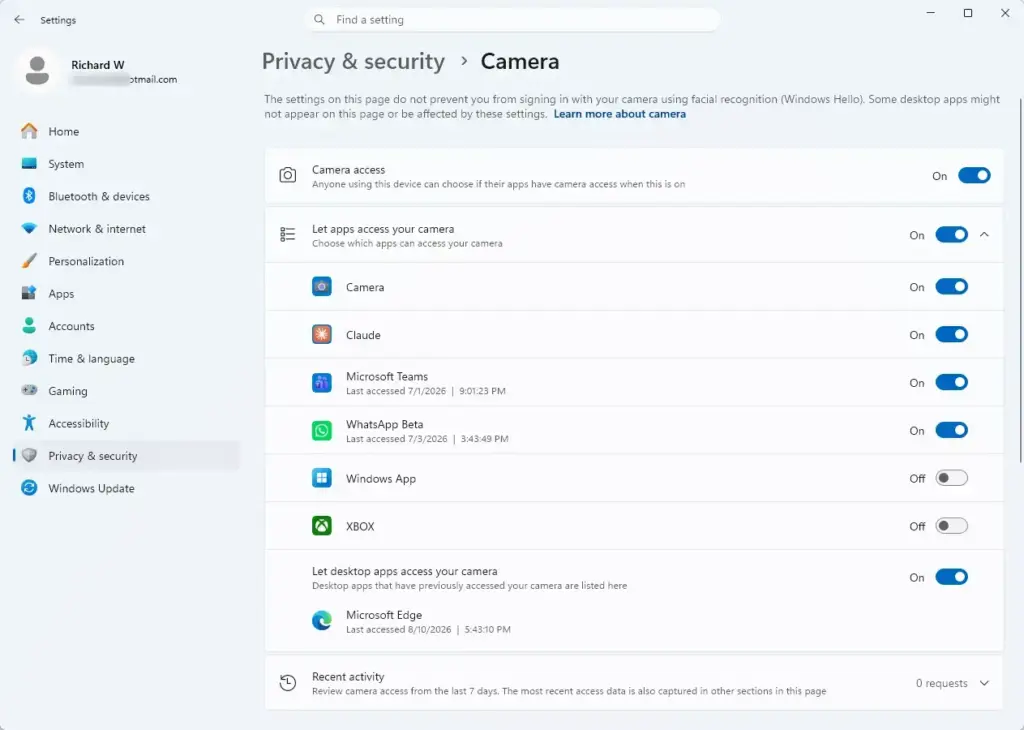
Settings › Privacy & security › Camera - Click Camera. The Camera permissions page opens, showing a toggle labeled Camera access at the top, followed by Let apps access your camera, Let desktop apps access your camera, and a list of individual apps below that.
- Switch off Camera access. This disables the camera for the entire system. Windows greys out every toggle underneath it, and a message appears saying camera access is off for all apps on the device.
Every app-specific toggle further down the page becomes irrelevant once this master switch is off. You don’t need to disable each app individually, and Windows won’t let you try, since those controls are now inactive.
A lighter alternative: Windows 11 lets you block individual apps instead of everything. Leave Camera access on and switch off only the apps you don’t trust in the list on the same page. The Camera page also shows recent activity per app, so you can see which apps have actually used the camera lately. Check this first if your real question is “who has been using my webcam?” It may show you need to block one app, not shut down the whole system.
How to Disable the Camera at the Hardware Level (Device Manager Method)
This route requires an administrator account. If you’re signed in as a standard user, Windows will prompt for admin credentials or refuse the change. It’s more thorough than the Settings toggle, so it’s worth knowing before you start. Expect to spend a moment locating the right device, but it isn’t risky. It’s just slightly less convenient than the Settings method.
- Right-click the Start button and select Device Manager from the menu. The Device Manager window opens, listing hardware categories.
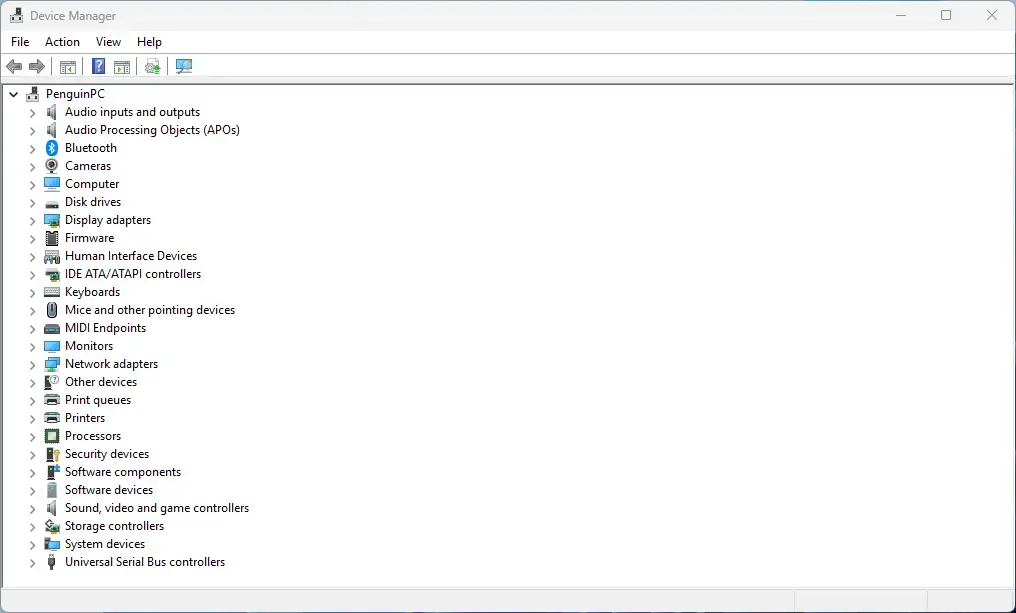
Device Manager - Expand Cameras (on older systems this category may be labeled Imaging devices). You’ll see your webcam listed by name, such as an integrated laptop camera or a USB model.
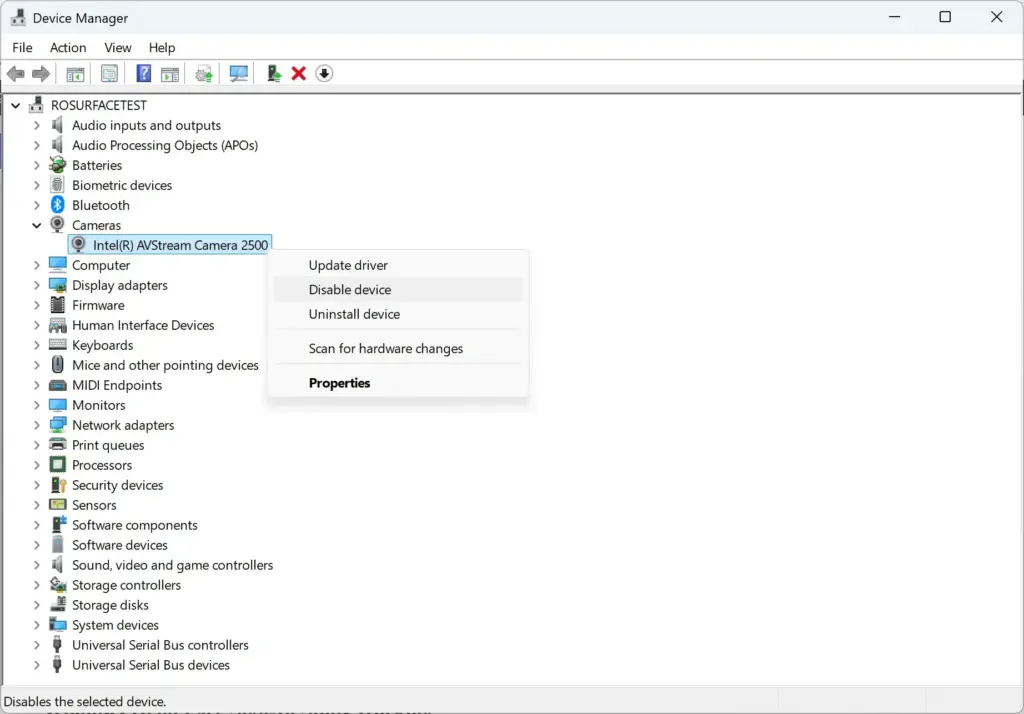
- Right-click the camera and choose Disable device. A confirmation prompt asks if you’re sure. Click Yes. The camera’s icon in the list now shows a down arrow, marking it as disabled.
Check there before assuming the PC has no camera driver installed.
You can also disable a specific camera without opening Device Manager. Go to Settings Bluetooth & devices Cameras Your connected cameras are listed there. Select the one you want, and its page lets you disable that camera and adjust its settings, such as image options. The exact layout varies a little between Windows 11 versions, and Windows may ask for administrator approval before it disables the camera. This is handy if you have more than one camera and only want to turn off one of them.
What Breaks When Camera Access Is Off System-Wide
Once the camera is off, through either method, here’s what stops working and what you’ll see when it does.
Windows Hello Face Sign-In Stops Working
If you’ve set up Windows Hello face recognition (the feature that signs you in by looking at the camera), it fails immediately. Windows falls back to your PIN or password at the lock screen instead of trying to scan your face. If you go to Settings Accounts Sign-in options, the Face recognition entry either disappears or shows a message that the option is currently unavailable. You also can’t set up face sign-in for the first time on this PC. The setup wizard needs live camera access to enroll your face, and it won’t get past the first screen without it.
The Camera App Shows a Black Screen or Error
Opening the built-in Camera app gives you a black preview and a message that Windows can’t find a camera, or that camera access is turned off for this device. Photos and video capture don’t work. Neither does the Camera app’s QR code scanning feature, if you use that for pairing devices.
Video Calls in Teams, Zoom, and Browsers Fail
Any app that needs live video loses its camera feed. That includes Microsoft Teams, Zoom, Discord, and Google Meet running in a browser tab. In most of these apps you’ll see your name or initials in place of your video, with a small camera-off icon, or an on-screen message that no camera was detected. Calls themselves still connect. You just show up as audio-only until access is restored.
This catches people out because the meeting doesn’t fail. It quietly drops your video, and you might not notice until someone asks why your camera is off.
Windows Hello for Business and Managed Devices
On a work or school PC enrolled in Windows Hello for Business, disabling camera access removes biometric face sign-in as an authentication option, which company policies may expect you to have. If your organization requires biometric sign-in as part of its security policy, IT may have already locked the camera toggle so you can’t turn it off yourself. More on that below.
Third-Party Security, Streaming, and Proctoring Software
Online exam and proctoring tools tend to fail loudly. Many refuse to let you start or continue an exam at all if they can’t confirm camera access. They’ll usually tell you plainly that the camera is blocked rather than failing silently, so if one complains, check the camera settings before you contact the exam provider.
Why the Camera Toggle Might Be Greyed Out
If the Camera access toggle in Settings is already off and won’t switch on no matter what you click, or it’s missing entirely, the setting is usually managed by policy rather than by you. Look for a line of text under the toggle saying something like “Some settings are managed by your organization”. That’s the giveaway.
On a work or school-managed PC, an administrator has locked camera access using Group Policy or a mobile device management tool like Intune (tools that control settings across a network). You won’t be able to override it from Settings, no matter which account you’re signed in with. Ask your IT team to change the policy.
On a personal PC running Windows 11 Home, you won't have access to the Local Group Policy Editor (gpedit.msc) at all. That tool only ships with Pro, Enterprise, and Education editions. If you're on Home and trying to lock camera access down for other users on a shared PC, the Settings toggle and Device Manager are your only two options. There's no local policy route available to you.
If you were hoping to script this change with a registry key, we can't confirm an accurate one here. Stick to the Settings and Device Manager methods above rather than editing registry values you're not sure of.
How to Turn Camera Access Back On
Getting the camera back is quick with either method. Use the one that matches how you turned it off. No restart is needed in either case.
- If you used the Settings method, open Settings Privacy & security Camera and switch Camera access back on. The app-level toggles underneath become active again. Check them, because apps you didn't specifically re-enable may stay off individually.
Settings › Privacy & security › Camera - If you used the hardware method, open Device Manager again, right-click the camera under Cameras, and choose Enable device instead of Disable. Windows reloads the driver and the camera works again within a few seconds. You need administrator rights for this too.
- If you disabled the camera from Settings Bluetooth & devices Cameras, go back to that page, select the camera, and enable it again.
Go to Settings Accounts Sign-in options and re-run the Face recognition setup once the camera is back on.
What to Do Next
If the camera still won't show up in any app after re-enabling it, check whether a driver update is needed. Right-click the camera in Device Manager and choose Update driver, since a corrupted or outdated driver can look identical to a disabled one.
If you manage app permissions on this PC regularly, it's also worth reviewing microphone access under Settings Privacy & security Microphone It works on the same master-switch pattern and often needs adjusting alongside the camera for the same apps.
Frequently asked questions
How to block camera access on 🪟 Windows 11?
Open Settings, go to Privacy & security, then select Camera. Toggle off "Camera access" to block all apps. Alternatively, open Device Manager, find your camera under Cameras (or Imaging devices on some systems), right-click it, and select Disable device to turn off the hardware itself.
Are my privacy settings blocking my mic?
Check Settings Privacy & security Microphone If the toggle is off, your mic is blocked system-wide. You can also allow specific apps to use your mic by scrolling down and toggling individual apps on or off.
Why is my computer blocking my camera?
Your camera is likely blocked in Settings Privacy & security Camera, where the master toggle is turned off. Some apps may also have individual camera permissions disabled. Check both locations, and make sure your camera isn't disabled in Device Manager.
How to see what is using the camera in 🪟 Windows 11?
Open Settings Privacy & security Camera and expand the app list, where each app shows 'Last accessed' or 'Currently in use' status. You can also check Settings Privacy & security Camera to see which apps have camera permission enabled.
Still have a question?
Answered by AI from this guide. Good questions may be added to this page — please don't include personal details.
Did this guide fix your problem?

About the Author
Richard
Tech Writer, IT Professional
Richard is a writer at Geek Rewind who turns complex IT tasks into clear, step-by-step guides. He draws on years of hands-on experience in system administration and enterprise IT operations, focusing on Windows, Linux and WordPress: the problems people actually run into, and the fixes that work. His server and WordPress guides come from systems he runs himself. Richard builds and maintains the platform behind Geek Rewind, from its Ubuntu servers and Nginx configuration to its custom WordPress plugins. Many new tutorials start with readers' questions, and he's always glad to answer them in the comments.
No comments yet — be the first to share your thoughts!