How to Enable or Disable Let Apps Access Camera in Windows 11

- 5 steps
- Includes a restart or sign-out
The “Let apps access camera” setting in Windows 11 controls whether desktop programs and Microsoft Store apps can use your webcam. Turning this master switch off blocks all 32-bit and UWP apps from viewing your video feed until you turn permission back on. The setting applies to the whole PC, so it covers apps you installed years ago as well as ones you installed yesterday.
You can manage this privacy control inside the Privacy & security menu in the main Settings app. Blocking individual programs stops specific apps like Zoom or Skype from recording video without your knowledge. The steps below cover both the master switch and the per-app switches, and how to undo each change.
Press Win+I to open Settings, go to Privacy & security, select Camera, then toggle the Camera access switch at the top on or off. Turning it off blocks all apps from using your webcam; turning it on allows them to access it again.
What is Camera Access?
Camera access in Windows 11 lets programs use your webcam for video calls, snapshots, and recordings. Managing these permissions stops background apps from turning on the lens without your knowledge. This applies to the built-in camera on a laptop and to an external USB webcam alike, because Windows treats both as camera devices.
Privacy controls let owners choose exactly which software utilizes recording hardware. Restricting unneeded utilities safeguards sensitive personal information from exposure. A sensible default is to allow the camera only for the few apps you actually use for calls, and to leave everything else blocked.
The steps work the same on Windows 11 Home and Pro. The layout shown here matches current releases such as 22H2, 23H2 and 24H2. Very early builds of Windows 11 may word a few labels slightly differently.
How to Turn Off the Webcam on 🪟 Windows 11
Follow these steps to change your camera permissions. You do not need to restart the PC afterwards. The change takes effect straight away, although an app that is already using the camera may need to be closed and reopened to notice it.
Open Settings
Press the Windows key + I shortcut to launch Windows Settings. Alternatively, click the Start button and select Settings from the menu. If Settings is not pinned to the Start menu, click All apps and pick it from the list.
You should now see the Settings window, with a list of categories down the left side.
Go to Privacy & Security
Click Privacy & security located on the left-hand navigation pane. You may need to scroll the list down a little to find it.
The right side of the window now shows the privacy options, split into Windows permissions and App permissions.
Select Camera
Scroll down to the App permissions group and select Camera on the right side of the window to open the relevant configuration options.
The Camera page opens. It lists a master switch at the top, followed by the app lists below it.
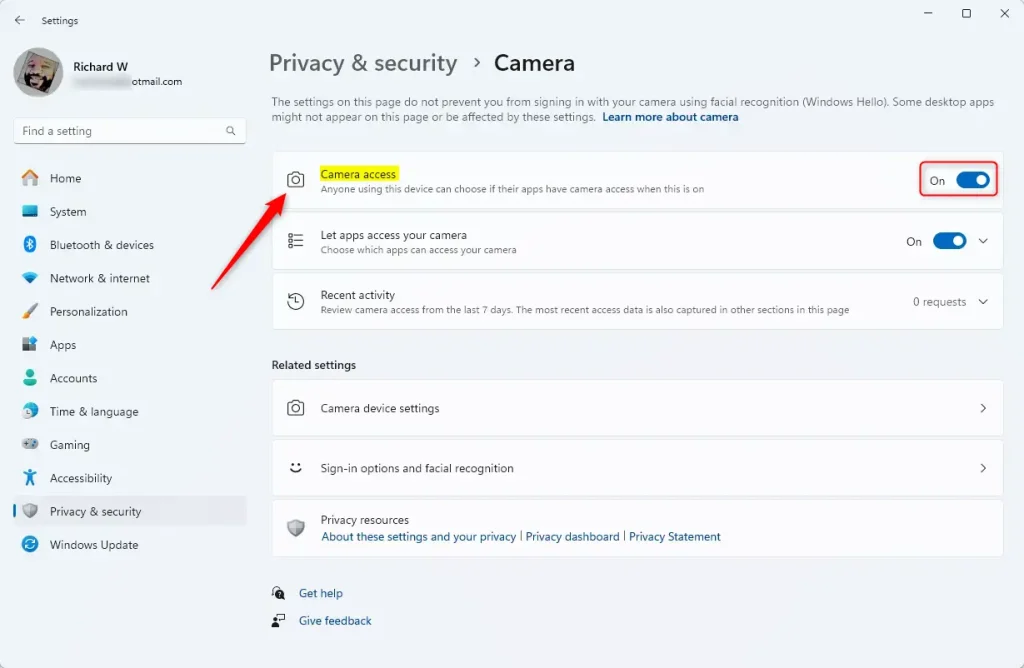
Turn Camera Access On or Off
Locate the master switch at the top of the screen, labelled Camera access. Toggle this switch to turn camera access completely on or off for all installed software.
- Set Camera access to Off to block the camera for every app and for Windows itself, including sign-in with Windows Hello face recognition. Windows will show that the camera is blocked.
- Set Camera access to On to allow apps to use the camera again. The switches below it become active.
If you turn the master switch off, the per-app switches below it are greyed out. Your earlier per-app choices are kept and come back when you turn it on again.
Allow or Block Camera Access for Individual Apps
You can manage Windows 11 camera access for specific programs by scrolling down to the app list in your privacy settings. This lets you turn the webcam on for video call apps like Zoom while blocking it for games or web browsers that do not need it, giving you exact control over your webcam privacy without turning it off system-wide.
The master Camera access switch and Let apps access your camera must both be on for the per-app list to work. Microsoft Store apps get their own switch each. Classic desktop programs are covered by the separate Let desktop apps access your camera switch further down the page, and the apps under it that have recently used the camera are listed there.
- On the same Camera settings page, scroll down to Let apps access your camera. Make sure the switch on that row is set to On, otherwise the app list stays greyed out.
- Click the arrow or tile to expand the list of apps. You should now see every app that can ask for the camera, each with its own switch.
- Use the switches next to each app to allow or block camera access for that specific app. To undo a change, flip the same switch back. No restart is needed.
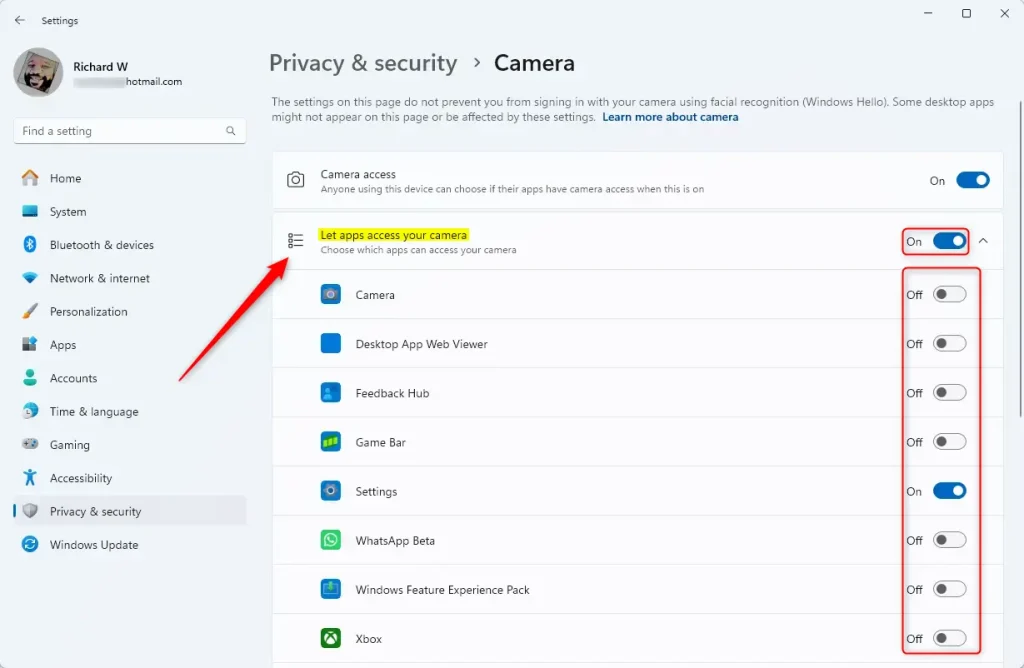
This is the expanded app list. An app that does not appear here has not asked for the camera yet. Once it asks for the first time, it shows up and you can set its switch.
Revoking permissions completely blocks that specific program from utilizing hardware sensors. If a blocked app such as a video call program then shows a black screen or a “no camera found” message, return to this list and switch it back on.
Summary
- Turning camera access on or off helps keep your privacy safe. Use the master Camera access switch when you want everything blocked at once.
- You can easily control which apps can use your camera in Windows 11. Microsoft Store apps get their own switches, and desktop programs share one.
- Changing these settings is simple using the Settings app. Changes apply immediately and do not need a restart.
- You can choose to allow or block camera access for all apps or just some apps. Every change can be undone by flipping the same switch back.
- It’s a good idea to check these settings regularly for better security, especially after installing new software.
Controlling Windows 11 camera access takes just a few clicks in the Settings app, helping you keep your private life private. Reviewing these webcam permissions regularly ensures that only trusted apps can use your camera, stopping unwanted programs from recording you without your permission. If something stops working later, come back to Privacy & security and Camera first, since a blocked switch is the most common cause.
Have a question about this guide?
Answered by AI from this guide. Good questions may be added to this page — please don't include personal details.
Did this guide fix your problem?

About the Author
Richard
Tech Writer, IT Professional
Richard is a writer at Geek Rewind who turns complex IT tasks into clear, step-by-step guides. He draws on years of hands-on experience in system administration and enterprise IT operations, focusing on Windows, Linux and WordPress: the problems people actually run into, and the fixes that work. His server and WordPress guides come from systems he runs himself. Richard builds and maintains the platform behind Geek Rewind, from its Ubuntu servers and Nginx configuration to its custom WordPress plugins. Many new tutorials start with readers' questions, and he's always glad to answer them in the comments.
No comments yet — be the first to share your thoughts!