What Breaks When You Turn Off Microphone Access in Windows 11 Privacy Settings

The Windows 11 microphone privacy settings are in Settings Privacy & security Microphone. One master switch there, called Microphone access, controls audio input for the whole PC. Turning it off blocks your voice in apps like Zoom, Discord and online games right away. It covers Microsoft Store apps and most traditional desktop programs.
With the master switch off, voice typing stops working, voice search in your browser can’t hear you, and any built-in voice assistant goes quiet. Cortana has been retired in recent versions of Windows 11, so what you notice today is mostly voice typing, voice access and web-based voice features. If you want more control, leave the master switch on and block individual Store apps from the list further down the same page. Below you’ll find what breaks, how to switch the setting off, and how to turn it back on.
Turning off Microphone access in Windows 11 blocks your voice in every app on the PC: video calls, voice typing (Win plus H), voice access, browser voice search and game voice chat. Other people can’t hear you, and the microphone still appears under Settings System Sound. To switch it off, open Settings Privacy & security Microphone and set Microphone access to Off.
How Microphone Privacy Settings Work in 🪟 Windows 11
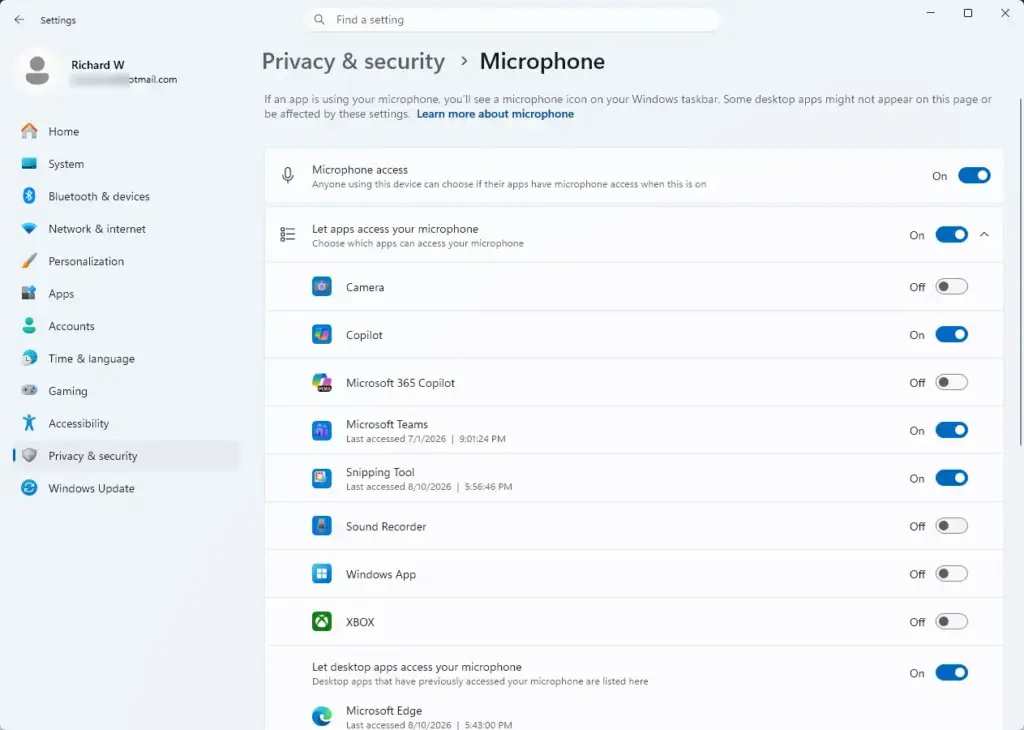
The Microphone page in Windows 11 has a master switch called Microphone access. It sits above every per-app setting. When it is on, apps can ask to use the microphone, and the per-app switches below decide which ones get it. When it is off, Windows refuses every request from every app, whatever those lower switches say.
Your computer still knows the microphone is plugged in, and the hardware is fine. It still shows up in Settings System Sound. Windows acts like a security guard at the door and tells each app that the microphone is not available.
You can turn the microphone off for the whole computer, or block it for one app at a time. That way you keep control of your privacy without losing the voice features you actually use. This works the same in Windows 11 Home and Pro.
What Breaks Immediately When You Turn Off the Master Microphone Switch
With the master switch off, video meetings, voice typing and voice commands all fail. Other people can’t hear you on calls, and speech recognition tools do nothing until you turn access back on. Here is what you will notice in each case:
- Video MeetingsZoom, Microsoft Teams and Google Meet still open and run, but nobody hears you. Expect a muted microphone icon or an error message saying no microphone was found or access is blocked.
- Voice TypingPress the Win plus H to start voice typing and it will not pick up your voice. The same goes for voice access, the separate accessibility feature that lets you control the PC by speaking.
- Cortana and Voice AssistantsAny assistant that listens for voice requests stays silent because it can’t hear you. Cortana has been retired in recent Windows 11 versions, so on a fully updated PC this mostly affects other voice tools.
- Audio RecordingBuilt-in tools like the Windows Sound Recorder app capture nothing when you try to record a voice note. The recording may run but come out silent.
- Gaming Voice ChatOnline games with team chat can’t use your voice. Your teammates won’t hear your callouts, and the game may report that no microphone was detected.
In every case the app itself is working. It is Windows that refuses to pass the audio along, so reinstalling the app will not help.
Step-by-Step: How to Turn Off Microphone Access in 🪟 Windows 11
You can turn off microphone access from the Settings app. You don’t need advanced skills or administrator tools on a personal PC. On a work or school PC, a policy set by your organization can lock the master switch and the Let desktop apps access your microphone switch as well. That second switch is the one that controls Chrome, Edge, Zoom and Discord, so check it if those apps behave oddly.
Before you change anything, find out which apps are using the microphone. When an app is listening, a microphone icon appears in the taskbar notification area, at the right end of the taskbar. Hover over it to see which app is using the microphone. Then follow these steps:
- Click the Start button on the taskbar and open Settings. You can also press the Win plus I. The Settings window opens with a list of categories on the left.

- Click Privacy & security in the left-hand menu. The privacy options appear on the right.
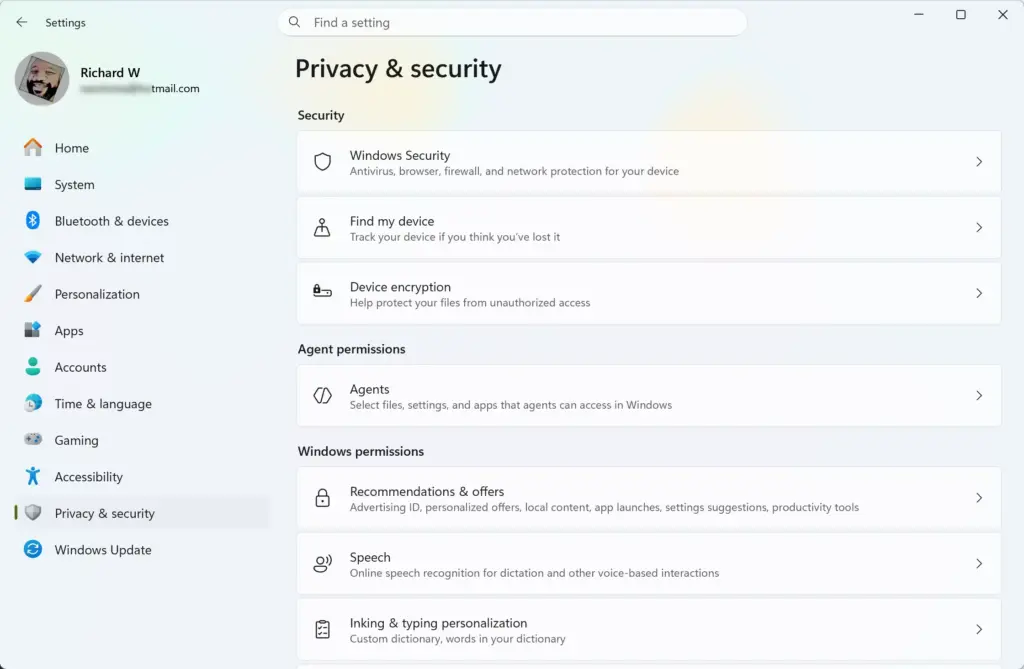
- Scroll down the right side to the App permissions section.
- Click Microphone. A page opens with the master switch at the top and a list of apps below it. The page also shows Recent activity, which lists the apps that recently accessed the microphone. Use it to decide which apps you may want to block one by one instead.
- Find the switch labeled Microphone access and click it to turn it Off. The app list below it is greyed out, which is normal.
That’s it. No app on your computer can use the microphone until you turn the switch back on, and you don’t need to restart. To undo it, return to the same page and set Microphone access to On. Apps that were already open, such as a meeting window, may need to be closed and reopened, or you may need to rejoin the call, before they see the microphone again.
How to Control Microphone Access for Individual Apps
Your microphone keeps working for trusted tools like video calling software, and you don’t have to turn off everything. Open the Recent activity list on the Microphone page first. It shows which apps recently used the microphone, so you can spot any you don’t recognize. Then follow these steps:
- Open Settings by pressing the Win plus I.

- Select Privacy & security from the left menu.
- Click Microphone under App permissions.
- Make sure the main Microphone access switch is turned On. If it is off, the app list stays greyed out and you can’t change anything in it.
- Scroll down to the list under Let apps access your microphone.
- Find the app you want to block, such as an unfamiliar game or chat tool, and click the switch next to it to turn it Off.
You should now have that app blocked from the microphone while your work meeting software keeps working. To undo a block, turn that app’s switch back on. The change takes effect straight away, though an app that is already open may need to be restarted.
The individual switches mainly cover Microsoft Store apps. Traditional desktop programs, including Chrome, Edge, Zoom and Discord, are covered together by a single Let desktop apps access your microphone switch further down the page. You can’t block them one at a time from here. A work or school policy can lock that switch too.
Unique Angle: Hidden Background Processes That Fail Silently
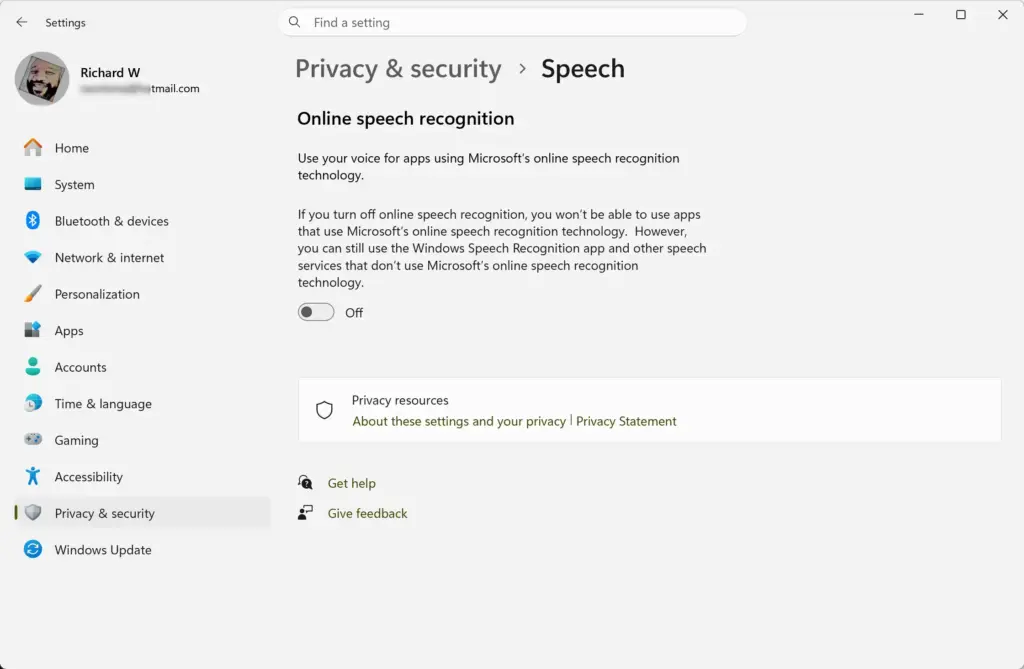
Some background processes depend on speech features for accessibility and dictation, and they fail quietly when microphone access is off. You won’t see an error on screen, and your main apps may look normal.
For example, Windows 11 uses background speech services for accessibility features and dictation. With the microphone blocked globally, these services log errors in the background. Your computer will not crash, but these hidden tasks keep trying to reach a microphone that is locked away and waste a little processing power.
Automated diagnostic tools are another casualty. If you contact customer support and they run a remote hardware scan, the tool may report a microphone failure because Windows is blocking the access request. This can lead to confusing troubleshooting sessions where you think the hardware is broken when your privacy settings are doing their job.
If a support tool reports a dead microphone, check the master switch before you replace anything. The microphone should still appear in Settings System Sound if the hardware is healthy.
Unique Angle: The Impact on Browser-Based Apps and Web Extensions
Web apps and browser extensions are blocked from using your microphone when the master privacy switch is off. Even if a website asks for permission and you click Allow in Google Chrome or Microsoft Edge, the Windows setting overrides it. The browser still has to ask Windows for access to the hardware, and Windows says no.
When Windows blocks the microphone at the system level, the browser can’t connect to it. You will often see confusing messages inside web apps, such as “Your browser cannot access your microphone” or “Check your system sound settings”, even though the browser’s own permissions are correct.
Before you troubleshoot browser audio problems, check three things in this order:
- Confirm that Microphone access is On in the Windows privacy settings.
- Confirm that Let desktop apps access your microphone is On, because Chrome and Edge count as desktop apps.
- Check the site’s microphone permission inside the browser.
You should now know whether Windows or the browser is blocking the microphone. If the first two switches are on and the site permission is set to allow, the block is somewhere else, such as the wrong input device in the app.
Summary
Windows 11 microphone privacy settings decide whether your computer can use voice features in video calls, web browsers and background system tools. Turning off the main switch stops voice typing, game chat and voice assistants from working. You can change these permissions at any time in the Settings app, with no restart needed.
If you want to keep most voice features, leave Microphone access on and block only the apps you don’t trust.
Have a question about this guide?
Answered by AI from this guide. Good questions may be added to this page — please don't include personal details.
Did this guide fix your problem?

About the Author
Richard
Tech Writer, IT Professional
Richard is a writer at Geek Rewind who turns complex IT tasks into clear, step-by-step guides. He draws on years of hands-on experience in system administration and enterprise IT operations, focusing on Windows, Linux and WordPress: the problems people actually run into, and the fixes that work. His server and WordPress guides come from systems he runs himself. Richard builds and maintains the platform behind Geek Rewind, from its Ubuntu servers and Nginx configuration to its custom WordPress plugins. Many new tutorials start with readers' questions, and he's always glad to answer them in the comments.
No comments yet — be the first to share your thoughts!