How to Enable TTY Mode in Microsoft Teams

TTY mode in Microsoft Teams is an accessibility setting for deaf and hard-of-hearing users. It lets you take part in voice calls by reading and typing text instead of listening and speaking. The text goes through a teletypewriter (TTY) device connected to your computer.
You turn it on in the Teams desktop app for Windows 10 and Windows 11, from the settings menu. Once it’s enabled, the app routes call audio through the connected TTY hardware, both incoming and outgoing.
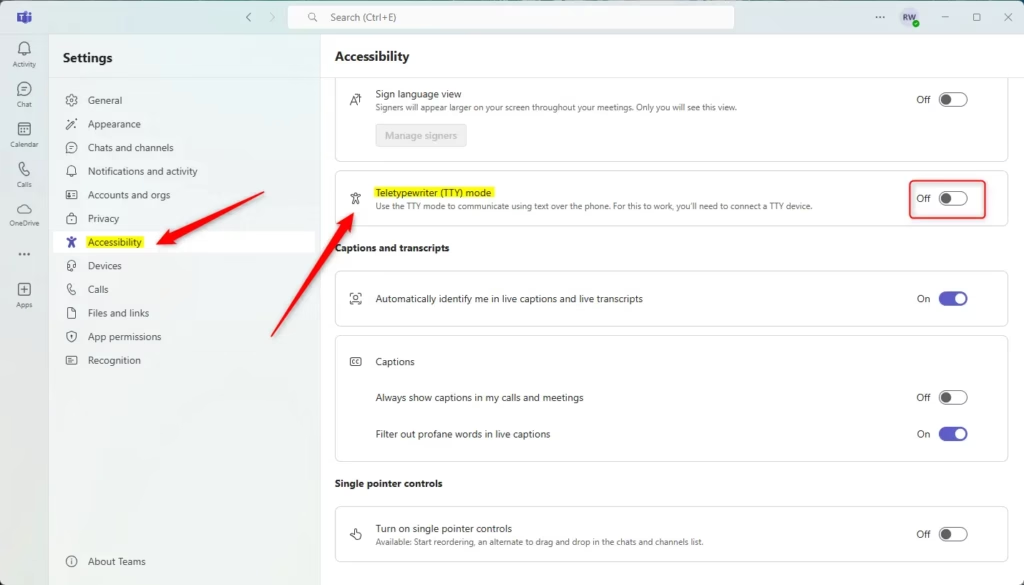
Enable TTY mode in Microsoft Teams by going to Settings, then Accessibility, and turning on the Teletypewriter (TTY) switch. This feature requires a physical TTY device connected to your computer and is only available in the desktop client.
Hardware Requirements and Setup
You need a physical TTY device plugged into your computer. Older TTY hardware usually has a serial connector, and most modern PCs don’t have a serial port. A serial-to-USB adapter bridges that gap. Plug the device in and make sure Windows recognizes the adapter before you change anything in Teams.
Check two more things before you start. First, update Teams to the latest version, since menu layouts change between releases. Second, if your account is managed by an organization, an admin may control whether TTY is available. If the option is missing later, ask your IT team.
How to Enable TTY Mode in Microsoft Teams
To enable TTY mode, open your Teams settings and go to the Accessibility tab. Once it’s on, your teletypewriter is connected to your calls. The steps below take a couple of minutes.
- Open the Microsoft Teams app from your Start menu . Type “Teams” into the Start menu search if you don’t see it pinned. The Teams window opens and shows your chats or calendar.

- If the app is already running, find it on your Taskbar and click its icon to bring the window to the front. Teams may also be running in the background, in which case the icon can be hidden in the system tray . If you don’t see it on the Taskbar , check there.

- Click the Settings and more (…) icon next to your profile picture, then choose Settings. The Settings window or page opens, with a list of categories on the left.

- Select the Accessibility tab from the left sidebar. The accessibility options appear on the right.
- In the Hearing section, switch Teletypewriter (TTY) mode to On. The toggle should now show as enabled.
- Click Save to apply your changes.
To undo this, go back to the same Accessibility tab, switch Teletypewriter (TTY) mode to Off, and click Save again. If the setting doesn’t take effect right away, close Teams completely and reopen it.
Troubleshooting TTY Device Issues
If this didn’t work
Start with the hardware. Verify your physical cable connections, and make sure your serial-to-USB adapter is properly recognized in Windows Device Manager. If the adapter shows up with a warning icon or as an unknown device, you probably need to install the driver from the adapter’s manufacturer. Unplugging the adapter and plugging it into a different USB port can also help.
If the hardware looks fine but you can't find Teletypewriter (TTY) mode, the cause is usually one of these:
- Your version of Teams is out of date, so the option sits somewhere else or isn't there yet. Update the app and look again.
- Your organization's admin has not made the feature available for your account.
Broader Accessibility Context
Teams has other accessibility features that work alongside TTY mode. Live Captions generate real-time text for spoken audio during meetings. Sign Language View lets you pin interpreter video feeds to a prominent spot on your screen. These built-in tools need no extra hardware, so they're worth trying if a call or meeting doesn't involve a TTY device.
Summary
Enabling TTY mode in Teams lets participants with TTY hardware join calls. All it takes is the toggle under Settings Accessibility, plus a TTY device that Windows recognizes.
Do I need special hardware to use TTY mode in Teams?
Have a question about this guide?
Answered by AI from this guide. Good questions may be added to this page — please don't include personal details.
Did this guide fix your problem?

About the Author
Richard
Tech Writer, IT Professional
Richard is a writer at Geek Rewind who turns complex IT tasks into clear, step-by-step guides. He draws on years of hands-on experience in system administration and enterprise IT operations, focusing on Windows, Linux and WordPress: the problems people actually run into, and the fixes that work. His server and WordPress guides come from systems he runs himself. Richard builds and maintains the platform behind Geek Rewind, from its Ubuntu servers and Nginx configuration to its custom WordPress plugins. Many new tutorials start with readers' questions, and he's always glad to answer them in the comments.
What TTY hardware interfaces with Windows which can be used for this?
The post mentions that TTY mode requires a physical TTY device connected to your computer, and notes that a serial-to-USB adapter can bridge older teletypewriter hardware to modern ports. However, the post doesn’t specify which particular TTY devices or models are compatible with Windows and Teams.
For a definitive answer on compatible hardware, I’d recommend checking Microsoft’s official Teams accessibility documentation or contacting Teams support directly, as they’d have the most current list of tested devices. You might also check with your TTY device manufacturer to confirm Windows compatibility.