What Breaks When You Disable Background App Microphone Access in Windows 11 Microphone Settings

Disabling background app microphone access in Windows 11 is meant to stop installed programs from listening when you are not looking at their windows. The goal is to keep desktop tools and Microsoft Store apps from running hidden listening tasks. The controls live at Settings Privacy & security Microphone.
Turning this off can save a little battery and cuts down on apps listening without your knowledge. It can also break everyday features. Phone app calls go quiet, voice typing stops mid-sentence, and meeting apps like Zoom or Teams may fail to pick up your voice when you switch to another window. This article covers what breaks, why, and how to check and reverse the setting.
Turning off background app microphone access in Windows 11 breaks anything that must listen while you are working elsewhere. Voice assistant wake words stop responding, Discord and gaming voice chats cut out when you switch windows, and desktop phone app calls go silent. Control it at Settings Privacy & security Microphone.
Understanding 🪟 Windows 11 Microphone Privacy Settings
Windows 11 microphone privacy settings control which apps can use your microphone. You can turn access off for the whole computer, or set permissions app by app so only the programs you trust can record sound. That keeps private conversations private, and you decide which tools get your audio hardware. Three layers matter here:
- Global Microphone Switch: This turns the microphone on or off for the entire computer. If it is off, no app can use your microphone at all, whatever its own setting says.
- App-Specific Access: This lets you choose which individual apps can use your microphone and which cannot. Each app gets its own toggle in the list.
- Background App Access: This is the layer that decides whether apps may listen through your microphone while they sit in the background. “Background” here means the app is running, but you are not looking at its main window.
When you restrict background access, you are telling Windows that an app should only hear you while it is open, on your screen, and in use. The idea is that the moment you switch to another window, minimize the app, or tuck it away in the taskbar, its microphone connection is cut. That is why so many features fail in the sections below.
The Microphone page in current Windows 11 has no single switch labeled “background microphone access”. What you control there is the master switch, the app list, and the desktop apps option. How strictly an app is cut off in the background depends on the app and on its own background permissions.
Treat the symptoms below as what you are likely to see, and test your own apps. Results differ from one program to the next.
What Breaks Immediately: Essential Features and Communications
Several common features stop working correctly when background microphone access is turned off. These are the most noticeable ones, and they usually show up right away:
1Voice Assistants and Wake Words
Voice assistants stop listening for wake words when background microphone access is turned off. A wake word is the phrase that tells the assistant to start paying attention. Assistants have to run quietly in the background all the time to hear a command the instant you speak it.
Once background access is blocked, the assistant ignores you as soon as you switch to another window. You then have to keep the app open on screen to use voice commands, which defeats the point of hands-free use.
If your assistant seems deaf, check this setting before you reinstall anything. Switching access back on fixes it, and you normally do not need to restart.
2Background Voice Chats and Gaming Discord Channels
Background voice chats and gaming channels like Discord stop working properly when background microphone access is turned off. Your friends suddenly stop hearing you the moment you click away from the chat window to check a game or browse the web. To be heard, the chat app has to stay open on your active screen while you play.
If your friends say you cut out whenever you alt-tab, this setting is a good first suspect. Check it before you blame your headset or your network.
3Incoming Calls on Desktop Phone Apps
Calls on desktop phone apps end in dead silence when background microphone access is disabled in Windows 11. If a phone app is running hidden in the background, it loses its connection to your microphone. The person on the other end will not hear you until you bring the calling app to the front of your screen and keep it active.
Incoming calls make this problem easy to miss. You answer from a notification, the app stays in the background, and the caller hears nothing. Open the app window right after you pick up.
Advanced Impact: System Tools, Recording, and Productivity
The impact goes beyond casual chatting and voice assistants. Blocking background microphone access also hits productivity tools and system utilities that depend on continuous audio monitoring.
Voice Dictation and Speech-to-Text Tools
Voice dictation and speech-to-text tools fail to capture your voice when background microphone access is turned off. Built-in voice typing and third-party transcription software both need continuous microphone permission while you work in other windows. If your note-taking app runs in the background, it cannot turn your speech into text until you bring its window to the front.
The usual symptom is that dictation starts, then silently stops when you click into another program. Bring the dictation app back to the front, or allow background access for it.
Audio Recording and Streaming Software
Audio recording and streaming software will capture a completely silent track if you block background microphone access. Podcasters and other creators often leave a recorder running while they work in other programs. Without background permission, the recorder loses your voice the second you switch windows or hide the app.
Step-by-Step Instructions: Managing Microphone Privacy Settings in 🪟 Windows 11
You can turn microphone permissions on or off for individual apps, or for the whole computer, from the Settings app. Use the steps below to check your current permissions and fix apps that stopped hearing you. The path is the same on Windows 11 Home and Pro.
- Click the Start button on your taskbar and select Settings (the gear icon). Alternatively, press Win+I on your keyboard. The Settings window opens.

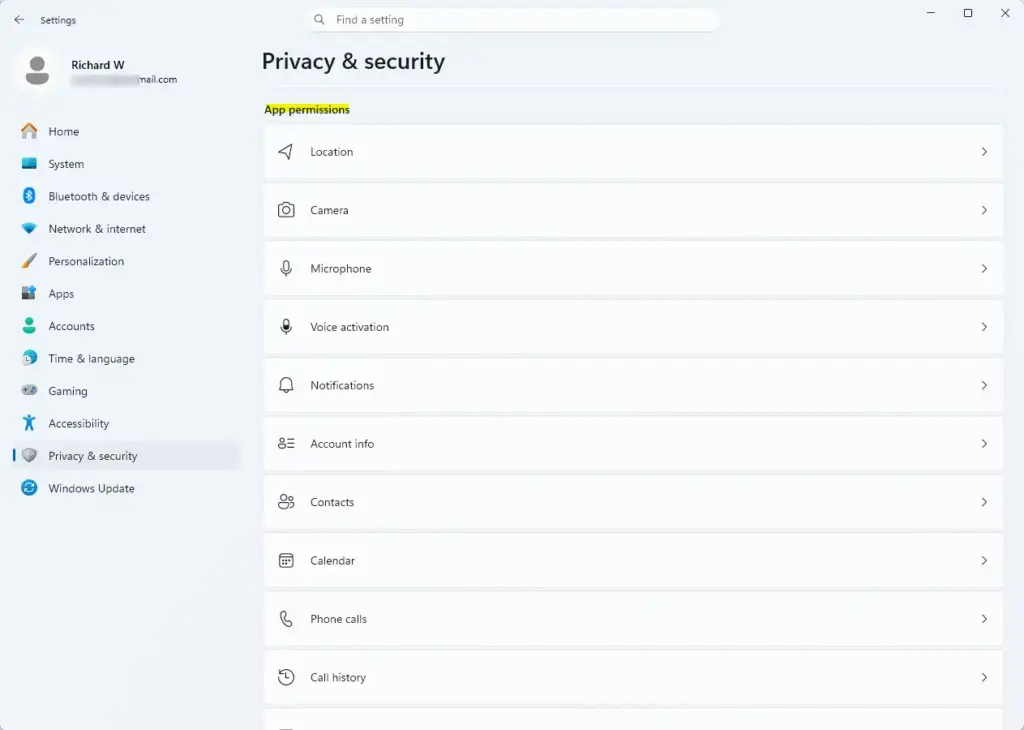
- In the Settings window, click Privacy & security in the left-hand menu. The privacy options appear on the right.

- Scroll down the right side of the screen and click Microphone under the “App permissions” section. The microphone page opens.
- Make sure the main Microphone access switch is turned On. If it is off, every app is blocked, whatever the individual toggles say.
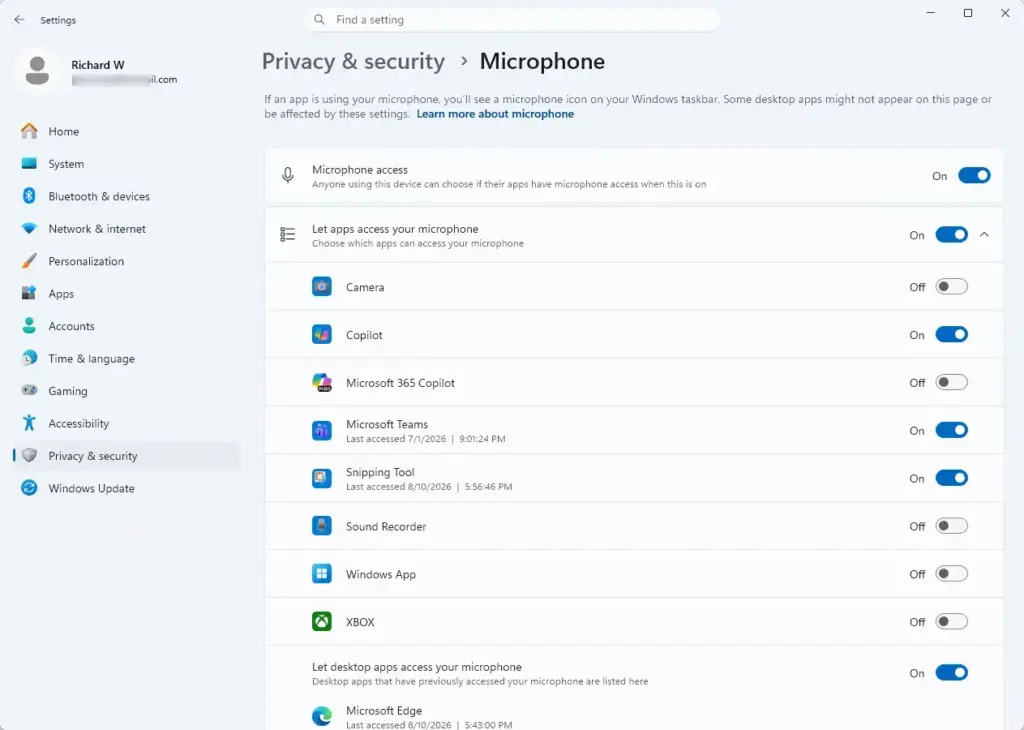
- Scroll down and expand the list labeled Let apps access your microphone. Make sure this is turned On as well. If either switch is greyed out on a work or school PC, an administrator policy is probably controlling it, and you will need to ask your IT team.
- Browse through the list of apps and set the switch next to each app name to On or Off, depending on your preference. Under each app, Windows shows when it last used the microphone, which helps you spot apps that should not be listening. In newer builds, the page also has a Recent activity section that lists which apps have used the microphone lately.
- Scroll to the bottom of the page and find Let desktop apps access your microphone. Classic desktop programs, such as older recorders and some chat clients, are covered only by this option. They have no per-app background setting, so turning this switch Off blocks all of them at once, whether they are in front or in the background.
- To manage background behavior for Microsoft Store apps, open Settings Apps Installed apps. Click the ⋯ menu next to the app, choose Advanced options, and adjust “Background apps permissions”. This controls whether the app may run in the background at all. Windows has no global toggle for this on the Microphone page, and classic desktop programs do not show this section.
- Test the result. Open the app, start using the microphone, then switch to another window and keep talking. While an app is using the microphone, a microphone icon appears in the taskbar tray, the notification area at the right end of the taskbar. Hover over it to see which app is listening. If the icon disappears when you switch windows, that app loses the microphone in the background.
That’s it. You now know which layer is blocking each app, and you can allow or block microphone use app by app.
To undo a change, return to the same page and switch the setting back to On. For a Microsoft Store app, set its background permission back to its earlier value in Advanced options. No restart is needed. If an app still cannot hear you, close it completely and reopen it so it picks up the new permission.
Summary
Disabling background app microphone access in Windows 11 breaks voice assistants, background chat apps, phone calls, and dictation tools. Blocking background listening improves your privacy, but it stops your favorite apps from working properly when you minimize them. Weigh the privacy gain against the broken features before you change these settings.
A good middle path is to leave access on only for the apps you trust and switch off the rest one by one. The taskbar microphone icon and the Recent activity list help you check the result.
Frequently asked questions
Should I allow apps to use my microphone?
Allow microphone access only to apps you actually use and trust. Deny it for everything else. You can set permissions per app in Windows 11 Settings Privacy & security Microphone. Apps need permission to record audio—blocking unused apps protects your privacy without breaking anything you rely on.
How to prevent apps from using your microphone in 🪟 Windows 11?
Open Settings Privacy & security Microphone. Toggle off 'Microphone access' to block all apps, or scroll down to turn off access for specific apps individually. You can also disable background app microphone access so apps only listen when their window is active.
What are some common microphone issues in 🪟 Windows 11?
Common issues include apps not hearing you when switched to another window, voice typing stopping mid-sentence, Phone app calls going quiet, and meeting apps like Teams or Zoom failing to pick up audio. These happen when microphone access or background app permissions are turned off.
How do I stop apps from accessing my microphone?
Go to Settings Privacy & security Microphone and toggle off access for individual apps. Or turn off ‘Microphone access’ entirely to block all microphone use. Toggle ‘Let desktop apps access your microphone’ to control desktop applications separately.
Still have a question?
Answered by AI from this guide. Good questions may be added to this page — please don't include personal details.
Did this guide fix your problem?

About the Author
Richard
Tech Writer, IT Professional
Richard is a writer at Geek Rewind who turns complex IT tasks into clear, step-by-step guides. He draws on years of hands-on experience in system administration and enterprise IT operations, focusing on Windows, Linux and WordPress: the problems people actually run into, and the fixes that work. His server and WordPress guides come from systems he runs himself. Richard builds and maintains the platform behind Geek Rewind, from its Ubuntu servers and Nginx configuration to its custom WordPress plugins. Many new tutorials start with readers' questions, and he's always glad to answer them in the comments.
No comments yet — be the first to share your thoughts!