How to See Apps That Accessed Your Microphone in Windows 11

Windows 11 keeps a record of which apps have used your microphone, and you can read it in the Settings app. The log covers the last 7 days. Use it to spot software you don’t recognize or that has no reason to listen, then block it.
Go to Settings Privacy & security Microphone and click “Recent activity.” This shows a list of apps that have used your microphone in the last 7 days, including the date and time of each access.
This works the same on Windows 11 Home and Pro. Changes take effect immediately and you don’t need to restart. Nothing here is permanent, because you can turn any app’s access back on later.
While an app is using the microphone, Windows shows a small microphone indicator in the notification area at the right end of the taskbar. Hover over it and Windows names the app that is using the mic right now. The 7-day log fills in the rest of the picture, including apps that used the microphone while you weren’t looking.
Here is what to check when you review the log:
- Apps you knowVideo call, recording and voice chat apps are expected to appear. Leave them alone if you use them.
- Apps with no obvious needA calculator, a game that has no voice chat, or a utility you rarely open should not be listening. Turn off their access.
- Names you don’t recognizeLook the name up before you decide. If you can’t tie it to software you installed, uninstall it or block its access.
- Desktop appsTraditional programs are listed separately from Microsoft Store apps, so check both lists.
If you would rather not share the microphone with any app, Windows also has a master switch that turns off microphone access for everything at once. This is useful on a shared or work PC. Remember that blocked apps, including your call software, can’t hear you until you turn access back on.
How to Check Microphone Activity
Checking your windows 11 microphone access history lets you see every app that recently listened through your microphone and the exact time it happened. You can view this complete list of recent app activity directly inside your system privacy settings without needing any extra software.- Open Settings. You can do this by pressing the Win+I on your keyboard.

Windows 11 Start menu with Settings gear icon highlighted. - In Settings, click on Privacy & security in the left-hand menu. Then, on the right side, click on Microphone under the “App permissions” section. Open Microphone Settings
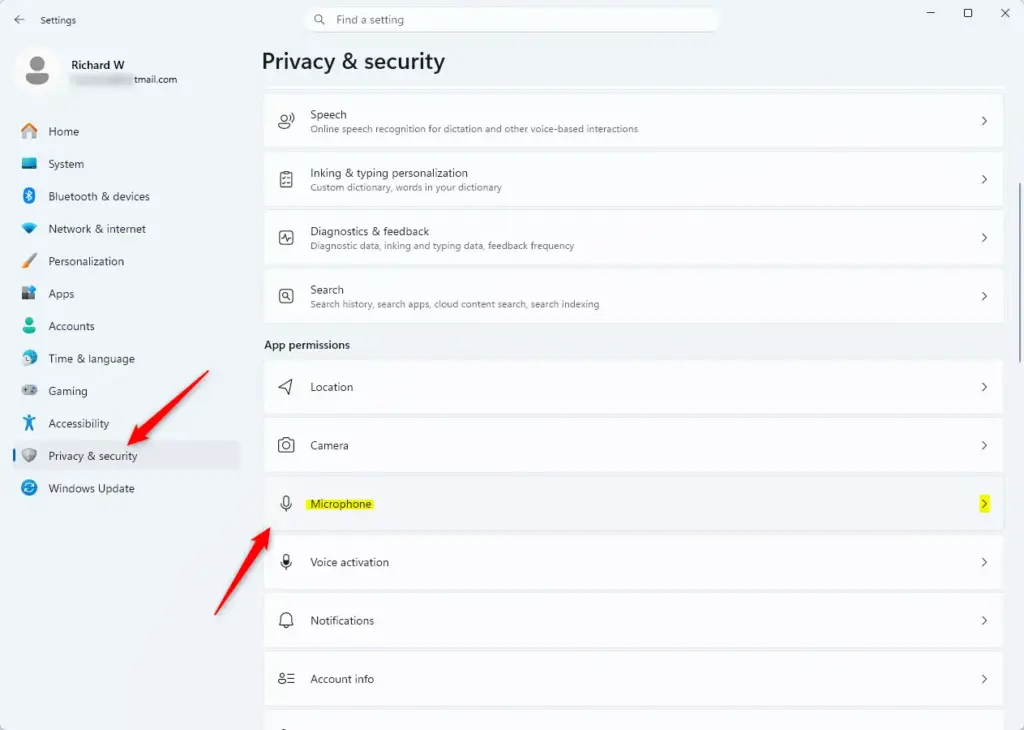
Settings > Privacy & security
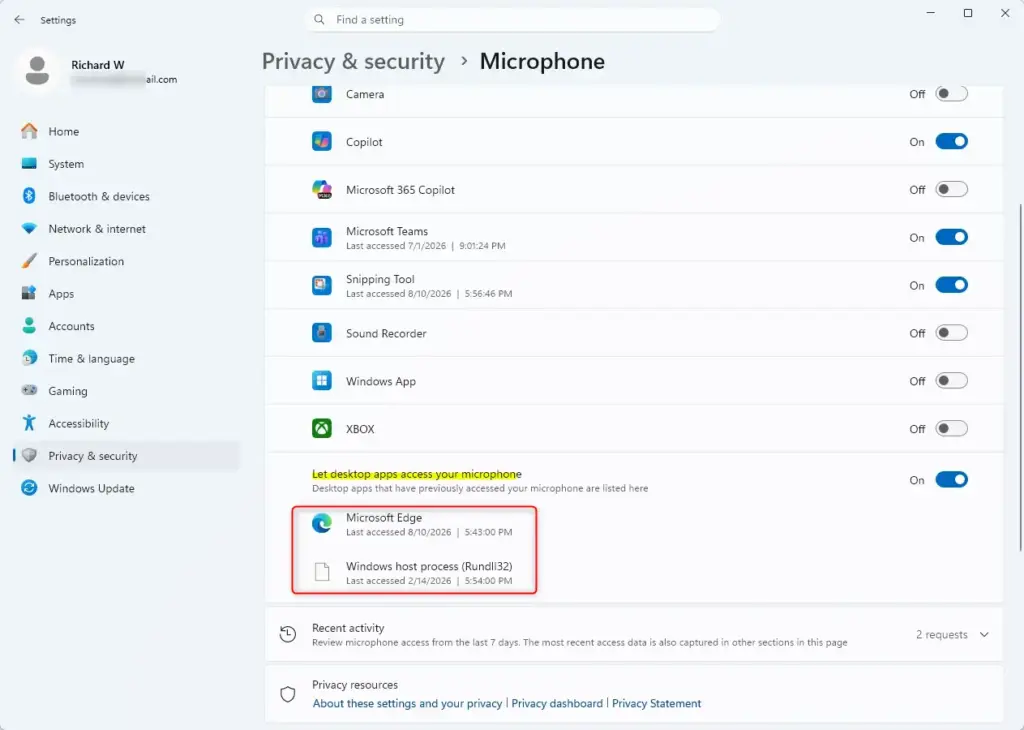
- Look for the section that says “Let desktop apps access your microphone.” Here, you will see a list of desktop apps that have recently used your microphone, along with the date and time of their last access.
- Click on Recent activity to expand this section.
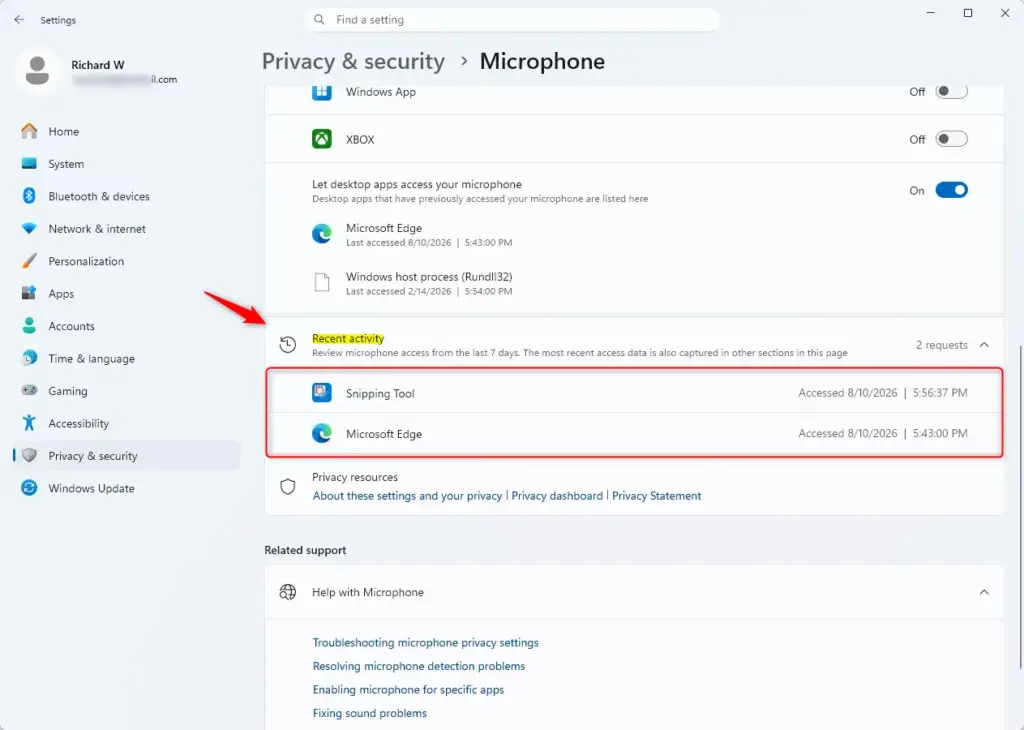
- Now, you will see a detailed list showing the date and time for all apps that have accessed and used your microphone in the past 7 days.
Summary
To see which apps have used your microphone in Windows 11, go to Settings Privacy & security Microphone. Under “App permissions,” you can view the recent activity, showing the date and time of access for both desktop apps and other applications within the last 7 days.
Have a question about this guide?
Answered by AI from this guide. Good questions may be added to this page — please don't include personal details.
Did this guide fix your problem?

About the Author
Richard
Tech Writer, IT Professional
Richard is a writer at Geek Rewind who turns complex IT tasks into clear, step-by-step guides. He draws on years of hands-on experience in system administration and enterprise IT operations, focusing on Windows, Linux and WordPress: the problems people actually run into, and the fixes that work. His server and WordPress guides come from systems he runs himself. Richard builds and maintains the platform behind Geek Rewind, from its Ubuntu servers and Nginx configuration to its custom WordPress plugins. Many new tutorials start with readers' questions, and he's always glad to answer them in the comments.
No comments yet — be the first to share your thoughts!