How to Delete Your Microsoft Teams Files

Deleting files in Microsoft Teams removes them permanently from both your Teams channels and your connected OneDrive storage account after a short recovery window. Teams stores shared documents in cloud storage, so a file deleted from the storage location disappears from every place it appeared, including the chat or channel where it was shared.
Check your selection before you delete anything. Once a file leaves the recycle bin , recovery options are very limited. Files removed from personal chat threads disappear from your personal OneDrive storage just as channel files do. Other people in the chat may also lose access to a file you delete, so make sure nobody still needs it.
Delete your Microsoft Teams files by opening OneDrive, navigating to the “Microsoft Teams Chat Files” folder, selecting the files, and confirming their deletion. You can access OneDrive via its app or website.
Deleting Your Teams Files
You delete Teams files by opening the OneDrive storage space where your chat documents are saved. Every file you share in a chat goes to your personal OneDrive. Channel files go to your team’s SharePoint site instead, so you can’t clean those up from your personal OneDrive. Finding the right folder lets you remove unwanted items quickly so they stop taking up storage space.
Step 1: Go to Your OneDrive
- Open the OneDrive app on your device, or go to the OneDrive website in your browser.
- Sign in if prompted. Use the same Microsoft account (work, school or personal) that you use in Teams, or you won’t see your Teams files.
You should now see your OneDrive file list with your folders and recent files.
Step 2: Find the “Microsoft Teams Chat Files” Folder
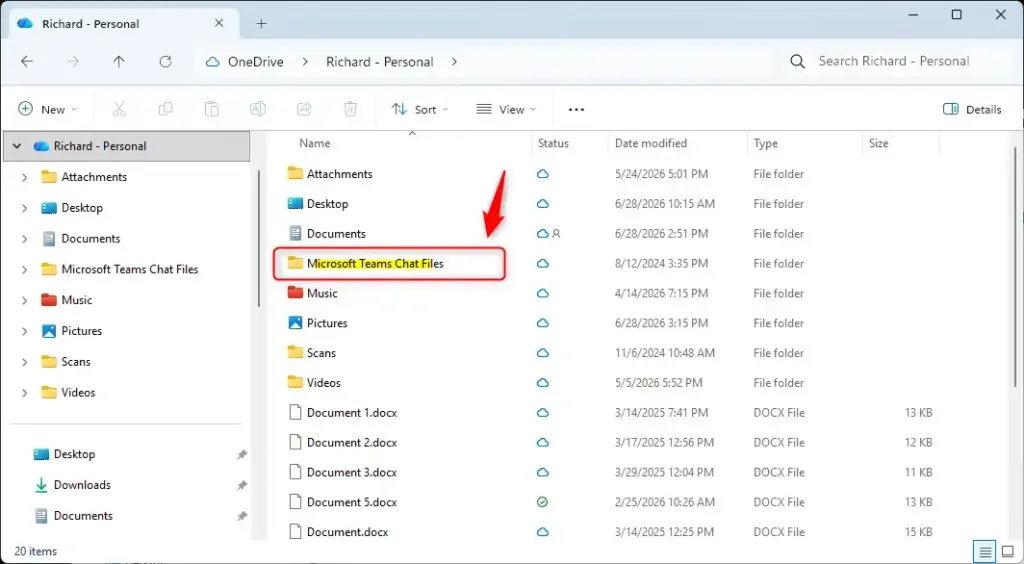
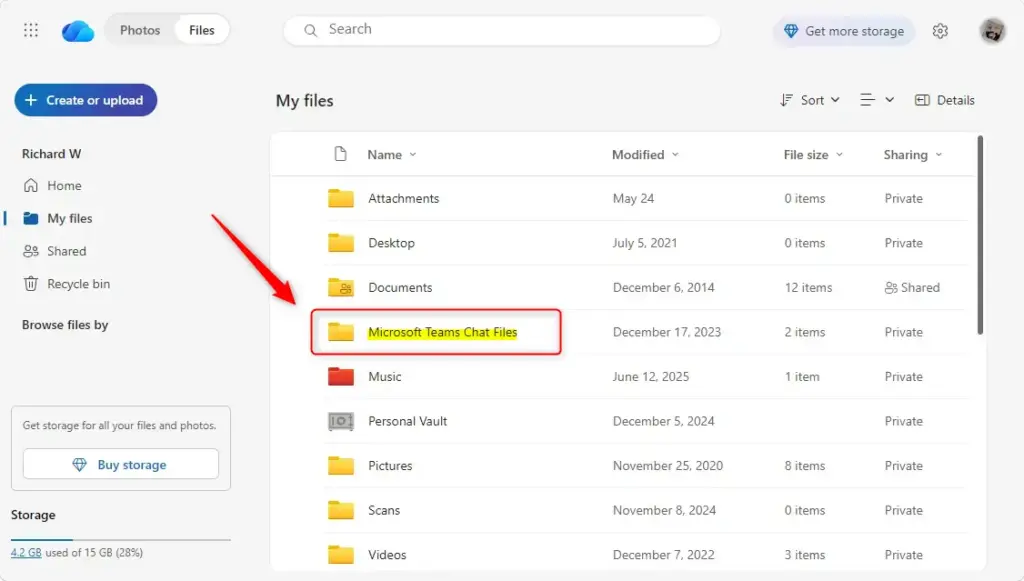
- Look through your list of folders for one named Microsoft Teams Chat Files.
- Open the folder by clicking or tapping it.
This folder contains files shared or received in Teams chats. If you can’t find it, you probably haven’t shared a file in a Teams chat from this account yet. It can also sit under a different account than the one you’re signed in to, so check that first.
Step 3: Choose Which Files to Delete
You can delete files from your phone or your computer. Follow the steps for the device you’re using.
- On your phone:
- Press and hold a file to select it. A check mark appears on the file.
- Tap other files if you want to delete more than one.
- Tap the delete symbol (it usually looks like a trash can).
- On your computer:
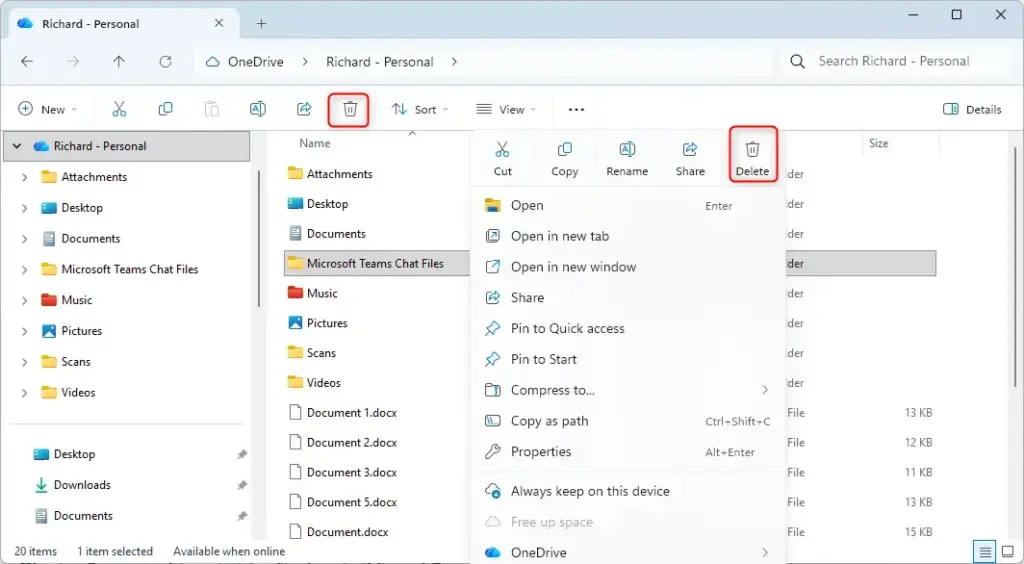
- Click a file to select it.
- To select more than one file, hold the
CtrlorShiftkey while you click the others. Selected files are highlighted. - Right-click on the files you’ve chosen and select Delete, or simply press the
Deletekey on your keyboard.
Step 4: Confirm Deletion
- If OneDrive asks you to confirm, read the file names in the prompt and confirm the deletion.
- Check the folder again. The files should no longer be listed.
The files move to the OneDrive recycle bin first. If you delete something by mistake, open the recycle bin right away and restore it. Once the retention period ends or you empty the recycle bin, the file is gone for good. Retention time depends on your account type, and work or school accounts can also be limited by what your administrator has set.
Deleting important files from other folders in your OneDrive can cause problems.
Summary
Go to OneDrive and remove unwanted items from the "Microsoft Teams Chat Files" folder. Double-check each selection before you confirm, and restore anything you deleted by mistake from the recycle bin as soon as you notice.
Frequently asked questions
Can I delete my Teams chat files from OneDrive?
Yes. Files you share in a Teams chat are saved to your personal OneDrive, in the Microsoft Teams Chat Files folder. Open OneDrive in a browser or the app, find the file, and delete it. This removes the file for everyone in the chat, so check first that nobody still needs it.
How to remove a file from a Teams file library in Windows?
In the Teams app on Windows, open the channel and select Files. Select the check box beside the file, then select Delete. The file is removed for everyone on the team, but it goes to the SharePoint recycle bin first, where you can still restore it for a limited time.
How do I delete files from Teams chat history?
Deleting a chat message does not remove the file attached to it. To remove the file, delete it from your OneDrive, in the Microsoft Teams Chat Files folder. To hide the conversation from your chat list, right-click the chat and select Hide. Hiding does not delete any files.
How to dleete shred file in Teams?
Teams has no shred option. Deleting a file moves it to the recycle bin, and emptying that bin removes it for good. Before you delete, check that no one in the chat still needs the file, because it goes away for everyone with access. Once the recycle bin is emptied, recovery is very limited.
How to delete a folder in Teams documents?
Deleting a folder removes everything inside it, so open it and check the contents first. Then open the Files tab in the channel, select the folder, and choose Delete. The folder goes to the recycle bin, where you can restore it for a limited time.
Still have a question?
Answered by AI from this guide. Good questions may be added to this page — please don't include personal details.
Did this guide fix your problem?

About the Author
Richard
Tech Writer, IT Professional
Richard is a writer at Geek Rewind who turns complex IT tasks into clear, step-by-step guides. He draws on years of hands-on experience in system administration and enterprise IT operations, focusing on Windows, Linux and WordPress: the problems people actually run into, and the fixes that work. His server and WordPress guides come from systems he runs himself. Richard builds and maintains the platform behind Geek Rewind, from its Ubuntu servers and Nginx configuration to its custom WordPress plugins. Many new tutorials start with readers' questions, and he's always glad to answer them in the comments.
No comments yet — be the first to share your thoughts!