Skip to content
Windows 🟡 Intermediate

Windows 11 Privacy Settings Explained: Every Option

Richard
Written by
Richard
2 min read
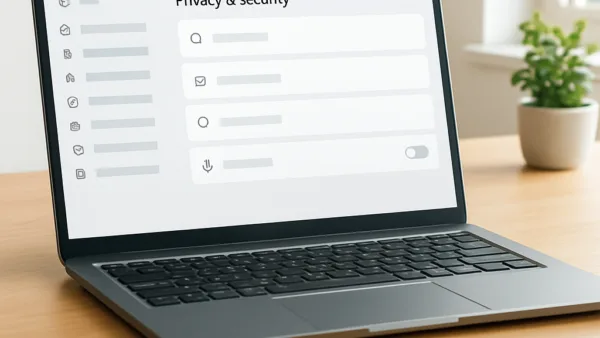
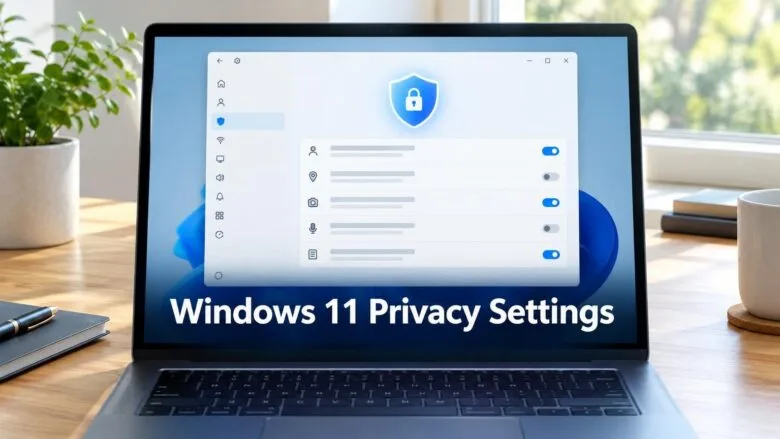
Laptop showing Windows 11 Settings with privacy icons and toggle switches on a wooden desk, illustrating Windows 11 privacy options.

Privacy and diagnostic settings in Windows 11 control what Windows sends to Microsoft, which apps can use your location, camera and microphone, and what the system stores about you. Most of them sit under Settings Privacy & Security, but some live under System, Personalization and Accounts, so the same question can have answers in more than one place. Most switches can be turned back on at any time, but clearing data such as your typing dictionary or activity history cannot be undone. The guides below take each setting in turn and show what changes when you switch it off.

Advertisement
Start hereWhat Windows 11 Diagnostic Data Collection Actually Transmits to MicrosoftIt explains what diagnostic data actually contains, which helps you judge the other diagnostic and telemetry settings before you change any of them.

Decide how much diagnostic data Windows sends

Diagnostic data is the information Windows sends to Microsoft about how your device and its software behave. These guides cover the optional setting, the history Windows keeps, and the feedback tools. Read them before you change the diagnostic level or clear past data.
Settings > Privacy > Diagnostics
1 What Windows 11 Diagnostic Data Collection Actually Transmits to Microsoft Windows 11 diagnostic data collection sends crash reports, device performance details, and app usage stats back to Microsoft to help fix bugs… 7 min read ↻ Updated Nov 2026
Settings > Privacy > Diagnostics
2 Should You Enable Full Diagnostic Data or Keep It on Basic in Windows 11 Windows 11 lets you choose between two levels of diagnostic data: Basic (called Required diagnostic data) and Full. Basic is the right… 8 min read ↻ Updated Nov 2026
Settings > Privacy > Diagnostics
3 Should You Enable Optional Diagnostic Data Sharing in Windows 11 Optional diagnostic data sharing in Windows 11 sends extra information to Microsoft about how you use your apps, which websites you visit,… 10 min read ↻ Updated Oct 2026
Settings > Privacy > Diagnostics
4 What Breaks When You Turn Off Full Diagnostic Data in Windows 11 Diagnostic data in Windows 11 is information your PC sends back to Microsoft to help fix bugs and improve performance. Lowering the… 7 min read ↻ Updated Oct 2026
What breaks when you disable the Connected User Experiences and Telemetry service in Windows 11
5 What Breaks When You Disable The Connected User Experiences And Telemetry Service In Windows 11 Windows 11 constantly monitors your computer in the background. It gathers performance metrics, error logs, and usage habits through a system tool… 4 min read ↻ Updated Nov 2026
Settings > Privacy > Diagnostics
6 How to Clear Full Diagnostic Data History Manually in Windows 11 Diagnostic data history in Windows 11 is the stored record of what your PC shares with Microsoft about how you use your… 10 min read ↻ Updated Nov 2026
How to Enable or Disable Microsoft Defender Cloud Protection
7 How to Enable or Disable Diagnostic Data Viewer in Windows 11 The article explains how to use the Diagnostic Data Viewer in Windows 11 to view and delete device diagnostic data. It illustrates the installation process of the viewer from the Microsoft store. It walks through how Microsoft collects and utilizes device data for personalised experiences and system improvements. The guide also instructs on data deletion from the device and the Microsoft privacy dashboard. 6 min read ↻ Updated Oct 2026
Settings > Privacy > Diagnostics
8 How to Submit Feedback Using the Windows 11 Diagnostics and Feedback Hub The Windows 11 diagnostic and feedback settings live in Settings > Privacy & security > Diagnostics & feedback, and the Feedback Hub… 10 min read ↻ Updated Nov 2026

Choose which apps can use your location

Location settings decide whether Windows and individual apps can read where your device is. This group shows how to set the default for apps, set rules for specific apps, and clear a saved location. It also covers what stops working when location is turned off across the whole system.
How to Configure Location Settings in Settings › Privacy & Security › Location in Windows 11
1 How to Configure Location Settings in Settings › Privacy & Security › Location in Windows 11 The Windows 11 location privacy settings are in Settings > Privacy & security > Location. That one page controls whether your PC… 9 min read ↻ Updated Nov 2026
How to set default location access for apps in Windows 11 Location Settings
2 How to Set Default Location Access for Apps in Windows 11 Location Settings Default location access in Windows 11 controls where apps look when your PC has no GPS chip. Most desktops and many laptops… 7 min read ↻ Updated Nov 2026
How to manage geo-fencing permissions in Windows 11 Location Settings
3 How to Manage Geo-Fencing Permissions in Windows 11 Location Settings Geo-fencing permissions in Windows 11 control which apps can tell when your computer crosses an invisible border on a map, such as… 11 min read ↻ Updated Nov 2026
How to Clear Your Default Location in Windows 11
4 How to Clear Your Default Location in Windows 11 Clearing your default location in Windows 11 removes the fallback coordinates your PC uses when precise GPS or Wi-Fi data isn't available.… 5 min read ↻ Updated Oct 2026
Settings > Privacy > Location
5 What Breaks When You Disable Windows Location Services System-Wide Disabling Windows location services system-wide turns off the master switch that lets Windows 11 work out where you are. Most desktops and… 8 min read ↻ Updated Nov 2026
What breaks when you disable the Windows 11 Location Service globally
6 What Breaks When You Disable the Windows 11 Location Service Globally The Windows 11 location service is a built-in feature that uses your internet connection, nearby wireless networks, and GPS data (if your… 10 min read ↻ Updated Oct 2026

Control which apps can use your camera and microphone

Camera and microphone access can be set for the whole system, for each app, and for apps running in the background. Each level works separately, so an app can be blocked at one level and still have access at another. These guides explain the effect of each switch before you change it.
Advertisement
enabling microphone for specific apps
1 How to Enable Microphone Access for Specific Desktop Apps in Windows 11 Privacy Settings Microphone access for specific desktop apps in Windows 11 lets individual programs such as voice recorders and games hear your audio while… 8 min read ↻ Updated Nov 2026
Settings > Bluetooth & devices > Cameras
2 How to Change App Permissions for Webcam Access in Windows 11 Privacy Settings App permissions for webcam access in Windows 11 control which software can use your computer's camera. They stop unwanted apps from switching… 10 min read ↻ Updated Oct 2026
Settings > Privacy & security
3 How to Block Application Camera Access Globally in Windows 11 Privacy Settings Blocking camera access globally in Windows 11 turns off the webcam for every app on your computer at once. The switch lives… 7 min read ↻ Updated Oct 2026
How to Enable or Disable Microsoft Defender Cloud Protection
4 How to Enable or Disable Microphone Access for Apps in Windows 11 The article is a detailed guide on how to control app access to the microphone on a device running Windows 11. Users can opt to allow or deny all apps access to the microphone, or make decisions for individual apps. Controlling access can be done through Windows Settings, the Local Group Policy Editor, or the Windows Registry Editor. The article also discusses how to notice when the microphone is in use. 8 min read ↻ Updated Oct 2026
Settings > Bluetooth & devices > Cameras
5 What Breaks When You Disable Camera Access System-Wide in Windows 11 Disabling camera access system-wide in Windows 11 turns off camera permission for every app on your PC at once, not just selected… 10 min read ↻ Updated Nov 2026
Settings > Privacy > Camera
6 What Breaks When You Disable the Windows Camera Privacy Permission Turning off the camera privacy permission in Windows 11 and Windows 10 blocks apps from using your webcam. The result is frozen… 6 min read ↻ Updated Nov 2026
Settings > Privacy & security
7 What Breaks When You Turn Off Microphone Access in Windows 11 Privacy Settings The Windows 11 microphone privacy settings are in Settings > Privacy & security > Microphone. One master switch there, called Microphone access,… 8 min read ↻ Updated Oct 2026
What breaks when you disable background app microphone access in Windows 11 Microphone settings
8 What Breaks When You Disable Background App Microphone Access in Windows 11 Microphone Settings Disabling background app microphone access in Windows 11 is meant to stop installed programs from listening when you are not looking at… 9 min read ↻ Updated Oct 2026

Turn off suggestions, ads and tailored content

Windows and some Microsoft services show tips, promoted apps and content based on how you use your device. The settings for these sit in several places, including Personalization and Recommendations and Offers. This group covers each switch and what it changes, and it includes a browser ad setting for Google Chrome.
Settings > Personalization > Device usage
1 How to Configure Device Usage Tailoring in Windows 11 Personalization Settings Device usage in Windows 11 lets you pick from six ways you use your computer: Gaming, Family, Creativity, School, Entertainment, and Business.… 6 min read ↻ Updated Nov 2026
Settings > Privacy & security
2 Stop Windows 11 from Suggesting Content in Privacy and Security Recommendations and Offers Settings Windows 11 shows suggestions and offers in several places: the Settings app, the Start menu, the lock screen, notifications, and the search… 7 min read ↻ Updated Oct 2026
Should you enable suggestions and tips in Windows 11 Recommendations and offers settings
3 Should You Enable Suggestions and Tips in Windows 11 Recommendations and Offers Settings The recommendations and offers in Windows 11 are controlled from two pages in the Settings app: Settings > Personalization > Start and… 7 min read ↻ Updated Oct 2026
Settings > Privacy & security
4 Should You Enable Targeted Content Recommendations in Windows 11 Privacy Settings Targeted content recommendations in Windows 11 are privacy settings that let Microsoft use your app usage, the websites you visit, and your… 6 min read ↻ Updated Nov 2026
How to opt out of personalized recommendations in Windows 11 Recommendations and offers
5 How to Opt Out of Personalized Recommendations in Windows 11 Recommendations and Offers Personalized recommendations in Windows 11 are the tips, suggested items and promotional messages that Microsoft shows in the Start menu, the Settings… 7 min read ↻ Updated Oct 2026
Settings > Personalization > Device usage
6 What Windows 11 Device Usage Settings Actually Track and Share Windows 11 Device Usage settings are a group of privacy and personalization options. They ask which of six categories describe how you… 7 min read ↻ Updated Oct 2026
What Windows 11 Recommendations and offers actually tracks and how to turn it off
7 What Windows 11 Recommendations and Offers Actually Tracks and How to Turn It Off Windows 11 recommendations and offers are built-in pop-ups and suggestions that track your daily computer habits to sell you extra apps and… 9 min read ↻ Updated Nov 2026
How to stop Windows 11 from suggesting apps in recommendations and offers
8 How to Stop Windows 11 from Suggesting Apps in Recommendations and Offers Start menu ads in Windows 11 build 22621 and newer push apps and promotional offers into the Start menu. They show up… 5 min read ↻ Updated Nov 2026
How to clean up Windows 11 system recommendations and offers
9 How to Clean Up Windows 11 System Recommendations and Offers System recommendations and offers in Windows 11 are built-in ads, tips, and cloud storage prompts that Microsoft places inside the Start menu,… 8 min read ↻ Updated Nov 2026
How to Turn “Auto-verify” On or Off in Google Chrome
10 Optimize Google Chrome Ad Privacy Settings The article provides a guide to enhance online ad privacy settings using the Google Chrome browser. It focuses on a feature in Chrome version 116 and onward, an 'Ad privacy' section in the 'Privacy and security' page. The feature helps stop targeted advertisements based on user online activity without preventing ad display. It empowers users to limit data sharing with advertisers, thus boosting online privacy and data security. 4 min read ↻ Updated Oct 2026
How to Enable or Disable Phone Link in Windows 11
11 How to Manage Tailored Experiences in Windows 11 The post guides on controlling tailored experiences in Windows 11. Microsoft uses diagnostic data and feedback for security, updates, troubleshooting, and enhancing product experiences. Thus, tailored experiences use diagnostic data for personalized tips, ads and recommendations. The settings for enabling or disabling tailored experiences are located in Windows' system settings and can also be managed via the Local Group Policy Editor. 5 min read ↻ Updated Oct 2026
How to Reset Your Microsoft Account Password
12 How to Enable or Disable Suggested Content in Windows 11 The post guides users on how to turn on or off the suggested content feature in Windows 11. Suggested content can provide relevant recommendations within the Settings app, which helps discover useful features, new content, and apps. While this feature is beneficial for beginners, it may be unnecessary and distracting for advanced users. 4 min read ↻ Updated Oct 2026

Review and clear what Windows has stored about you

Windows keeps records such as activity history, typing dictionary words, app launch counts and, on Copilot+ PCs, Recall snapshots. These guides show where each record is kept, how to stop it being collected, and how to clear it. Clearing a record is permanent, so read the warning in each guide first.
Advertisement
Settings > Privacy & security
1 Clear Custom Dictionary Words in Settings Privacy and Security Inking and Typing Personalization Clearing the custom dictionary in Windows 11 deletes the personal word list your PC builds as you type, write with a digital… 6 min read ↻ Updated Oct 2026
Settings > Personalization
2 Clear Personal Dictionary Data Stored in Windows 11 Inking and Typing Personalization Settings Inking and Typing Personalization in Windows 11 builds a custom dictionary on your hard drive. It learns your writing style, spelling habits… 7 min read ↻ Updated Nov 2026
Settings > Privacy & security
3 How to Clear Personal Inking and Typing Dictionary Data in Windows 11 Privacy Settings Personal inking and typing dictionary data in Windows 11 is a custom word list your PC builds to help suggestions appear faster… 6 min read ↻ Updated Nov 2026
How to Lock and Unlock OneDrive Personal Vault in Windows 11
4 How to Clear Activity History in Windows 11 The article presents a step-by-step guide on how to clear activity history in Windows 11. It outlines how Microsoft uses activity history data to enhance user experiences and suggests how to clear such data. Users can do this by navigating to System settings, selecting privacy, security, and activity history and clearing history. For history stored with Microsoft, users must visit the Privacy Dashboard. 3 min read ↻ Updated Oct 2026
How to Enable Variable Refresh Rate in Windows 11
5 How to Manage Activity History in Windows 11 The post instructs students and new users on how to manage the sending of their activity history to Microsoft in Windows 11. Activity history, including apps, services, files, and websites, is used by Microsoft for personalized experiences and suggestions. Users can choose to store this history locally or send it to Microsoft when signed into their Microsoft accounts. The post provides a guide on enabling or disabling this feature through the System Settings. 3 min read ↻ Updated Oct 2026
How to Set Max Recording Length in Windows 11 Gameplay Captures
6 How to Enable or Disable App Launch Tracking in Windows 11 This post provides a guide for students and users on how to turn app launch tracking on or off in Windows 11. This feature improves Start and search results by tracking app usage, plus organizes frequently used apps for easy access. With step-by-step instructions for disabling and enabling, users can customize this feature via the System Settings pane. 5 min read ↻ Updated Oct 2026
How to Check Windows 11 AI Activity by Apps
7 How to Check Windows 11 AI Activity by Apps Windows 11 AI activity by apps shows which programs have used the built-in AI models for tasks like text and image creation… 2 min read ↻ Updated Nov 2026
How to Improve Recall Snapshots Filtering on Windows 11
8 How to Improve Recall Snapshots Filtering on Windows 11 This article details how to enable or disable the "Help improve Recall Snapshots filtering" feature in Windows 11. The Recall & Snapshots AI feature captures screen snapshots, allowing users to search their activity. Users can share app and site exclusion lists anonymously to enhance filtering, while snapshots are stored securely on devices. 4 min read ↻ Updated Oct 2026
Windows 11: Manage Sensitive Information in Recall Snapshots
9 Windows 11: Manage Sensitive Information in Recall Snapshots The article outlines how to manage the Recall Snapshots feature in Windows 11, which saves screen snapshots for quick information retrieval. Users can enable or disable a filter for sensitive information, enhancing privacy. The feature processes data locally and offers controls to delete or pause snapshots, leveraging AI for efficient information recall. 3 min read ↻ Updated Oct 2026
What Breaks When You Disable App Access To Account Info
10 What Breaks When You Disable App Access to Account Info Turning off app access to your account info in Windows 11 stops Microsoft Store apps and built-in tools like the new Outlook… 7 min read ↻ Updated Oct 2026
Settings > Accounts
Settings > Accounts
11 How to Manage Windows Backup Preferences in Windows 11 Accounts Settings Windows Backup preferences in Windows 11 control how your personal files, app settings, Wi-Fi profiles, and passwords are saved to your Microsoft… 8 min read ↻ Updated Oct 2026
How to Turn On or Off Shared Experiences in Windows 11
12 How to Turn On or off Shared Experiences in Windows 11 Shared Experiences in Windows 11 links your computer to nearby devices over Bluetooth and Wi-Fi, so you can pick up a task… 4 min read ↻ Updated Oct 2026
How to Hide Notification Content on Windows 11 Lock Screen
13 How to Hide Notification Content on Windows 11 Lock Screen Hiding notification content on the Windows 11 lock screen keeps message previews private. The lock screen still shows that an alert arrived,… 6 min read ↻ Updated Nov 2026

Fix privacy settings that are not working

Some privacy settings keep blocking an app, keep reappearing, or show the wrong location. These guides explain the usual causes and what to check first. They also cover the Find My Device and location icon problems that people notice most.
Settings > Privacy & security
1 What to Do When Windows 11 Camera Privacy Settings Block Your Webcam Apps Windows 11 camera privacy settings block webcam apps when camera permission is turned off in Settings. The privacy controls work as a… 8 min read ↻ Updated Oct 2026
Settings > Privacy > Location
2 What to Do When Windows Location Services Show Incorrect City Data Windows location services in Windows 11 show the wrong city when your internet provider or nearby Wi-Fi routers send outdated location clues… 7 min read ↻ Updated Oct 2026
What to do when Windows 11 Location tracking reports the wrong geographic area
3 What to Do When Windows 11 Location Tracking Reports the Wrong Geographic Area Location tracking in Windows 11 estimates where your PC is by combining nearby Wi-Fi networks, your internet connection details, and GPS data… 9 min read ↻ Updated Nov 2026
Taskbar
Taskbar
4 Why Does Windows 11 Location Service Icon Stay Active Constantly in the Taskbar The Windows 11 location icon appears in the taskbar whenever an app, a website, or a system process has recently asked for… 10 min read ↻ Updated Oct 2026
Settings > Personalization > Device usage
5 Why Does Windows 11 Device Usage Personalization Prompt Keep Reappearing The Windows 11 device usage personalization prompt is a recurring setup screen that asks how you plan to use your computer: gaming,… 7 min read ↻ Updated Oct 2026
Settings > Privacy & security
6 Why Does Windows 11 Keep Showing Promotional Suggestions in Privacy Settings Promotional suggestions in Windows 11 are built-in ads and tips. Microsoft uses them to recommend extra services such as OneDrive storage or… 8 min read ↻ Updated Nov 2026
Settings > Privacy & security > Find my device
7 What to Do When Windows 11 Find My Device Fails to Locate Your Lost Laptop Find My Device in Windows 11 can't locate your lost laptop in three common cases. The laptop is shut down, it has… 7 min read ↻ Updated Oct 2026
Settings > Privacy & security > Find my device
8 What to Do When Windows 11 Find My Device Location Tracking Refuses to Update Find My Device records the last known position of your laptop or tablet using GPS, nearby Wi-Fi networks, and cell towers. You… 8 min read ↻ Updated Oct 2026

Have a question about this guide?

Answered by AI from this guide. Good questions may be added to this page — please don't include personal details.

Tags: #Windows 11
Richard

About the Author

Richard

Tech Writer, IT Professional

Richard is a writer at Geek Rewind who turns complex IT tasks into clear, step-by-step guides. He draws on years of hands-on experience in system administration and enterprise IT operations, focusing on Windows, Linux and WordPress: the problems people actually run into, and the fixes that work. His server and WordPress guides come from systems he runs himself. Richard builds and maintains the platform behind Geek Rewind, from its Ubuntu servers and Nginx configuration to its custom WordPress plugins. Many new tutorials start with readers' questions, and he's always glad to answer them in the comments.

Advertisement

No comments yet — be the first to share your thoughts!

Leave a Comment

Your email address will not be published. Required fields are marked *