Stop Windows 11 from Suggesting Content in Privacy and Security Recommendations and Offers Settings


Windows 11 shows suggestions and offers in several places: the Settings app, the Start menu, the lock screen, notifications, and the search panel. They recommend apps, websites, and features based on how you use the PC. Some of them also use an advertising ID, a unique number Windows assigns to your account or device so apps can match ads to your activity.
The controls are spread across Privacy & security, Personalization, and System in Settings, so this guide walks through each one. None of these changes need a restart, and none remove any Windows feature. They only cut the ads, tips, and tracking behind them. Every toggle can be switched back on the same way you turned it off.
To stop Windows 11 from suggesting content, open Settings, select Privacy & security, then choose Recommendations & offers (or General on older builds). Turn off the switch that lets apps use your advertising ID for personalized ads, and turn off the option that shows suggested content in the Settings app. Then, under Search permissions, turn off Show search highlights.
How to Stop 🪟 Windows 11 From Suggesting Content in Privacy and Security Recommendations and Offers Settings
The main switches are in the Settings app. Windows uses them to decide whether to show tailored tips and promotional content, and whether apps can use your advertising ID. The exact page layout depends on your build of Windows 11. Newer builds have a Recommendations & offers page. On others, the same switches sit on the General page under Privacy & security. The steps below cover both.
- Click the Start button on your taskbar. The Start menu opens.
- Select the Settings icon, which looks like a gear. The Settings window opens. You can also press the Win+I to open it directly.

- Click Privacy & security on the left side of the window. The privacy options appear on the right.

- Select Recommendations & offers from the options on the screen. If you don’t see it, select General instead. Your build keeps the same switches there.
- Find the setting that lets apps use your advertising ID to show you ads based on your app usage, and turn it off. On the General page it is worded as letting apps show you personalized ads by using your advertising ID. The switch should now read Off.
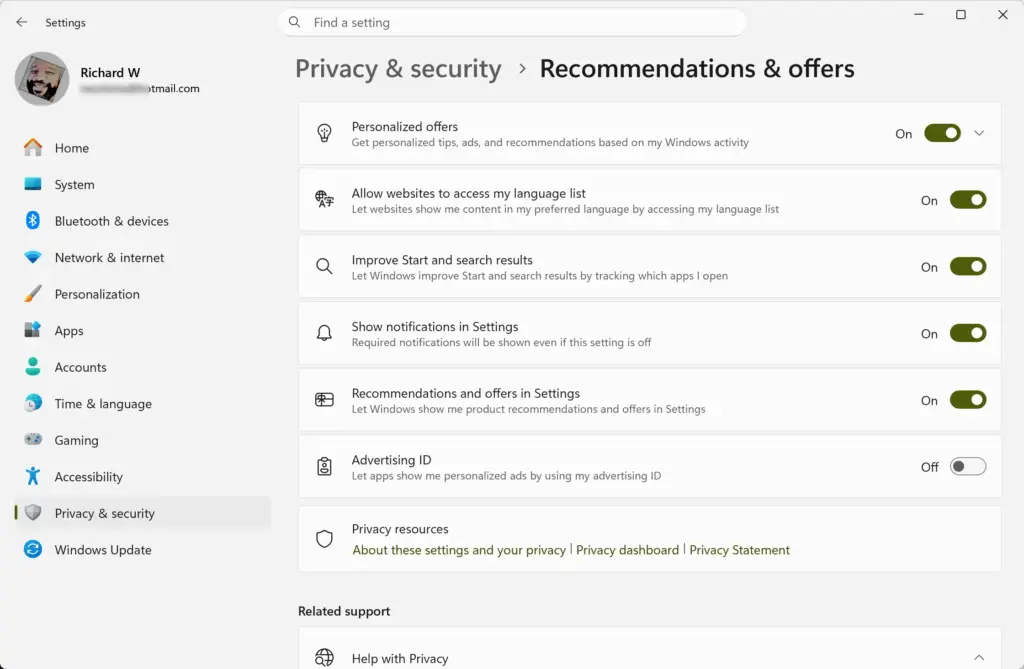
- Find the setting that controls whether Windows can show you suggested content in the Settings app, and turn it off. Check that it also reads Off.
That’s it for the main switches. Windows 11 now stops using your app activity to pick targeted ads and personal recommendations. Turning off the advertising ID does not remove ads. You will still see ads, but they won’t be matched to your activity. To undo any of these changes, return to the same page and switch the toggle back to On.
Adjusting General Privacy Settings for a Cleaner Experience
The same Privacy & security area holds a few other tracking options. By default, Windows can use your app launches, your language list, and some diagnostic details to personalize what you see. Reviewing them takes a couple of minutes.
- Open Settings by clicking the Start button and choosing the gear icon.
- Click Privacy & security.
- Click General. The list of switches for this page appears on the right.
- Review the items on this page. One option lets websites show you locally relevant content by accessing your language list. Another lets Windows improve Start and search results by tracking app launches.
- Turn off any feature you do not want running in the background. If you are unsure what a switch does, leave it alone and read the short description under it first.
You should now have only the tracking options you chose still running on the General page. Switching off these options will not break your apps. At worst, the Start menu stops reordering itself around the apps you open most.
Diagnostic data is information about how Windows and your apps perform on your PC. A separate setting decides whether Microsoft may use that data to suggest tips and ads. Here is how to turn it off:
- Open Settings Privacy & security Diagnostics & feedback.
- Scroll down to Tailored experiences and expand it if it is collapsed.
- Switch the toggle to Off. It should now read Off.
That’s it for diagnostics. Windows will no longer use your diagnostic data to personalize tips, ads, and recommendations. This does not stop diagnostic data from being sent. The other switches on the same page control that.
The Start menu and the lock screen have their own suggestion settings. They live under Personalization, not Privacy & security.
- Open Settings Personalization Start.
- Turn off Show recommendations for tips, shortcuts, new apps, and more. The wording can differ slightly between builds.
- Go back and open Settings Personalization Lock screen.
- Turn off the option for fun facts, tips, tricks, and more on your lock screen. It may be a checkbox, and Windows can hide it for some lock screen choices, such as a solid color.
You should now see fewer app and tip suggestions in the Start menu and on the lock screen. Other switches on the Start page control recent apps and files. Those are about convenience, not ads, so leave them as you prefer.
Windows also pops up notifications that suggest settings or features. These have their own controls under System.
- Open Settings System Notifications.
- Scroll to the bottom and expand Additional settings.
- Clear the checkbox for Suggest ways to get the most out of Windows. Some builds add “and finish setting up this device” to that label.
- Clear the checkbox for Get tips and suggestions when using Windows. If your build shows only one of the two options, clear that one.
That’s it for notifications. Windows should stop sending you tip and setup pop-ups. Checking the recommendations and offers settings once keeps your system working the way you want, with fewer ads and suggestions getting in the way.
Improving Start Menu and Search Results
The search panel is another place where Windows adds content you did not ask for, such as trending topics, daily highlights, and links to online results. Turning these off leaves a search window that is quicker and focused on what is on your PC.

- Open the Settings app from your Start menu.

- Click Privacy & security.
- Select Search permissions. The page lists the search options for your account.
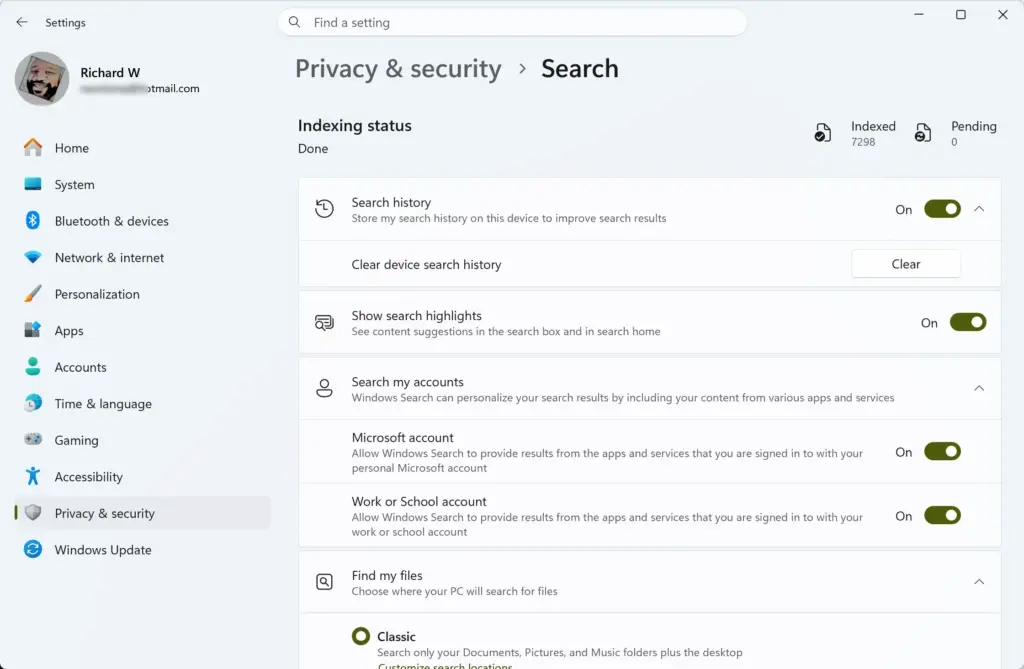
- Look at the cloud content search options and turn off any you don’t want.
- Scroll down to More settings and turn off Show search highlights.
You should now see a search panel without trending topics and online suggestions. Searches should feel faster and cleaner. To undo this, return to the same page and turn the switches back on.
The highlights option may be missing on some builds or on managed work PCs. If so, your organization may be controlling it.
Managing Microsoft Defender SmartScreen and App Controls
SmartScreen is a different kind of setting. It is a safety feature, not an advertising one. It checks downloaded files, apps, and web addresses against Microsoft’s reputation data and warns you about unrecognized or malicious ones. The checks run through Windows Security, the built-in antivirus and protection tool. Look at these controls so you know what is turned on, but do not turn them off for privacy. Most people should leave them on.
- Open the Settings app.
- Click Privacy & security.
- Select Windows Security. The Windows Security page lists the protection areas.
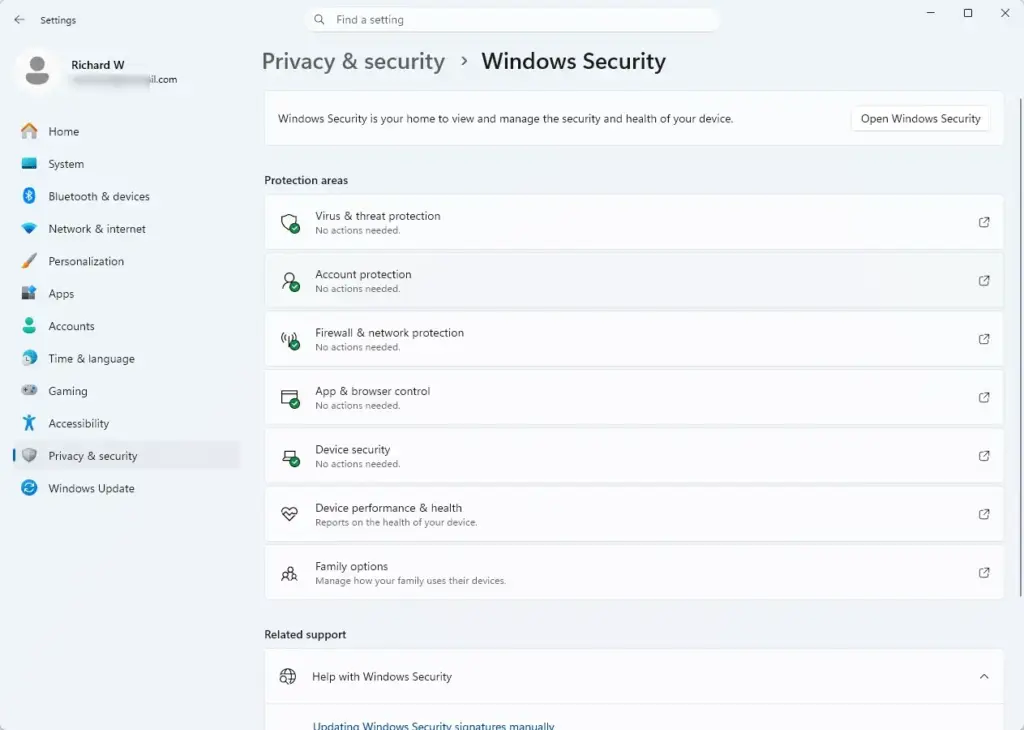
- Click App & browser control. This opens the Windows Security app. If Settings shows an Open Windows Security button first, click it, then choose App & browser control.
- Look for the Reputation-based protection settings to see which checks are active. From there you can review how your computer handles unrecognized apps and files.
You should now know which SmartScreen checks are running on your PC. With the personalized suggestion switches off in Privacy & security, Windows 11 stops using your app activity to show tailored tips and promotional offers. Keeping SmartScreen on protects your PC while limiting what data is used for ads.
Summary
A few minutes in the privacy and security options is enough to remove most of the ads, pop-ups, and suggested content in Windows 11. After that, check back whenever a big Windows update installs, since updates can sometimes bring a setting back to its default.
Have a question about this guide?
Answered by AI from this guide. Good questions may be added to this page — please don't include personal details.
Did this guide fix your problem?

About the Author
Richard
Tech Writer, IT Professional
Richard is a writer at Geek Rewind who turns complex IT tasks into clear, step-by-step guides. He draws on years of hands-on experience in system administration and enterprise IT operations, focusing on Windows, Linux and WordPress: the problems people actually run into, and the fixes that work. His server and WordPress guides come from systems he runs himself. Richard builds and maintains the platform behind Geek Rewind, from its Ubuntu servers and Nginx configuration to its custom WordPress plugins. Many new tutorials start with readers' questions, and he's always glad to answer them in the comments.
No comments yet — be the first to share your thoughts!