What Windows 11 Recommendations and Offers Actually Tracks and How to Turn It Off

- 30 steps
- Needs administrator rights
Windows 11 recommendations and offers are built-in pop-ups and suggestions that track your daily computer habits to sell you extra apps and services. Microsoft uses background tracking tools to watch which programs you open, what files you use, and how you set up your system. It then sends this data to remote servers to display targeted ads inside the Start menu and Settings app.
You can turn off these tracking features to stop Windows 11 from showing commercial promotions and gathering your personal usage data. The main changes take less than two minutes in Settings. Some extra cleanup, such as removing apps and signing out of cloud services, takes a little longer.
Windows 11 recommendations and offers tracks your app habits, recent files, and system preferences to show targeted suggestions. To turn it off, open the Settings app, go to Personalization and then Start, and turn off the toggles for recommendations, tips, and recently opened items to stop these unwanted prompts.
How to Turn Off Recommendations and Suggestions in 🪟 Windows 11
Each section below covers one area: Start menu suggestions, advertising and tips in Settings, diagnostic data, preinstalled apps, visual effects, and cloud integrations. You can do all of them or just the ones that bother you. None of the changes need a restart, and you can reverse any of them by switching the same toggle back on.
Menu names and wording shift slightly between Windows 11 versions (21H2, 22H2, 23H2 and 24H2). If a toggle is worded a little differently on your PC, pick the closest match. If an option is missing entirely, your build probably doesn’t include it.
Disabling Start Menu Recommendations and Recent Items
Start menu recommendations are the section of the Start menu that shows recent files, newly installed apps, and promotional tips every time you press the Win. Turning them off keeps the Start menu focused on the apps you pinned yourself.
The path is Settings Personalization Start. The steps below walk through it.

- Click the Start button on the taskbar, then click the Settings gear icon. You can also press the Win+I to open Settings directly.
The Settings window opens with the System page showing.

- Click Personalization in the left sidebar.
The right side now shows personalization options such as Background, Colors, Themes and Start.

- Select Start from the list on the right.
- Turn off the toggle switches next to Show recently added apps, Show recommendations for tips, shortcut apps, new apps, and more, and Show recently opened items in Start, Jump Lists, and File Explorer.
Open the Start menu again. The Recommended section should be empty or much smaller. If you also see Show most used apps, you can turn that off too.
The exact wording of these toggles differs between versions. Newer builds, for example, use wording about recommended files and website recommendations. Also, the Layout choices at the top of the Start page (More pins, Default, More recommendations) change how much room the Recommended section takes. More pins gives you the least. The Recommended section itself can’t be removed completely in Windows 11 Home or Pro.
Stopping Personalized Offers and Tips in the Settings App
The Settings app has its own tracking and advertising controls. Windows gives each user an advertising ID, which apps use to show you targeted ads based on what you do on the device. Turning it off, along with app launch tracking and tip notifications, cuts down on personalized promotions across Windows.
- Open the Settings app from the Start menu.
- Click Privacy & security in the left sidebar.
- Click General under the Windows permissions section.
- Turn off the toggle for Let apps show me personalized ads by using my advertising ID.
- Turn off the toggle for Let Windows track app launches to improve start and search results. On some builds this reads Let Windows improve Start and search results by tracking app launches.
- If you see Show me suggested content in the Settings app on the same page, turn that off too. It stops promotional suggestions inside Settings.
The toggles on this page should now all read Off. The changes apply immediately.
Next, turn off the tip notifications:
- Go back to the main Settings menu, click System, and then select Notifications.
- Scroll down to the bottom and expand Additional settings if it is collapsed.
- Uncheck the boxes for Suggest ways to get the most out of Windows and finish setting up this device and Get tips and suggestions when you use Windows.
You may also see a box for the Windows welcome experience after updates. Unchecking it stops the “what’s new” screen after major updates.
Turning Off Telemetry and Extra Bloatware Features
Beyond standard recommendations, Windows 11 collects broader diagnostic data, which is information about system performance and crashes, often called telemetry. This data includes how your hardware performs, which apps crash, and how you use the operating system. Microsoft says it uses this data to keep Windows secure and fix bugs. Limiting what is sent protects your privacy, and it does not hurt performance or stop updates from working.
Adjusting Diagnostic Data Collection Settings
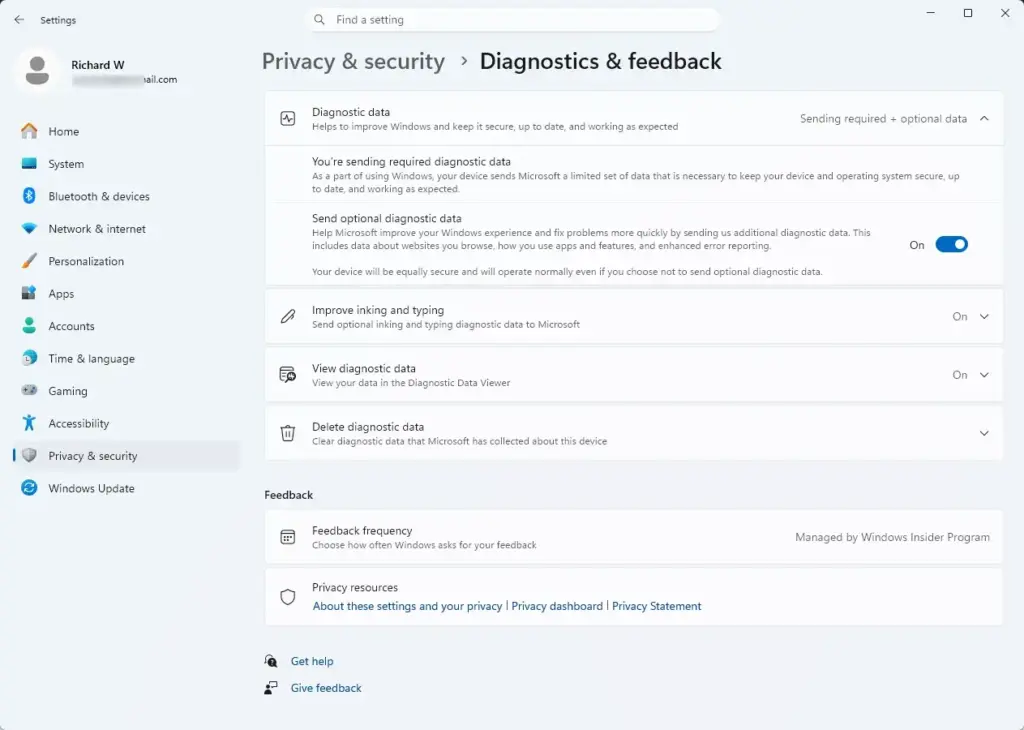
You can’t switch diagnostic data off completely on Home or Pro, but you can cut it down to the required minimum. That level covers only what Windows needs to stay secure and updated. The setting lives at Settings Privacy & security Diagnostics & feedback.
- Open the Settings app.
- Click Privacy & security in the left sidebar.
- Select Diagnostics & feedback from the list.
- Under Diagnostic data, turn off Send optional diagnostic data. This leaves Windows sending only Required diagnostic data, the strict minimum needed to keep Windows secure and updated.
- Scroll down the same page and turn off Tailored experiences. This stops Microsoft from using your diagnostic data to suggest tips and ads.
The same page has two related controls. View diagnostic data only lets you inspect what is collected through the Diagnostic Data Viewer app. Leave it off unless you want to look. Delete diagnostic data is a button that clears the diagnostic data Microsoft already holds for this device. Use it if you want to clear existing logs.
If the toggles are greyed out, your PC is probably managed by an organization, and an administrator controls them.
Removing Preinstalled Apps and Promotional Software
Many new Windows 11 installs come with games, sponsored apps, and other software you never asked for, and some of them trigger their own notifications. Removing them cleans up the Start menu and the installed apps list.
- Open the Settings app and click Apps in the left sidebar.
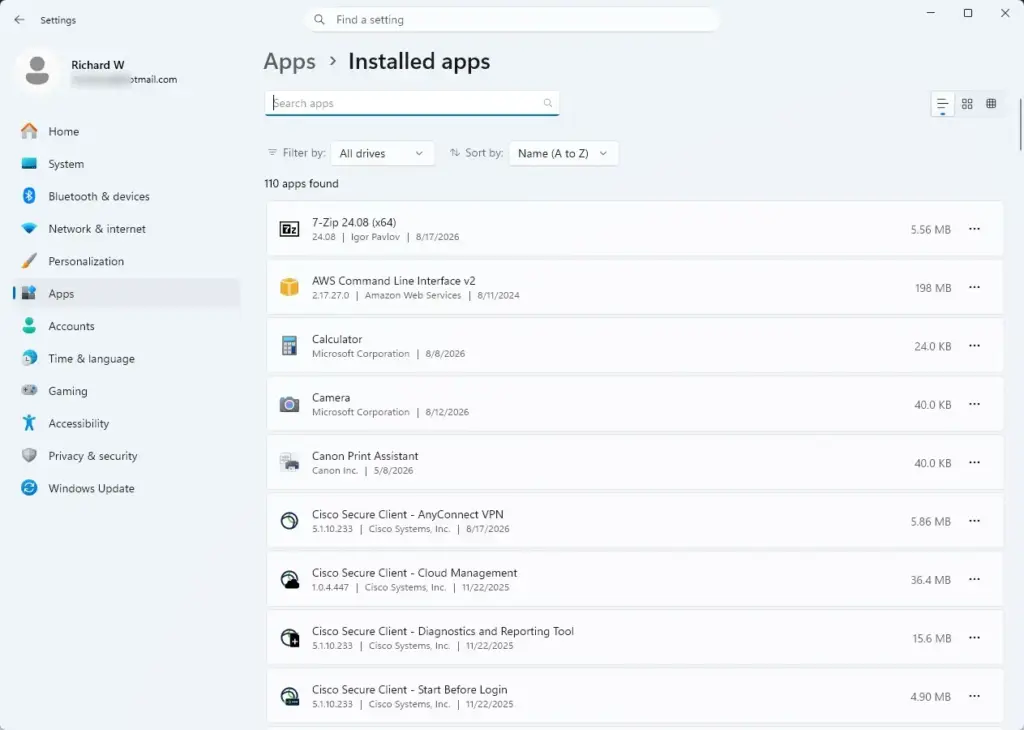
- Select Installed apps to see a complete list of software on your computer.
The list fills with every app on the PC. You can sort it by name, size or install date with the drop-down above the list.
- Scroll through the list to find apps, games, or promotional software you do not use.
- Click the three dots menu button next to an unwanted app and select Uninstall.
- Click Uninstall again in the confirmation box and follow any on-screen prompts to finish the removal.
Some removals require administrator privileges. If you are signed in with a standard account, Windows asks for an administrator password. A few core system apps have the Uninstall option greyed out, and you can’t remove them this way. If you want an app back later, reinstall it from the Microsoft Store.
Advanced Privacy Adjustments: Transparency and Visual Effects
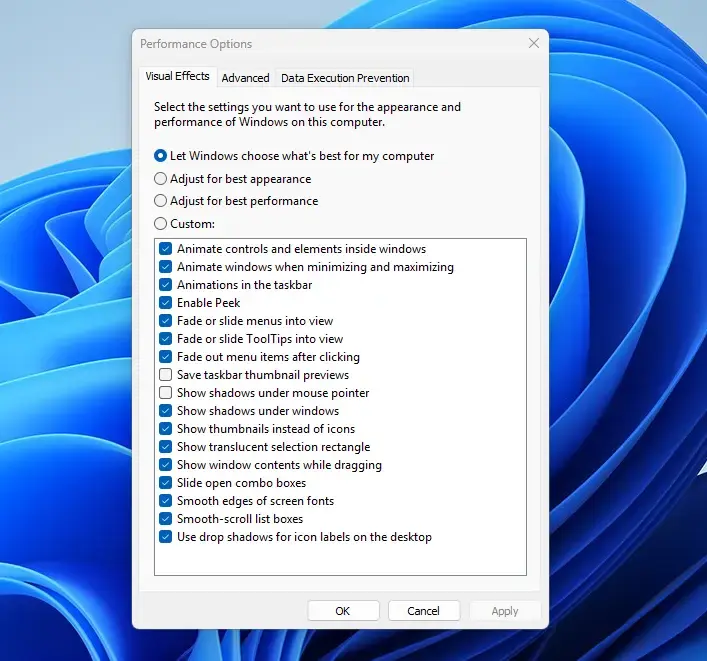
Transparency and animation effects aren’t tracking features, but they are part of cleaning up Windows 11. Turning them off reduces background graphics work, which can make the interface feel quicker on older or low-end hardware. The path is Settings Accessibility Visual effects.
- Open the Settings app and click Accessibility in the left sidebar.
- Select Visual effects from the available options.
- Turn off the toggle switch for Transparency effects.
- Turn off the toggle switch for Animation effects if you prefer a simpler, faster desktop experience.
Windows applies both changes right away. Menus and window backgrounds become solid, and windows open and close without animation. To get the old look back, switch the toggles on again.
Managing Cloud Services, Copilot, and Integration Tools
Cloud services and AI tools such as OneDrive and Copilot (an AI assistant built into Windows) sync your files to Microsoft servers or process what you type and search for. If you want a more private setup, turn them off or sign out of them. Doing so stops files syncing to the cloud and keeps your data on the PC.
Signing out of your Microsoft account entirely is a bigger step. You can look at Settings Accounts Your info and choose Sign in with a local account instead if that option appears. It isn’t available on every build or in every setup, so don’t worry if you don’t see it. Switching to a local account also means you lose Microsoft account features such as device sync and OneDrive backup. The options below let you cut specific services without doing that.
- OneDrive: Stop automatic file sync by unlinking your account.
- Right-click the OneDrive cloud icon in your taskbar notification area. If you don’t see it, click the arrow to show hidden icons first.
- Click the gear icon and choose Settings.
- Open the Account tab and click Unlink this PC, then confirm with Unlink account.

Taskbar - Copilot: Hide the Copilot button by right-clicking your taskbar, selecting Taskbar settings, and turning off the Copilot visibility toggle. On some builds that toggle no longer exists, because Copilot is a regular app. In that case, right-click the icon and choose Unpin from taskbar, or uninstall it from Installed apps.
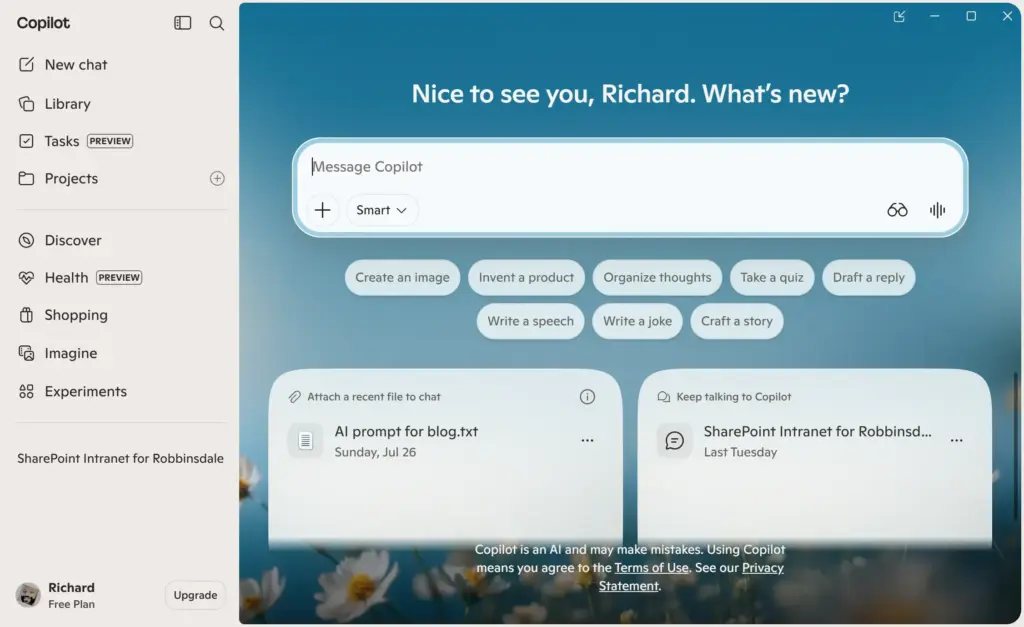
Copilot - Teams and Outlook: Uninstall these chat and email applications through your installed apps settings if you do not use them for work or personal communication. Use the same three dots > Uninstall steps shown in the earlier apps section.
Summary
Windows 11 tracking features monitor your app usage and daily habits to display personalized recommendations, tips, and promotional offers across the Start menu and Settings app. You can take back your privacy and declutter your PC by turning off menu suggestions, blocking personalized ads, limiting diagnostic data, and removing unwanted apps.
Big feature updates can occasionally reset some of these toggles, so it’s worth checking them again after one.
Have a question about this guide?
Answered by AI from this guide. Good questions may be added to this page — please don't include personal details.
Did this guide fix your problem?

About the Author
Richard
Tech Writer, IT Professional
Richard is a writer at Geek Rewind who turns complex IT tasks into clear, step-by-step guides. He draws on years of hands-on experience in system administration and enterprise IT operations, focusing on Windows, Linux and WordPress: the problems people actually run into, and the fixes that work. His server and WordPress guides come from systems he runs himself. Richard builds and maintains the platform behind Geek Rewind, from its Ubuntu servers and Nginx configuration to its custom WordPress plugins. Many new tutorials start with readers' questions, and he's always glad to answer them in the comments.
No comments yet — be the first to share your thoughts!