How to Show or Hide Recently Opened Items in Windows 11


Recently opened items in Windows 11 are files, folders and apps that the system tracks in your Start menu , app jump lists and File Explorer , so you can get back to your work quickly. Windows keeps your last 50 recent files by default. If you turn the feature off, Windows stops recording that activity. This protects your privacy and keeps your screen tidy, which is useful on a shared PC or a work machine.
This guide covers three ways to show or hide recent items: the Settings app , the Registry Editor (with a PowerShell shortcut), and Group Policy. Start with Settings unless you have a reason not to.
To show or hide recently opened items in Windows 11, open Settings , select Personalization, then Start, and switch “Show recently opened items in Start, Jump Lists, and File Explorer ” on or off. The change applies immediately, and no restart is needed. If the switch is greyed out, a policy or the Registry Editor is overriding it.
Managing Recent Items via Settings
The Settings app is the simplest method, and it works on every edition of Windows 11, Home included. One switch controls whether recent files and folders appear in Start, in app jump lists and in File Explorer . You don’t need a restart, and you can reverse the change at any time with the same switch.
With the switch off, your workspace stays focused on what you are doing now. With it on, you get quick links back to what you opened recently.
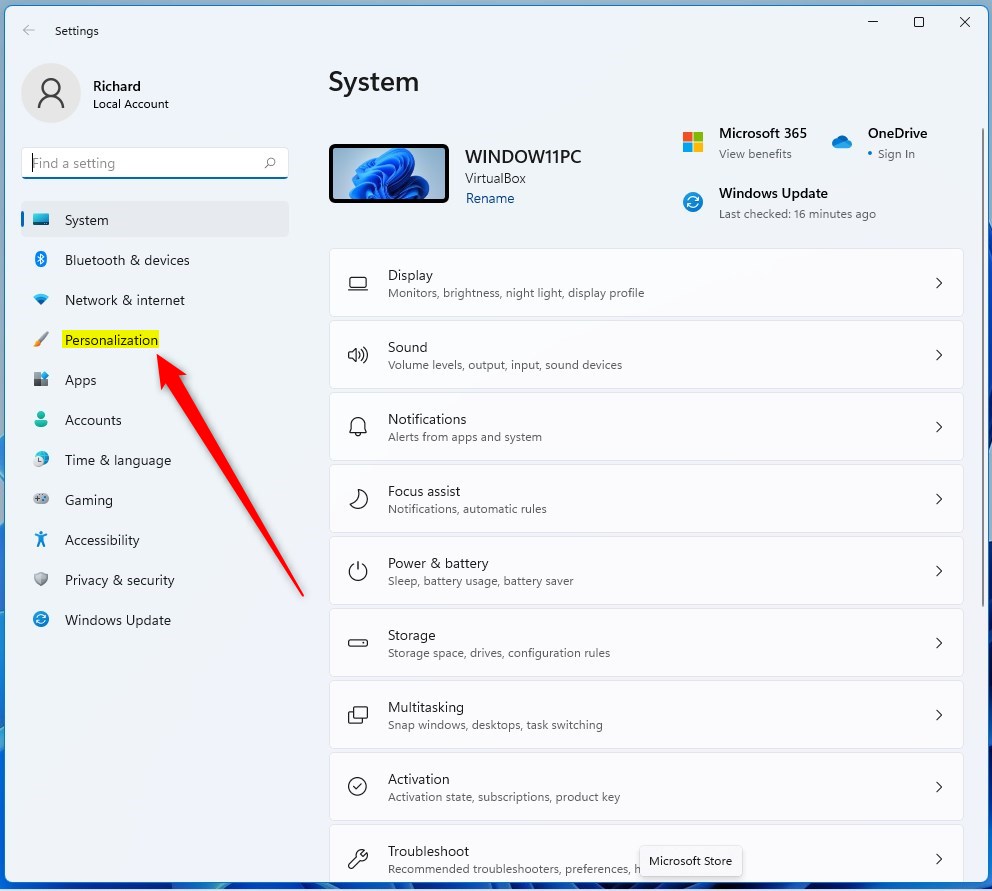
- Open the Settings app by pressing Win+I, or by searching for it in the Start menu. The Settings window opens with the categories listed on the left.

- In the Settings app, click Personalization on the left side. The personalization options, such as Background, Colors and Themes, appear on the right.
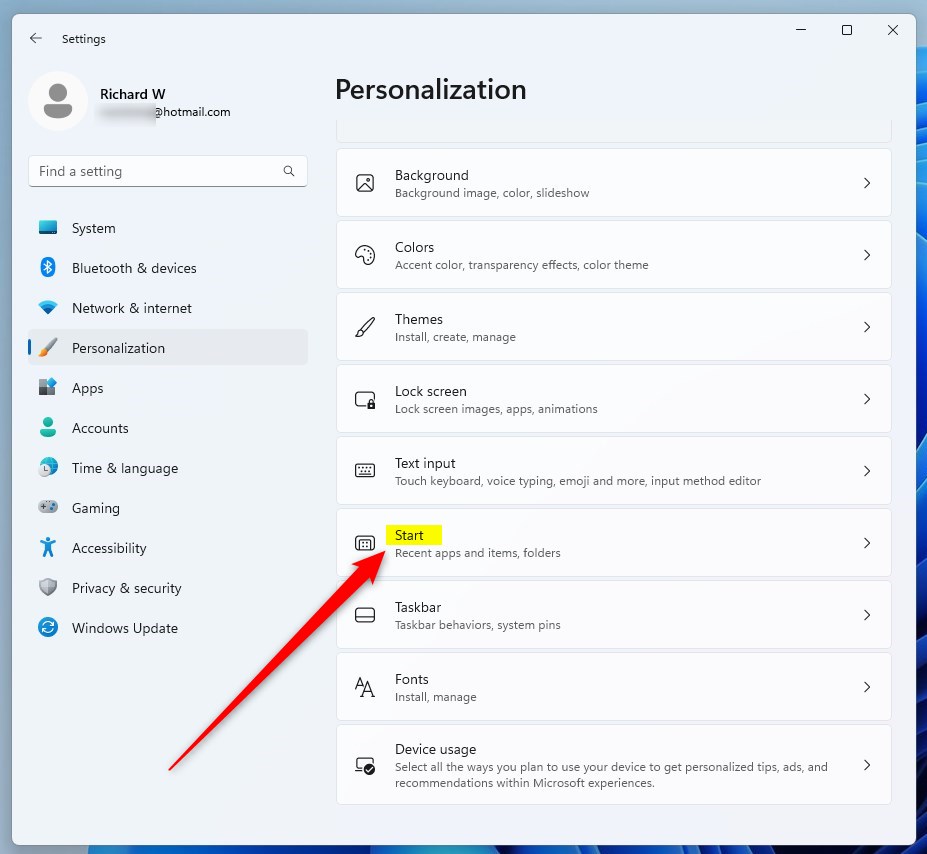
- On the right side, click the Start tile. The page that opens holds the Start menu options, including the layout and the recent items settings.
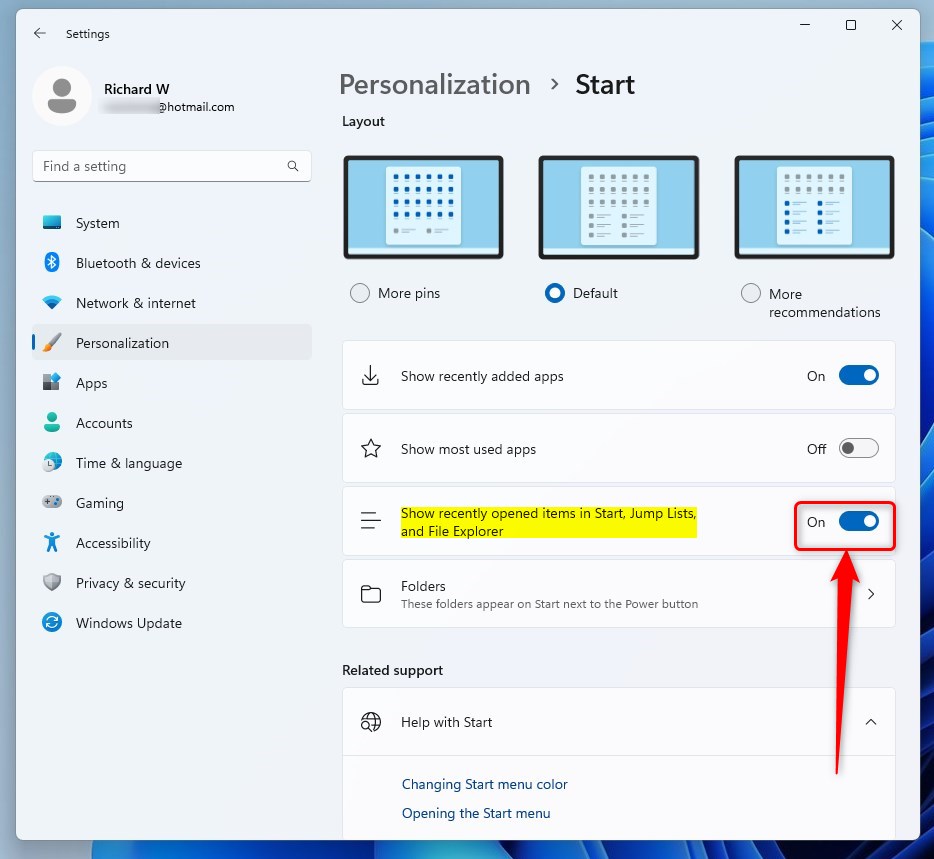
- Find the switch labeled Show recently opened items in Start, Jump Lists, and File Explorer .
- Set the switch to On to show recent items, or to Off to hide them. The change applies right away. Open the Start menu or a File Explorer window to check.
If the switch is greyed out, or you see a note that some settings are managed by your organization, a policy is controlling it. Check the Registry Editor and Group Policy sections below, because a policy overrides this switch.
Troubleshooting: Why are my recent files not showing up in 🪟 Windows 11?
When recent items go missing in Windows 11, the usual cause is that tracking is switched off, either in Settings or by a policy. A damaged activity history can also be the cause. Work through the checks below in order.
- Open Settings Personalization Start and make sure Show recently opened items in Start, Jump Lists, and File Explorer is set to On.
- If the switch is off and you can't change it, check whether a registry value or Group Policy setting from the sections below is forcing it off.
- If the switch is on but the list is still empty or looks wrong, clear the activity history so Windows starts tracking again. Open Settings Privacy & security Activity history and click Clear.
If you don't see it, the first two checks are the ones that matter. Clearing the history removes the existing list, so expect to rebuild it as you open files again.
Advanced Control: Registry Editor and PowerShell
Editing the Windows Registry, a central database for low-level system settings, calls for care, because a wrong change can make the system unstable. Before you touch it, back up what you are about to change. In the Registry Editor, select the key and use File Export to save a copy you can import later.
Using Registry Editor
The Registry Editor gives you manual control over recent documents. You change one registry value, and Windows stops saving your file history. This works on all editions, including Windows 11 Home, where Group Policy isn't available.
To force this setting:
- Press Windows key + R, type regedit and press Enter. Click Yes if User Account Control asks for permission. The Registry Editor opens.
- Navigate to:
HKEY_CURRENT_USER\Software\Microsoft\Windows\CurrentVersion\Policies\Explorer. You can paste the path into the address bar at the top of the window. - If the
NoRecentDocsHistorykey doesn't exist, right-click Explorer, select New DWORD (32-bit) Value, and name it NoRecentDocsHistory. The new value appears in the right pane. Type the name exactly as shown. - Double-click NoRecentDocsHistory and set its value to 1 to hide recent items, or 0 to show them. Click OK.
- Sign out and back in, or restart the PC, so Explorer picks up the change.
To undo it, set the value back to 0, or delete the value you created. If the Settings switch is greyed out afterwards, this value is the reason.
Using PowerShell
Using PowerShell
PowerShell makes the same registry change from the command line. It is quicker if you manage several PCs or prefer to skip the Registry Editor.
- Right-click the Start button and choose Terminal (Admin), or search for PowerShell and select Run as administrator. Click Yes if prompted. A PowerShell window opens.
- Run this command to disable recent items:
Set-ItemProperty -Path 'HKCU:\\Software\\Microsoft\\Windows\\CurrentVersion\\Policies\\Explorer' -Name 'NoRecentDocsHistory' -Value 1 - Sign out and back in so the change takes effect.
This achieves the same result as the registry edit above. To bring recent items back, set the NoRecentDocsHistory value to 0 in the Registry Editor.
Managing Recent Items via Group Policy
Group Policy is a tool for controlling settings across a computer. It lets an administrator turn off file history for every account on the PC from one place. This method works on Windows 11 Pro and Enterprise. Windows 11 Home does not include the Local Group Policy Editor, so Home users should use the Settings or registry method instead.
- Open the Start menu, search for Edit group policy, and select it. The Local Group Policy Editor opens.

- In the Local Group Policy Editor, go to: Computer Configuration\Administrative Templates\Start Menu and Taskbar. The policy list appears in the right pane.
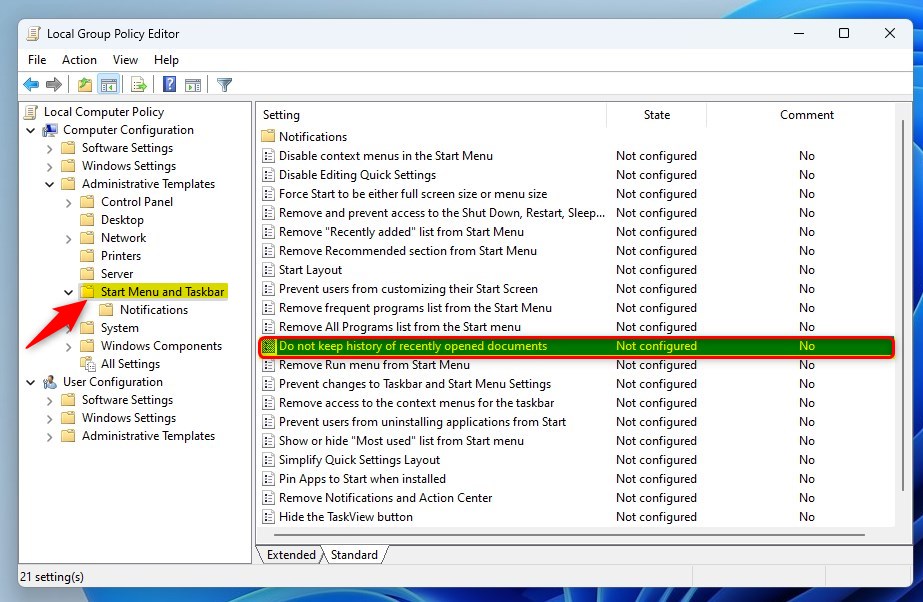
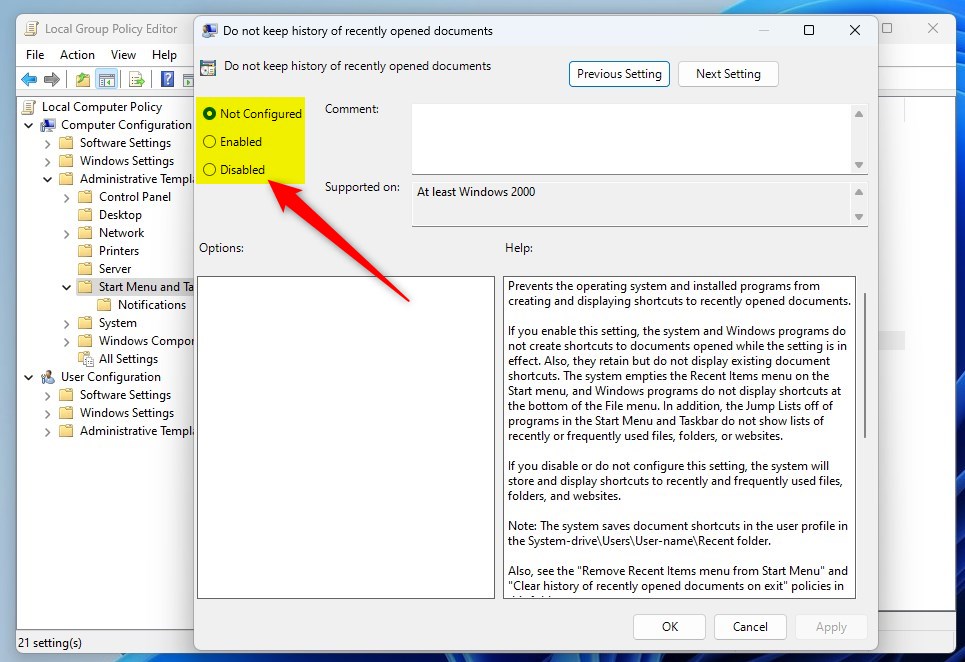
- Find Do not keep a history of recently opened documents and double-click it. A settings window opens.
- Select Enabled to hide history, Disabled to show it, or Not Configured to stick with the Windows default.
- Click Apply, then OK.
- Sign out and back in, or restart the PC, so the policy takes effect.
To undo the change, open the same policy and set it to Not Configured. Once a policy is Enabled, the switch in Settings may be greyed out. That is expected.
Summary
Windows 11 tracks your activity to help you work faster. It shows recent files in places like Jump Lists and the Recommended section of the Start menu. You can turn this on or off in three ways:
- Settings: the easiest option, and it works on every edition.
- Registry Editor or PowerShell: works on every edition, and suits scripting.
- Group Policy: for Pro and Enterprise, and best when you want one setting to cover every account on the PC.
If one method doesn't seem to work, check whether another one is overriding it. A registry value or policy beats the switch in Settings.
Have a question about this guide?
Answered by AI from this guide. Good questions may be added to this page — please don't include personal details.
Did this guide fix your problem?

About the Author
Richard
Tech Writer, IT Professional
Richard is a writer at Geek Rewind who turns complex IT tasks into clear, step-by-step guides. He draws on years of hands-on experience in system administration and enterprise IT operations, focusing on Windows, Linux and WordPress: the problems people actually run into, and the fixes that work. His server and WordPress guides come from systems he runs himself. Richard builds and maintains the platform behind Geek Rewind, from its Ubuntu servers and Nginx configuration to its custom WordPress plugins. Many new tutorials start with readers' questions, and he's always glad to answer them in the comments.
[…] The Start menu in Windows 11 has three sections: Pinned, All apps, and Recommended – which contains a list of recently added apps and opened items. […]