How to Show or Hide Recommendations in Windows 11 Start Menu

- 15 steps
- Includes a restart or sign-out
Windows 11 shows tips, shortcuts, and recent apps in the Start Menu by default. You can hide or show these recommendations in a few clicks. This guide covers two ways to do it: the Settings app, which is what most people should use, and the Registry Editor, which suits advanced users.
Open Settings Personalization Start and toggle Show recommendations for tips, shortcuts, new apps, and more to Off. The recommendations disappear from your Start Menu immediately without requiring a restart.
What Are Recommendations in the Start Menu?
Start Menu recommendations display recently added apps and recently opened files. They also suggest tips and apps that might be useful during daily tasks. The idea is that you can get back to something you were just working on without digging through menus. If you use Start as a quick “jump back in” list, that can be handy.
The Windows 11 Start Menu has three main parts:
- PinnedYour favorite apps you’ve saved for quick access.
- All AppsA complete list of every app on your computer.
- RecommendedShows new apps you recently added, files you opened lately, and suggestions for helpful tips and new apps.
The recommendations discussed here live in the Recommended part. Pinned and All Apps are not affected by these settings.
Some Windows 11 testers in the Insider Preview program (an early access channel for evaluating upcoming builds) might see experimental recommendations. You can change these settings whether or not you use preview builds.
Why Would You Want to Change This?
Some people rely on these prompts to discover handy apps or to reopen recent files quickly. Others prefer a cleaner layout that displays only pinned items, or they don’t want recent files showing on a shared or work PC. Either choice is fine, and you can switch back at any time.
How to Turn Recommendations On or Off Using Settings
- Click the Start button (the Windows icon) on your taskbar, then click Settings. Or press
Windows key + Ion your keyboard to open Settings right away. The Settings window should open. - In the Settings window, click Personalization in the left-side menu. The personalization options appear on the right.
- Click Start on the right side to see the Start Menu options. You should now see a list of switches.
- Find the option Show recommendations for tips, shortcuts, new apps, and more. Set it to On to see recommendations or Off to hide them. The change takes effect immediately, and you don’t need to restart.
- Open the Start Menu to check the result, then close the Settings window.
A few things to keep in mind:
- The exact wording and the number of switches on this page vary a little between Windows 11 versions. Newer builds also list separate switches for recently added apps, most used apps, and recently opened files. If you want to hide those items too, turn off those switches as well.
- Depending on your build and edition, the Recommended area may still take up space in the Start Menu even when it has nothing to show.
- If a switch is missing or greyed out, the PC may be managed by an organization, such as a work or school account. In that case, your administrator controls the setting, and you can’t change it yourself.
- To undo the change, return to the same page and flip the switch back.
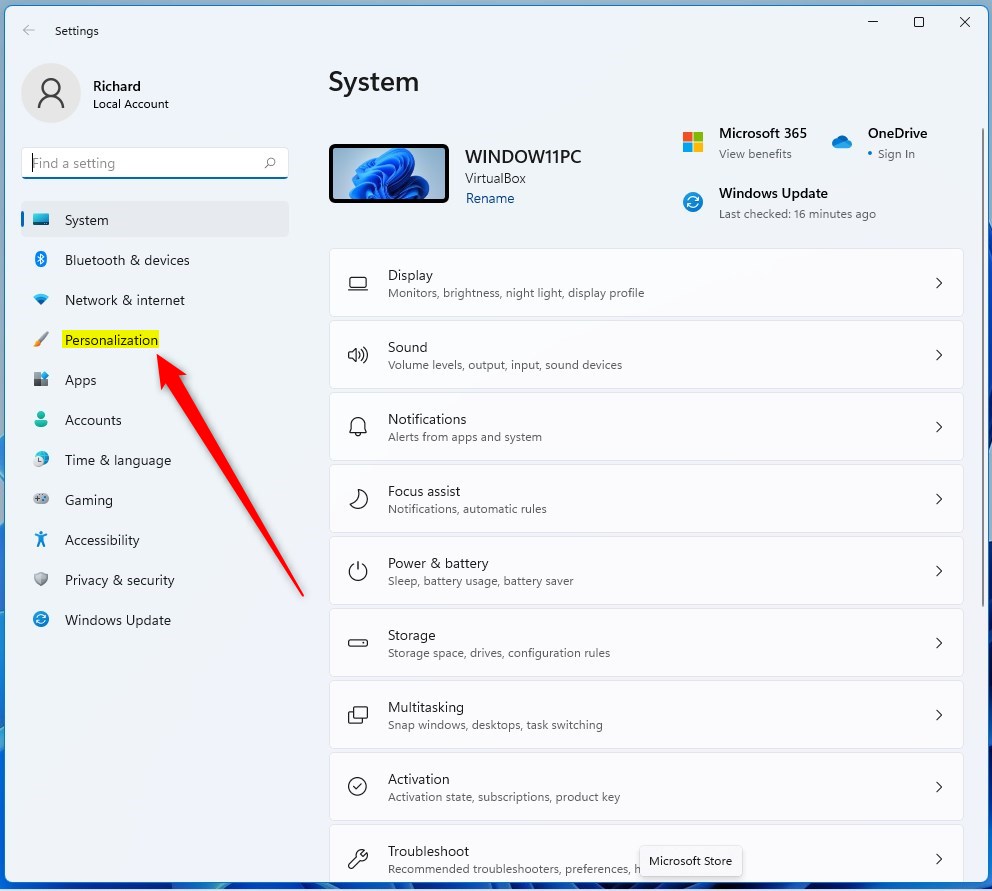
Go to Personalization in Windows Settings.
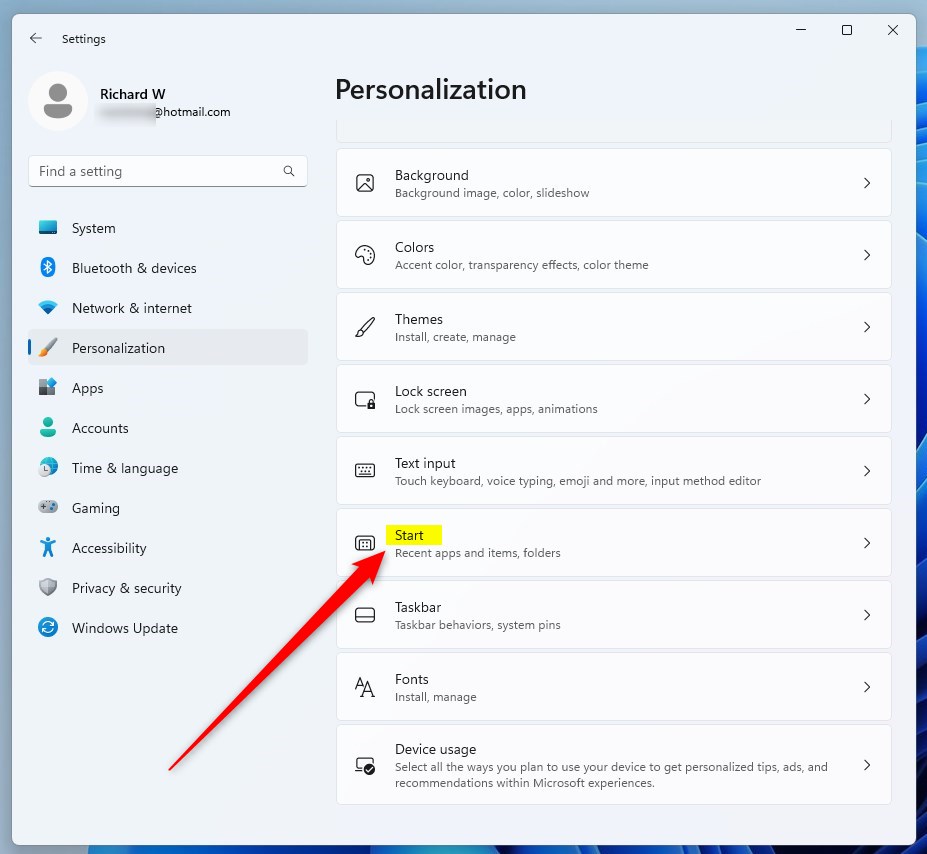
Click Start to find recommendation settings.
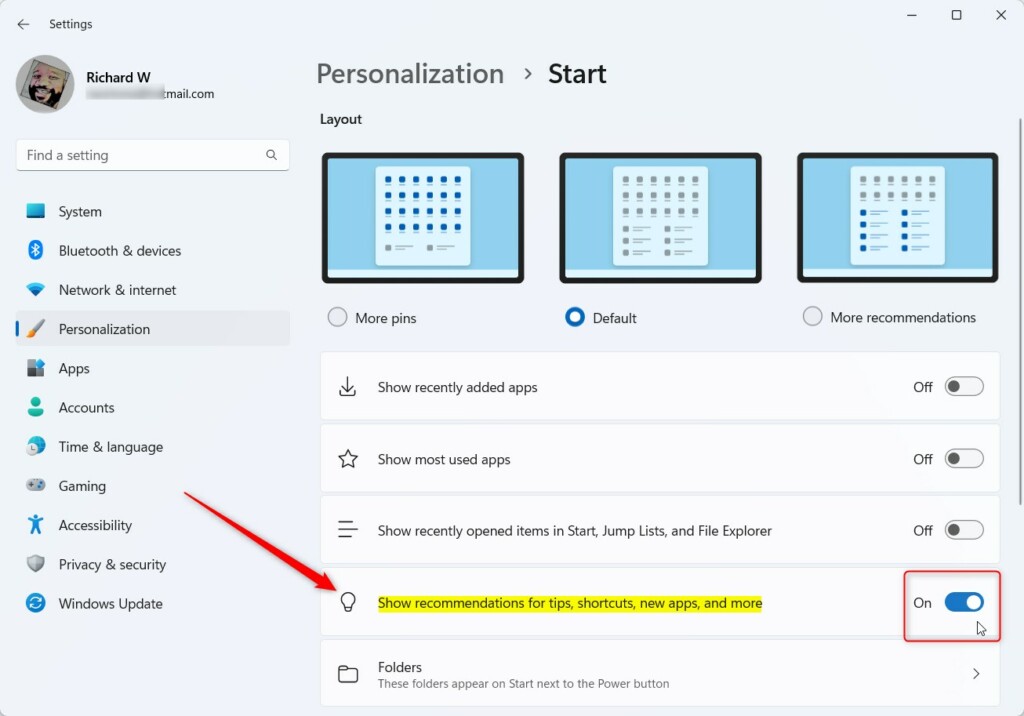
Turn recommendations on or off with this switch.
How to Turn Recommendations On or Off Using the Registry (Advanced Users Only)
Be careful here, because a wrong edit in the registry can cause system instability. Before you start, consider backing up the key you will change. In Registry Editor, select it, then click File and Export. You can double-click the saved file later to restore it.
- ⚠️ Admin required: Press
Windows key + R, typeregedit, and press Enter to open the Registry Editor. If a security window appears, click Yes. The Registry Editor window should open with a folder tree on the left. - In Registry Editor, go to this folder path:
HKEY_CURRENT_USER\Software\Microsoft\Windows\CurrentVersion\Explorer\Advanced - If you don’t see the Advanced folder, right-click Explorer, choose New Key, and name it Advanced.
- With the Advanced folder selected, right-click an empty area on the right side and choose New DWORD (32-bit) Value. A new value appears in the list with its name ready to edit.
- Name the new item
Start_IrisRecommendations. - Double-click
Start_IrisRecommendations, set the Base to Decimal, and enter the value:1to show recommendations.0to hide recommendations.
- Click OK and close the Registry Editor.
- Restart your computer to apply the changes. After you sign back in, open the Start Menu to check the result.
To undo this, open the same value again, enter the show value, and restart. If the Settings switch doesn’t match what you see after a registry change, check the Settings page again. A policy or organization setting can override your edit.
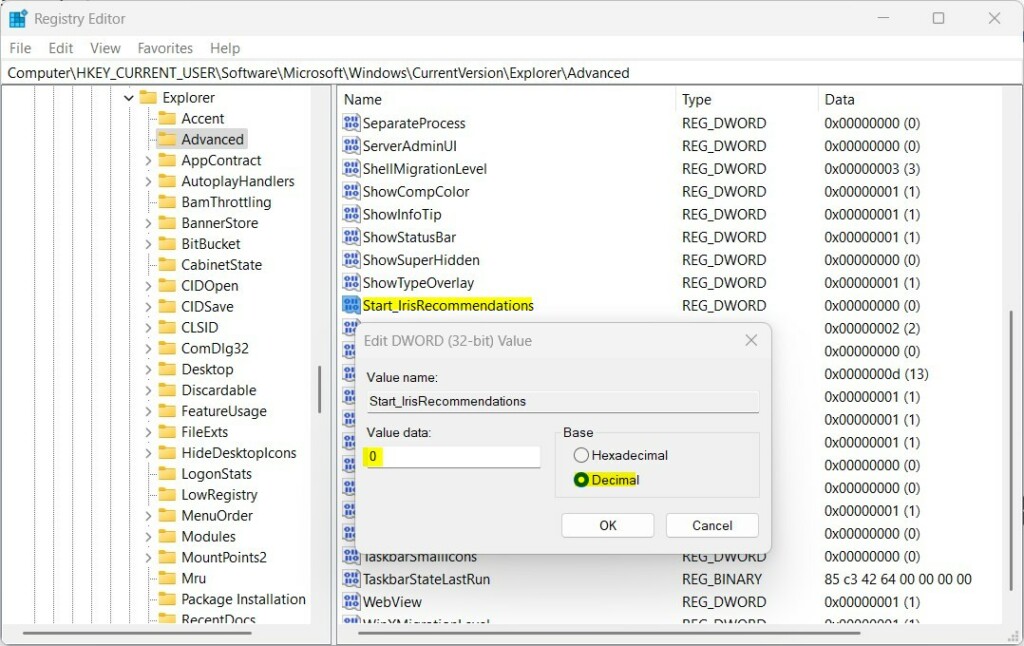
Use Registry Editor to change recommendation settings.
Summary
- You can turn recommendations on or off in the Windows 11 Start Menu using the Settings app or the Registry Editor.
- The Settings app is easier and safer for most users, and the change applies immediately.
- The Registry method is for advanced users who want more control. It needs a restart, and you should back up the key first.
- Some features may only be available if you’re part of the Microsoft Insider Preview program (Windows testers).
- Try these steps to make your Start Menu show only what you want.
You control Windows 11 Start Menu recommendations through either the Settings app or the Registry Editor. The Settings app suits most people, while the registry method gives deeper control. Certain features remain exclusive to participants in the Windows Insider Preview program.
Have a question about this guide?
Answered by AI from this guide. Good questions may be added to this page — please don't include personal details.
Did this guide fix your problem?

About the Author
Richard
Tech Writer, IT Professional
Richard is a writer at Geek Rewind who turns complex IT tasks into clear, step-by-step guides. He draws on years of hands-on experience in system administration and enterprise IT operations, focusing on Windows, Linux and WordPress: the problems people actually run into, and the fixes that work. His server and WordPress guides come from systems he runs himself. Richard builds and maintains the platform behind Geek Rewind, from its Ubuntu servers and Nginx configuration to its custom WordPress plugins. Many new tutorials start with readers' questions, and he's always glad to answer them in the comments.
No comments yet — be the first to share your thoughts!