How to Manage Most Used Apps on Windows 11 Start Menu


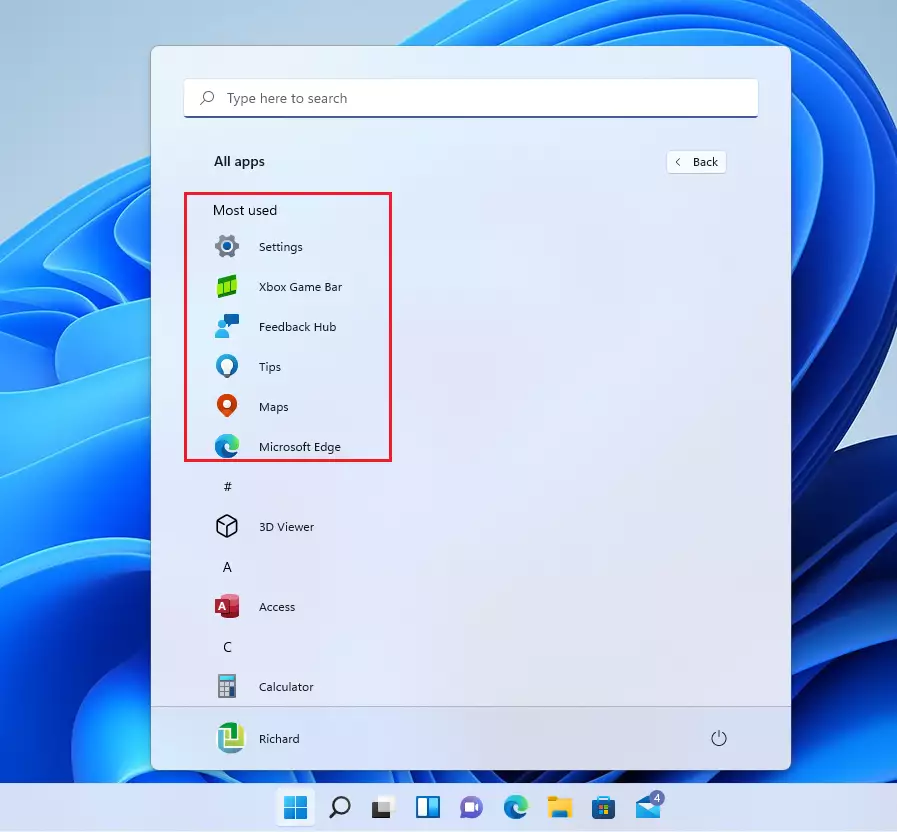
The Windows 11 Start menu can show up to six of your most frequently used apps in a dynamic list at the top, so you can launch programs faster. Windows builds this list by tracking which apps you open, which means you spend less time searching through menus.
You can turn the list on or off in the Settings app whenever you like. Turning it off clears the clutter and stops Windows from showing your app habits to anyone who opens your Start menu . This guide covers the Settings app first, then the Registry Editor and Group Policy for cases where Settings is not enough.
To manage most used apps on the Windows 11 Start menu , go to Settings Personalization Start and toggle “Show most used apps.” This enables or disables the dynamic list of frequently opened applications.
How to enable or disable the Most Used Apps list
The quickest way to show or hide the Most Used Apps list in Windows 11 is the Start page in the Settings app. The steps below use the Personalization pages: open Settings, go to the Start page, and flip the most used apps switch. The change applies to your user account only. It works the same on Home and Pro.
When the option is on, Windows adds your most frequently opened programs to the Start menu . When it is off, the list disappears and the Start menu stays clean. You can reverse the change at any time by repeating the same steps and flipping the switch back.
- Open the Settings menu by pressing the Win+I on your keyboard. Alternatively, click Start and then click Settings.

- In the Settings window, click Personalization on the left side of the screen.
- Click on the Start tile to see more options.
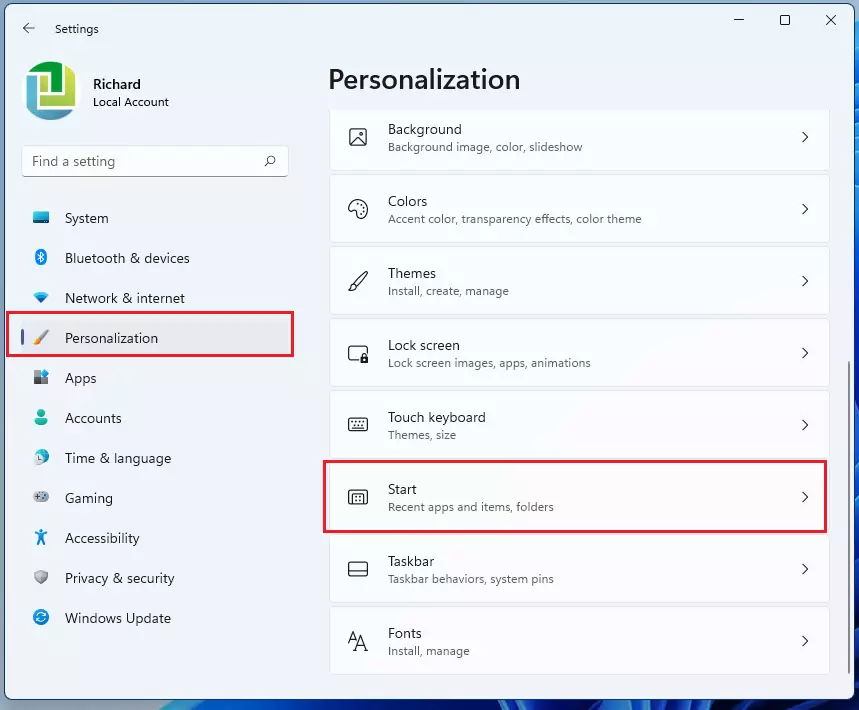
- Look for the setting labeled Show most used apps.
- Toggle the switch to On if you want to see the list, or Off if you want to hide it.
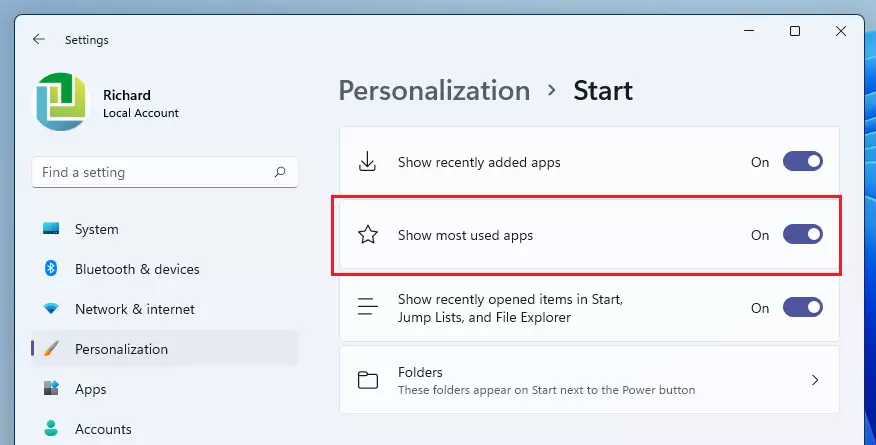
After you make this change, the “All apps” menu updates immediately to reflect the new setting. You do not need to restart the PC or sign out. If the switch is greyed out or you cannot change it, your PC may be managed by an organization that enforces the policy described later in this guide.
Advanced Configuration: Registry Editor
The Registry Editor lets you turn app tracking on or off through the system registry. Use it if the Settings page is missing or you want to script the change. It works on every edition, Home included.
The value lives under the current user’s hive, at 🗝️HKEY_CURRENT_USER\
HKEY_CURRENT_USER\Software\Microsoft\Windows\CurrentVersion\Explorer\Advanced
Look for the Start_TrackProgs value in the right-hand pane. Double-click it and set it to 1 to enable the list, or 0 to disable it. Click OK to save.
The change may not show up right away. Sign out and sign back in, or restart the PC, so Windows reloads the setting. To undo it, open the same value and set it back to its previous number. This method suits workstations that need deeper system changes, but for a single home PC the Settings page is the safer choice.
Enterprise Configuration: Group Policy
The Group Policy Editor is a central configuration console, mainly used on domain networks. It lets administrators block the Most Used Apps list on many computers at once. When you apply the policy to your domain, standard users can no longer change the tracking preference on company machines.
The Local Group Policy Editor is included only in Windows 11 Pro, Enterprise and Education. If you run Home, use the Settings or registry method instead. You need an administrator account to change the policy.
User Configuration\Administrative Templates\Start Menu and Taskbar
Find the policy named Remove the frequently used programs list from the Start Menu and open it. Set it to Enabled to hide the list and enforce your organization’s privacy standards. Set it to Not Configured to give control back to the user. Sign out and back in, or restart, on the affected machines so the policy takes effect.
Troubleshooting Common Issues
If the list is missing even though the Start setting is on, a disabled privacy setting is the usual cause. Windows can only fill the list if it is allowed to track app launches. Follow these steps to check:
- Open Settings Privacy & security General
- Find Let Windows improve Start and search results by tracking app launches and make sure the toggle is On.
- Open Start and check the list again. It may take a little while to fill, because Windows has to see you launch apps first.
Without this toggle enabled, Windows cannot build the tracking list. Also check that no Group Policy or registry value is overriding the Settings page, especially on a work PC.
Summary
Personalizing the Start menu depends a lot on managing app tracking preferences. Use the Settings app for everyday changes, the Registry Editor when Settings will not do, and Group Policy when you manage several machines. For more configuration tips, check our Windows 11 Start Menu Customization guide.
Why is the 'Most Used Apps' list missing from my Start Menu?
Missing lists happen because the underlying telemetry feature is disabled in privacy settings. Navigate to Settings, then Privacy & security, and verify the option allowing Windows to track app launches is active. Usage data cannot populate without this permission.

No comments yet — be the first to share your thoughts!