How to Enable or Disable App Launch Tracking in Windows 11


App launch tracking records a history of every program you open in Windows 11 so the Start menu can show your most-used apps at the top of the list. This background feature runs by default on all Windows 11 Home and Pro installations to personalize your experience.
Turning off app launch tracking stops Windows 11 from collecting data about your habits and clears those suggested apps from your Start menu . You can switch this setting on or off inside the Settings app whenever you want to change what your PC tracks. Pro and Enterprise users can also use Group Policy, and the Registry Editor works on every edition, Home included.
To enable or disable app launch tracking, open Settings , navigate to Privacy and security, then General, and toggle “Let Windows improve Start and search results by tracking app launches.” Alternatively, use the Group Policy Editor or Registry Editor for more advanced control.
Prerequisites
Some methods, such as using the Registry Editor or Group Policy, require an account with full system access. Always back up your registry before making changes.
If you are not sure which edition you run, open Settings System About and look under Windows specifications. The Local Group Policy Editor is missing on Home, so Home users should use the Settings app or the Registry Editor method. Turning tracking off does not remove any apps. It only changes how Windows ranks and suggests them.
Comparison of Methods
| Method | Difficulty | Best For |
|---|---|---|
| Settings App | Easy | General users |
| Group Policy | Advanced | IT Pros and Pro users |
| Registry Editor | Expert | Custom configurations |
Using the Settings App
You can turn app launch tracking on or off through the Settings app to control how Windows uses your app habits to improve Start menu and search results . The path is Settings Privacy & security General The change applies right away, with no restart needed, and it works the same on Home and Pro.
- Open the Windows Settings app. You should see the main Settings window with a list of categories on the left.
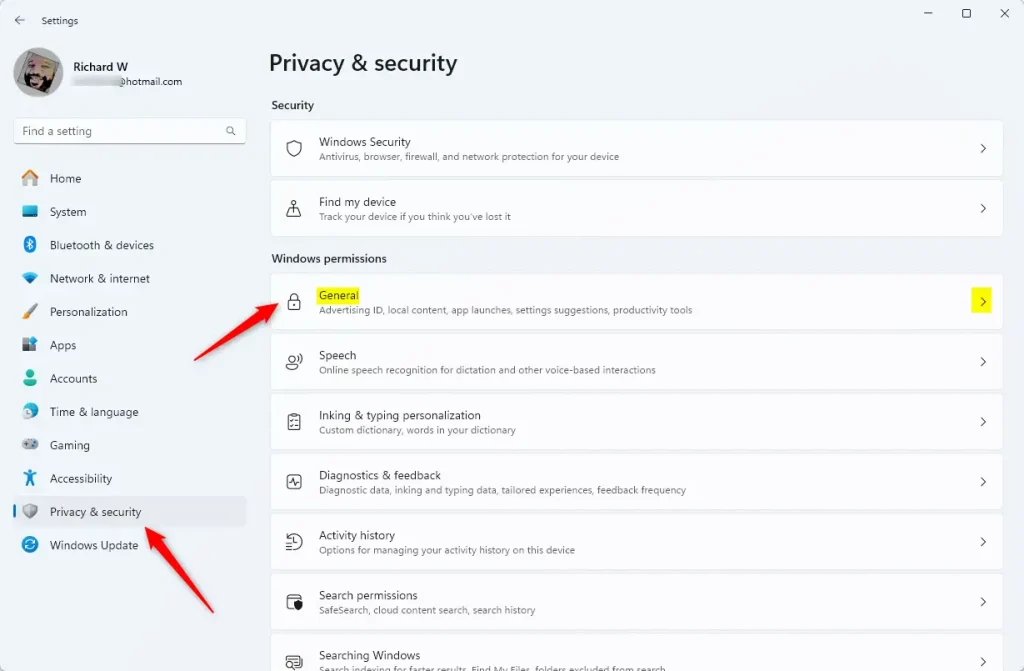
- Select Privacy & security on the left. The right side now shows the privacy options, grouped under headings such as Windows permissions.
- Click the General tile on the right. The General page opens with a short list of switches.
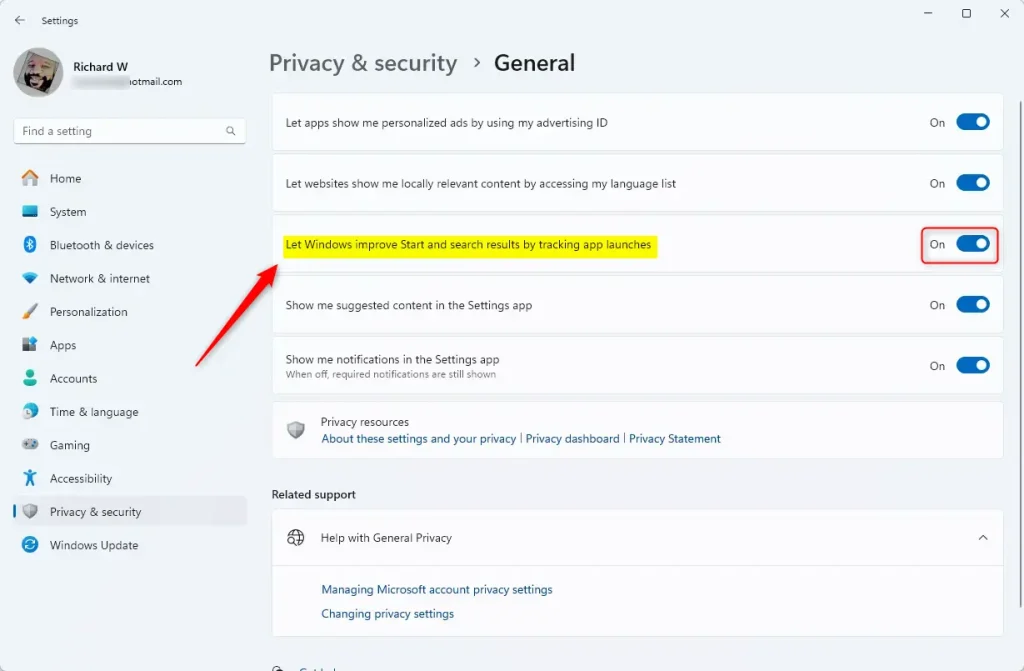
- Find the setting labeled “Let Windows improve Start and search results by tracking app launches.” It sits among the other switches on the General page.
- Toggle the switch to On or Off. Set it to Off to stop tracking. The label next to the switch changes to match your choice.
To undo the change, return to the same page and set the switch back to On. If the switch is greyed out or the page says some settings are managed by your organization, a policy is controlling it. On a work or school PC, ask your administrator. On a personal PC, check whether you or someone else set the Group Policy or Registry value described below.
Using the Local Group Policy Editor
App launch tracking can be turned off using the Local Group Policy Editor if you want to block Windows from learning your app habits. This method works for Pro and Enterprise versions of Windows. It lets you lock down privacy settings across your system using built-in administrative tools. Windows 11 Home does not include this editor, so use the Registry Editor method instead.
- Press the Win, type
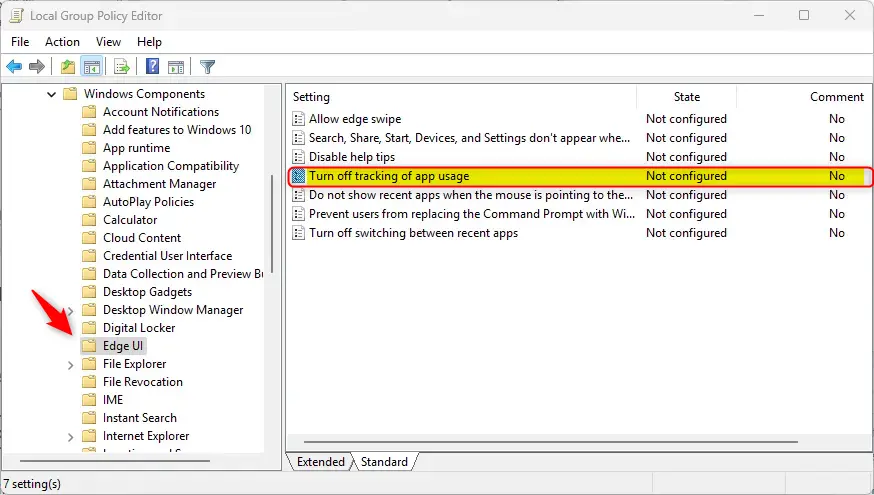
gpedit.msc, and hit Enter. The Local Group Policy Editor opens. If nothing matches your search, you are most likely on Home. - In the left pane, go to User Configuration Administrative Templates Windows Components Edge UI. Click each folder’s arrow to expand it. The policies for Edge UI appear in the right pane.
- Double-click Turn off tracking of app usage. A settings window for that policy opens.
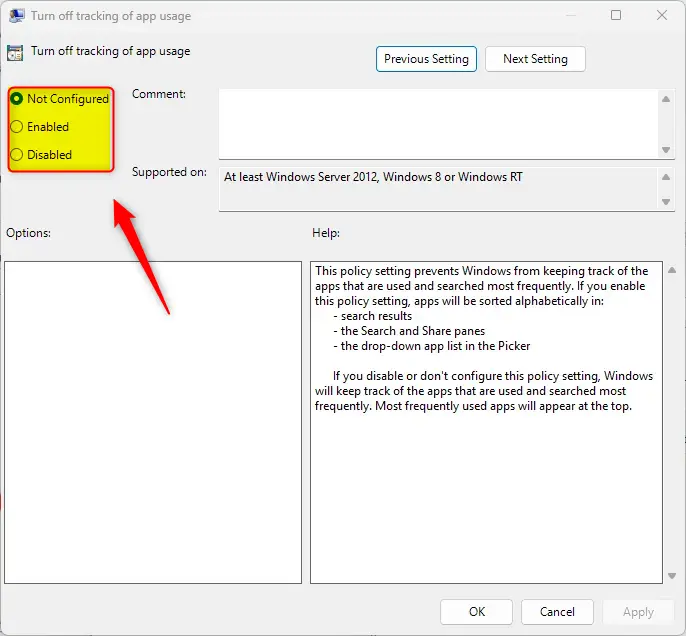
- Choose Enabled to stop tracking, or Disabled to let Windows track your apps. The names can feel backwards, but the policy itself is worded “Turn off tracking,” so Enabled means tracking is off.
- Click OK and restart your computer. The policy is now saved and takes effect after the restart.
To undo this, open the same policy and select Not Configured to remove your override. You can also pick Disabled, which tells Windows to track apps. Click OK and restart again.
Using the Windows Registry Editor
App launch tracking can be managed through the Registry Editor by changing a specific system key. You need to open Registry Editor, find the correct path, and update the value manually. This is the method to use on Windows 11 Home. Be careful with this step because wrong changes can cause system problems. Before you start, back up the registry: in Registry Editor, choose File Export, pick a location, and save the file.
- Open the Windows Registry editor by searching for
regeditin the Start menu . Click Yes if User Account Control asks for permission. - Navigate to this path:
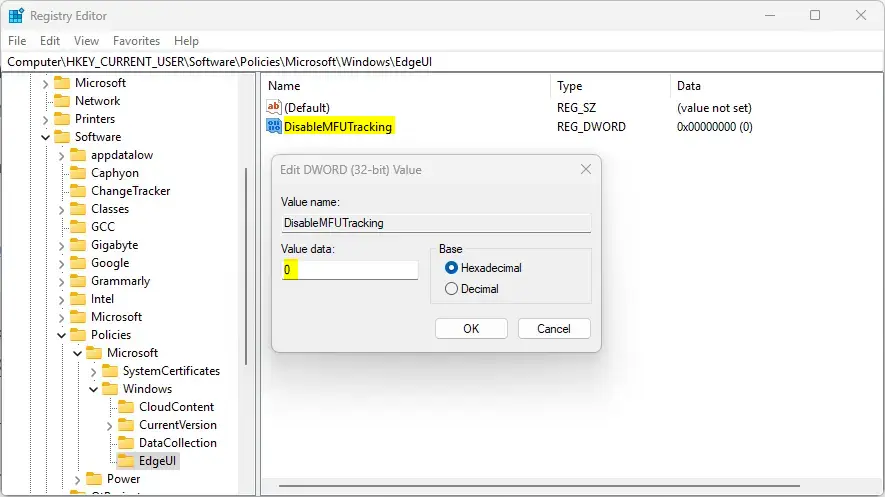
Computer\HKEY_CURRENT_USER\Software\Policies\Microsoft\Windows\EdgeUI. You can paste it into the address bar at the top of the window, or expand the folders in the left pane one by one. - If you do not see
EdgeUI, right-click theWindowsfolder, select New Key, and name itEdgeUI. The new key appears under its parent folder, and you should select it before the next step. - Right-click in the empty space on the right, select New DWORD (32-bit) Value, and name it
DisableMFUTracking. The new value shows up in the right pane with a default data of 0. - Double-click
DisableMFUTrackingand set the value to1to stop tracking. Click OK and close the Registry Editor.
Restart your PC, or sign out and back in, so the change takes effect. To undo it, open the same value and set it back to 0, or delete the value. If something goes wrong, double-click the registry backup file you exported earlier to restore it.
Troubleshooting and Performance
If your computer runs slowly, the Task Manager helps check app usage in Windows 11, showing how much power and data programs consume. Press Ctrl+Shift+Esc to open it and look at the Processes tab to see which apps use the most resources right now. Keep in mind that Task Manager shows current resource use. It does not show or control the launch history that this setting tracks.
Summary
Managing app launch tracking in Windows 11 lets you control privacy while still getting personalized results. The Settings app is the quickest option for any edition. Group Policy suits Pro and Enterprise PCs where you want the setting enforced, and the Registry Editor covers Home. Whichever method you pick, you can reverse it later by using the same steps.
Have a question about this guide?
Answered by AI from this guide. Good questions may be added to this page — please don't include personal details.
Did this guide fix your problem?

About the Author
Richard
Tech Writer, IT Professional
Richard is a writer at Geek Rewind who turns complex IT tasks into clear, step-by-step guides. He draws on years of hands-on experience in system administration and enterprise IT operations, focusing on Windows, Linux and WordPress: the problems people actually run into, and the fixes that work. His server and WordPress guides come from systems he runs himself. Richard builds and maintains the platform behind Geek Rewind, from its Ubuntu servers and Nginx configuration to its custom WordPress plugins. Many new tutorials start with readers' questions, and he's always glad to answer them in the comments.
No comments yet — be the first to share your thoughts!