How to Enable Remember My Apps in Windows 11

Remember my apps is a Windows 11 feature that restores your previous Microsoft Store downloads when you set up a new computer or reinstall the operating system. It pins your past app icons to the taskbar and Start menu , so you can click them to download your programs again without searching the Store.
For this to work, sign in with the same Microsoft account you used on your old device. Once you log in, Windows 11 brings back your software setup in a few clicks. This guide shows where to turn the setting on, what to check if it won’t work, and how to turn it off and clear the saved data.
Enable “Remember my apps” by going to Settings Accounts Windows backup. Toggle the “Remember my apps” switch to On. This syncs your Microsoft Store apps to your account for easier reinstallation on new devices.
Why use this feature?
Behind the scenes, Windows saves your software list to your cloud profile, so it is ready for the next setup. The list is tied to your Microsoft account, not to the PC. That is why you can sign in on a new machine and see your old apps offered again. The feature restores the list of apps. It does not copy the installed programs or their data over.
What happens when you are done?
When you turn on Remember My Apps, Windows 11 saves your app list to your Microsoft account. That prepares those programs to be restored on a new PC. Once the setting is on, it works in the background. You don’t need to do anything else, and no restart is needed.
Prerequisites for Syncing
Check these requirements before you start. You must sign in with a personal Microsoft account, not a work or school account. You also need an active internet connection and diagnostic data turned on, so Windows can save your app list to the cloud. If one of these is missing, the setting may be greyed out or may not sync.
- You must be signed in with a personal Microsoft account. A local account will not do, because there is no cloud profile to save the list to.
- This feature does not work with work or school accounts.
- You must have an active internet connection, since the app list is uploaded to your account.
- Diagnostic data settings must be enabled to allow cloud sync. You can review them in Settings Privacy & security Diagnostics & feedback
How to Enable Remember My Apps
Remember My Apps is a built-in tool that lets Windows save your installed apps so you can restore them easily on a new PC. You turn it on from the Windows backup page in Settings. The steps below are for Windows 11. The setting is in the same place whether you use Home or Pro, but the exact layout can vary slightly between builds.
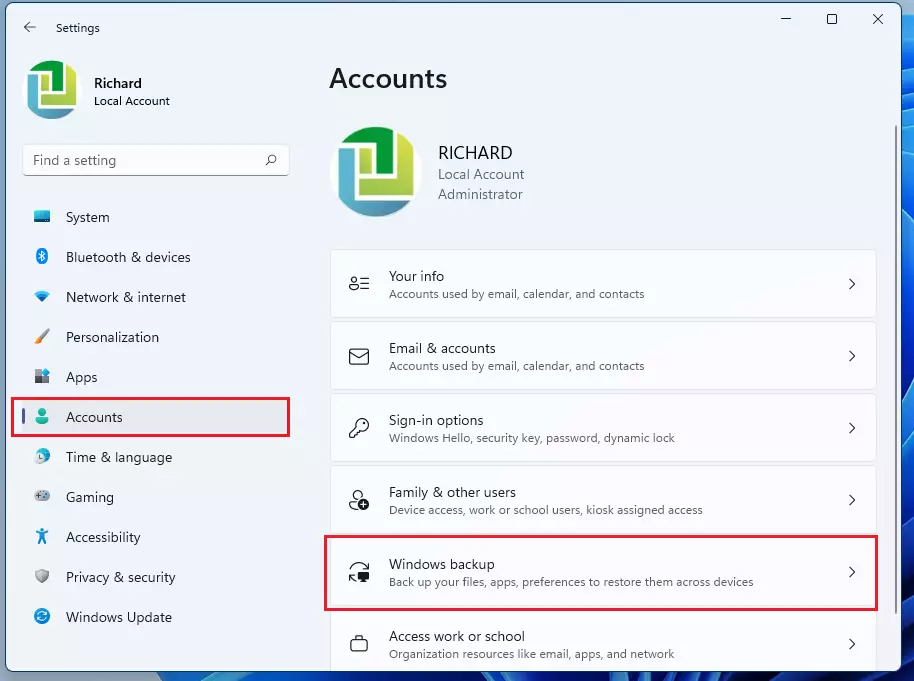
- Open Settings by pressing the Windows key + I on your keyboard, or click Start System Settings to choose Settings. The Settings window opens with a list of categories on the left.

- Select the Accounts tab on the left side of the Settings window. The account options appear on the right.
- Choose the Windows backup tile to view additional options. You should now see the backup sections, including the one for apps.
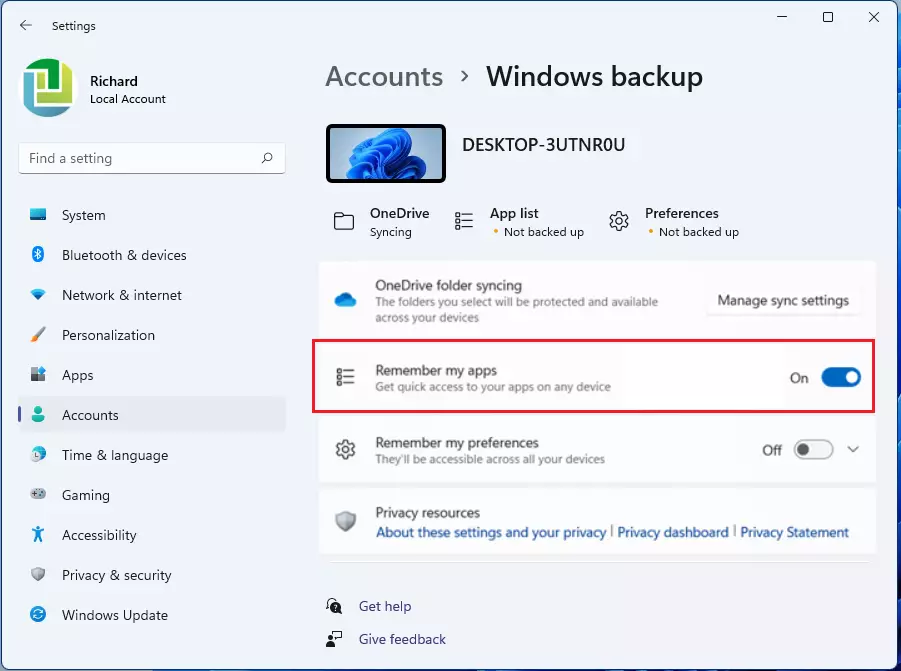
- Locate the Remember my apps option and switch the toggle to the On position. If you can't click the toggle, see the troubleshooting sections below.
- Close the Settings app once finished. The setting is saved as soon as you change it, so there is nothing to confirm. To undo it later, come back to the same page and switch the toggle to Off.
Troubleshooting: Why is the toggle greyed out?
A greyed-out toggle usually means diagnostic data is turned off, which blocks cloud sync. Turn diagnostic data back on in Settings Privacy & security Diagnostics & feedback, then return to the Windows backup page. Also check that you are signed in with a personal Microsoft account. A work or school account can leave the option unavailable.
How to Force a Sync
If the settings don't respond, sign out of the Microsoft account and sign back in to force a sync. You can also trigger an update to cloud storage by hand:
- Open the Windows Backup app from the Start menu.
- Click the Back up button.
Make sure you are online first, because the backup uploads to your account.
How to Disable the Feature
Turning off Remember My Apps stops Windows from tracking your installed programs for future setups. You can disable it from the backup page in Settings. The same toggle you used to turn it on is the one to switch off. That only stops new tracking, though. If you want to clear your saved data from the cloud entirely, you must first turn off Windows backup on all connected devices.
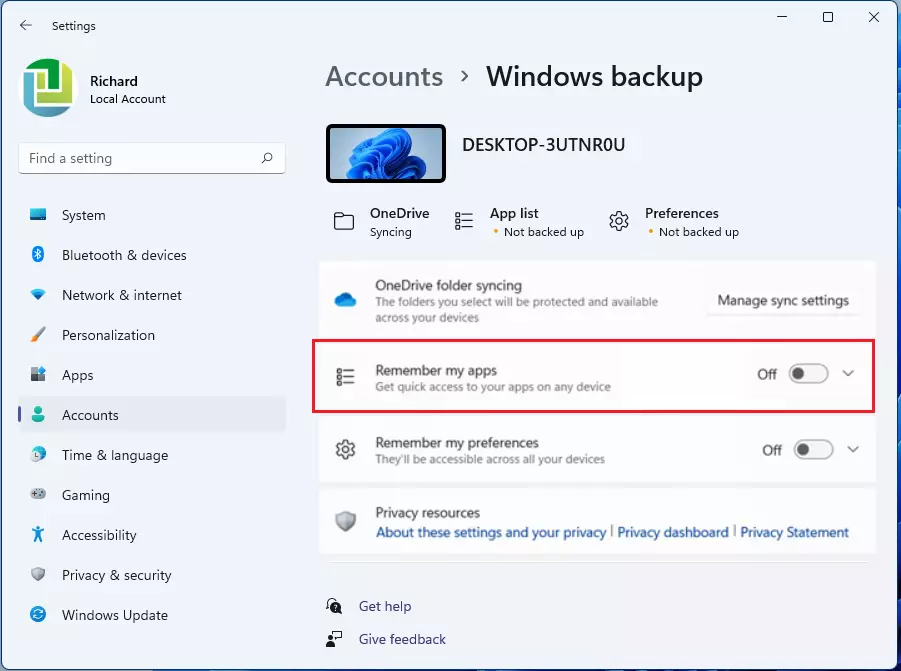
To remove backed-up settings from the cloud entirely, turn off Windows backup on all connected devices first. If you skip this, a device that is still backing up can sync its data again. Once that's done, follow these steps:
- Go to account.microsoft.com/devices and sign in with the same Microsoft account.
- Scroll to the bottom of the page.
- Select the button that says Clear stored settings. Confirm the prompt if one appears.
Summary
Remember My Apps keeps your app list consistent across devices by syncing it with your Microsoft account. Turn it on once, keep diagnostic data enabled, and your next PC setup will start with your familiar apps ready to download.
Was this guide helpful?

About the Author
Richard
Tech Writer, IT Professional
Richard is a writer at Geek Rewind who turns complex IT tasks into clear, step-by-step guides. He draws on years of hands-on experience in system administration and enterprise IT operations, focusing on Windows, Linux and WordPress: the problems people actually run into, and the fixes that work. His server and WordPress guides come from systems he runs himself. Richard builds and maintains the platform behind Geek Rewind, from its Ubuntu servers and Nginx configuration to its custom WordPress plugins. Many new tutorials start with readers' questions, and he's always glad to answer them in the comments.

No comments yet — be the first to share your thoughts!