How to Enable App Sharing Across Devices in Windows 11


App sharing across devices in Windows 11 lets you move current tasks, web links, and app progress between your PCs and Android phones.
This handy Windows 11 feature, called “Share across devices,” connects your computers and phone. It lets you instantly continue what you were doing on another device.
Think about starting a big job on your main PC and then picking up right where you left off on your laptop. You don’t need to copy or save anything manually. This is especially helpful if you often move between computers or use your phone for quick info.
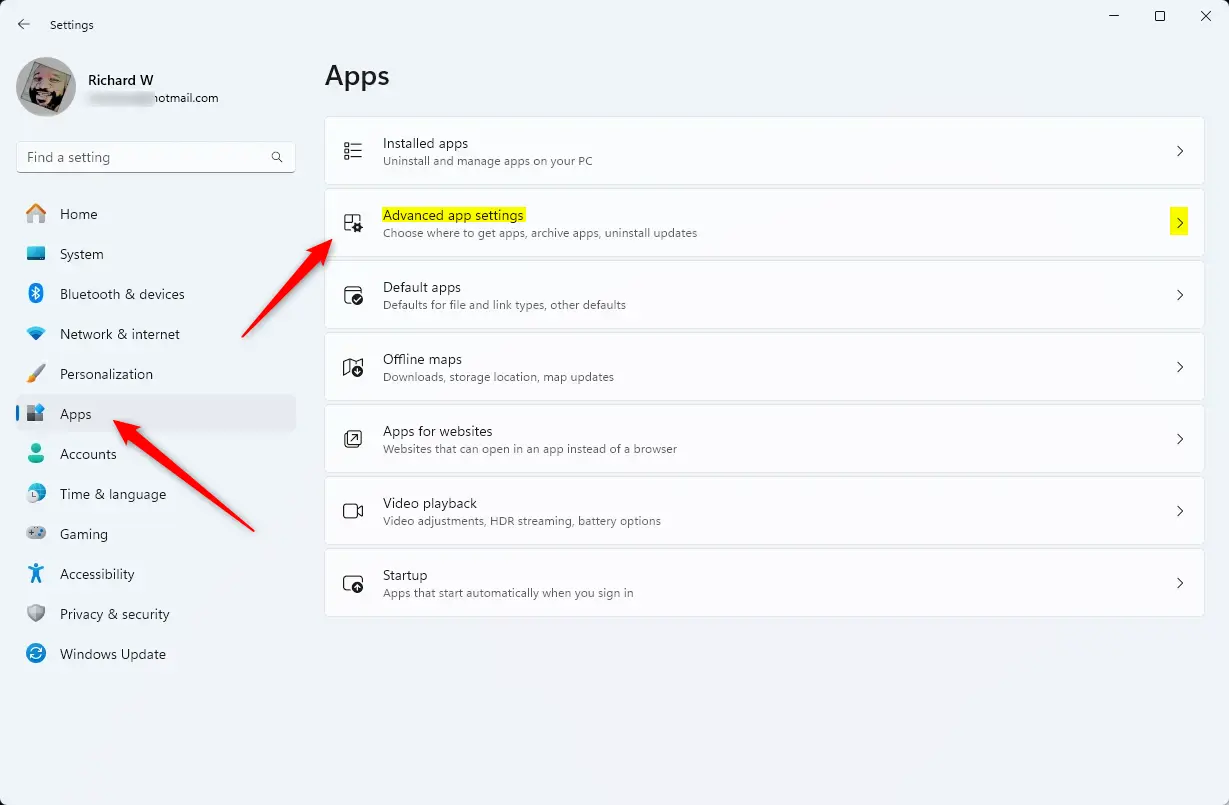
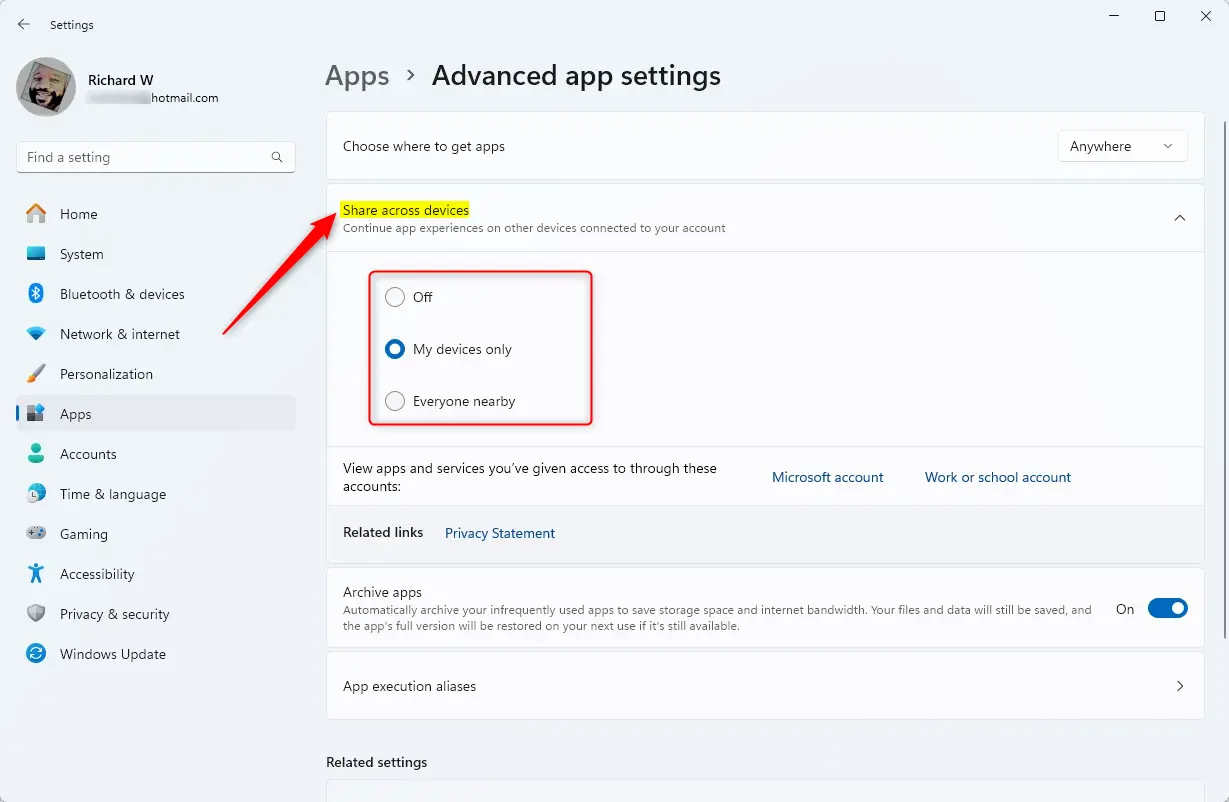
Open Settings, navigate to Apps, then Advanced app settings, and click Share across devices. Select your preferred sharing options to enable app sharing between your Windows 11 devices.
How to Enable App Sharing via Settings
Manage these settings through the main Windows interface. Standard user access is needed, but admin privileges might be necessary for certain network changes.
- Press Win+I to open Settings.
- Navigate to Apps Advanced app settings.
- Click Share across devices and choose your preference.

Enterprise and IT Management
IT administrators manage Windows 11 app sharing across company computers by using the Registry Editor (a system tool for changing deep system settings) or Group Policy (a tool for managing computer settings across a network). To turn off app sharing through the registry, open Registry Editor, go to 🗝️HKEY_CURRENT_USER\
Disabling it via the Registry involves navigating to:
HKEY_CURRENT_USER\Software\Microsoft\Windows\CurrentVersion\CDP
Set the value of NearShareEnabled to 0. Group Policy Object (GPO) can also be used to push these settings to all computers in your domain.
Troubleshooting Common Issues
If your 'Share across devices' option is greyed out in Windows 11, it usually means your accounts aren't synced correctly or you're using a local account.
Clearing Synced Clipboard History
- Go to Settings System Clipboard.
- Click the Clear button next to Clear clipboard data.
Summary
Windows 11 app sharing can significantly boost your productivity by making your workflow smoother once sync settings are properly configured.
Was this guide helpful?

About the Author
Richard
Tech Writer, IT Professional
Richard is a writer at Geek Rewind who turns complex IT tasks into clear, step-by-step guides. He draws on years of hands-on experience in system administration and enterprise IT operations, focusing on Windows, Linux and WordPress: the problems people actually run into, and the fixes that work. His server and WordPress guides come from systems he runs himself. Richard builds and maintains the platform behind Geek Rewind, from its Ubuntu servers and Nginx configuration to its custom WordPress plugins. Many new tutorials start with readers' questions, and he's always glad to answer them in the comments.




Hi Richard i do very similiar type of searches and i have a small non profit organization-educational. i was wondering would it be ok to list your site on my website as a free resource link?
that would be awesome