What Breaks When You Disable Windows Telemetry

- 21 steps
- Needs administrator rights
- Group Policy needs Windows 11 Pro, Enterprise or Education
- Includes a restart or sign-out
Disabling Windows telemetry stops your PC from sending diagnostic and usage data to Microsoft, but it also breaks core system features like built-in troubleshooting tools, which lose up to 100 percent of their effectiveness when blocked. Telemetry is the background system that automatically logs performance details, such as app usage, device runtime, crashes and hardware specs, from Windows 10 and Windows 11 devices.
Microsoft relies on this data to fix bugs, patch security holes and push performance updates. Turning off data sharing stops these background updates and can break specific help tools when your PC runs into problems.
Below are three ways to reduce or disable telemetry (Settings, the registry and Group Policy), followed by what breaks when you do. Read the second half before you change anything. Some of the side effects are easy to miss until you need the feature.
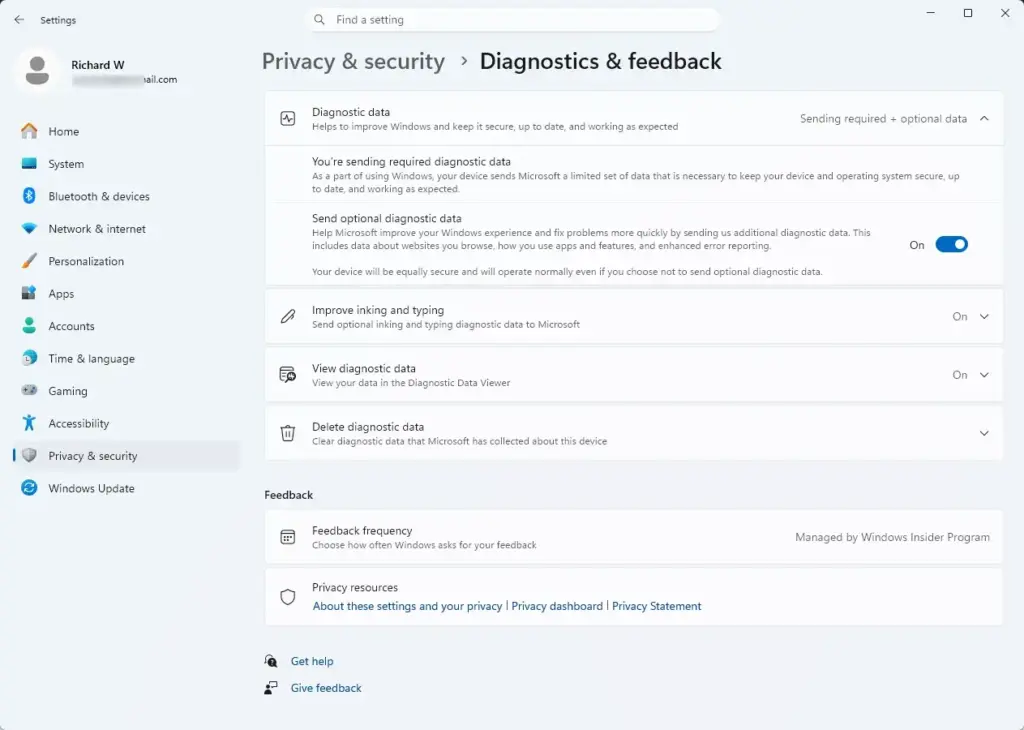
Disabling Windows telemetry in Settings stops most diagnostic data from going to Microsoft, but it also breaks features that depend on that data. On Windows 11, open Settings, choose Privacy & security, then Diagnostics & feedback, and set Send optional diagnostic data to Off. Required diagnostic data stays on, and built-in troubleshooting tools lose effectiveness.
How do you disable Windows telemetry in Settings?
You can reduce Windows telemetry in Settings by going to Privacy & security and choosing the diagnostics and feedback options. This built-in method lowers the amount of background data your computer shares with Microsoft, and it needs no advanced tools. It works on every edition, Home included.
One limit to know up front: Settings cannot turn telemetry off completely. On Windows 11 Home and Pro, Required diagnostic data always stays on. You can only switch off the optional data on top of it.
- Click the Start button and open the Settings app (the gear icon). The Settings window opens.

Settings - Select Privacy & security in the left pane (or just Privacy in older versions of Windows 10). The privacy options appear on the right.
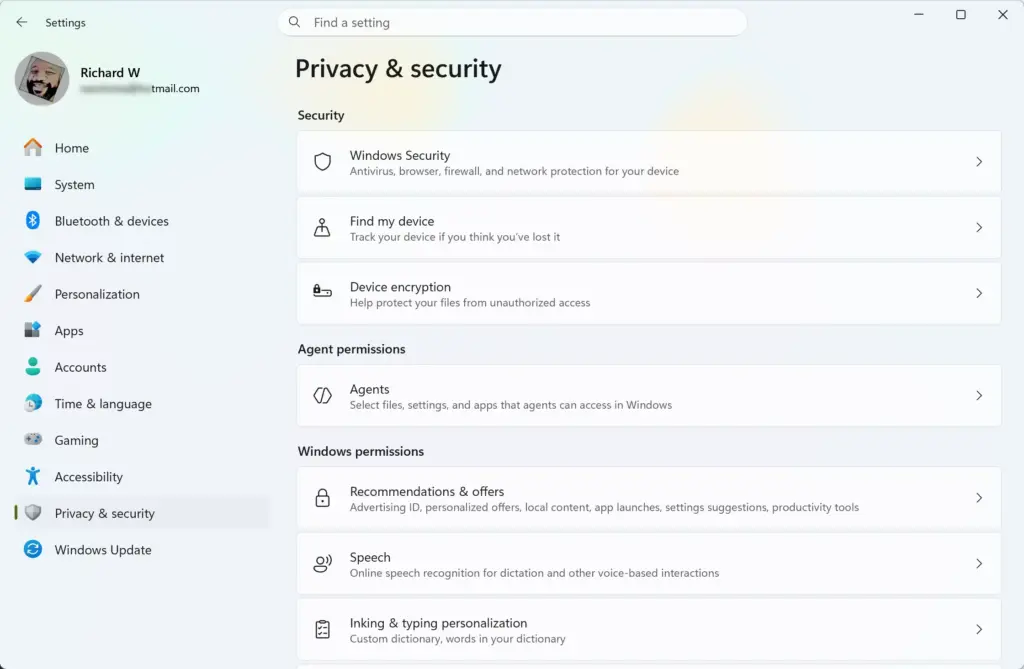
Settings › Privacy & security - Scroll down and click Diagnostics & feedback. The page shows the diagnostic data controls.
- Find the section that controls diagnostic data. On Windows 11 this is the Send optional diagnostic data toggle.
- Switch the setting from Full to Required diagnostic data (called Basic in older Windows 10 builds). On Windows 11, turn Send optional diagnostic data to Off. Your computer then sends only the bare minimum data needed to keep Windows secure and updated.
- Scroll down further on the same page and turn off optional settings like Tailored experiences and View diagnostic data if you want to limit tracking even more.
No restart is needed for these changes. To undo them, return to the same page and switch the toggles back on.
How do you disable Windows telemetry using the registry?
You can disable Windows telemetry through the registry by opening the Run dialog box, typing regedit, and changing the diagnostic data keys. This method is stricter than the Settings page, but you must be careful not to change the wrong value by accident.
Know what this does on your edition. Windows honors a value of 0 for AllowTelemetry only on Enterprise, Education and Server editions. On Home and Pro, Windows treats 0 as the Required level, so you end up with the same result as the Settings method. Before you start, back up the registry. In Registry Editor, choose File Export and save a copy.
- Press the Win+R on your keyboard to open the Run dialog box.

Run dialog - Type regedit and press Enter to open the Registry Editor. If a User Account Control prompt appears, click Yes. (Admin privileges required)
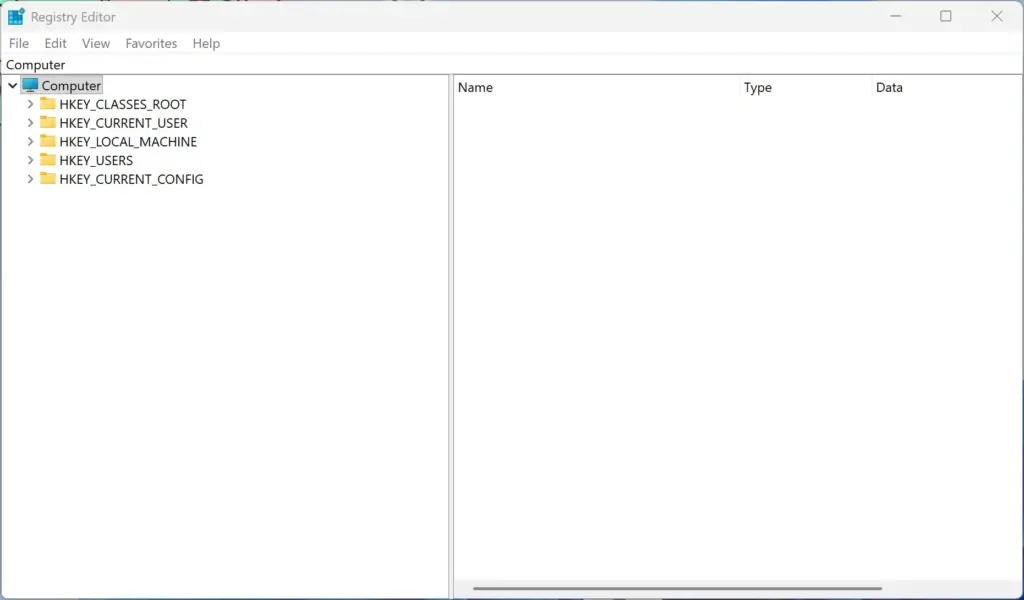
Registry Editor - In the window that opens, use the left sidebar to expand the folders (called keys).
- Click your way to the location where system policies are stored. It sits under the main software settings branch for your computer: 🗝️HKEY_LOCAL_MACHINE, then SOFTWARE, then Policies, then Microsoft, then Windows.
- Look for a subfolder named DataCollection. If it does not exist, right-click the parent folder (Windows), choose New Key, and name it DataCollection.
- Select the DataCollection folder and look at the right side of the screen for a value named AllowTelemetry. If it is not there, right-click an empty space, choose New DWORD (32-bit) Value, and name it AllowTelemetry.
- Double-click that value and make sure the Value data number is set to 0, then click OK. This tells Windows not to send optional diagnostic information.
- Close the Registry Editor and restart your PC so the change takes effect.
To undo it, return to the same folder and delete the AllowTelemetry value, or set it to 1. Then restart.
How do you disable Windows telemetry with Group Policy?
You can disable Windows telemetry with Group Policy on Windows Pro and Enterprise editions by opening the Local Group Policy Editor and changing the data collection policy. This method gives you strong control over what your system shares, but it only works on certain versions of Windows. Windows Home does not include gpedit.msc. If you run Home, use the registry method instead.
- Press the Win+R on your keyboard to open the Run dialog box.
- Type gpedit.msc and press Enter. (Admin privileges required) The Local Group Policy Editor opens.
- In the window that appears, use the left menu to browse through your computer configuration settings. Start with Computer Configuration.
- Expand Administrative Templates, then Windows Components, and then select the folder for data collection and preview builds (Data Collection and Preview Builds).
- Look for the policy setting that controls telemetry data collection on the right side of the screen. On Windows 11 it is named Allow Diagnostic Data. Older versions call it Allow Telemetry.
- Double-click that setting, choose Disabled or set it to the lowest allowed data level, and click Apply, then OK. The lowest level you can pick depends on your edition. On Pro it is the Required level.
- Restart your PC so the policy applies everywhere.
To undo it, open the same policy, choose Not Configured, click Apply, and restart.
What actually breaks when you disable Windows telemetry?
While blocking Windows telemetry sounds great for privacy, the block comes with a downside because Microsoft ties more than 20 helpful operating system features directly into these background data services. When you aggressively block all Windows telemetry, certain parts of your computer stop working as expected.
The most common problems are in the sections below. Not every PC will hit all of them. How much you notice depends on your edition, how far you took the settings, and which features you use.
1Windows Update issues and delays

Windows Update issues and delays happen when you block telemetry because your computer cannot share its hardware state with Microsoft. Without this data, your system might get stuck in update loops or miss important security patches and monthly fixes.
If you disable telemetry and updates start to fail or repeat, check your diagnostic data setting first. Set it back to Required diagnostic data and restart before you try other fixes. Keep an eye on Settings Windows Update after any telemetry change, so you notice a stalled update early.
2Built-in troubleshooting tools stop working
Built-in troubleshooting tools stop working when you turn off telemetry because they lose their connection to Microsoft servers and error report streams. Programs like the Get Help app need this data connection to pull fix scripts and solve common sound or internet problems.
In practice, a troubleshooter may open and then report that it cannot find a fix, or it may fail to start at all. If you rely on these tools, turn diagnostic data back on while you troubleshoot. You can switch it off again once the problem is solved.
3App crashes and feedback hubs lose functionality
App crashes and feedback hubs lose functionality when you disable telemetry because your computer stops sending error reports to developers. This privacy change prevents crash logs from leaving your device, which also stops the Feedback Hub app from working properly.
The practical effect is that fixes for crashes you hit reach you more slowly, because nobody sees the failure on their side. If you test Insider builds or file bug reports through the Feedback Hub, leave diagnostic data on.
4Tailored tips and personalized recommendations disappear
Tailored tips and personalized recommendations disappear when you turn off telemetry because Windows loses track of how you use your machine. Your Start menu and Settings app will look more generic and stop showing helpful shortcuts or suggestions based on your habits.
For many people this is a benefit rather than a loss. If you want the tips back, turn on Tailored experiences again under Settings Privacy & security Diagnostics & feedback.
Advanced privacy risks: Even anonymized data can track you
Advanced privacy risks remain even with anonymized data because security researchers can easily track and re-identify users by combining multiple separate datasets. When a company gathers your hardware setup and browsing habits together, your identity can still be uncovered.
When companies gather your hardware configuration, your browsing habits, the exact times you turn your computer on and off, and the specific apps you open, these unique patterns create a digital fingerprint. Even without your name attached, this data fingerprint is unique enough to track you across the web and across different devices. Over 60% of privacy-conscious users willingly trade away these convenience features to block Windows telemetry entirely in Microsoft’s 2024 survey.
The takeaway is that “anonymous” does not mean “untraceable.” If privacy is your main goal, lowering telemetry is a sensible step, but it is one step among several.
Gaining performance back: Does disabling telemetry speed up your PC?
Disabling telemetry does not noticeably speed up your PC because telemetry tasks only use a tiny fraction of your computer’s processing power and memory. While turning off background data collection helps with privacy, it will not turn a slow computer into a fast gaming machine.
If you are using a modern computer with a fast solid-state drive and plenty of memory, you will likely notice zero performance difference whether telemetry is on or off. However, if you are running an older, slower computer with limited system resources, stopping these constant background reporting tasks can free up slight amounts of processor cycles and network bandwidth. It will not perform miracles, but every little bit helps on aging hardware.
Summary
Windows telemetry collects background data to help Microsoft improve security, but turning it off can break features like Windows Update, built-in troubleshooters, and crash reporting. You should weigh your personal privacy goals against these potential system issues before changing your settings.
A reasonable middle ground for most people is to switch to Required diagnostic data in Settings and turn off the optional extras. That keeps updates and troubleshooters working and still cuts most of the data your PC shares. Go further with the registry or Group Policy only if you accept the trade-offs above, and make a note of what you changed so you can undo it.
Have a question about this guide?
Answered by AI from this guide. Good questions may be added to this page — please don't include personal details.
Did this guide fix your problem?

About the Author
Richard
Tech Writer, IT Professional
Richard is a writer at Geek Rewind who turns complex IT tasks into clear, step-by-step guides. He draws on years of hands-on experience in system administration and enterprise IT operations, focusing on Windows, Linux and WordPress: the problems people actually run into, and the fixes that work. His server and WordPress guides come from systems he runs himself. Richard builds and maintains the platform behind Geek Rewind, from its Ubuntu servers and Nginx configuration to its custom WordPress plugins. Many new tutorials start with readers' questions, and he's always glad to answer them in the comments.
No comments yet — be the first to share your thoughts!