What Breaks When You Disable Windows 11 Apps for Websites Protocol Handlers

- 14 steps
- Needs administrator rights
Apps for websites in Windows 11 lets a web link open the matching desktop program instead of a browser tab. Microsoft’s name for the setting is “Apps for websites”, and the underlying mechanism is the protocol handler. The setting has been in Windows 11 since build 22621 (version 22H2). When you turn it off for an app, links tied to that app stay inside your web browser.
The effect shows up in everyday actions. A Zoom meeting link on a webpage no longer launches the desktop app. A Spotify link keeps you on the website instead of opening your music player.
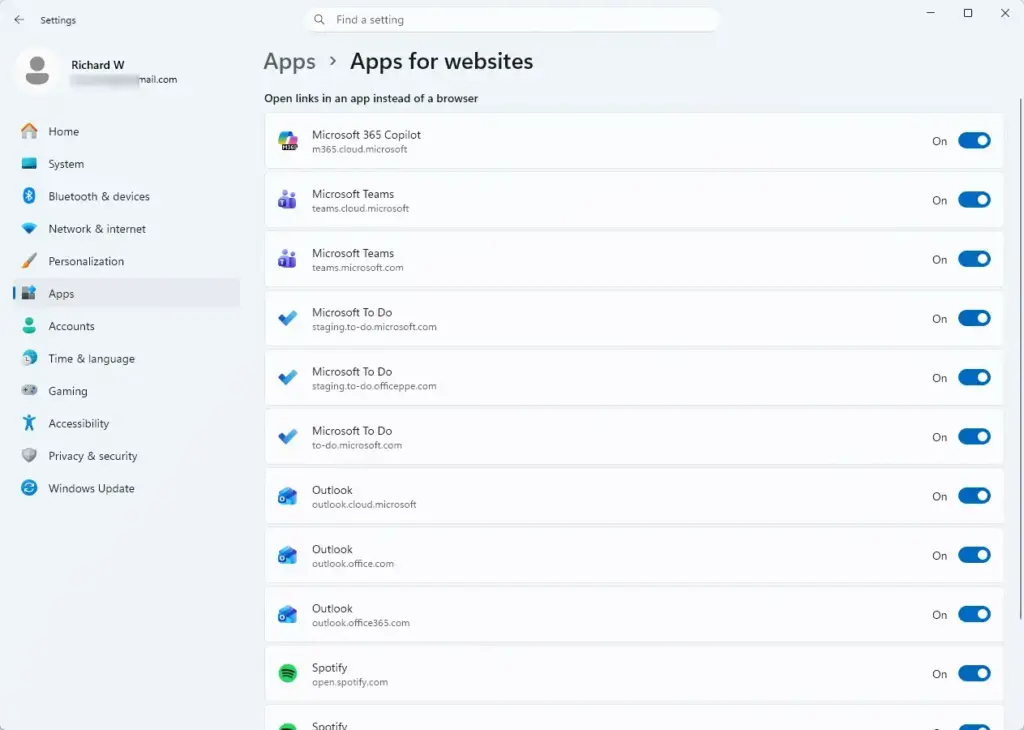
You can check or change these app links at any time in Settings Apps Apps for websites. Turning off an app’s permission there stops websites from taking over that installed program. The page is the same on Windows 11 Home and Pro. The exact wording of the toggles can vary a little between builds.
Disabling Apps for websites protocol handlers in Settings Apps Apps for websites stops web links from launching their matching desktop programs. Zoom meeting links, Spotify tracks, and mailto links stay in your browser instead of opening installed apps. You lose automatic sign-ins, cross-platform media sharing, and background syncs that depend on the handoff between websites and desktop software.
What Breaks Immediately When You Disable Protocol Handlers
- Direct Opening of Desktop Apps from Web Links: This is the most obvious loss. If you use a desktop email client, clicking a web-based mail link no longer launches it and you land in a browser tab instead. Plain mailto links are controlled separately, under Settings Apps Default apps. If you prefer to keep email, chat or project tools in their own windows, you will have to open each program by hand every time.
- Automatic Sign-Ins and Authentication Flows: Many desktop apps use your browser for secure sign-in. You click a sign-in button in the app and a login page opens in the browser. After you enter your password, the website uses a protocol handler to send you back to the app. If that handoff is blocked, you may be stuck on a blank browser page. You may also see an error saying the app cannot finish signing you in. If this happens, re-enable the handler for that app (see the restore steps below) and start the sign-in again.
- Cross-Platform Media and Content Sharing: A link to a video, podcast or shared document normally opens the matching desktop app when it is installed. Without the handler, the link opens as a plain web page. You lose the desktop version’s offline access, saved preferences and richer features.
Detailed Impact on Popular Microsoft Edge and Windows Features
Microsoft Edge and core Windows 11 features lean on protocol handlers to pass web content to desktop software. When the handlers are off or broken, Edge has trouble handing web tasks to programs like Outlook or Teams. You may see sign-in buttons that do nothing, redirects that fail, and app options missing from the browser. Moving between the web and your installed apps gets clumsier.
When these app links are disabled or missing, expect the following:
- Microsoft Edge can no longer offer to switch to a dedicated app when you visit a supported site.
- Web apps installed as Progressive Web Apps (PWAs) may not communicate properly with the main Windows shell.
- Notifications from web services may fail to open the right application window when you click them.
These problems are easy to mistake for a browser bug. If Edge stopped offering to open an app, check the Apps for websites page before you reset the browser.
Hidden Breakages: Background Integrations You Might Not Notice
The more annoying damage happens out of sight. Cloud storage tools, file sync programs and business apps often use background web links to check for updates or sign you in. If the protocol handler is off, those requests have nowhere to go. The result can be silent sync errors, failed background updates and sign-in prompts that appear out of nowhere.
Sync tools, cloud storage providers and business software often use these background links to verify licenses or sync data. If a service tries to open a link to check for updates and the handler is off, the process fails without any message. Over time that can mean software that never updates, files that stop syncing, and background services that crash repeatedly.
Because nothing pops up, the cause is hard to trace. If an app began misbehaving around the time you changed this setting, the setting is a good first suspect.
How to Manage or Fix Broken Protocol Handlers in 🪟 Windows 11
If you already turned off apps for websites, or your links behave strangely, you can fix it from the standard Windows menus. You do not need advanced skills, and nothing here needs the command line.
Restoring App Links via Windows Settings

You can restore apps for websites one program at a time. The setting lives in Settings, under Apps. Turning an app back on does not erase its saved preferences. It only lets that app open from web links again.
- Click the Start button and select the Settings gear icon. You can also press the Win+I.
- In the Settings window, click Apps in the left-hand menu.
- Select Apps for websites from the list on the right. You should now see a list of installed apps that can open web links, each with a toggle.
- Scroll through the list and find the program you want to fix.
- Click the toggle next to the app name so it reads On.
- Go back to the website and click the link again. Reload the page first if it still opens in the browser.
If an app is not in the list, it has not registered to handle web links. In that case the toggle cannot help, and the fix usually lies in the app’s own settings or in reinstalling it. A restart is normally not needed. If the link still opens in the browser, close and reopen the browser and try again.
Alternative Solutions to Stop Annoying Pop-Ups Without Breaking Everything
If your goal is to stop annoying app pop-ups, change your browser settings instead of turning off the Windows feature. Most browsers let you block specific sites from launching external programs. That stops unwanted prompts while important desktop apps still open normally when you want them.
The browser controls whether a website may launch an external application. The wording differs between browsers, so look for the closest match to these steps:
- Open your web browser’s settings.
- Go to the privacy, security or site permissions area. In Edge this is under Cookies and site permissions.
- Look for the setting about handlers or external protocol requests.
- Choose the option that asks for permission every time. You can also block only the specific websites you do not trust from launching external apps.
- Visit the site that caused the pop-up. You should now get a prompt or no launch at all, depending on what you chose.
To undo this, go back to the same page and remove the site from the blocked list or switch the option back to its default. Windows itself is unchanged, so your other apps keep working.
Summary
Turning off apps for websites protocol handlers in Windows 11 stops web links from launching your desktop programs automatically. It may cut down on pop-up windows. It also breaks secure sign-ins, background syncing and direct app links. Keep the feature on unless you have a specific reason to block browser-to-app communication. If you do, turn it off only for the individual apps that cause trouble.
Have a question about this guide?
Answered by AI from this guide. Good questions may be added to this page — please don't include personal details.
Did this guide fix your problem?

About the Author
Richard
Tech Writer, IT Professional
Richard is a writer at Geek Rewind who turns complex IT tasks into clear, step-by-step guides. He draws on years of hands-on experience in system administration and enterprise IT operations, focusing on Windows, Linux and WordPress: the problems people actually run into, and the fixes that work. His server and WordPress guides come from systems he runs himself. Richard builds and maintains the platform behind Geek Rewind, from its Ubuntu servers and Nginx configuration to its custom WordPress plugins. Many new tutorials start with readers' questions, and he's always glad to answer them in the comments.
No comments yet — be the first to share your thoughts!