How to Manage Apps for Websites on Windows 11

Apps for Websites in Windows 11 lets your computer open supported web links in a dedicated desktop app instead of your web browser. The feature is available in Windows 11 version 22H2 and later. When an installed app can handle a page, the link opens in that app and your browser window stays uncluttered.
You can turn this link-handling feature on or off in the Settings app in a few clicks. Administrators who need to set it for every user on a PC can use Group Policy or the Registry instead. This guide covers all three methods.
Go to Settings Apps Apps for websites. Click the switch next to an app to enable or disable it for opening website links. This lets you choose if links open in a dedicated app or your browser.
What is “Apps for Websites”?
Apps for Websites lets Windows open web links inside installed desktop apps. Say you click a YouTube link and have the matching app installed. Windows launches that app and takes you to the content, so you don’t end up in a separate browser tab.
If you don’t have the app installed, the link opens in your web browser as usual. Nothing breaks, so you can leave the feature on without worrying about dead links.
How to Turn Apps for Websites On or Off Using the Settings App
This is the easiest method and works on both Windows 11 Home and Pro. It also gives you per-app control, which the other two methods don’t.
- Open the Settings app. You can do this by:
- Clicking the Start menu and then selecting Settings.
- Or pressing Windows + I on your keyboard.
- In Settings, click Apps on the left side menu.
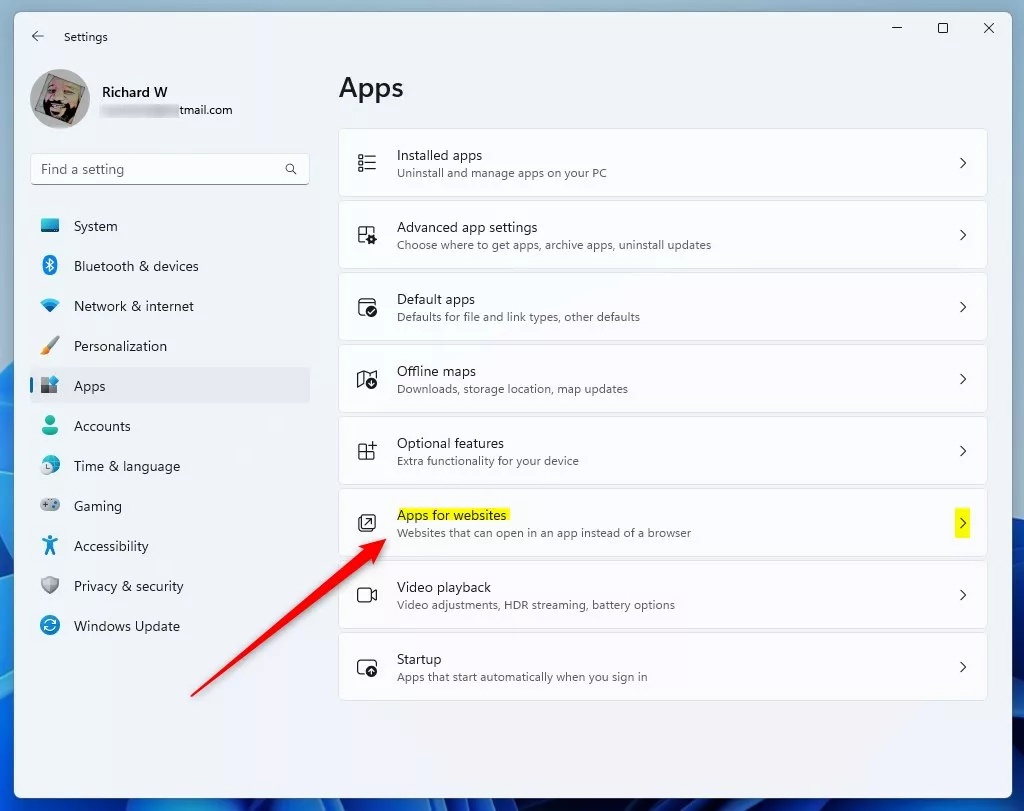
- On the right, click Apps for websites. The path is Settings Apps Apps for websites.
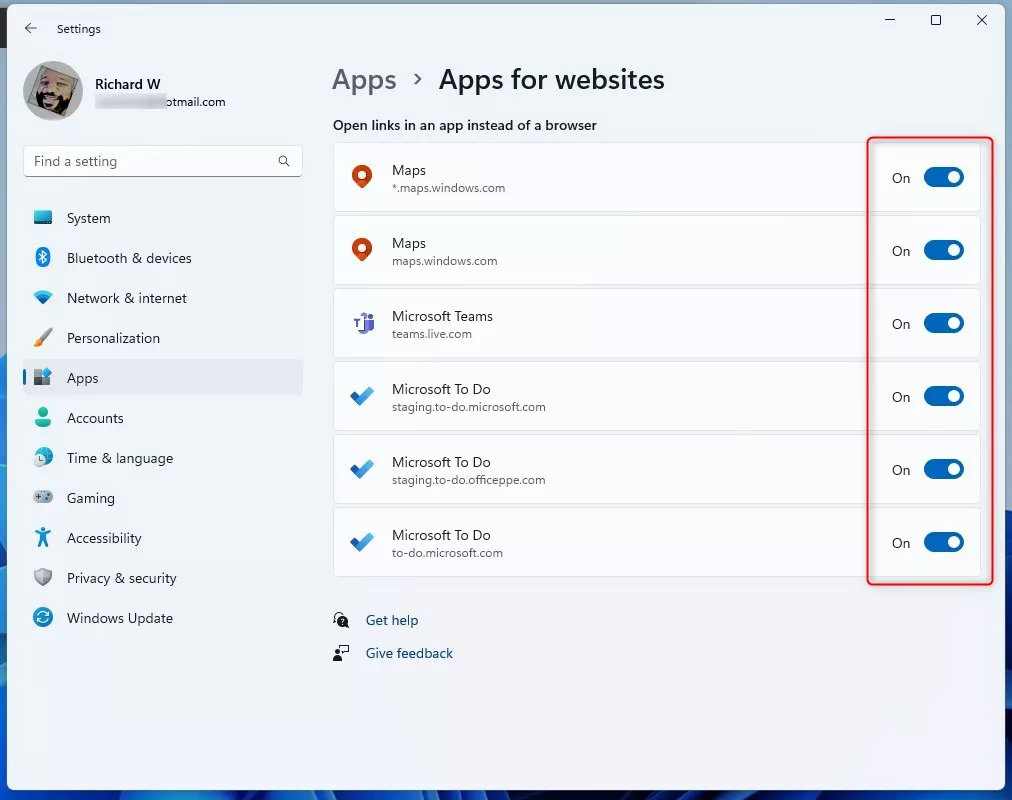
You should now see a list of installed apps that can open web links, each with its own toggle switch. If the page is empty, none of your installed apps register for web links. If the page is missing on your build, use Group Policy or the Registry method below.
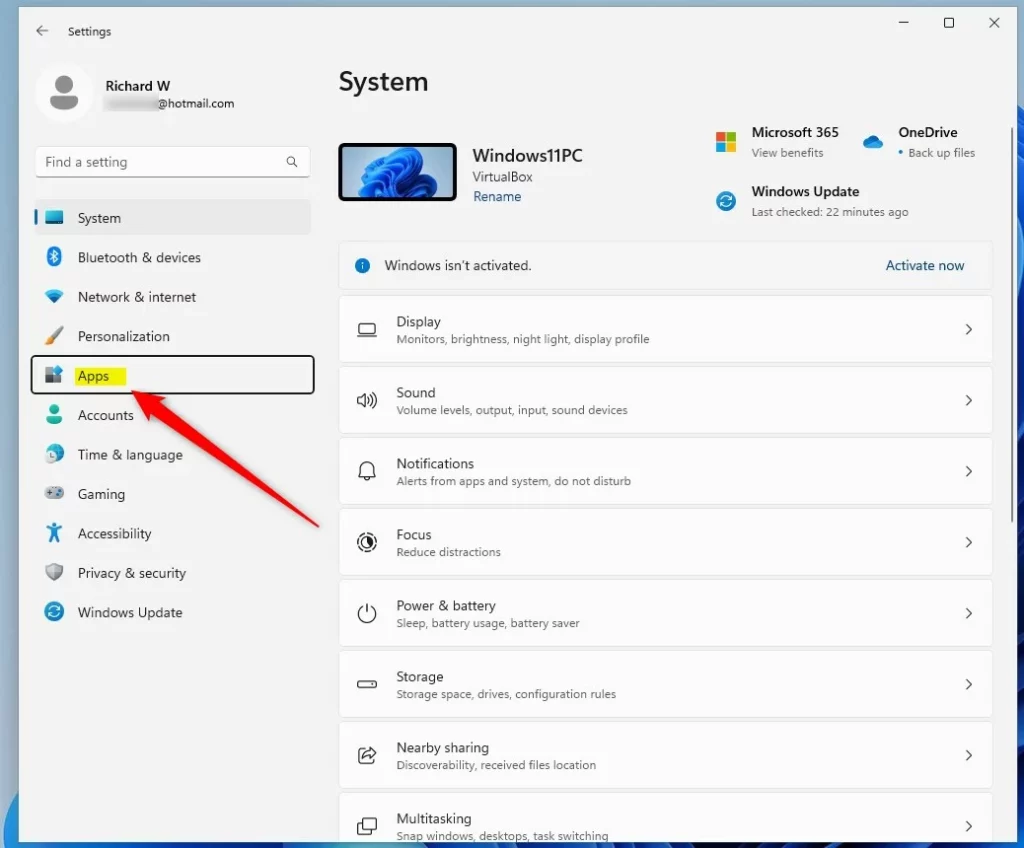
This built-in method lets you see every installed app that supports web links. You can then switch the feature on or off for each program on its own.
- Find the app you want to change in the list.
- Click the toggle switch next to it to turn the feature on or off.
The toggle changes straight away and there is no Save button. When it is On, links for that app's website open in the app. When it is Off, they open in your browser. To undo a change, click the toggle again.
When you are done, close Settings. You don't need to restart for changes made here.
How to Enable or Disable Apps for Websites Using Group Policy Editor
The Local Group Policy Editor lets an administrator control Apps for Websites for every user account on one computer at the same time. You set the policy once, and it applies to everyone instead of being changed profile by profile.
The Local Group Policy Editor is only included in Windows 11 Pro, Enterprise and Education. Windows 11 Home doesn't have it, so Home users should use the Settings or Registry method instead.
Here's how:
- Open the Local Group Policy Editor. (If you don't know how, check this guide).
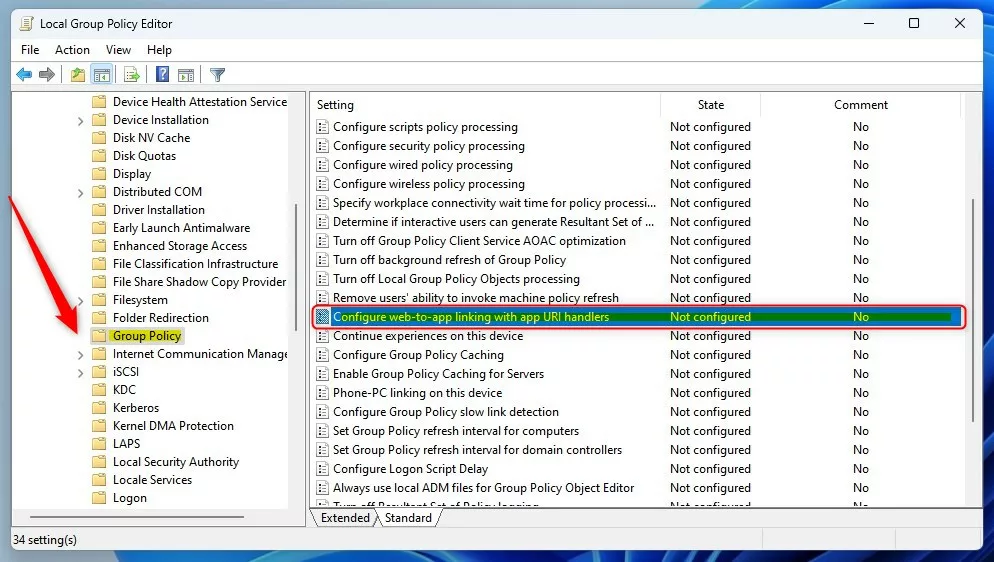
- In the left panel, go to:
Computer Configuration > Administrative Templates > System > Group Policy
- Click on the Group Policy folder.
- On the right, double-click Configure web-to-app linking with app URI handlers.
A window opens with the policy's settings.
Choose one of these options:
- Not Configured – This is the default, which means the feature is turned on.
- Enabled – Turns the feature on.
- Disabled – Turns the feature off.
To undo your change later, open the same policy and set it back to Not Configured.
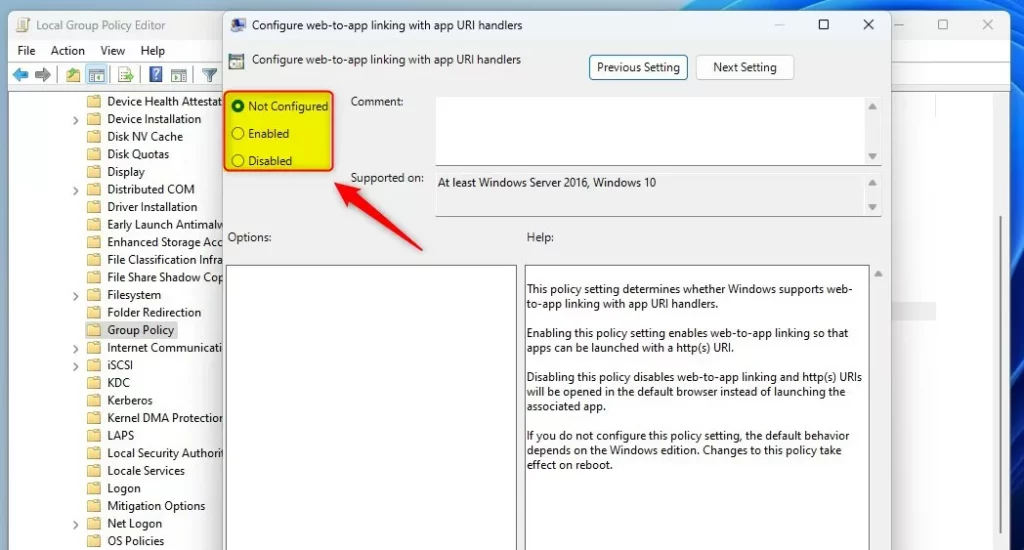
Click OK to save, then restart your computer for the change to take effect.
How to Turn Apps for Websites On or Off Using the Registry Editor
Registry Editor is an advanced way to manage Apps for Websites. It works on every edition of Windows 11, including Home, where Group Policy isn't available. You create a DWORD value in the Windows system keys that tells Windows whether to open web links in apps or in the browser.
Editing the Registry carelessly can cause problems. Before you start, you may want to back up the key you're about to change. Select it, then click File Export and save the file somewhere safe.
Steps:
- Open Registry Editor by typing regedit in the Start menu search and pressing Enter. If Windows asks whether to allow the app to make changes, click Yes.
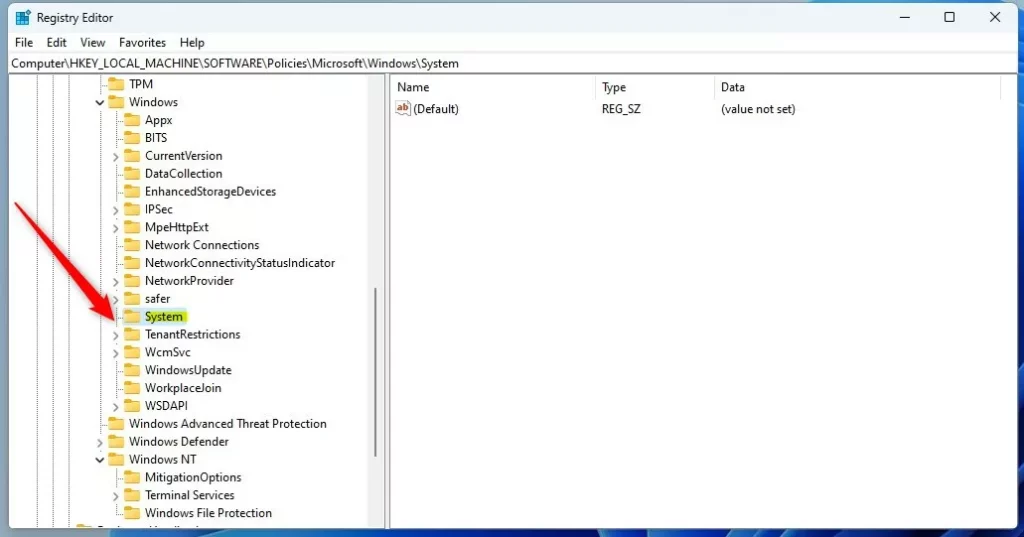
- Navigate to this folder:
HKEY_LOCAL_MACHINE\SOFTWARE\Policies\Microsoft\Windows\System
If the System folder isn't there, right-click on Windows, select New Key, and name it System. The new key should now appear in the left panel.
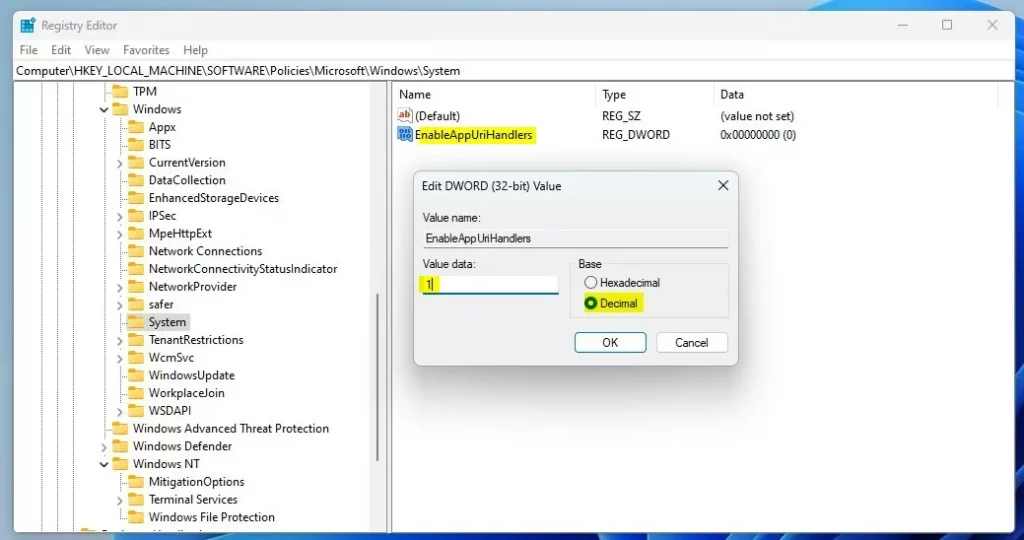
- Right-click inside the System folder on the right side, choose New DWORD (32-bit) Value, and name it EnableAppUriHandlers.
- Double-click the new value and set the Base to Decimal.
- Enter the value data:
- 1 to turn the feature ON
- 0 to turn the feature OFF
- Click OK. The value should now show your number in the Data column.
To undo the change later, open the value again and switch the number, or right-click the value and choose Delete.
Close Registry Editor and restart your PC for the change to work.
Summary
- You can control whether Windows opens website links in apps or in the browser.
- Use the Settings app for an easy way to switch this on or off for each app. No restart is needed.
- If you want to apply it for all users or have more control, use Group Policy Editor (Pro, Enterprise and Education) or Registry Editor (all editions).
- Remember to restart your computer after making changes in Group Policy or Registry Editor.
Managing Apps for Websites gives you control over whether web links open in your desktop apps or in your regular browser. Adjust individual programs in the Settings app, or apply a rule across all user accounts with the Group Policy Editor or Registry Editor.
Have a question about this guide?
Answered by AI from this guide. Good questions may be added to this page — please don't include personal details.
Did this guide fix your problem?

About the Author
Richard
Tech Writer, IT Professional
Richard is a writer at Geek Rewind who turns complex IT tasks into clear, step-by-step guides. He draws on years of hands-on experience in system administration and enterprise IT operations, focusing on Windows, Linux and WordPress: the problems people actually run into, and the fixes that work. His server and WordPress guides come from systems he runs himself. Richard builds and maintains the platform behind Geek Rewind, from its Ubuntu servers and Nginx configuration to its custom WordPress plugins. Many new tutorials start with readers' questions, and he's always glad to answer them in the comments.
No comments yet — be the first to share your thoughts!