Beginner’s Guide to Windows 11: 20 Essential Tips for New Users

- 60 steps
- Includes a restart or sign-out
Windows 11 gives you a centered taskbar, a redesigned Start menu and a set of built-in tools for everyday tasks. The 20 tips below help you speed up your PC, tidy your desktop and find settings that are easy to miss. Each tip has short numbered steps. Most work the same on Windows 11 Home and Pro. Where a tip needs a recent update or a particular edition, the text says so.
Out of the box, Windows 11 often starts more apps than you need and hides useful features. A few small changes can make the PC start faster, keep your information safer and feel more familiar. None of the changes below is permanent. Each tip says how to undo it.
Windows 11 beginners can speed up their PC, tidy the desktop and find hidden settings with 20 tips, each with numbered steps and a way to undo it.
1Move the Start Button Back to the Left Corner
Windows 11 centers the Start button and app icons on the taskbar. If you prefer the classic Windows layout, you can move them back to the bottom-left corner in a few clicks. Nothing is uninstalled and no restart is needed.

- Right-click any empty space on the taskbar at the bottom of the screen. A small menu appears.
- Click Taskbar settings. The Settings app opens on the taskbar page.
- Click Taskbar behaviors to expand that section.
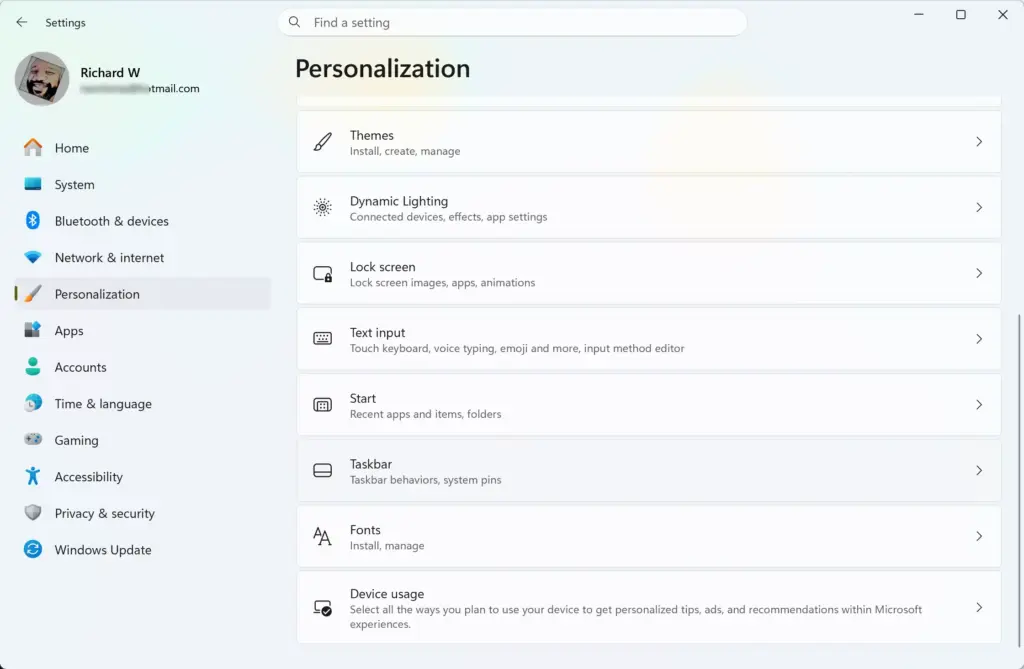
- Find Taskbar alignment and change it from Center to Left.
The Start button and taskbar icons move to the left side of the screen straight away. To undo it, set the option back to Center.
2Speed Up Your Computer by Turning Off Unneeded Startup Apps
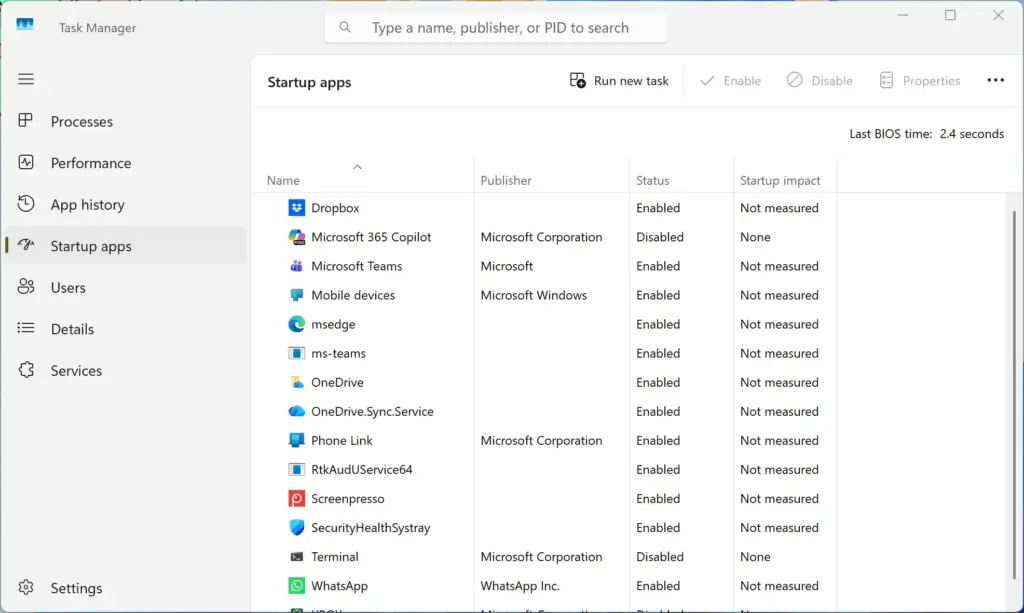
Many apps start on their own when you sign in. Each one adds to boot time and uses memory in the background. Turning off the ones you don’t need helps the PC become usable sooner after you switch it on. This only stops the automatic launch. The app stays installed, and you can still open it yourself.
- Open the Start menu and click the Settings app (the gear icon).

- Click Apps in the menu on the left side of the window.
- Click Startup. A list of apps appears, and each one shows a toggle and a startup impact rating.
- Look through the list and find anything that does not need to run the moment the computer boots. Chat apps, game launchers and updaters are common examples.
- Click the toggle switch next to an app to turn it Off.
The change takes effect the next time you sign in or restart. Leave security software and hardware utilities alone unless you know what they do. If you turn off something you miss, come back to this page and switch it on again.
3Never Lose Copied Text With Clipboard History
By default, Windows remembers only the last thing you copied. Clipboard history keeps several items, so you can copy a few pieces of text or images and paste them later. It is off until you turn it on.
- Press the Win+V on the keyboard.
- A small prompt asks whether you want to turn on clipboard history. Click Turn on.
From then on, everything you copy is saved. Press the Win+V at any time to open the clipboard panel. It shows up to 25 recently copied items, including text and images. Click any item in the list to paste it into your current document or message.
4Use AI Assistance With Microsoft Copilot
Microsoft Copilot is the built-in AI assistant. You can ask it to summarize a long article, draft an email, generate a picture or answer a tricky question. Its icon and shortcut depend on your Windows version, region and updates, so you may see it a little differently from this description.
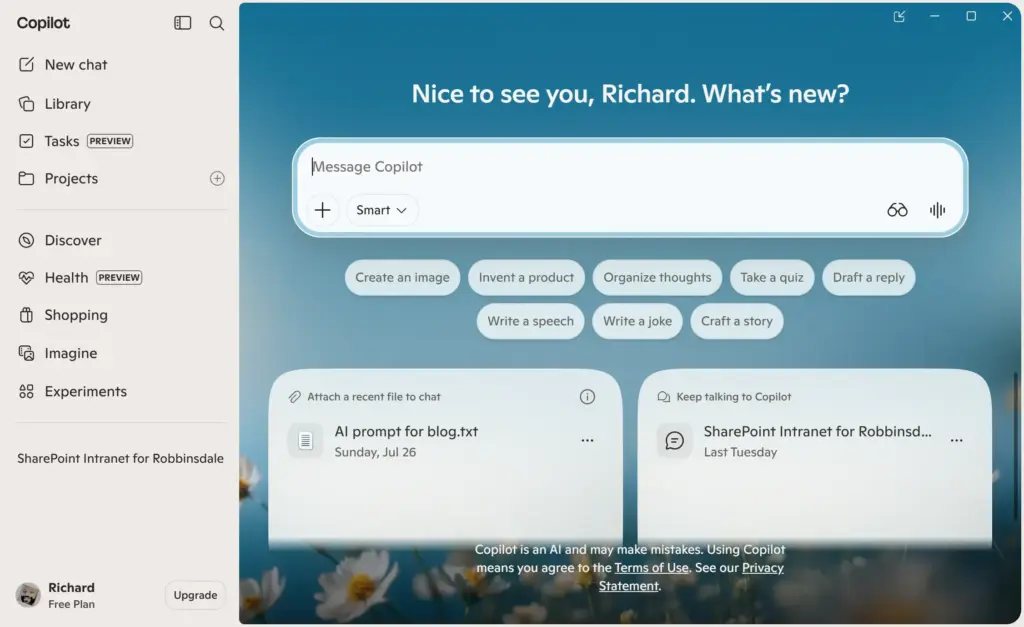
- Click the colorful, swirly Copilot icon on the taskbar, or press the Win+C. The Copilot window opens.
- Type a question or request into the chat box and press Enter. Copilot replies in the same window.
If you see no Copilot icon and the shortcut does nothing, Copilot may not be available on your version of Windows yet. Install the latest Windows updates and check again. Treat its answers as a starting point. It can be wrong, so check anything important.
5Organize Open Windows Easily With Snap Layouts
Snap Layouts let you arrange open windows side by side or in screen corners without resizing them by hand. This is useful on a large monitor, or when you copy information from one window into another.
- Hover the mouse cursor over the Maximize button (the square icon in the upper-right corner of any open window). You can also press the Win+Z.
- Wait a moment. A small menu appears with different layout options for the screen.
- Click the part of the layout where this window should sit. The window snaps into that spot.
- Pick which open app should fill each remaining slot.
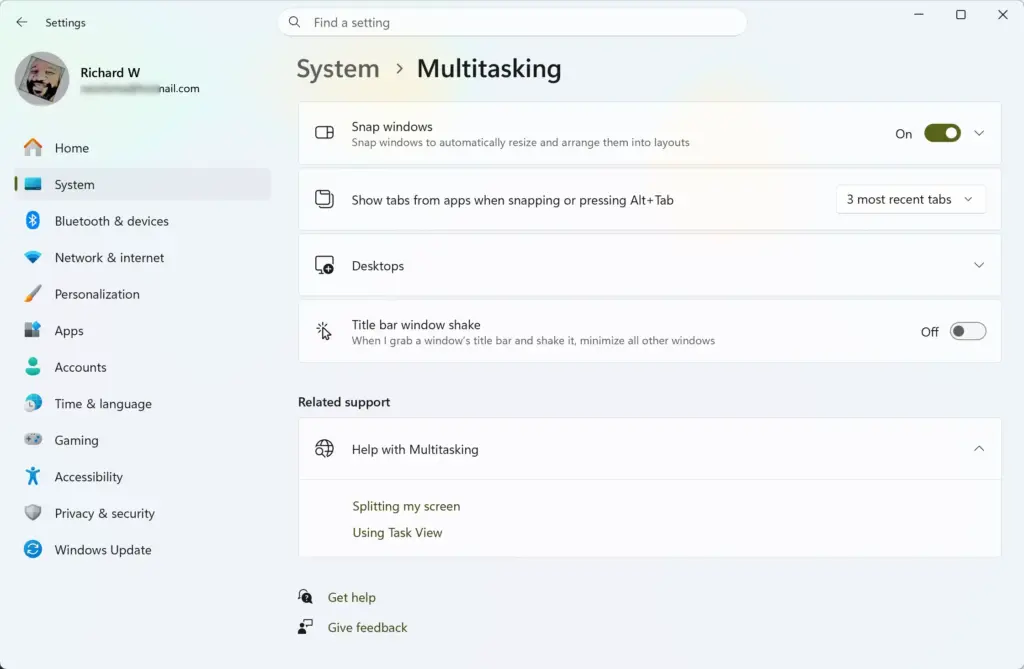
If the layout menu never appears, go to Settings System Multitasking and make sure Snap windows is turned on.
6Connect Your Smartphone to Your PC
Phone Link connects your phone to your PC. Once paired, you can read and send text messages, make calls and see phone notifications on the computer screen. How much works depends on the phone. Android phones support the most features. iPhones are more limited.
- Open the Start menu and click Settings.

- Click Bluetooth & devices, and then choose Phone Link. On some newer builds this page is named Mobile devices, with a link to open Phone Link.
- Follow the step-by-step instructions on screen to pair an Android phone or iPhone. You will usually scan a QR code or sign in with your Microsoft account, and your phone may ask you to approve permissions.
7Send Files Wirelessly Between Nearby Devices
Nearby Sharing sends files wirelessly to another PC close to you. You don’t need a USB drive or cloud storage. Both computers need Bluetooth and Wi-Fi turned on.
- Open the Start menu and go to Settings System Nearby sharing.
- Choose the setting you want. You can share with Everyone nearby, or only with your own devices. The sharing is turned off until you pick one of these.
- Open File Explorer and right-click the file you want to send.
- Select Share. In the Windows 11 right-click menu, this may appear as an icon rather than a word.
- Choose the name of the nearby computer from the list.
The other PC shows a notification, and its user accepts the file before it is saved. If you only share with your own devices, you stay in control of who can send you files.
8Stay Focused and Avoid Distractions With Focus Sessions
Focus sessions are built into the Clock app. A session blocks out a stretch of uninterrupted work. Windows silences notifications while it runs and tracks your progress over the days.
- Open the Start menu, type Clock, and open the Clock app.
- Click Focus sessions in the menu on the left.
- Choose the number of working minutes.
- Click Start focus session.
A timer starts, and notifications stay quiet until the session ends. You can stop the session early if something urgent comes up.
9Open Multiple Folders in Tabs Using File Explorer
- Open File Explorer.

- Right-click any folder and select Open in new tab. A new tab appears at the top of the window.
- Click a tab to switch to that folder.
You can also drag files onto the tabs at the top to move them between folders. The keyboard shortcut Ctrl+T opens a new tab, and Ctrl+W closes the current one.
10Customize Your Start Menu Pinned Apps
The pinned area of the Start menu holds the apps you open most. By default it fills with apps you may never use. You can pin your own favorites and remove the rest. This only changes the Start menu. It does not uninstall anything.
- Open the Start menu and click the All button to see the full list of installed apps.
- Right-click any app icon and choose Pin to Start. The app now appears in the pinned area.
To clean up, right-click an app you don’t want in the Pinned area and select Unpin from Start. To organize the rest, drag one app icon on top of another. Windows bundles them into a custom folder. To undo, pin the app again from the full list.
11Change Your Default Apps for Photos, Browsing, and More
Windows uses its own apps for photos, web browsing and music until you tell it otherwise. If you prefer another program, you can change the default for each file type. Installing a new browser or media player does not always change this automatically.
- Open the Start menu and go to Settings Apps Default apps.
- Type the name of the app or file type you want to change into the search box at the top.
- Click the app in the results.
- Pick the preferred program from the list to handle that file type.
Windows sets defaults one file type at a time, so you may need to repeat the steps for several types, such as .jpg and .png for photos. To go back, choose the original program again.
12Make Your Mouse Cursor Easier to See
If you lose track of the mouse pointer on a bright or busy screen, you can make it larger or change its color.
- Open the Start menu and go to Settings Accessibility Mouse pointer and touch.
- Choose a pointer style and drag the size slider to a larger size. The pointer on screen changes as you adjust it.
One useful choice is the half-black and half-white style (called Inverted). This pointer switches colors automatically depending on what is under it. It stays visible on both dark and light backgrounds. To go back, choose the original style and move the size slider back.
13Clear Your Desktop Instantly With Title Bar Shake
Title bar shake clears a cluttered desktop. You grab one window and shake it, and every other window minimizes. It is off by default, so you have to switch it on first.
- Open the Start menu and go to Settings System Multitasking.
- Find the setting named Title bar window shake and turn it On.
To use it, click and hold the top title bar of the window you want to keep, then quickly shake your mouse back and forth. All other open windows minimize to the taskbar. If you change your mind, shake the window again and the hidden windows return to your desktop. To turn the feature off, switch the setting back to Off.
14Back Up Your Important Files and Settings Automatically
- Open the Start menu, type Windows Backup, and then open the app.
- Select the folders, apps, and settings you want to save.
- Click Back up.
Your data syncs to your cloud account. On a new computer, signing in with the same account during setup lets you restore the same setup. Check the backup now and then to make sure it is still running.
15Master Essential Keyboard Shortcuts
Keyboard shortcuts save time because they cut down on clicking. These four are worth learning first:
- Win+A: Opens the Quick Settings panel for Wi-Fi, volume, and brightness controls.
- Win+W: Opens the Widgets panel.
- Win+Z: Opens Snap Layouts for organizing windows.
- Win+Shift+S: Opens the built-in screenshot tool to capture all or part of the screen.
After a screenshot, the image is copied to the clipboard. A notification appears that you can click to open it in the Snipping Tool.
16View Detailed Battery Usage and Save Power
If your laptop battery runs down quickly, Windows can show which apps use the most power. You can then close or limit those apps. This section only appears on devices with a battery.
- Open the Start menu and go to Settings System Power & battery.
- Click Battery usage. You see graphs and a detailed breakdown of power use by individual apps. The list covers the past 24 hours, and you can switch the time range.
- Look for apps near the top that you rarely use, and close them or stop them running in the background.
17Enhance Your Audio With Special Sound Modes
Windows has a few sound options that can improve how things sound, or make them easier to hear. They are all in the sound settings.
- Open the Start menu and go to Settings System Sound.
- Turn on Mono audio to combine the left and right audio channels into a single channel. This helps if you hear better in one ear, or use only one earbud.
- Scroll down and click All sound devices.
- Select your speakers or headphones.
- Turn on Enhance audio for extra features like loudness equalization.
The enhancement choices depend on your audio driver. If Enhance audio is missing for a device, the driver does not offer it. To undo any change, switch the same setting off.
18Record Your Screen or Play Games Using the Xbox Game Bar
The Xbox Game Bar is an overlay that works in games and in other apps. It lets you watch computer resources, record video clips and change audio volumes. You don’t need to download any extra software.
- Press the Win+G on the keyboard. The Game Bar overlay opens on top of whatever you are doing.
- Check processor and memory usage, record video clips of the screen, or adjust audio volumes from the overlay’s widgets.
If nothing happens when you press the shortcut, check that the Game Bar is turned on in Settings Gaming. Press the same shortcut again to close the overlay.
19Compress Files Into ZIP, TAR, or 7z Formats
Windows 11 can create compressed archives without a third-party tool. You can make standard ZIP files, as well as the TAR and 7z formats. TAR and 7z support was added in recent updates, so older builds may show only ZIP.
- Right-click one or more files or folders in File Explorer.
- Select Compress to and choose the format you want, such as a standard ZIP file, 7z or TAR.
Windows creates the archive in the same folder. If you don’t see Compress to, click Show more options in the right-click menu.
20Personalize Your Desktop With Custom Themes
A theme changes the look of Windows in one go. It updates the desktop background, accent colors and sound effects together.
- Open the Start menu and go to Settings Personalization Themes.
- Click any default theme to apply a fresh look right away.
- Or browse the Microsoft Store to download brand-new options.
To go back, click the previous theme in the same list.
Conclusion
You don’t need a technical background to get comfortable with Windows 11. Choose the tips that match how you work and try them one at a time. Customizing the taskbar, startup apps, clipboard and windows can make everyday work faster and more organized. Even two or three of these changes can make the PC feel noticeably better.
Summary
The Beginner's Guide To Windows 11: 20 Essential Tips For New Users provides twenty helpful tips for customizing and improving the Windows 11 operating system experience. The beginner guide covers moving taskbar icons, speeding up startup times, using clipboard history, organizing windows with Snap Layouts, connecting phones, and much more. Each tip uses clear steps to help you take full control of your computer.
Have a question about this guide?
Answered by AI from this guide. Good questions may be added to this page — please don't include personal details.
Did this guide fix your problem?

About the Author
Richard
Tech Writer, IT Professional
Richard is a writer at Geek Rewind who turns complex IT tasks into clear, step-by-step guides. He draws on years of hands-on experience in system administration and enterprise IT operations, focusing on Windows, Linux and WordPress: the problems people actually run into, and the fixes that work. His server and WordPress guides come from systems he runs himself. Richard builds and maintains the platform behind Geek Rewind, from its Ubuntu servers and Nginx configuration to its custom WordPress plugins. Many new tutorials start with readers' questions, and he's always glad to answer them in the comments.
No comments yet — be the first to share your thoughts!