How to Enable or Disable Windows 11 Copilot AI Assistant

- 45 steps
- Needs administrator rights
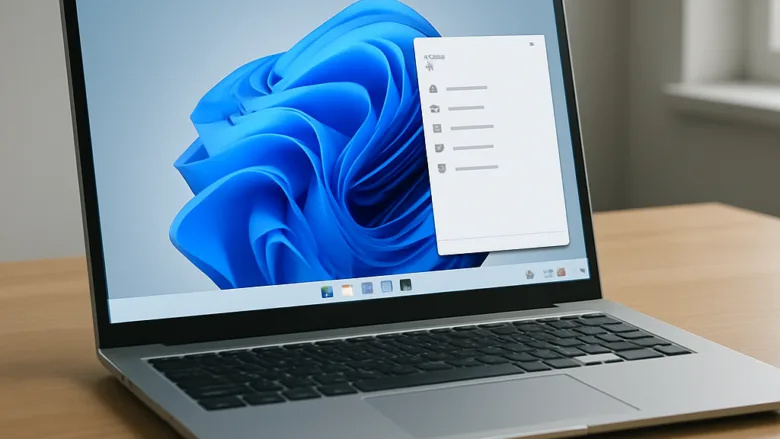
Windows 11 Copilot is a built-in AI assistant that answers questions, writes text, and controls computer settings directly from your taskbar on version 23H2 and later. You can turn off this feature to remove the Copilot button and stop the AI tool from running in the background.
Disabling the assistant takes only a few moments through the settings menu or the Registry Editor. You can switch the tool back on at any time if you change your mind. This guide also covers the other places AI shows up: the keyboard Copilot key, startup apps, Office, Notepad, Recall, Click To Do, webcam effects, and your web browsers.
To enable or disable Windows 11 Copilot, open Settings, select Personalization, then click Taskbar and switch Copilot on or off. The Copilot button appears or disappears from the taskbar immediately, with no restart needed. You can switch it back on at any time by returning to the same setting.
Understanding 🪟 Windows 11 AI Features
Windows 11 AI features are built-in smart tools that help you generate text, answer questions, and manage system settings. Most Windows 11 systems include the main Copilot assistant. Newer Copilot+ PCs also have more advanced tools, such as Windows Recall, Click To Do, and video enhancements.
Background AI tools use system memory and drain laptop batteries. More importantly, Recall takes regular snapshots of what is on your screen, which raises real privacy concerns. If you don’t want these features, you can turn off or remove Copilot and Recall. Knowing what is installed is the first step, so read the sections below and work through the ones that apply to your PC.
Some options only appear on certain hardware or app versions. If a setting described here is missing on your PC, that usually means your device or app version does not have the feature, so there is nothing to turn off.
How To Remove Or Reassign Your PC Keyboard Copilot Key
[Verification Required: Administrator privileges required]Some newer keyboards have a dedicated Copilot key. Reassigning it stops accidental presses from launching the assistant while you type. You change it in Settings, and no restart is needed.
- Click the Start button and open the Settings app. The Settings window opens.
- Select Personalization from the left menu, then click Text input.
- Click Customize Copilot key on your keyboard. A drop-down list of key actions appears.
- Change the setting from Copilot to Search. The key now opens your normal Start menu search box instead of the assistant.
If you don’t see the Customize Copilot key option, your keyboard may not have a Copilot key, or your Windows version may not offer the setting yet. To get a completely different action, choose one of the custom options if your version lists them. Alternatively, use Microsoft PowerToys, a utility suite for power users, to remap the key to a normal keyboard shortcut.
To undo the change, return to the same setting and select Copilot again.
How To Remove Copilot From Your Taskbar And Startup Apps
[Verification Required: Administrator privileges required]Removing Copilot from your startup apps stops the assistant from launching automatically every time your computer turns on. This keeps system resources free and can shorten your startup time.
- Press Ctrl+Shift+Esc at the same time to open Task Manager .
- Click the Startup apps icon on the left side of the window. It looks like a gauge or speedometer. A list of programs that start with Windows appears.
- Look for entries named Copilot or Microsoft 365 Copilot in the list.
- Right-click each entry and select Disable. The Status column changes to Disabled.
The change takes effect the next time you sign in or restart. If you don’t see a Copilot entry, it is not set to start with Windows, and you can skip this step. To undo it, right-click the entry and select Enable.
[Verification Required: Administrator privileges required]You can remove the Windows 11 Copilot assistant completely if you never plan to use it. This is a stronger step than disabling startup, because the app is no longer installed.
- Open the Start menu and type Copilot. The Copilot app appears in the search results.
- Right-click the result and select Uninstall.
- Confirm the removal if Windows asks you to.
Follow the same process for Microsoft 365 Copilot if it appears on your system. If you change your mind later, you can reinstall the app from the Microsoft Store.
How To Clean Up File Explorer Right-Click Menus
Cleaning up the File Explorer right-click menu removes the AI shortcuts that appear when you right-click a photo or document. Without them you get a shorter, simpler context menu.
If you want to keep the assistant installed but don’t want to see it in the right-click menu, look for any file-menu or context-menu options inside the app’s own preferences and turn them off. If the app has no such option, the quickest fix is to uninstall the main assistant package, as described in the previous section. The right-click menu is cleaned up as soon as the app is gone.
How To Turn Off AI In Microsoft Office Apps
Turning off AI in Office apps such as Word, Excel, or PowerPoint stops the assistant from generating content in your documents. You get back a traditional, distraction-free workspace. The setting is per app, so you may need to repeat the steps in each one you use.
- Open any Microsoft Office application, such as Word.
- Click File in the top-left corner, then choose Options at the bottom of the menu. The Options window opens.
- Select the Copilot tab in the left-hand list.
- Uncheck the box that says Enable Copilot.
- Click OK to save your changes, then close and reopen the application.
If there is no Copilot tab, your version of Office does not include the feature, or your organization manages it and you can’t change it yourself. To bring it back, open the same tab and check the box again.
Once you turn off Copilot, the writing tool stays hidden until you switch it back on in the settings. Your screen stays clean, and the AI tool stops popping up while you work.
How To Hide Copilot In Notepad
Hiding Copilot in Notepad returns your text editor to a fast, lightweight experience without built-in writing prompts.
- Open the Notepad app.
- Click the Settings gear icon in the top-right corner of the window. The settings page opens.
- Scroll down through the settings list.
- Find the Copilot section and toggle the switch to Off.
The AI button and prompts disappear from Notepad. If you don’t see a Copilot section, your Notepad version doesn’t have it. Updating Notepad through the Microsoft Store may add it. To undo the change, toggle the switch back to On.
With this feature off, Notepad goes back to the quick, simple editor you remember from older versions of Windows. It also stops using extra memory for background tasks, which helps on laptops running on battery.
How To Verify That Windows Recall Is Turned Off
[Verification Required: Administrator privileges required]Recall is only available on Copilot+ PCs, and it is something you opt into. Even so, it is worth checking that it is off. When it is on, your computer takes continuous snapshots of your desktop activity.
- Open the Settings app from your Start menu.
- Click Privacy & security on the left side.
- Scroll down and click Recall under the Windows permissions section. On some builds the page is labeled Recall & snapshots. If you do not see this option, your computer does not support Recall, and there is nothing more to do.
- Turn off the switch for Save snapshots. Windows stops recording your screen.
- Click Delete snapshots if you want to clear any data the computer has already recorded.
How To Turn Off The Click To Do Shortcut
[Verification Required: Administrator privileges required]Click To Do is another feature of newer AI PCs. It scans what is on your screen and offers interactive actions. Turning it off prevents accidental screen-scanning pop-ups while you work.
- Open Settings.
- Go to Privacy & security.
- Click Click To Do. The page for the feature opens.
- Turn the main toggle Off to stop interactive overlays from appearing over your open windows and documents.
If Click To Do isn't listed, your PC does not support it. To undo the change, return to the same page and turn the toggle back on.
How To Disable Windows Studio Effects
Windows Studio Effects applies automatic filters to your webcam, such as background blur, eye gaze correction, and framing. Turning them off restores a natural camera look in virtual meetings. These effects are only available on PCs with supported AI hardware.
- Press Windows key + A to open the Quick Settings panel on your taskbar.
- Look for the Studio Effects tile. If you can't see it, your PC may not support the feature, or the tile may be hidden from the panel.
- Click the tile to open the settings and turn off any unwanted video filters or background effects. The camera preview should now show your normal image.
How To Remove AI Features From Web Browsers
Internet browsers also add artificial intelligence tools that you might want to turn off. Each browser keeps these settings in a different place, so the next few sections go through them one at a time.
Google Chrome
- Click the three-dot menu in the top-right corner of the browser window.
- Select Settings.
- Choose AI innovations from the sidebar, then turn off the features you don't want.
Menu names change between browser versions, so if a name differs slightly, look for the nearest match. You can turn the features back on from the same page.
Microsoft Edge
- Open the browser Settings.
- Select AI innovations and turn off experimental features.
- To remove the assistant button from your toolbar, go to Appearance and select Copilot and sidebar.
- Turn off the switch that shows the button on the toolbar. The button disappears from the toolbar right away.
To restore the button, turn the same switch back on.
Mozilla Firefox
In Mozilla Firefox, AI features are controlled through advanced preferences.
- Type
about:configinto your address bar and press Enter. Firefox may show a warning page. If it does, click the button to accept the risk and continue. - Search for
browser.ml. The matching preferences appear in a list. - Double-click settings like
browser.ml.chat.enabledto switch them to false.
To undo a change, double-click it again, or use the reset arrow at the end of the row. Be careful in this page, because changing unrelated preferences can affect how Firefox behaves.
Unique Expert Tips: Cleaning Up Search And Managing Updates
Removing AI summaries from Google results keeps your searches free of clutter. These summaries appear as a block at the top of the results page. Google gives no simple setting to turn them off, so the usual approach is a browser extension.
- Open your browser's extension store.
- Search for Hide Google AI Overviews and install it.
- Run a Google search. The AI block should be gone, and you see traditional website links instead of machine-generated paragraphs.
This is a third-party extension, so check the permissions it asks for before you add it. You can remove it from your browser's extensions page at any time.
Summary
Check your startup apps and browser settings after major Windows updates to make sure your computer stays configured the way you want it. Updates can sometimes reinstall apps or switch features back on.
Have a question about this guide?
Answered by AI from this guide. Good questions may be added to this page — please don't include personal details.
Did this guide fix your problem?

About the Author
Richard
Tech Writer, IT Professional
Richard is a writer at Geek Rewind who turns complex IT tasks into clear, step-by-step guides. He draws on years of hands-on experience in system administration and enterprise IT operations, focusing on Windows, Linux and WordPress: the problems people actually run into, and the fixes that work. His server and WordPress guides come from systems he runs himself. Richard builds and maintains the platform behind Geek Rewind, from its Ubuntu servers and Nginx configuration to its custom WordPress plugins. Many new tutorials start with readers' questions, and he's always glad to answer them in the comments.
No comments yet — be the first to share your thoughts!