Why Does File Explorer Keep Restarting

- 43 steps
- Needs administrator rights
- Includes a restart or sign-out
When File Explorer keeps restarting on Windows 10 or Windows 11, the explorer.exe process is crashing and relaunching in a loop. You will see the screen flash or go blank, and the taskbar disappears and comes back. The usual causes are bad shell extensions (add-ons that put items in the right-click menu), damaged system files, and faulty display drivers.
To stop the loop, work through the fixes below in order. Clear your folder history, find the add-on that is failing, repair damaged system files, and check your graphics driver. If the problem is still there, test with a new user account and a clean boot. The steps get a little more involved as you go, so the quick fixes come first.
File Explorer keeps restarting because explorer.exe, the Windows interface process, hits an error and relaunches in a loop. The usual causes are corrupted Quick Access history, a faulty right-click shell extension, damaged system files, or an outdated graphics driver. Start by clearing File Explorer history from File Explorer Options in the Start menu.
What Causes File Explorer to Crash Repeatedly?
File Explorer keeps restarting because the main Windows interface process hits an error it cannot recover from. Windows then relaunches it, it hits the same error, and the loop repeats. The common triggers are corrupted recent file history, faulty third-party right-click menu items, damaged system files, outdated graphics drivers, and background software conflicts.
Here is what each cause looks like in practice, so you can guess where to start:

Corrupted Quick Access History: File Explorer saves a list of your recently used files and folders. If that data gets broken, the program crashes every time it tries to load it. This is the quickest cause to rule out, so try it first.
Faulty Shell Extensions: Many programs add shortcuts to your right-click menu, such as zip tools or cloud storage clients. If one of these extensions fails, it pulls File Explorer down with it. The crash often happens when you right-click a file or open a particular folder.
Damaged System Files: Important Windows files can break because of sudden shutdowns, failed updates, or a failing hard drive. If you also see other odd behavior, such as apps that will not open or error messages, suspect this one.
Outdated Video Drivers: File Explorer draws your desktop and taskbar, so a serious display driver bug can trigger restart loops. This is more likely if the problem began right after a driver or Windows update.
Third-Party Software Conflicts: Aggressive antivirus software, custom desktop themes, or background tools can clash with File Explorer. These are the hardest to spot, which is why the clean boot at the end of this guide exists.
Step 1Clear File Explorer History
Clearing File Explorer history deletes the cached records of recently opened files and folders. If those records are corrupted, removing them often ends the crash loop. It does not delete any of your actual files.
If the screen flashes too fast to click anything, you may need to restart the shell first. Do this before the steps below:
- Press the Ctrl, Shift, and Esc keys together to open Task Manager . You should see the Task Manager window appear on top of the flashing desktop.
- In Windows 10, click File and choose Run new task. In Windows 11, click the Run new task button at the top of the window. If you only see a short list of processes in Windows 10, click More details first.
- Type
control foldersand press Enter. The desktop and taskbar should come back.
Now clear the history. You can reach the same dialog from File Explorer itself (three dots on the toolbar > Options in Windows 11, or View Options in Windows 10), but the Start menu route below works even when File Explorer is unstable:
- Click the Start menu and type File Explorer Options.
- Click the result to open it. The File Explorer Options dialog opens on the General tab.
- Look near the bottom of the General tab for the Privacy section.
- Click the Clear button next to Clear File Explorer history.
- Near the top, set Open File Explorer to to This PC. On older versions of Windows 10 and 11 this option may offer Quick access instead of Home, but This PC is available in both.
- In the Privacy section, uncheck the options for showing recently used files and frequently used folders.
- Click Apply and then OK.
Open a few folders and see if File Explorer stays up. You can turn the Privacy options back on later if they were not the cause.
Step 2Check for Problematic Context Menu Items
A faulty shell extension can crash File Explorer when it fails to load. You can find and disable these add-ons with ShellExView, a free utility from NirSoft. Download it from the NirSoft website and not from a third-party mirror. Some antivirus programs flag it because it changes system settings, so expect a warning in some cases.
The idea is to turn off every non-Microsoft extension, confirm the crashes stop, and then bring them back a few at a time to find the culprit.
- Download and open ShellExView. A long list of extensions appears.
- Click Options in the menu bar and choose Hide All Microsoft Extensions. The list shrinks to third-party items only, which keeps you from disabling anything Windows needs.
- Click inside the list and press the Ctrl and A keys to select all the remaining items.
- Right-click the selected items and choose Disable Selected Items. If ShellExView asks you to confirm, click Yes. The disabled items now show a red mark.
- Restart your computer and see if File Explorer stops crashing.
- If it is stable, open ShellExView again, enable a few items at a time with Enable Selected Items, and restart File Explorer or the computer to test. Repeat until the crashes return. The last group you enabled contains the problem extension.
If the crashes continue with every third-party extension disabled, shell extensions are not the cause. You can re-enable them all the same way and move on to the next section.
Step 3Run System File Checker and DISM Scans
The System File Checker and DISM scans repair missing or damaged core Windows files, which can make File Explorer misbehave and crash. Both run from an elevated Command Prompt. Run DISM first, because it repairs the component store that System File Checker draws its replacement files from.
- Click the Start menu, type cmd, right-click Command Prompt, and select Run as administrator.
- If a security prompt asks whether you want to allow the app to make changes, click Yes. A Command Prompt window opens with "Administrator" in the title bar.
- Type the following command carefully and press Enter:
DISM.exe /Online /Cleanup-image /Restorehealth - Wait for the process to reach 100%. This tool downloads clean replacement files from Microsoft if it finds damage, so you need an internet connection. The progress bar can sit at the same percentage for several minutes. That is normal, so do not close the window.
- Next, type the following command and press Enter:
sfc /scannow - Let the System File Checker finish scanning your computer. If it finds broken files, it repairs them automatically. The result will say whether it found and fixed problems, found none, or could not fix something.
- Restart your computer when the scan is finished.
If System File Checker reports it could not fix some files, run the DISM command again, restart, and then run the System File Checker command a second time.
Step 4Check for Display Driver Issues
An outdated or corrupted display driver can make the taskbar, desktop, and File Explorer crash repeatedly, because the graphics card cannot draw the desktop properly. Updating the driver is a quick check, and it is especially worth doing if the loop started after a Windows update.

- Right-click the Start menu button and select Device Manager.
- Scroll down and click the arrow next to Display adapters to open the list. You should see your graphics card, and some computers list two (for example Intel and NVIDIA).
- Right-click your graphics card, such as Intel, AMD, or NVIDIA, and select Update driver.
- Choose Search automatically for drivers and follow any instructions on your screen.
- If Windows says the best driver is already installed, that only means Windows has nothing newer in its own catalog. Visit the official website of your graphics card maker to download and install the newest software for your system.
- Restart your computer when the installation finishes, and test File Explorer.
If the loop began right after a driver update, the new driver may be the problem. In Device Manager, double-click the graphics card, open the Driver tab, and click Roll Back Driver. This button is greyed out if Windows has no previous driver saved.
Step 5Test a New User Account
Testing with a new user account tells you whether the problem is in your personal profile (corrupted settings or registry entries) or in Windows itself. Many troubleshooting guides skip this step, but it saves time. If File Explorer runs well on a clean account, you know the fault is limited to your profile.

- Open the Settings app by pressing the Windows Key and I together.
- Go to Accounts Other users On Windows 10, the page is called Family & other users.
- Click the Add account button. On Windows 10, click Add someone else to this PC instead.
- Click the link saying you do not have this person's sign-in information, then select the option to add a user without a Microsoft account. You will now see a form asking for a username.
- Enter a dummy username like
TestUser, set a password if you want, and finish the setup. - Sign out of your current account and sign in to the new
TestUseraccount. The first sign-in takes a minute while Windows builds the profile. - Open File Explorer and test it for a few minutes. If it works normally without crashing, your original user profile is damaged, and you may need to move your files to the new account.
New accounts are standard users by default. That is fine for testing. If File Explorer crashes in the new account too, the problem is system-wide, so go back to the earlier fixes or continue to the clean boot. You can delete the test account afterward from the same Other users page.
Step 6Perform a Clean Boot to Find Background Conflicts
A clean boot starts Windows with only the essential drivers and services, so you can find background software that causes File Explorer to crash. It is the best way to catch conflicts from antivirus tools, theme utilities, and similar programs.
Note: Performing a clean boot requires administrator privileges.
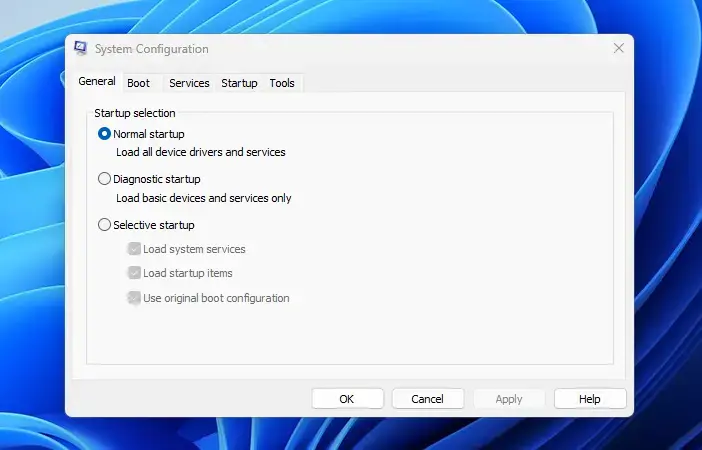
- Press the Windows Key and R keys together, type
msconfig, and press Enter to open System Configuration. - Go to the Services tab at the top.
- Check the box at the bottom that says Hide all Microsoft services. Do not skip this step, or you might turn off important system services.
- Click the Disable all button. The list of third-party services should now be unchecked.
- Go to the Startup tab and click Open Task Manager. Task Manager opens on its startup list.
- In Task Manager, click each startup item that is turned on and click Disable in the top right. Write down which ones you disabled so you can turn them back on later.
- Close Task Manager, click Apply and OK in the System Configuration window, and restart your computer.
Your PC will start with fewer programs, and some features may be missing. This is expected and temporary.
If File Explorer stops crashing after a clean boot, an outside app or service caused the issue. To find it, turn startup apps and services back on in small groups, restarting between each group, until the crashes return. The last group you enabled holds the culprit. Once you know which program it is, update it, reinstall it, or remove it.
To return to normal startup when you are finished, open System Configuration again, select Normal startup on the General tab, and click OK. Then restart. Re-enable the startup items you disabled in Task Manager as well.
Advanced Prevention: Keeping File Explorer Stable
Most restart loops can be avoided by not running unstable customization tools and by keeping Windows updated. A few habits go a long way:
- Be careful with customization appsTools that change the Windows taskbar, right-click menus, or folder looks often break during major Windows updates. If you use one, check for an update to it before you install a big Windows update.
- Keep Windows updatedMicrosoft frequently fixes bugs related to
explorer.exein monthly updates. Make sure your system stays up to date. - Take care of your storage driveRun regular disk checks and make sure your main drive never runs completely out of free space, because Windows needs virtual memory space to run background tasks smoothly.
Summary
File Explorer restart loops happen when the core Windows desktop process crashes and keeps relaunching. The cause is usually corrupted cache, a faulty shell extension, damaged system files, an outdated display driver, or a background software conflict. Work through the fixes in order: clear the history, check the shell extensions, repair system files, update the driver, and then use the new account and clean boot tests to narrow down anything left. Keep Windows updated afterward so the problem does not return.
Have a question about this guide?
Answered by AI from this guide. Good questions may be added to this page — please don't include personal details.
Did this guide fix your problem?

About the Author
Richard
Tech Writer, IT Professional
Richard is a writer at Geek Rewind who turns complex IT tasks into clear, step-by-step guides. He draws on years of hands-on experience in system administration and enterprise IT operations, focusing on Windows, Linux and WordPress: the problems people actually run into, and the fixes that work. His server and WordPress guides come from systems he runs himself. Richard builds and maintains the platform behind Geek Rewind, from its Ubuntu servers and Nginx configuration to its custom WordPress plugins. Many new tutorials start with readers' questions, and he's always glad to answer them in the comments.
No comments yet — be the first to share your thoughts!