How to Add or Remove App Extensions on Context Menu in Windows 11

- 23 steps
- Needs administrator rights
- Includes a restart or sign-out
App extensions on the context menu in Windows 11 are extra options that third-party programs add when you right-click a file or folder. Starting with Windows 11 build 22635.3570, Microsoft lets you group these items into a single submenu. This cleans up a crowded right-click menu.
You can manage the extensions from the Settings app. You don’t need advanced tools for it. You can show or hide the submenu, and you can pull individual apps out of it onto the main menu. A registry method is also covered below, for when the Settings page is missing or doesn’t work.
Because this feature arrived in a specific build, the options may not appear on a PC that hasn’t received that build or a later one. To check your version, open Settings System About and look under Windows specifications. The Settings steps work the same on Home and Pro.
To show or hide the app extensions submenu on the Windows 11 context menu, open Settings, go to Personalization Context menu, and click App extensions under File actions. Turn the Show app extensions submenu switch on or off. Changes apply straight away in File Explorer. This needs build 22635.3570 or later.
Step 1Open Your Windows Settings
The Settings app is where you manage your computer preferences, including how your right-click options look and behave. You can open it with the keyboard or the mouse.
- Press Win+I. The Settings window opens.
- If you prefer the mouse, click the Start button instead, then click the gear-shaped Settings icon. You get the same window.

Step 2Go to the Context Menu Settings
The setting that controls your right-click menu sits under Personalization. This is the area that decides how app shortcuts appear in File Explorer. It lets you manage up to 10 app extensions and shortcuts that show up when you right-click items.
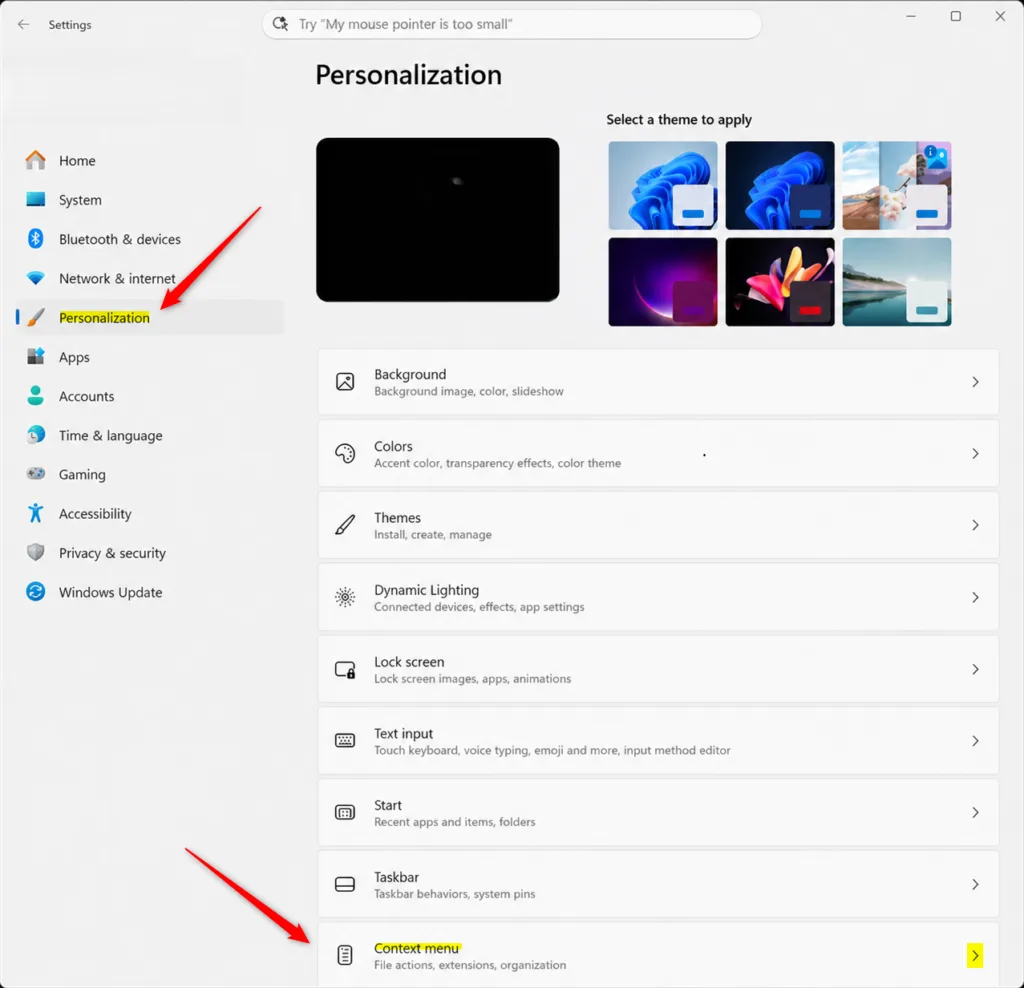
- In the Settings window, click Personalization in the left sidebar.
- Click Context menu . The page for the modern Windows 11 right-click menu opens.
If you can’t find the Context menu option, your PC probably doesn’t have build 22635.3570 or later yet. Run Windows Update, restart, and look again. If the page still isn’t there, use the registry method further down.
Step 3Show or Hide the App Extensions Submenu
The first control decides whether the app extensions submenu exists at all. Showing it keeps your right-click options neat. Hiding it removes the extra app shortcuts from view.
- Scroll down to the File actions section.
- Click App extensions to open its options. You will see a switch for Show app extensions submenu.
- Set the switch to the state you want:
Turn On: The submenu stays visible on your right-click menu, so you can reach the extra tools quickly. This is the default in Windows 11, so you don’t need to change anything if you want the shortcuts to stay where they are.
Turn Off: This hides the submenu completely.
Right-click a file in File Explorer to check the result. The change applies to the modern menu straight away. To undo it, come back and flip the switch again.
It does not change the classic menu that appears when you hold the Shift key while right-clicking.
Step 4Choose Which Extensions Appear Directly on the Menu
You can also choose which apps appear directly on your main right-click menu. That saves you from opening the submenu for the tools you use most. The controls are in the same App extensions area.
- Go back to Personalization Context menu, scroll to File actions, and click App extensions.
- Look through the list of installed apps. Each one has its own switch.
- Toggle the switch next to the app you want to change.
Turn On: The app extension moves out of the submenu and shows up right on your main right-click menu.
Turn Off: The app extension stays inside the App extensions submenu.
Don’t pin too many apps to the main menu. Crowding it again defeats the purpose of the submenu. To undo a change, switch the app back.
Step 5Control App Extensions Using the Windows Registry
Registry Editor is a tool for viewing and changing system settings. It gives you another way to control the submenu if the Settings page is missing or isn’t working. It also works on Windows 11 Home. You need to be signed in with an administrator account.
- Press Win+R to open the Run box.
- Type
regeditand press Enter. - If a User Account Control prompt appears, click Yes. Registry Editor opens.
- In the left sidebar, go to this exact path:
HKEY_CURRENT_USER\Software\Microsoft\Windows\CurrentVersion\Explorer\ContextMenu\Preferences\ShowExtensions- On the right side, look for a value named Enabled. If you don’t see it, right-click an empty area, choose New DWORD (32-bit) Value, and name it exactly as shown.
- Double-click
Enabled. The Edit DWORD (32-bit) Value box opens. - Enter the value in the Value data field:
- Type 1 to show the App extensions submenu.
- Type 0 to hide the App extensions submenu.
- Click OK to save your changes.
The change may not show until you restart File Explorer or sign out and back in. To undo it, set the value back to its previous number.
Deleting or changing the wrong items can cause problems on your computer. Always check your path before making changes. Creating a restore point or exporting the key first gives you an easy way back.
Step 6Manage Individual Extensions in the Registry
You can also fine-tune individual app extensions in the registry. This helps when the standard menu options aren't enough. Apps only show up in this part of the registry after you change app settings at least once in the main Windows Settings. If an app is missing, go back to the App extensions page in Settings, toggle that app on and off once, and check again.
- In Registry Editor, go to this key in the left sidebar:Registry
HKEY_CURRENT_USER\Software\Microsoft\Windows\CurrentVersion\Explorer\ContextMenu\Preferences\extensions - Click the folder for the app extension you want to change.
- On the right side, double-click the Enabled value.
- Change the Value data to 1 if you want the app to show directly on your main right-click menu. Change it to 0 if you want it inside the submenu.
- Click OK, then close Registry Editor.
Summary
Your right-click menu now displays your chosen app extensions, either grouped in a submenu or pinned directly to the main list. Right-click a file or folder to confirm. If something looks wrong, repeat the steps with the opposite setting to reverse it.
Have a question about this guide?
Answered by AI from this guide. Good questions may be added to this page — please don't include personal details.
Did this guide fix your problem?

About the Author
Richard
Tech Writer, IT Professional
Richard is a writer at Geek Rewind who turns complex IT tasks into clear, step-by-step guides. He draws on years of hands-on experience in system administration and enterprise IT operations, focusing on Windows, Linux and WordPress: the problems people actually run into, and the fixes that work. His server and WordPress guides come from systems he runs himself. Richard builds and maintains the platform behind Geek Rewind, from its Ubuntu servers and Nginx configuration to its custom WordPress plugins. Many new tutorials start with readers' questions, and he's always glad to answer them in the comments.
No comments yet — be the first to share your thoughts!