How to Enable Separate Process for Windows 11 File Explorer

- 8 steps
- Needs administrator rights
- Includes a restart or sign-out
Running File Explorer (the app you use to browse files and folders) in separate processes stops a frozen folder window from taking your whole desktop and taskbar down with it in Windows 11. By default, Windows runs all your open folder windows under one shared task named explorer.exe. That same task also draws the taskbar, the Start menu and the desktop, so one hung folder can freeze everything.
Isolating the folder windows makes each one run in its own process, so a crash in one folder stays contained. You turn this on in the Folder Options dialog, or in the registry if you prefer. Both methods are below. The setting is available on Home and Pro, and you don’t need to install anything.
Enable separate processes for File Explorer by opening Folder Options, clicking the View tab, and checking “Launch folder windows in a separate process.” This prevents one crashed window from affecting others.
Launch a File Explorer folder with a separate process
The quick version: open Folder Options inside File Explorer, click the View tab, and check the box named Launch folder windows in a separate process. A frozen folder then no longer closes your other open windows. The steps below show where each item is on screen and how to undo the change.
Open File Explorer (press the Win plus E), click the three dots in the command bar, and select Options. This opens the Folder Options dialog. Close any folder windows that hold unsaved work first, because the change only applies to windows you open afterwards.
- Open the File Explorer Folder Options. To get there, click the three dots (See more) in the command bar at the top of the window and select Options. A window titled Folder Options appears.
- Click the View tab. You will see a long scrolling list called Advanced settings.
- Scroll down the list and check the box next to Launch folder windows in a separate process to enable it. To disable it later, come back to the same place and uncheck the box.
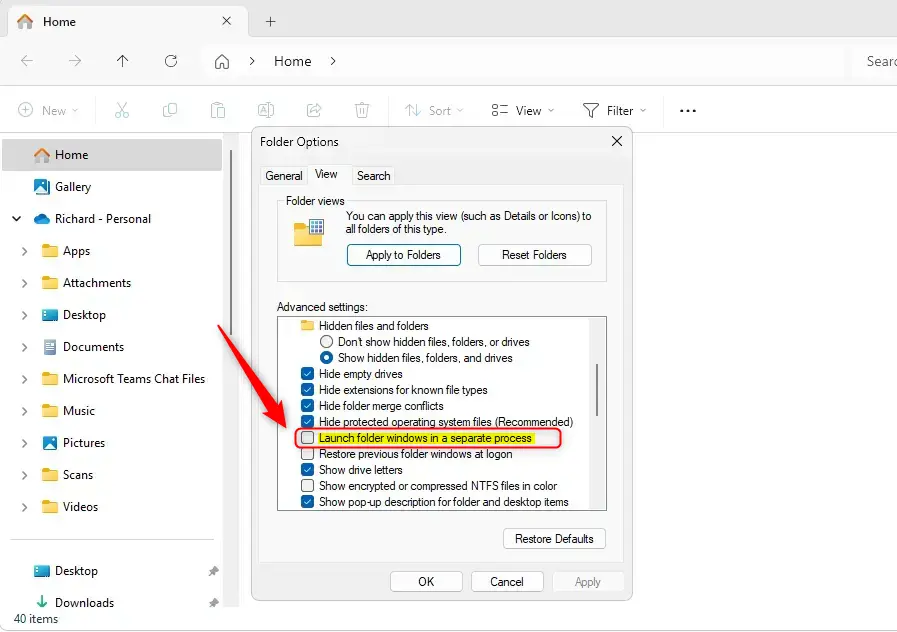
- Click OK to save your changes and exit. The dialog closes. Any folder window you open from now on runs in its own process. Windows that were already open keep running the old way until you close and reopen them.
Launch File Explorer window in a separate process using Windows Registry Editor
Registry Editor (a tool for changing advanced system settings) lets you force the same behavior if you would rather not use the normal menus. It is also handy when you need to set the option on several PCs. Open Registry Editor and go to 🗝️HKEY_CURRENT_USER\
This value sits under 🗝️HKEY_CURRENT_USER, so it applies only to the account you are signed in with. The dialog method above writes the same setting for you, so the two methods do not conflict.
Back up your registry or create a System Restore point before you start. A wrong edit in the registry can cause problems that are hard to trace, and a backup lets you return to a known good state in a few minutes.
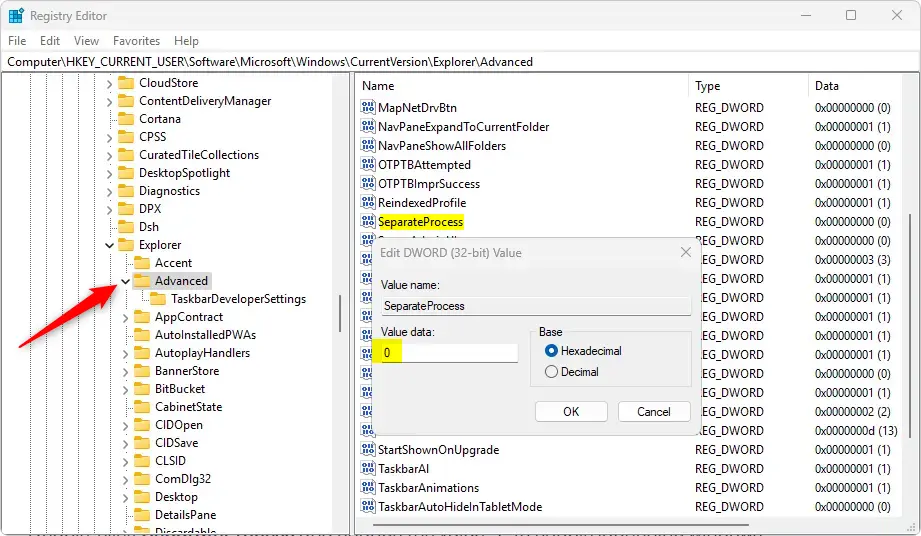
- Open the Windows Registry and navigate to the folder key path below. Click the small arrow next to each folder name in the left pane to expand it, or paste the path into the address bar at the top of the window.
Computer\HKEY_CURRENT_USER\Software\Microsoft\Windows\CurrentVersion\Explorer\Advanced - Check the right pane of the Advanced key for an existing SeparateProcess entry. If it is there, skip to the next step. If not, right-click Advanced in the left pane and choose New DWORD (32-bit) Value. Name the new value SeparateProcess. Use the 32-bit type even on a 64-bit copy of Windows 11. The new entry appears in the right pane.
- ⚠️ ADMIN PRIVILEGES REQUIRED — Double-click SeparateProcess and change the Value data to 1 to enable launching windows in a separate process in File Explorer. Click OK. If the change is refused, close Registry Editor and reopen it from an administrator account.
- To disable the feature, set the Value data back to 0. You can also delete the value, but setting it to 0 is easier to reverse.
Applying the changes correctly sometimes requires a full computer restart. This is most likely after a registry edit, because File Explorer reads the setting when it starts. You can also try signing out and back in, which restarts Explorer for your account. Save your work first either way.
That completes the setup process. To check that it works, open two or three folder windows and press Ctrl+Shift+Esc to open Task Manager. On the Details tab you should see more than one explorer.exe entry. If you see only one, restart the PC and test again.
Summary
Running each folder window in its own process makes Windows 11 more stable, because one crashing window no longer takes down your entire desktop. Your active work stays protected, and the computer keeps running even if a single folder stops responding. The cost is a little extra memory for each additional window, which you will rarely notice on a modern PC.
What happens when done? Once applied, every folder you open operates independently. An unresponsive folder no longer brings down the rest of your desktop interface. You can close the stuck window, or end just its task in Task Manager, while everything else keeps working.
Key points to remember:
- Process IsolationLaunching folder windows in separate processes prevents one unresponsive window from crashing others.
- Easy ConfigurationYou can change this setting through the File Explorer Folder Options or the Windows Registry Editor. To undo it, uncheck the box or set SeparateProcess back to 0.
- Backup PrecautionAlways back up your registry or create a System Restore point before making changes to the registry.
- Enhanced StabilityThis feature can improve stability and responsiveness when navigating files and folders.
- Reboot RequiredChanges may require a reboot, ensuring the settings are applied correctly. If the setting seems to have no effect, restart first before you troubleshoot further.
Have a question about this guide?
Answered by AI from this guide. Good questions may be added to this page — please don't include personal details.
Did this guide fix your problem?

About the Author
Richard
Tech Writer, IT Professional
Richard is a writer at Geek Rewind who turns complex IT tasks into clear, step-by-step guides. He draws on years of hands-on experience in system administration and enterprise IT operations, focusing on Windows, Linux and WordPress: the problems people actually run into, and the fixes that work. His server and WordPress guides come from systems he runs himself. Richard builds and maintains the platform behind Geek Rewind, from its Ubuntu servers and Nginx configuration to its custom WordPress plugins. Many new tutorials start with readers' questions, and he's always glad to answer them in the comments.
No comments yet — be the first to share your thoughts!