How to Enable or Disable Window Preloading in File Explorer on Windows 11

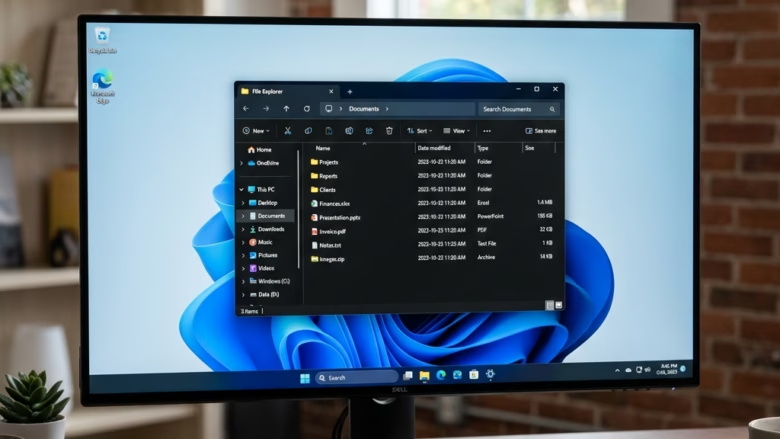
Window preloading in File Explorer keeps a background process active so folders open instantly. Microsoft added this feature in build 26220.7271 to speed up file browsing, especially after your computer wakes from sleep.
The feature loads file details and small picture previews into your computer’s memory ahead of time. You can turn window preloading on or off depending on whether you want faster folder speeds or lower memory use.
This option is new, so it only exists on Windows 11 builds that include it. If you don’t see it on your PC, your build or account may not have received it yet. Check Windows Update before you go looking for workarounds.
Open File Explorer , click the three-dot menu, select Options, go to the View tab, find Enable window preloading for faster launch times, check or uncheck the box, and click OK. Alternatively, open Registry Editor, navigate to 🗝️HKEY_CURRENT_USER\
Option 1Enable or Disable Preloading via Folder Options
File Explorer preloading can be turned on or off directly through the Folder Options window in Windows 11. This built-in setting controls whether Windows loads File Explorer in the background so folder windows open faster. You reach it from the three-dot menu in File Explorer and change it on the View tab. It works the same on Windows 11 Home and Pro, and you don’t need administrator rights.
- Open File Explorer . You can press Win+E, or click the folder icon on the taskbar .
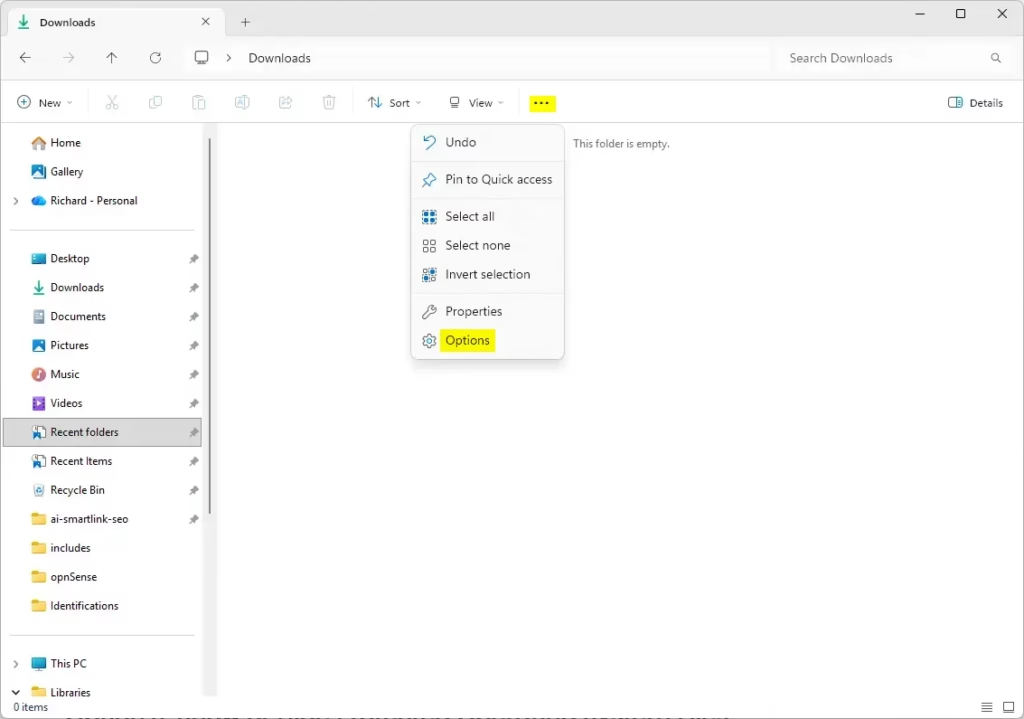
- Click the three-dot menu (…) in the toolbar at the top and select Options. The Folder Options window opens.
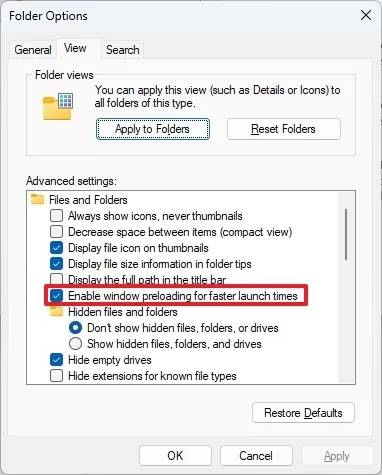
- Click the View tab. You will see a long list under Advanced settings.
- Scroll through the list and look for Enable window preloading for faster launch times. If it isn’t there, your Windows build doesn’t include the feature yet.
- Check the box to enable it, or uncheck it to disable it.
- Click OK. The window closes and the setting is saved.
To undo the change, open the same window and set the box back to how it was. If File Explorer doesn’t seem to follow the new setting right away, close all File Explorer windows and open one again, or sign out and back in.
Option 2Enable or Disable Preloading via Registry Editor
Registry Editor is a powerful tool used to change advanced Windows settings , so you should back up your registry before making any changes. In Registry Editor, click File Export, choose All as the export range, and save the file somewhere safe. You can then browse to the correct Windows software path and add the value.
If you are signed in as a standard user, Windows will ask for administrator credentials when you open Registry Editor.
- Press Windows Key + R, type regedit, and press Enter. Click Yes if User Account Control asks for permission. Registry Editor opens.
- Navigate to the following path:
HKEY_CURRENT_USER\Software\Microsoft\Windows\CurrentVersion\Explorer\Advanced. You can paste it into the address bar at the top of Registry Editor, or expand the keys in the left pane one by one. - Right-click an empty area in the right pane and select New DWORD (32-bit) Value. A new value appears with its name selected for editing.
- Name it ShouldPrelaunchFileExplorer and press Enter. If a value with this name already exists, skip the creation step and edit that one.
- Double-click the value. Set Value data to 1 to enable or 0 to disable, then click OK.
- Restart your computer to apply changes.
To undo the change, set the value back to its previous number, or right-click the value and select Delete to return to the default behavior. You can also double-click the exported .reg backup file to restore your saved registry settings.
Hardware Impact and Performance Analysis
Enabling File Explorer preloading consumes minor background resources, though modern machines equipped with fast storage notice almost no impact. The trade-off is a little memory held in reserve in exchange for quicker folder windows. On a PC with limited RAM, a small difference in memory use may matter more than a faster window.
Summary
File Explorer preloading is a Windows 11 capability that accelerates folder opening speeds through configuration in Folder Options or the Registry Editor. Performance improves while background resources remain dedicated to the task. Disabling the feature frees up those resources should system performance lag. Try it for a few days, and if you don't notice a difference, switch it off again.
Have a question about this guide?
Answered by AI from this guide. Good questions may be added to this page — please don't include personal details.
Did this guide fix your problem?

About the Author
Richard
Tech Writer, IT Professional
Richard is a writer at Geek Rewind who turns complex IT tasks into clear, step-by-step guides. He draws on years of hands-on experience in system administration and enterprise IT operations, focusing on Windows, Linux and WordPress: the problems people actually run into, and the fixes that work. His server and WordPress guides come from systems he runs himself. Richard builds and maintains the platform behind Geek Rewind, from its Ubuntu servers and Nginx configuration to its custom WordPress plugins. Many new tutorials start with readers' questions, and he's always glad to answer them in the comments.
No comments yet — be the first to share your thoughts!