Should You Clear the Windows 11 Driver Store to Free Up Space

- 3 ways to do it
- Needs administrator rights
The Windows 11 driver store is a hidden system folder at 📁C:\
You can win that space back without breaking your computer, provided you use the right tools. Built-in Windows tools and the Disk Cleanup utility remove old files safely. Never delete files by hand from the folder itself.
Yes, you should clear the Windows 11 driver store to free up space, provided you use the built-in cleanup tools designed for the job. Windows safely removes older, unused driver packages while keeping active files that your hardware currently needs to run properly without breaking your system.
What Is the 🪟 Windows 11 Driver Store and Why Does It Grow?
The driver store at 📁C:\
Windows keeps these files for a good reason. If a new driver update causes a problem, Windows can switch back to the older version. That safety net stops your screen from going black or your printer from failing completely. The stored packages also mean Windows can set up a device again when you unplug it and plug it back in, without reinstalling its software each time.
The catch is that Windows rarely deletes old driver packages on its own. When your graphics card, network adapter or Bluetooth mouse gets an update, Windows saves the new version next to the old one. Month after month, the old files pile up. If you have owned your PC for a few years, the driver store may hold dozens of gigabytes of software you will never use again.
Signs That Your Driver Store Is Too Full
A few signs point to a bloated driver store:
- A red storage bar for drive C: in File Explorer.
- An unusually large Temporary files category in storage settings.
- Sudden slowdowns on a smaller solid-state drive (SSD).
When old driver packages pile up, your PC runs low on free space and struggles to download new updates.
Poor performance on a small SSD is the other sign to watch for. When a drive is close to full, Windows struggles to run smoothly. You might see freezing, slower boot times, or failed application updates because there is no room to unpack the installation files.
You can look at your installed drivers with a built-in command tool:
- Open the Start menu and type
cmd. - Click Command Prompt in the results. A black window opens.
- Type the command to view your drivers and press Enter. Windows prints a long list of the installed drivers.
The list shows what is installed, but it is not a reliable measure of disk use. To check the size, open File Explorer, right-click the DriverStore folder and choose Properties. Windows may take a minute to add it all up. If the number is higher than ten or fifteen gigabytes, cleaning the store is worth doing.
Is It Safe to Clear the Driver Store?
Clearing the driver store is safe as long as you use built-in tools like Disk Cleanup or Storage Settings. These tools check your system first and block the removal of any driver your mouse, keyboard, display or other hardware is using right now.
When you use the official cleanup methods, Windows looks at every driver package in the store and checks whether your current hardware relies on it. If a driver is active, Windows leaves it alone. If it is an older, unused version that a newer update has replaced, Windows removes it.
Do not open the system folders and delete files yourself. Windows protects these folders, and forcing deletions by hand can corrupt the operating system and break your hardware connections. In the worst case you would have to reinstall Windows. Stick to the methods below.
How to Clear the Driver Store Safely in 🪟 Windows 11
You have a few ways to clear out old drivers in Windows 11. All of them use official tools, so you are not likely to break your system. Start with Storage Settings or Disk Cleanup. The Command Prompt method is for experienced users.
Deleted driver packages cannot be restored from the Recycle Bin. If you want a safety net, create a restore point first. Search for Create a restore point in the Start menu to find it.
Method 1Use 🪟 Windows 11 Storage Settings
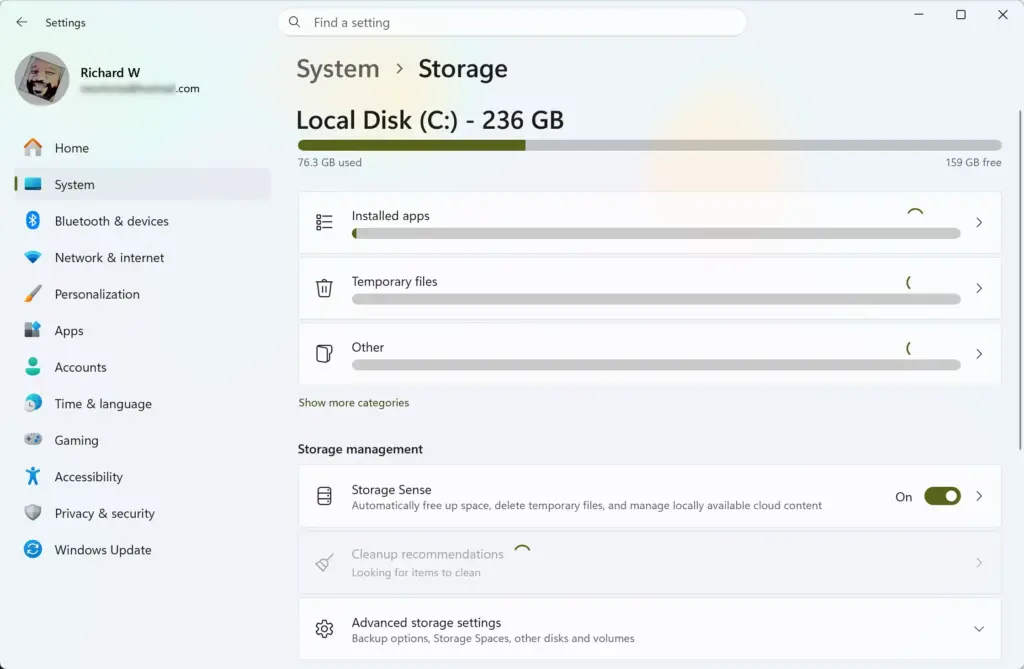
Storage Settings is the easiest way to clean up without installing anything extra. You open the settings, let Windows scan for temporary files and remove the ones that are safe to delete.
- Click the Start button, then click the gear icon to open the Settings app.

- Click System in the left sidebar, then click Storage on the right. You will see a bar showing what is using your drive.
- Wait a moment while Windows calculates what is using your space, then click Temporary files. A list of file categories appears.
- Tick the box next to Previous Windows installations, or look for an option related to device driver packages.
- Click the Remove files button at the top or bottom of the screen. Windows deletes the selected items.
Depending on your Windows 11 version, driver cleanup may not appear in this list. It may show up under suggested cleanup actions instead. If you see no driver option, use Disk Cleanup below.
Be careful with Previous Windows installations. It frees a lot of space, but it removes your ability to roll back to the earlier version of Windows. Tick it only if you no longer need that option.
Method 2Use Disk Cleanup
The classic Disk Cleanup tool is still included in Windows 11. It is a fast way to find and delete old driver packages. You run it with administrator rights and choose the system file cleanup, which reveals hidden files such as old drivers.
- Click the Start button, type Disk Cleanup and press Enter.
- If a window asks which drive to clean, choose your main drive, usually C:, and click OK. Disk Cleanup scans the drive for a moment.
- Click Clean up system files. This step needs administrator rights, so you may need to click Yes or type an administrator password.
- Choose drive C: again if asked. Disk Cleanup scans the system once more, this time including leftover temporary files and old driver packages. Wait for the scan to finish.
- Look carefully through the list of files to delete, so you do not remove data you still need.
- Tick the box labeled Device driver packages.
- Click OK, then click Delete Files to confirm.
If Device driver packages is not in the list, Windows found no old packages it can remove. That is normal on a fairly new PC. A restart is not normally needed, but restart if Windows asks.
Method 3Use Command Prompt for Advanced Cleanup
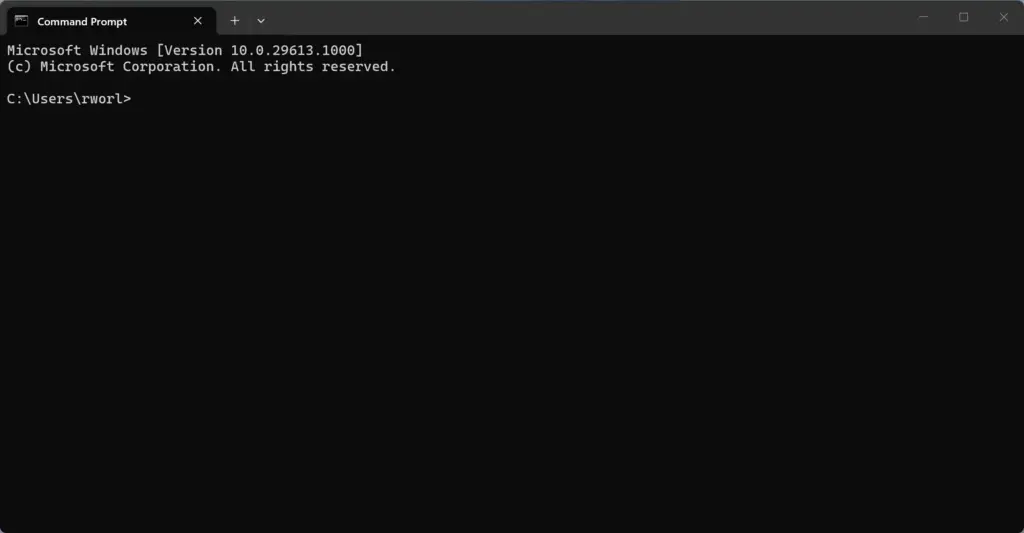
The Command Prompt with the DISM tool is an advanced option for third-party drivers. It is text-based. It lets experienced users view all the installed packages, and it can reach old drivers that the standard cleanup tools may miss. You need administrator rights to run it.
- Click the Start button and type cmd.
- Right-click Command Prompt and select Run as administrator. Click Yes if Windows asks for permission. The window title should now start with Administrator.
- Type the following command to see your third-party drivers:
dism /online /get-drivers - Review the list to see what is installed.
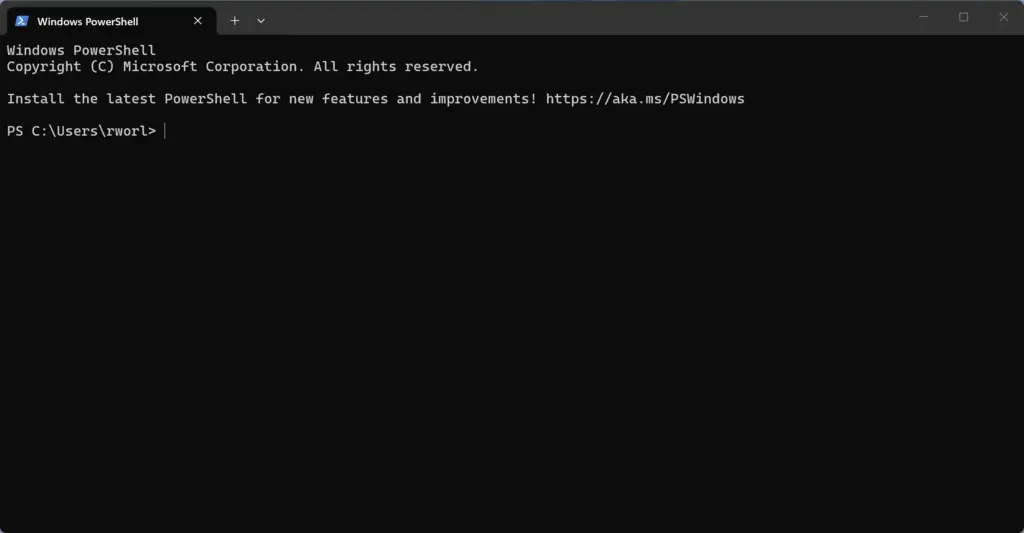
You can also remove old drivers automatically with specialized PowerShell commands. For everyday users, sticking to the Disk Cleanup tool is the safer choice.
Unique Angle: What Happens When You Delete Active Drivers by Accident?
Removing an active driver by accident usually causes an immediate hardware failure. Your Wi-Fi may disconnect, your screen resolution may drop, or your sound may stop completely. The official Windows tools guard against this. Aggressive third-party cleaner software can strip out files your computer needs to run properly, so avoid it.
If an active driver does get removed, do not panic. Your computer still has basic generic drivers built into the operating system, so it will keep working at a basic level. Your screen may look blurry or stretched at a default resolution.
To fix it:
- Get the PC online. If Wi-Fi is down, connect an ethernet cable. Otherwise use a second device.
- Download the latest driver for the affected hardware from your computer manufacturer’s website.
- Run the installer and restart if it asks you to.
Once the fresh driver is installed, the hardware should work normally again.
Unique Angle: Preventing the Driver Store From Filling Up Again
To keep the driver store from filling up again, be selective with manual hardware updates and avoid unnecessary installs. Stick to automatic Windows updates. Skip minor graphics or motherboard patches that your PC does not need.
First, be selective with manual driver updates. If your graphics card or motherboard works fine, you do not need every minor update that comes out. Each update adds another package to the driver store.
Second, manage your Windows Update settings. Keep installing security patches. You can skip the optional driver updates that hardware manufacturers push through Windows Update. To review them:
- Click the Start button and open the Settings app.
- Go to Windows Update Advanced options Optional updates.
- Select only the updates you actually need.

Finally, run the Disk Cleanup tool every few months. Make it part of your regular maintenance routine, so old driver packages never grow large enough to take your storage space again.
Summary
The Windows 11 driver store is a system folder that collects hardware software packages. It grows over time and wastes storage space. You can safely reclaim gigabytes of disk space with built-in tools. Storage Settings and Disk Cleanup are the easiest. Command Prompt is available for advanced users. Whichever you pick, let Windows do the removing and never delete files from the folder yourself.
Have a question about this guide?
Answered by AI from this guide. Good questions may be added to this page — please don't include personal details.
Did this guide fix your problem?

About the Author
Richard
Tech Writer, IT Professional
Richard is a writer at Geek Rewind who turns complex IT tasks into clear, step-by-step guides. He draws on years of hands-on experience in system administration and enterprise IT operations, focusing on Windows, Linux and WordPress: the problems people actually run into, and the fixes that work. His server and WordPress guides come from systems he runs himself. Richard builds and maintains the platform behind Geek Rewind, from its Ubuntu servers and Nginx configuration to its custom WordPress plugins. Many new tutorials start with readers' questions, and he's always glad to answer them in the comments.
No comments yet — be the first to share your thoughts!