Windows 11 Updates, Drivers and BIOS: Check, Fix, Undo

Windows 11 updates, drivers and firmware are three separate layers, and each one changes how your PC behaves. Windows Update delivers security fixes, feature releases such as version 25H2, and most drivers. Firmware, the BIOS or UEFI code that starts your motherboard before Windows loads, usually comes from your PC maker. Problems start when these layers interact. A cumulative update can change a driver, and a driver can fail after an update installs. Knowing which layer is involved tells you which tool to use and how risky the change is. The guides below take you through checking what is installed, installing and controlling updates, updating drivers, undoing a bad change, and fixing an update that hangs.
Check what Windows, your drivers and your hardware are running
Start here when you need to know which Windows build, update history or driver version you have before you change anything. Several of these pages show the exact names Windows uses for devices, which you will need when you search for a driver. Read the check first, then move to the matching install or repair guide.
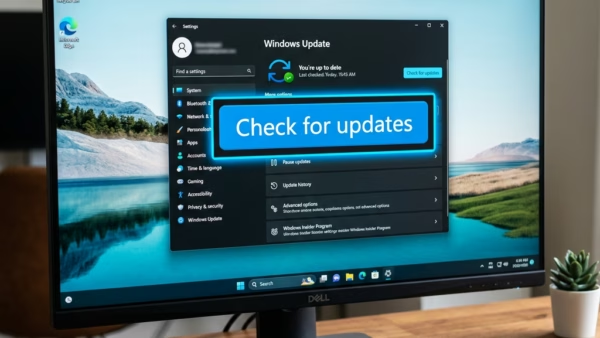 How to Check for Windows 11 Updates Update Windows 11 to enhance security and performance. Follow our guide for automatic and manual updates to keep your device running smoothly.
 How to Check Your Windows 11 Version: Easy Step-by-Step Guide Check Windows 11 version in 3 easy ways: use winver command, Settings app, or Registry Editor. Find your version number and build in seconds.
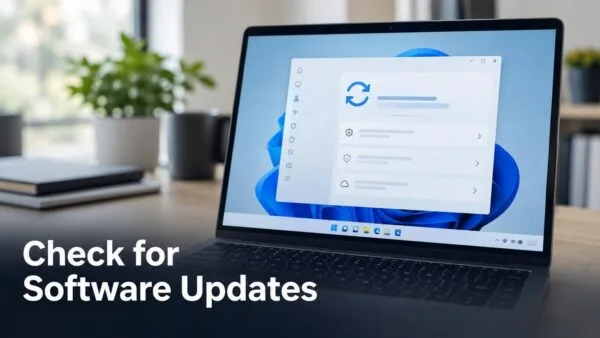 How to Check for Software Updates in Windows 11 Software update check in Windows 11: open Settings > Windows Update, select Check for updates, then install and restart. Covers optional updates, Store…
 How to Check Update History Logs in Windows 11 Finding checking update history logs hidden in Windows 11? View failed patches and error codes through Settings, Event Viewer, or PowerShell.
 Check Windows Update History in Event Viewer in Windows 11 Windows 11 event viewer updates sit in the WindowsUpdateClient Operational log. Filter for event IDs 19 and 20 to see installs, failures and KB numbers.
 How to Check UEFI BIOS Version in Windows 11 Check UEFI BIOS version in Windows 11 using System Information, Device Manager, DirectX, or Command Prompt. Simple step-by-step guide included.
 Locate Your Device ID in Windows 11 Find your Device ID in Windows 11 under Settings > System > About, in Device specifications. Works on Home and Pro, needs no admin rights, and includes a…
 How to Find Hardware ID (HWID) in Windows 11 Discover your Windows 11 hardware ID (HWID) with our easy guide. Learn two simple methods to find unique device identifiers for troubleshooting and driver…
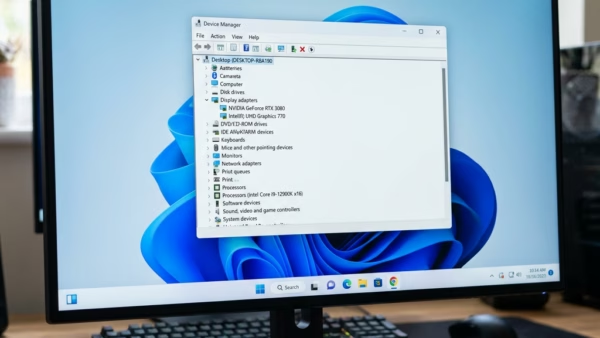 How to Check If You’re Using the Microsoft Basic Display Adapter Discover if you're using the Microsoft Basic Display Adapter. Learn quick methods using Device Manager or dxdiag to optimize your PC's graphics performance.
 How to Scan for Hardware Changes in Windows 11 Scan for hardware changes in Windows 11 to detect new devices. Follow our easy methods using Device Manager or Windows Terminal commands.
Install pending updates and keep apps current
Use these guides to install updates that are waiting, choose optional updates, move to a new feature release, or keep apps from Microsoft Store and other sources up to date. Optional updates are not installed automatically, so this is where you look for them. Preview and Insider builds are also covered here, with a warning that they carry more risk than the public release.
 How to Install Pending Updates in Windows 11 Stuck on Pending install in Windows 11? Open Settings > Windows Update, select Check for updates, then Download & install all. Stalled-update fixes too.
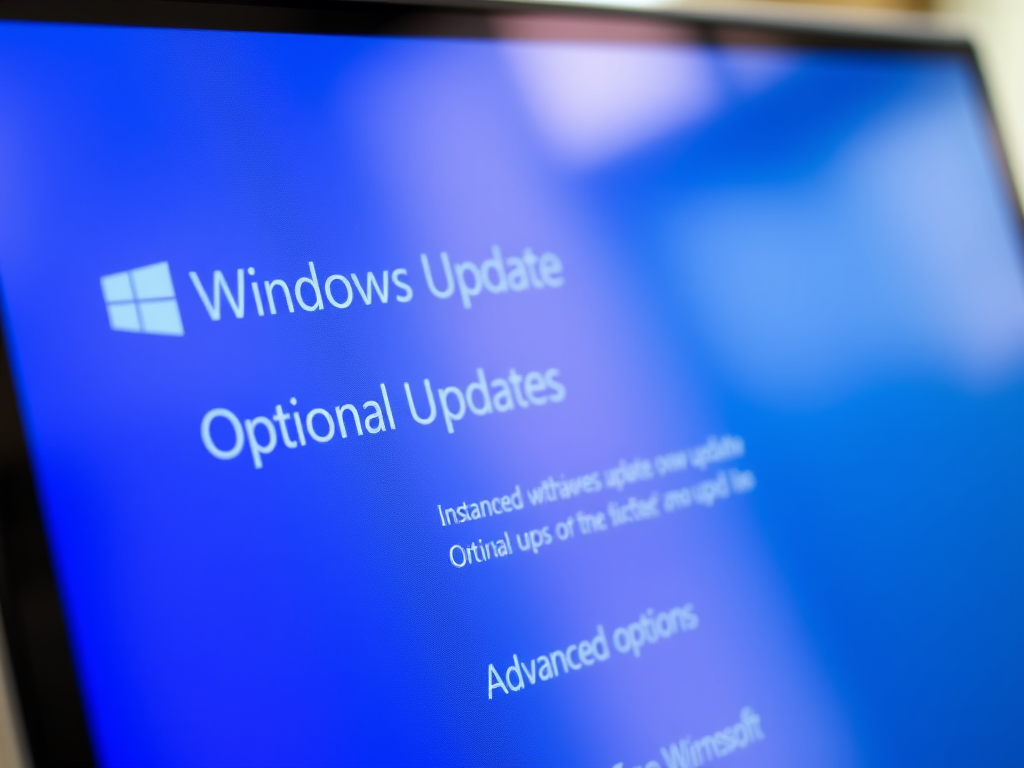 How to Check for and Install Optional Updates in Windows 11 Manage Optional Updates in Windows 11 with our step-by-step guide. Install the drivers and updates you need to fix hardware issues today!
 Get the Windows 11 25h2 Update Windows 11 24H2 PCs get 25H2 as a small update through Settings > Windows Update. Check your version with winver, then use the Installation Assistant or…
 How to Update Apps in Windows 11 How to Update Apps in Windows 11: open the Microsoft Store, select Library, then Get updates. Covers Store apps, desktop programs and turning on automatic…
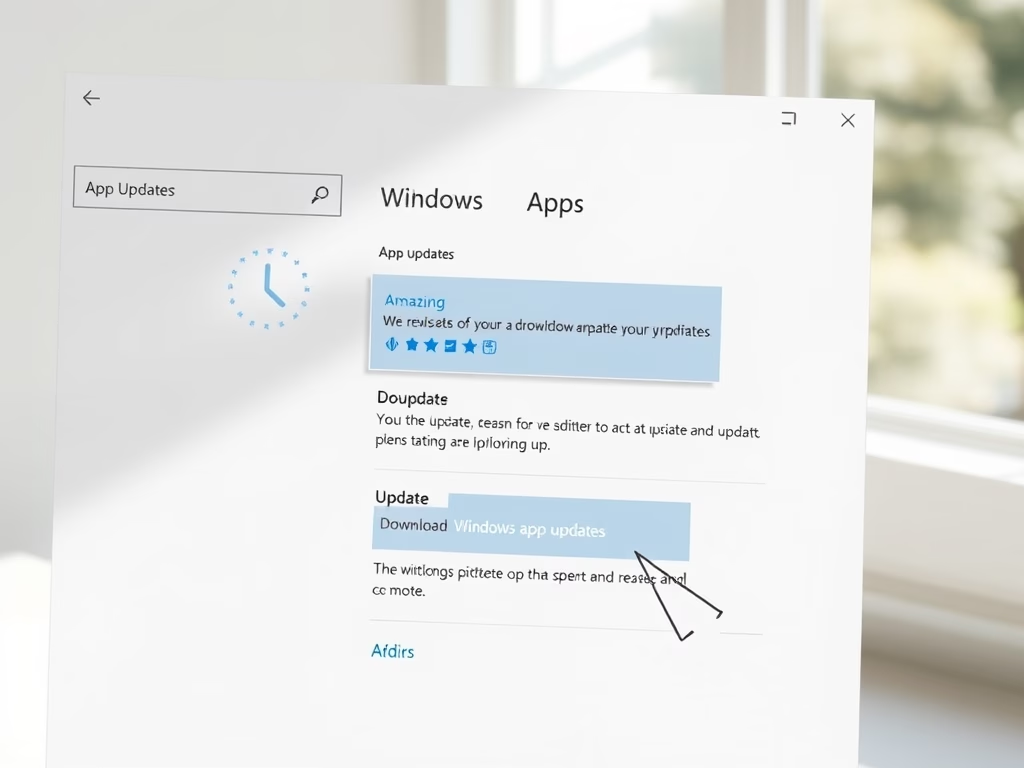 How to Check for App Updates Using Windows Update in Windows 11 Check Windows 11 app updates through Settings. Discover how the new Unified Update Orchestration Platform keeps your apps current automatically.
 How to Turn On Automatic Updates in the Microsoft Store on Windows 11 Enable Microsoft Store auto updates on Windows 11 for the latest features & security. Keep apps running smoothly without manual checks.
 How to Check Microsoft Defender Updates in Windows 11 Keep your PC safe by checking Microsoft Defender updates in Windows 11. Follow our simple steps to manually update security intelligence and protect…
 How to Enable Microsoft Product Updates in Windows 11 Enable Microsoft product updates in Windows 11 to keep your software secure and efficient. Follow simple steps to manage updates.
 How to Enable or Disable Get the Latest Windows Updates Soon in Windows 11 Enable faster Windows 11 updates with our simple guide. Toggle the latest update option in Settings or Registry to get new features.
 How to Enable Windows Updates in Windows 11 Soon as Possible Enable Windows updates in Windows 11 to receive the latest non-security and feature updates as soon as they're available. Keep your device secure...
 How to Start Receiving Insider Builds in Windows 11 Unlock early access to new features! Learn how to join the Windows 11 Insider Program and start receiving preview builds today.
 How to Update WSL Kernel on Windows 11 Update the WSL kernel on Windows 11 with a simple command. Ensure your Linux environment runs smoothly and stays up-to-date!
 How to Download and Install Microsoft PC Assist app in Windows 11 Microsoft PC Assist install steps for Windows 11, including how to skip the optional Bing setting that adds a browser extension to every browser you have.
Update drivers and firmware without breaking your hardware
These guides cover updating drivers for graphics, audio, Bluetooth, printers and network adapters, along with the BIOS update itself. Drivers and firmware sit closer to your hardware than apps do, so a bad install can leave a device unusable. Back up drivers first where a guide recommends it, and follow the firmware steps exactly.
 How to Update Device Drivers in Windows 11 Keep your PC running smoothly by learning how to update device drivers in Windows 11. Ensure optimal performance with the latest driver updates.
 How to Update Video Drivers in Windows 11 Update video drivers Windows 11 with three methods: Windows Optional Updates, Device Manager, or manufacturer downloads. Fix video and gaming issues f...
 How to Install or Update Audio Drivers in Windows 11 Fix audio problems on your Windows 11 PC. Update audio drivers Windows 11 using Optional Updates or Device Manager with our simple step-by-step guide.
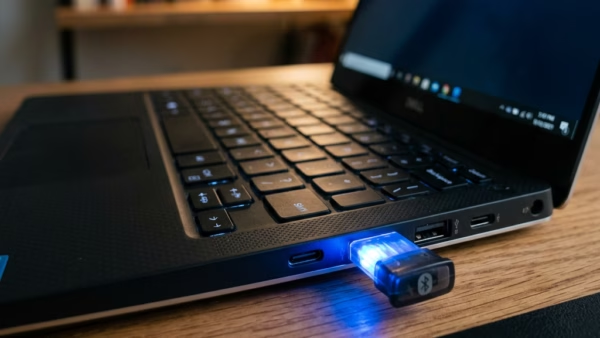 How to Update the Bluetooth Driver Using Device Manager in Windows 11 Update Bluetooth driver in Windows 11 using Device Manager to fix connection issues and improve wireless performance. Easy step-by-step guide.
 How to Update Printer Drivers Manually in Windows 11 Device Manager Fix printer errors by updating printer drivers manually in Windows 11 Device Manager. Right-click Start, select your printer, and browse local files.
 How to Update Printer Drivers Automatically Using Windows Update Stop hunting for manual downloads. Fetch the latest software through Windows Update, Device Manager, or by reinstalling your printer.
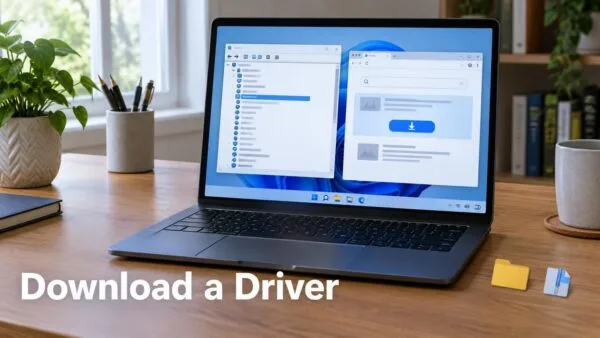 Download a Driver from the Microsoft Update Catalog Driver not found? Copy the hardware ID from Device Manager, find it in the Microsoft Update Catalog, then extract the.cab and install it.
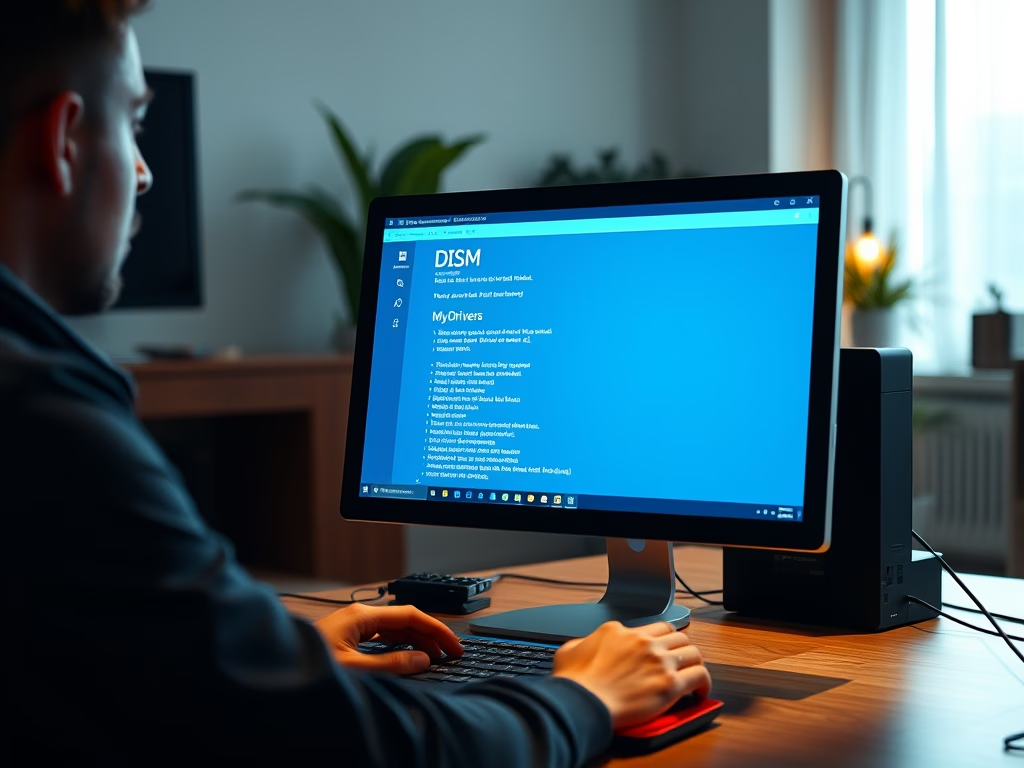 How to Back Up and Restore Device Drivers in Windows 11 Back up and restore device drivers in Windows 11 using three easy methods. Protect your drivers before reinstalling Windows with step-by-step instructions.
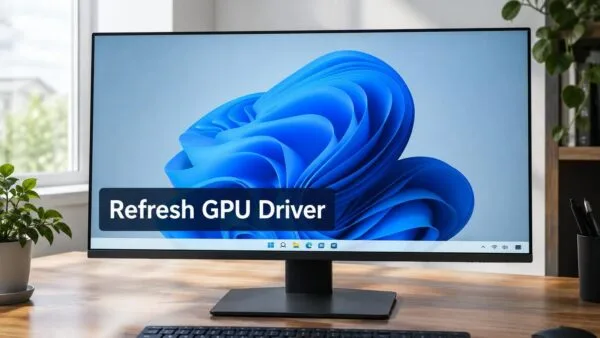 Refresh Your GPU Display Driver with a Hotkey in Windows 11 Refresh GPU hotkey in Windows 11: press Windows + Ctrl + Shift + B to restart the graphics driver. The screen goes black for about a second, then returns…
 How to Quickly Reset Graphics Drivers in Windows 11 Reset your graphics driver in Windows 11 with a simple shortcut. Fix display issues without rebooting your computer.
 Stop Windows from Updating Your Printer Driver Automatically Stop Windows Update replacing your printer driver: turn off automatic driver downloads in Device Installation Settings, then reinstall the manufacturer's…
 Should You Enable Automatic Network Driver Updates in Windows 11 Offline after a fresh Windows 11 setup? Download the correct network adapter driver on another PC and transfer it using a USB flash drive.
 How to Update BIOS Firmware on Windows 11 BIOS update on Windows 11: read your version in System Information, get the matching file from your PC maker, and run it while plugged in.
 How to Access UEFI BIOS in Windows 11 – Easy Steps Access UEFI BIOS in Windows 11 using 3 easy methods: keyboard shortcuts, Advanced Startup settings, or a simple command. Step-by-step guide included.
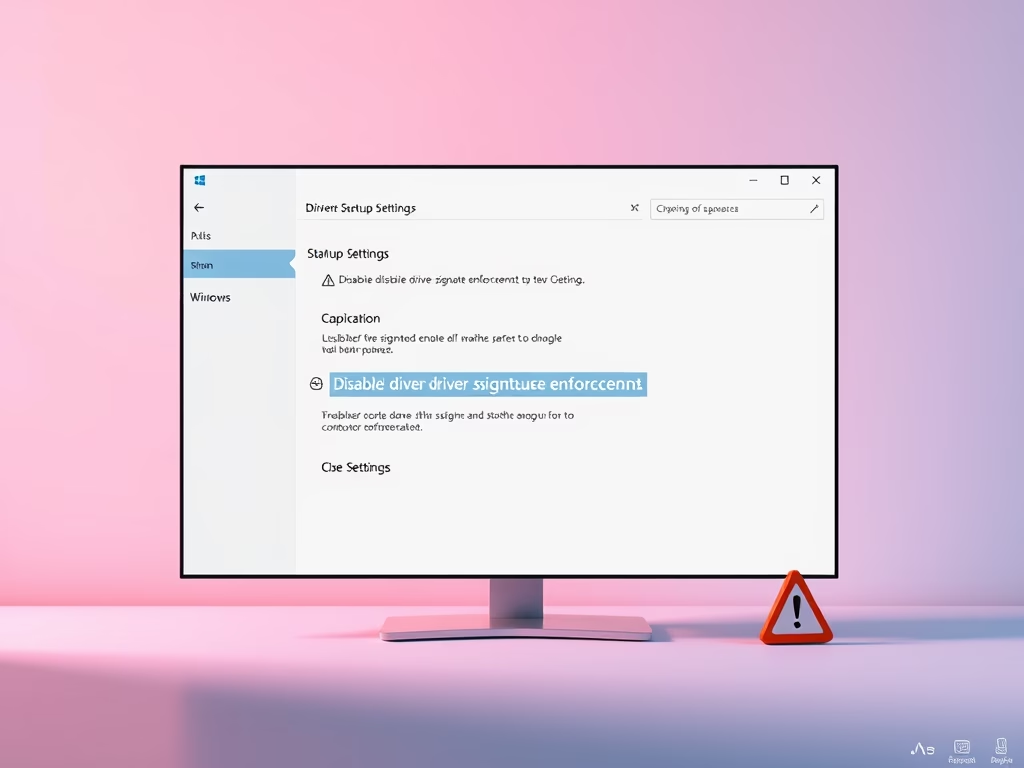 How to Disable Driver Signature Enforcement in Windows 11 Disable driver signature enforcement in Windows 11 safely. Step-by-step guide to install unsigned drivers with security tips included.
Control when, how and over what connection updates install
Use these guides when updates interrupt your work, use too much bandwidth, or install at the wrong time. Delivery Optimization is the feature that shares update downloads between PCs on your network and over the internet, and most of these pages adjust it. Changing these settings does not remove any update, but a few of them, such as turning off drivers, change what Windows installs.
 How to Pause Automatic Updates for a Convenient Time in Windows 11 Pause updates for a convenient time windows using Windows Update settings, Group Policy, or Registry Editor to stop unexpected reboots.
 How to Schedule Windows Update Restarts in Windows 11 Control Windows Update disruptions by learning how to schedule Windows Update restarts in Windows 11. Choose the perfect time for your PC to restart.
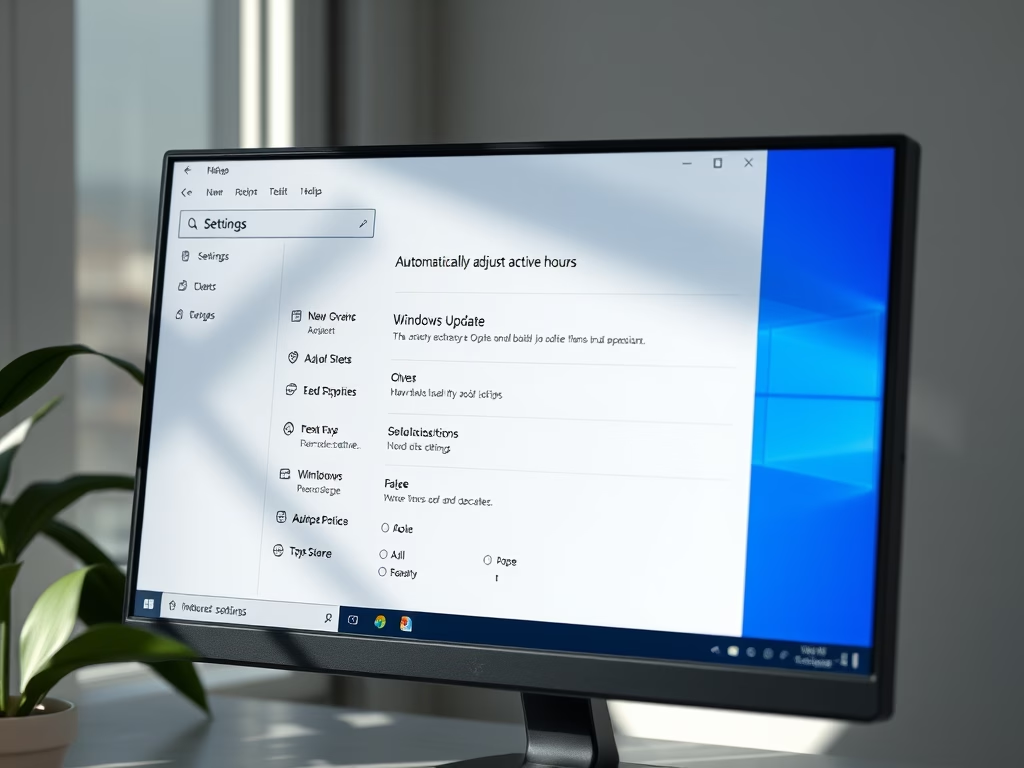 How to Turn On or off Automatically Adjust Active Hours in Windows 11 Control Windows 11 active hours automatically or manually. Our guide shows you two methods to turn on/off Automatically Adjust Active Hours to prevent…
 How to Enable or Disable Windows Update Delivery Optimization in Windows 11 Enable or disable Delivery Optimization in Windows 11 to speed up updates and save bandwidth. Simple steps for Settings and Group Policy Editor. How to Enable or Disable Windows Update Delivery Optimization Enable or disable Windows Update Delivery Optimization in Windows 11 with step-by-step instructions. Control your update sources and protect your bandwidth.
 How to Choose Network Sharing Options for Delivery Optimization in Windows 11 Choose Delivery Optimization sharing in Windows 11: local network only, internet too, or off. Set Allow downloads from other devices in Settings > Windows…
 How to Get the Stats with Activity Monitor When Using Delivery Optimization in Windows 11 Unlock Delivery Optimization stats in Windows 11! See download/upload bandwidth, sources, and speeds using Activity Monitor. Optimize your updates.
 How to Set Bandwidth Limits for Downloads with Delivery Optimization in Windows 11 Control Windows 11 bandwidth limit for downloads with Delivery Optimization. Set specific Mbps caps or percentage limits to save data and ensure smooth…
 How to Set Bandwidth Limits for Uploads with Delivery Optimization in Windows 11 Control your upload bandwidth with Windows 11 Delivery Optimization. Set upload limits to prevent slow internet for other tasks.
 How to Clear the Delivery Optimization Cache in Windows 11 Free up disk space on Windows 11 by learning how to clear the Delivery Optimization cache. Follow simple steps using Disk Cleanup to remove temporary files.
 What Windows 11 Delivery Optimization Actually Does to Your Internet Bandwidth Windows 11 Delivery Optimization shares your updates with other PCs using your internet upload speed. Learn how it affects bandwidth and how to turn it off.
 How to Enable or Disable Automatic Sign-in After Windows 11 Update Enable automatic sign-in in Windows 11 to streamline updates. Save time by letting Windows remember your credentials after updates.
 Stop Windows from Automatically Finishing Device Setup After Updates Turn off the Windows 11 setting that signs you in automatically after an update restart. Open Settings > Accounts > Sign-in options and switch it off in a…
 What Breaks When You Stop Windows Update from Delivering Drivers Stopping Windows Update from delivering drivers means losing automatic hardware recognition, security patches, and stability fixes. See what breaks and how…
Undo an update or driver that broke something
Use these guides when a specific update or driver change has caused a problem, such as a lost Bluetooth adapter or a flickering screen. You can roll back a driver in Device Manager, uninstall a Windows update, or roll back the whole Windows version, and each one has different effects. Try the smallest rollback that fixes the problem first.
 How to Roll Back to a Previous Windows Version Windows 11 Go back rolls your PC to the earlier version within 10 days of an upgrade. Find it under Settings > System > Recovery, and see why the button is…
 How to Uninstall Windows Updates in Windows 11 Remove problematic Windows updates from Windows 11 using Settings, Control Panel, or Advanced Startup. Follow our step-by-step guide to uninstall updates…
 How to Uninstall a Windows 11 Cumulative Update That Fails to Boot Stuck on a black screen or boot loop after an update? Use the Windows Recovery Environment to uninstall a Windows 11 cumulative update without a desktop.
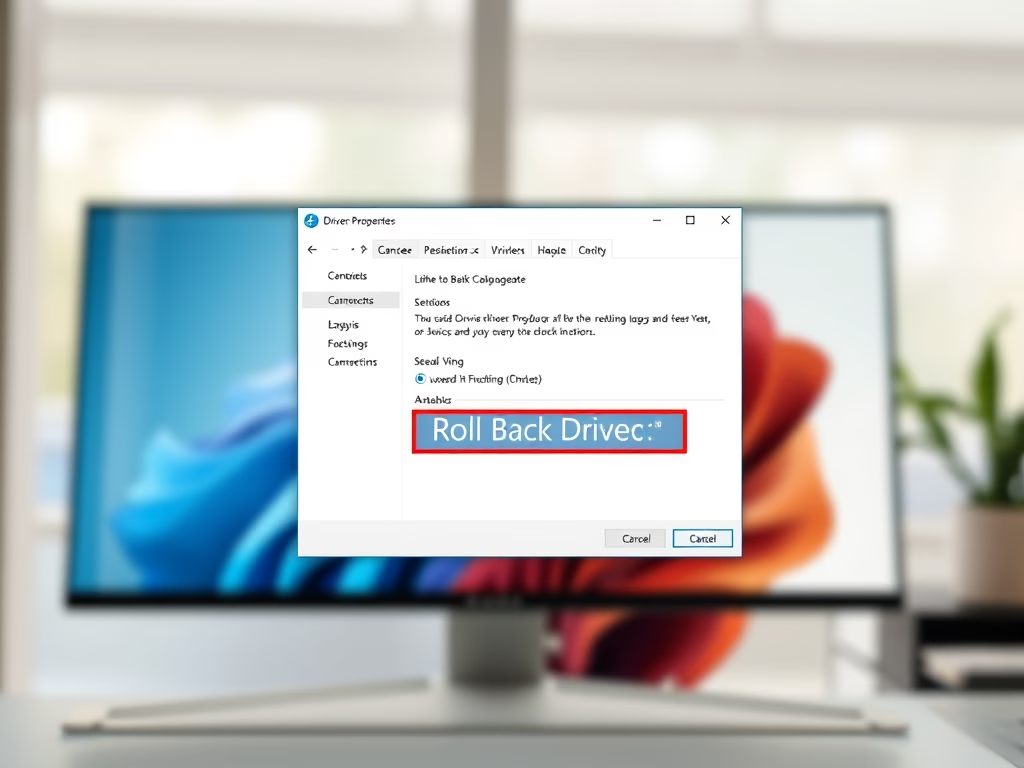 How to Roll Back Device Drivers in Windows 11 Easily Roll back device drivers in Windows 11 to fix stability issues and enhance performance. Follow our simple steps for a smooth experience.
 Reinstall a Network Adapter Driver in Windows 11 Reinstall a network adapter driver in Windows 11 from Device Manager. Note your current driver version first, and download the replacement before you…
 How to Reinstall Corrupted Printer Drivers in Windows 11 Device Manager Fix failed print jobs by updating printer drivers using Device Manager, Optional Updates, or a fresh reinstall in Windows 11.
 How to Reinstall the Bluetooth Driver in Windows 11 Using Microsoft Documentation Steps Bluetooth accessories dropping connection in Windows 11? Reinstall the Bluetooth driver using official Microsoft Device Manager steps.
 How to Reinstall the Bluetooth Driver in Windows 11 Bluetooth dropping connections or missing in Windows 11? Reinstall your wireless driver through Device Manager without losing input control.
 Why Does Windows 11 Keep Resetting Network Adapter Drivers After Updates Windows 11 keeps rolling back your network adapter driver after updates? Download the official installer from microsoft.com using a USB drive.
 Why Does Your Windows 11 Screen Keep Flickering After a Graphics Driver Update Windows 11 screen keep flickering after a graphics driver update? Check Task Manager to test your display driver or roll back the update in Device Manager.
Fix Windows Update when it hangs, stalls or fails
These guides are for an update that is stuck at a percentage, on a screen that will not move, or that keeps failing with an error. Wait before you force a restart, because some stalls are only slow installs. Each guide names the step that is safe to try first and the one that deletes data or resets settings.
 Stuck on Getting Ready Screen After a Windows 11 Cumulative Update Stuck on the getting ready screen after a Windows 11 update? Wait it out, unplug USB devices, or force a restart safely.
 What to Do When Windows Update Gets Stuck Downloading at 0 Percent Windows Update stuck at 0 percent downloading? Restart the stuck background service and clear corrupted temporary files to get updates moving again.
 What to Do When Windows 11 Stuck on Preparing Windows Don’t Turn Off Your Computer Windows 11 stuck on preparing windows? Wait it out, unplug USB devices, or use Safe Mode to get past the loading screen without losing files.
 What to Do When Windows Update Gets Stuck Checking for Updates Windows Update stuck checking for updates? Fix infinite loading loops, clear corrupted temporary files, and run the built-in troubleshooter.
 How to Clear the Windows 11 Update Cache Safely Windows 11 update stuck or throwing errors? Stop the update service and clear the SoftwareDistribution folder safely to get updates moving again.
 How to Fix Windows Update Failures in Windows 11 Resolve Windows 11 update failures with our step-by-step guide. Ensure your system stays secure and up-to-date by fixing common update issues.
 Should You Clear the Windows 11 Driver Store to Free Up Space Is your driver store eating gigabytes of storage? Learn what it does, whether you should clear it, and how to remove old files safely.
Have a question about this guide?
Answered by AI from this guide. Good questions may be added to this page — please don't include personal details.

About the Author
Richard
Tech Writer, IT Professional
Richard is a writer at Geek Rewind who turns complex IT tasks into clear, step-by-step guides. He draws on years of hands-on experience in system administration and enterprise IT operations, focusing on Windows, Linux and WordPress: the problems people actually run into, and the fixes that work. His server and WordPress guides come from systems he runs himself. Richard builds and maintains the platform behind Geek Rewind, from its Ubuntu servers and Nginx configuration to its custom WordPress plugins. Many new tutorials start with readers' questions, and he's always glad to answer them in the comments.
No comments yet — be the first to share your thoughts!