Refresh Your GPU Display Driver with a Hotkey in Windows 11

The GPU refresh hotkey in Windows 11 is Win+Ctrl+Shift+B, and it restarts your graphics driver without restarting the PC. If you searched “how do i refresh gpu hotkey”, press those four keys together. The screen goes black for about a second, then comes back.
The GPU (graphics processing unit) is the chip that draws everything on your screen. The display driver is the software that lets Windows talk to that chip. When the driver stalls, you see a frozen picture, a black screen after waking the PC, or flickering. The shortcut reloads the driver while your apps keep running.
It works on Windows 11 Home and Pro, and it does not depend on whether you have Intel, AMD or NVIDIA graphics. You do not need to install or turn anything on first.
Press Win+Ctrl+Shift+B together in Windows 11 to refresh your GPU display driver. This restarts the graphics driver without rebooting the PC or closing your apps, so the screen goes black for about a second, then returns. Save your work first, especially in games or full-screen video. It works with Intel, AMD and NVIDIA graphics on Windows 11 Home and Pro.
What the GPU Refresh Hotkey Does
Windows 11 has a built-in shortcut that tells the system to restart the graphics driver. It does not reboot the computer, sign you out or close your programs. It resets the connection between Windows and the graphics hardware, which often clears a temporary glitch.
Think of it as a lighter version of restarting. A full restart reloads the entire system. The hotkey reloads only the part that draws the picture, so you lose far less time and, in most cases, no open work.
What the Hotkey Changes
The hotkey changes nothing permanently. It does not install, update or remove a driver, and it does not edit any setting. When the screen comes back, your resolution, refresh rate and display arrangement are the same as before. That means there is nothing to undo afterwards.
Why Windows Includes It
Display drivers occasionally fail to recover after sleep, after you connect a dock, or when you plug in a monitor. Windows can often recover on its own, but not always. The shortcut gives you a manual way to force that recovery when the picture is stuck.
When to Use the Hotkey
Use the shortcut when the display misbehaves but the PC is clearly still running. You can tell it is running if you hear sounds, see the drive or keyboard lights respond, or the mouse pointer still moves. Common cases include:
- A black screen after the PC wakes from sleep, while the PC itself seems to be on.
- An external monitor that stays dark after you plug it in or switch inputs.
- A frozen or stuttering picture in a video, browser or desktop animation.
- Flickering, stretched or odd-looking colours that appear suddenly.
- A display stuck at the wrong resolution after a dock or cable change.
If the whole computer is frozen and does not respond to anything, the hotkey will not help. Windows has to be running well enough to receive the keystrokes.
Before You Press the Hotkey
The shortcut is safe for most programs, but a full-screen game or video app can close, minimize or freeze when its graphics connection drops. Saving first costs a few seconds and removes the risk.
Also check your keyboard. The shortcut needs a working Windows key. Some gaming keyboards and laptops have a Windows key lock or Game Mode switch that disables it. If the key does nothing, turn that switch off before you try again.
How to Refresh Your GPU Display Driver with the Hotkey
Press Windows + Ctrl + Shift + B together to refresh your graphics driver. The display reloads without a restart, and you do not need administrator privileges.
- Save your open work in every app. Pay particular attention to games, video editors and anything in full screen.
- Hold down the Windows key, Ctrl and Shift together. Use the left-hand keys if your keyboard has two sets.
- Press the B key while still holding the other three. Tap it once. Holding it down does not make the refresh run longer.
- Release all four keys. Windows has already received the command, so there is nothing to confirm.
- Wait two to three seconds. The screen goes black or flickers briefly, and all connected displays usually go dark at once. Many PCs also play a short beep, although some do not.
- Check that the picture is back. Your desktop and open windows should return exactly as you left them.
- Test the problem you started with. Wake the screen, play the video again, or reconnect the monitor and see whether it now works.
- Press the shortcut once more if the problem remains. Wait about ten seconds between attempts so the driver finishes reloading.
If the screen stays black for more than about ten seconds, move the mouse or press a key to wake it. If it is still dark, the driver did not recover. If the screen stays dark, see If the Hotkey Does Nothing below.
What You Should See
A successful refresh looks like a quick blink. The display goes dark, then returns with the same windows in the same places. The taskbar may redraw as well. If your picture was frozen before, it should now respond when you move the mouse or click.
If nothing visible happens at all, the shortcut may still have worked on a healthy display. A driver reload can be so quick on some PCs that you barely notice it. Judge by whether your original problem is fixed, not by how dramatic the blink was.
Using the Shortcut on a Laptop
Laptop keyboards work the same way, with one catch. If the Windows key seems unresponsive, look for a key marked with a padlock or a gamepad icon, often combined with an Fn key. Some laptops lock the Windows key to stop accidental presses during games. Turn the lock off, then try the shortcut again.
Using the Shortcut on a Tablet Without a Keyboard
On a tablet with physical volume buttons, such as a Surface, Microsoft also documents a button combination for this. Press the volume up and volume down buttons together three times within about two seconds. If your device does not respond, connect a keyboard and use the standard shortcut instead.
If the Hotkey Does Nothing
When the shortcut has no visible effect and the problem remains, work through the likely causes in order. Each one is quick to rule out.
- The Windows key is locked. Check for a Game Mode or Windows key lock on your keyboard or laptop, and switch it off.
- The keys were not pressed together. Hold the Windows key, Ctrl and Shift first, then tap B. Pressing them one after another does not trigger the refresh.
- You are in a remote session or virtual machine. The shortcut targets the graphics hardware of the PC you are sitting at. If you use a Remote Desktop session or a virtual machine (a computer running inside another computer), the shortcut may not reach the real graphics card. Run it on the computer you are sitting at, which is the one with the graphics card.
- Windows has frozen completely. If the mouse pointer, keyboard lights and sounds all stop, the system is not receiving keystrokes. Hold the power button until the PC turns off, then start it again.
- The driver or GPU has a deeper fault. A reload clears temporary glitches. It cannot repair a corrupted driver, an overheating card or failing hardware.
What the Hotkey Does Not Fix
The shortcut reloads the driver that is already installed. It does not replace a broken driver with a working one, and it does not install a newer version. If the same glitch returns every day, the hotkey is hiding a bigger problem rather than solving it.
Repeated crashes, artifacts that return after every refresh, or a screen that fails at startup point to the driver itself or to the hardware. In those cases, move on to the Device Manager method below, or update or roll back the driver.
Restart the Display Adapter in Device Manager
If the hotkey fails, you can restart the GPU driver by hand in Device Manager (the Windows tool that lists your hardware and its drivers). This takes longer than the shortcut but gives you more control. This method requires administrator privileges. Windows asks you to approve the change or enter an administrator password.
Save your work first, and have the keyboard ready to finish the steps.
- Right-click the Start button. A menu of system tools appears.
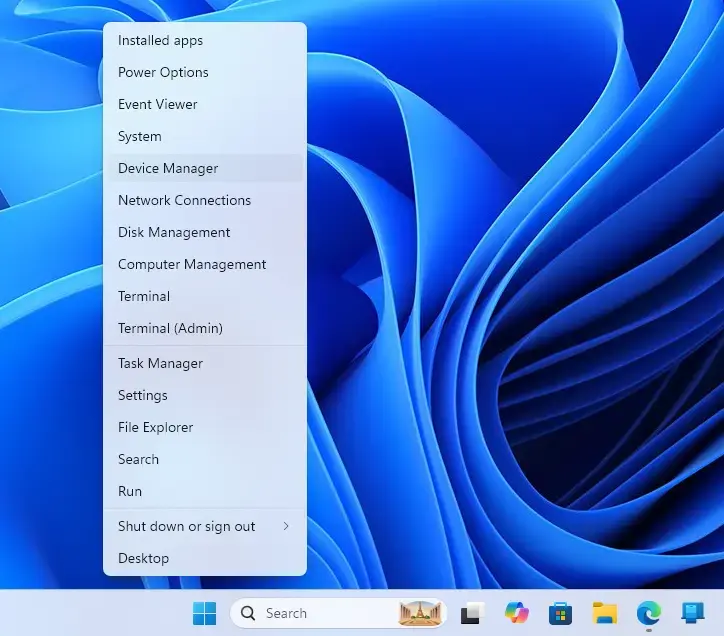
- Select Device Manager. A window listing your hardware opens.
- Expand Display adapters. Your GPU appears underneath. A PC with both integrated and dedicated graphics shows two entries.
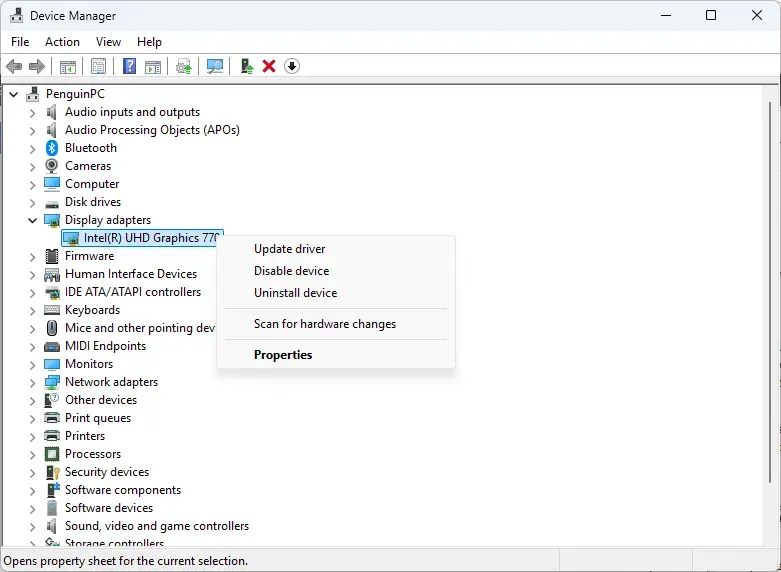
- Right-click your graphics adapter. A context menu opens.
- Select Disable device. Windows asks you to confirm.
- Select Yes. The screen may flicker, go black or switch to a basic display.
- Right-click the same adapter again. The menu now offers an enable option instead.
- Select Enable device. The driver reloads and the display returns to normal.
If the adapter is greyed out or the options are missing, you are probably signed in with a standard account. Sign in with an administrator account and repeat the steps. If you have two graphics entries, restart the one that matches the display with the problem, usually the dedicated card. When you are unsure, pick the entry that is not Microsoft Basic Display Adapter. That is a basic fallback driver Windows uses when it cannot load the real one.
Update or Roll Back the Driver If Problems Keep Returning
A refresh clears a one-off fault. If the same fault keeps coming back, change the driver itself. Two options sit in the same Device Manager window you already opened.
- Open Device Manager and expand Display adapters.
- Right-click your graphics adapter and select Properties.
- Select the Driver tab. Details about the installed driver appear.
- Select Update Driver to search for a newer version. Windows offers to search automatically.
- Select Roll Back Driver instead if the problems began right after an update. This button is greyed out when Windows has no earlier version stored.
A greyed-out Roll Back Driver button means there is nothing to restore. In that case, install a known-good driver from your graphics vendor or PC maker. The process mirrors what you do with other hardware. The steps for rolling back or reinstalling a driver are the same in Device Manager, so use how to reinstall the Bluetooth driver in Windows 11 as a reference if the Roll Back Driver button is greyed out.
Check Your Display Settings After a Refresh
After a driver reload, the picture should return with your usual settings. If something looks wrong, such as the wrong refresh rate or blurry text, check the display settings. Open Settings System Display to review the resolution and layout. Our guide on changing your display refresh rate in Windows 11 covers the refresh rate options.
With more than one monitor, the refresh can change which screen Windows treats as the main one. If your taskbar or windows moved, follow how to set your primary display in Windows 11 to put things back. If an external screen still shows nothing, check how Windows is sending the picture. Our posts on choosing a display mode and on duplicating or mirroring your display explain the modes.
Can You Change the Shortcut?
Windows 11 has no built-in setting that changes this shortcut. It always uses Windows + Ctrl + Shift + B. If four keys feel awkward, rest your thumb on the Windows key and use the index and middle fingers for Ctrl and Shift. Then tap B with your other hand.
What to Do Next
If the screen is back but you suspect the panel itself is at fault, run through how to test your laptop display in Windows 11. It checks for dead pixels and colour problems. If the glitch comes back after the next sleep or dock connection, use the Device Manager steps above and look at updating or rolling back the driver. A fault that survives all of these usually points to hardware, and your PC maker or graphics vendor is the next call.
Frequently asked questions
How to calibrate display color in 🪟 Windows 11?
To calibrate display color in Windows 11, press the Windows key, type Calibrate display color, and press Enter. The Display Color Calibration wizard opens. Follow the on-screen steps to set gamma, brightness, contrast and color balance. Each step has a Next button. On the last screen, choose whether to keep the new settings.
How to adjust display settings in 🪟 Windows 11?
To adjust display settings in Windows 11, open Settings, select System, then select Display. Use the Display resolution dropdown to change the resolution, and use Scale to resize text and apps. Use Brightness to change screen brightness. Open Advanced display to change the refresh rate.
How do I pin display magnifier to the start menu of 🪟 Windows 11 site Microsoft.com?
To pin Magnifier to the Start menu in Windows 11, press the Windows key and type Magnifier. Right-click Magnifier in the results and select Pin to Start. The tile appears in the Pinned section. To close Magnifier later, press Windows + Esc.
Still have a question?
Answered by AI from this guide. Good questions may be added to this page — please don't include personal details.
Did this guide fix your problem?

About the Author
Richard
Tech Writer, IT Professional
Richard is a writer at Geek Rewind who turns complex IT tasks into clear, step-by-step guides. He draws on years of hands-on experience in system administration and enterprise IT operations, focusing on Windows, Linux and WordPress: the problems people actually run into, and the fixes that work. His server and WordPress guides come from systems he runs himself. Richard builds and maintains the platform behind Geek Rewind, from its Ubuntu servers and Nginx configuration to its custom WordPress plugins. Many new tutorials start with readers' questions, and he's always glad to answer them in the comments.
No comments yet — be the first to share your thoughts!