How to Enable or Disable Game Mode in Windows 11

What is Game Mode?
Game Mode is a Windows 11 feature that gives priority to the game you are playing. When it is on, Windows directs more system resources to the game and holds back background activity that could interrupt it. It also stops Windows from installing updates or restarting while you play.
Here’s what happens when Game Mode is on:
- Windows won’t install updates or restart while you’re playing.
- Your game may run smoother with fewer slowdowns. The gain depends on your hardware and the game. A machine that is already fast may not show much difference, while a lower-end one is more likely to.
You cannot alter these settings while Game Mode is enabled.
Game Mode is available in both Windows 11 Home and Pro, and it is normally on by default. If a game stutters, or you want background tasks to keep running normally, you can turn it off using the steps below. You can turn it back on at any time.
How to Turn Game Mode On or Off in Settings
The Settings app is the simplest way to change Game Mode. You don’t need to edit anything by hand, and the change takes effect immediately without a restart.
- Press the Win+I keys on your keyboard to open Settings. The Settings window opens.
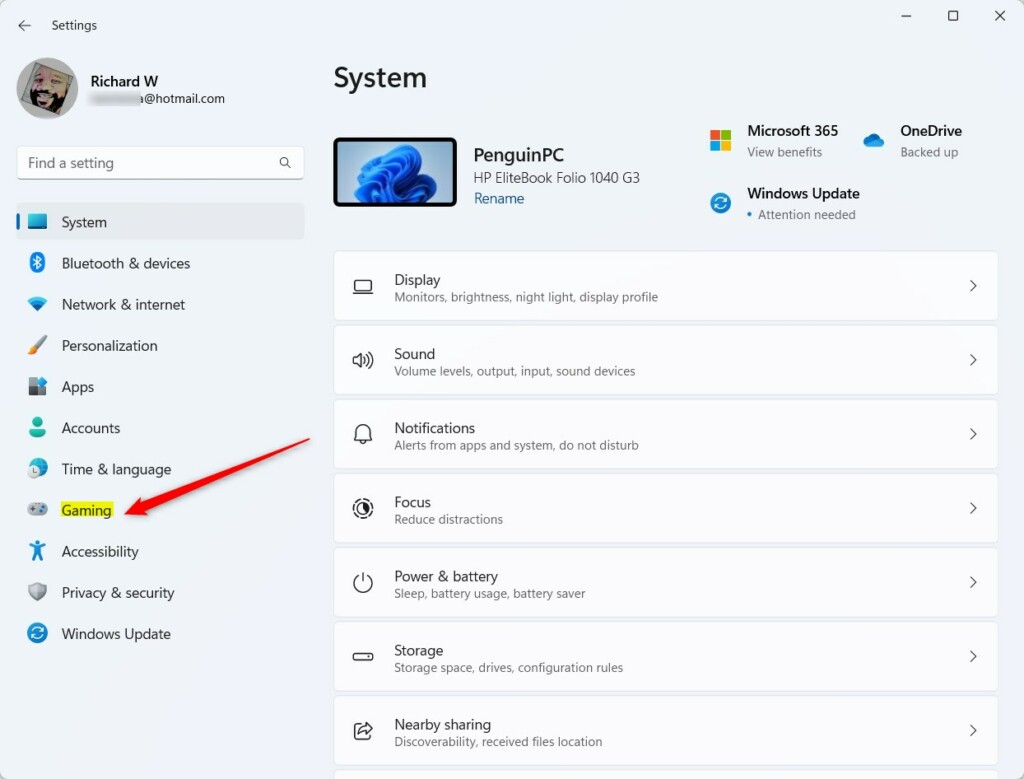
- Click Gaming in the menu on the left side. The Gaming options appear on the right.
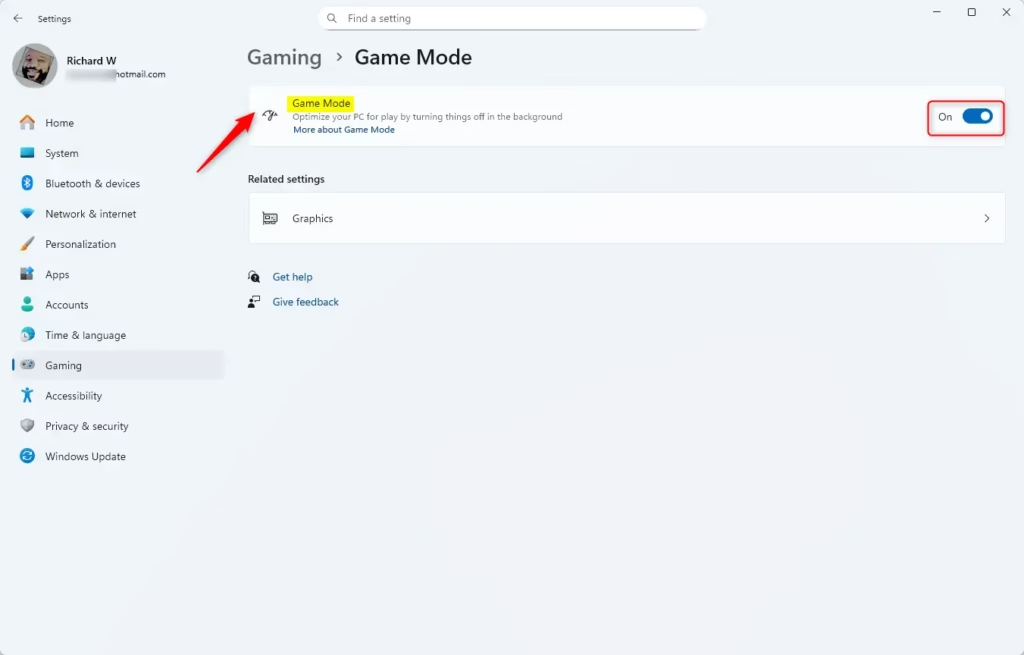
- Click Game Mode on the right side. The Game Mode page opens with a single switch.
- Use the switch to turn Game Mode On or Off. The label next to the switch changes to match your choice.
- Close Settings when you’re done. Your choice is saved automatically, so there is no Save or Apply button.
To undo the change, repeat the same steps and flip the switch back.
If you want to skip the menus, you can jump directly to the Game Mode settings by clicking here: Open Game Mode Settings
If the Gaming page or the switch is missing, or the setting turns itself back on or off, the PC may be managed by an organization. In that case a policy set by your administrator is probably controlling it.
How to Turn Game Mode On or Off Using the Registry (Advanced)
Registry Editor (Windows' central database for system settings) offers an alternative path. This is useful if you need to change the setting for several PCs or if the Settings page isn't available. It works the same way in Windows 11 Home and Pro.
A wrong edit in the registry can cause problems that are hard to trace. To make a backup, open Registry Editor, click File, then Export, and save the file somewhere safe. You can also create a System Restore point first. If something goes wrong, you can restore from either one.
Turn On Game Mode
Administrator privileges are required to make changes here. If you are signed in with a standard account, Windows asks for administrator credentials when you open Registry Editor. Without them, the changes won't be saved.
reg add "HKEY_CURRENT_USER\Software\Microsoft\GameBar" /v AutoGameModeEnabled /t REG_DWORD /d 1 /fTurn Off Game Mode
Administrator privileges are required to make changes here. If a prompt appears asking whether you want to allow the app to make changes, click Yes. If you made a change and don't see the effect, sign out and back in, or restart the PC, then check the Game Mode switch in Settings.
reg add "HKEY_CURRENT_USER\Software\Microsoft\GameBar" /v AutoGameModeEnabled /t REG_DWORD /d 0 /fNeed More Help?
For additional information about Game Mode, explore the Xbox Support website

Summary
Windows 11 Game Mode enhances game performance by prioritizing active games for computer resources. This feature prevents background processes, such as Windows updates and restarts, from interrupting gameplay, ensuring a smoother experience.
For most people, the Settings switch is all you need. Leave Game Mode on if your games run well with it. Turn it off if you notice a problem you think it causes, and compare how the game behaves.
Frequently asked questions
Should I enable or disable Game Mode in 🪟 Windows 11?
Keep Game Mode on if your game stutters or feels sluggish. It gives your game priority over background tasks and stops Windows updates during play. Turn it off if you need background apps to run normally or if you see no performance difference. You can toggle it anytime.
How do I disable Game Mode on 🪟 Windows 11?
Open Settings and go to Gaming Game Mode. Toggle the switch to Off. Game Mode will stop prioritizing your game and let background tasks run normally. You can turn it back on the same way whenever you want.
How do I disable Windows Game Mode?
Open Settings and go to Gaming Game Mode. Toggle the switch to Off. This stops Windows from reserving system resources for games and allows updates and background activity to proceed normally during gameplay.
How do I turn Game Mode off?
Open Settings and go to Gaming Game Mode. Toggle the switch to Off. Game Mode will turn off immediately, and Windows will resume normal background activity and update scheduling.
Still have a question?
Answered by AI from this guide. Good questions may be added to this page — please don't include personal details.
Did this guide fix your problem?

About the Author
Richard
Tech Writer, IT Professional
Richard is a writer at Geek Rewind who turns complex IT tasks into clear, step-by-step guides. He draws on years of hands-on experience in system administration and enterprise IT operations, focusing on Windows, Linux and WordPress: the problems people actually run into, and the fixes that work. His server and WordPress guides come from systems he runs himself. Richard builds and maintains the platform behind Geek Rewind, from its Ubuntu servers and Nginx configuration to its custom WordPress plugins. Many new tutorials start with readers' questions, and he's always glad to answer them in the comments.
No comments yet — be the first to share your thoughts!