How to Enable Optimizations for Windowed Games in Windows 11


Optimizations for windowed games is a Windows 11 display setting. It reduces input lag and can raise frame rates for games running in windowed or borderless mode. It does this by using the modern flip presentation method for those games. It also lets Auto HDR work for vivid colors, and Variable Refresh Rate (VRR) work on compatible monitors, to help stop screen tearing.
The setting is in Windows 11 version 22H2 or later, and you can reach it through the main graphics settings in a few clicks. This guide shows where to find it, how to turn it off for a single game, and what to check if it is missing.
Open Settings System Display Graphics Change default graphics settings and toggle On the switch for Optimizations for windowed games. The feature reduces input lag and can boost frame rates for games running in windowed or borderless mode by using a modern flip presentation method. No restart needed.
Technical Mechanism: How It Works
Optimizations for windowed games uses a newer display technology called Flip-model, similar to what full-screen games use, to make games run smoother. Normally a game in a window has to hand its frames to the desktop compositor, which adds a small delay. With this setting on, Windows can present those frames the way it does for a full-screen game.
The setting mainly helps older games that use DirectX 10 or DirectX 11 and run in a window or borderless mode. Games already using the newer presentation method gain little from it. It is a system-wide switch, so you set it once and it applies to every game that qualifies.
Compatibility and Requirements
WDDM is the driver model Windows uses to talk to your graphics card, so a current graphics driver matters here as much as the card itself.
You also need Windows 11 version 22H2 or later, because earlier builds do not have this toggle. Home and Pro both include it, so the edition does not matter. Features like Auto HDR and VRR also need a monitor that supports them. Optimizations alone will not add those features to a screen that lacks them.
How to enable or disable optimizations
You can turn the windowed games optimization setting on or off in the Settings app. Turning it on can improve game performance and reduce stuttering when you play in a window instead of full screen. The path is Settings System Display Graphics Change default graphics settings. The steps below walk through it one screen at a time.
- Open the Settings app by pressing Win+I. The Settings window opens with the list of categories on the left.
- Click on the System tab, then click Display. You should now see your monitor and screen options, such as brightness, scale and resolution.
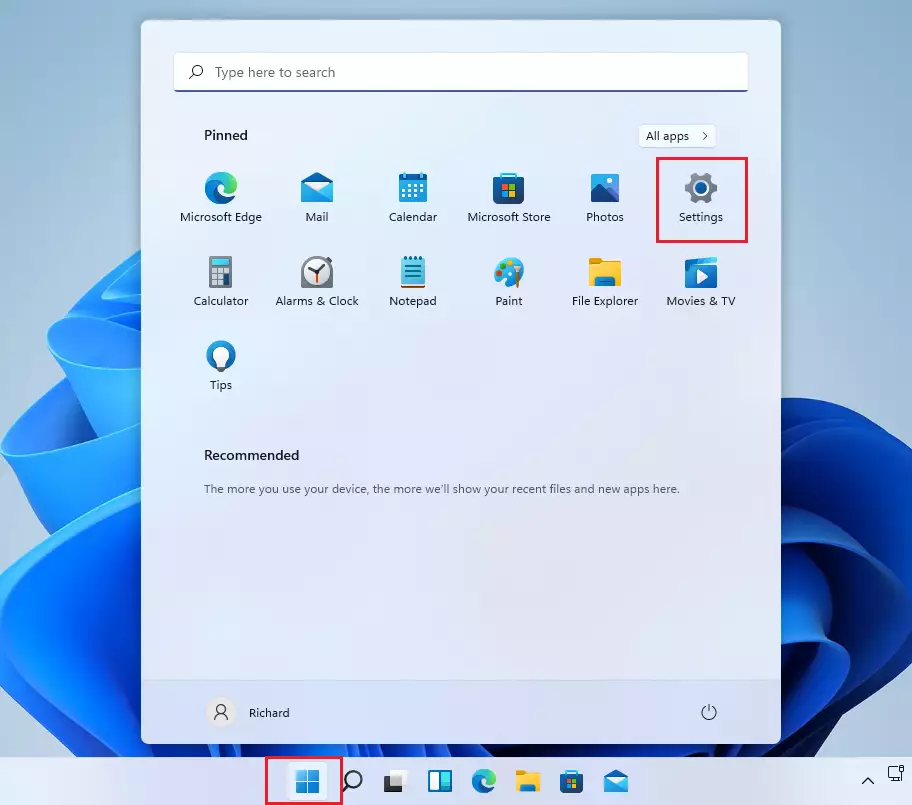
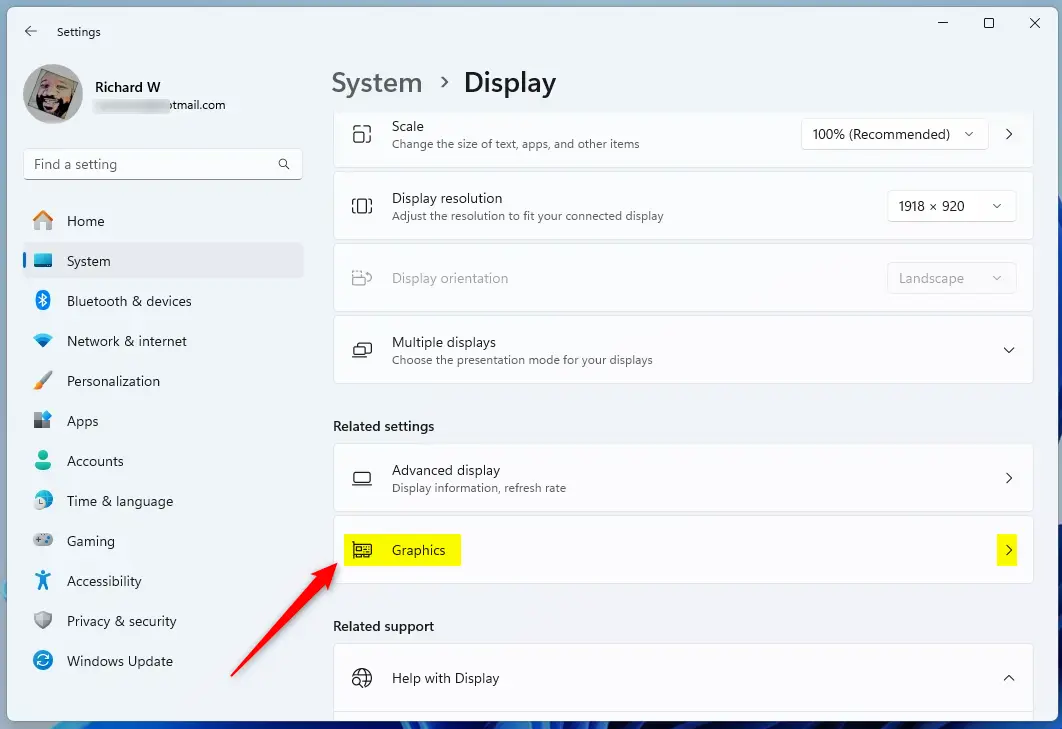
windows 11 start settings - Scroll down to Related settings and click Graphics. The Graphics page opens, with a list of apps and games you can set up one by one.
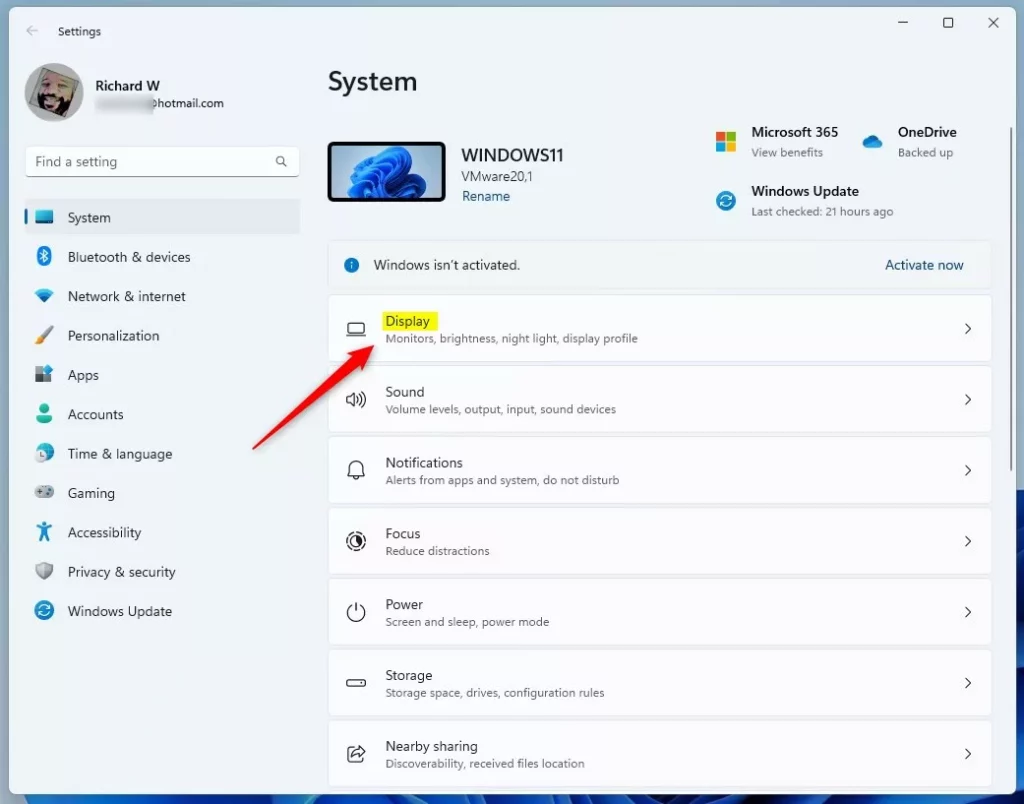
Windows Display Settings tile - Click Change default graphics settings. This page holds the system-wide options. Depending on your hardware, you may also see other toggles here, such as Auto HDR or Variable refresh rate.
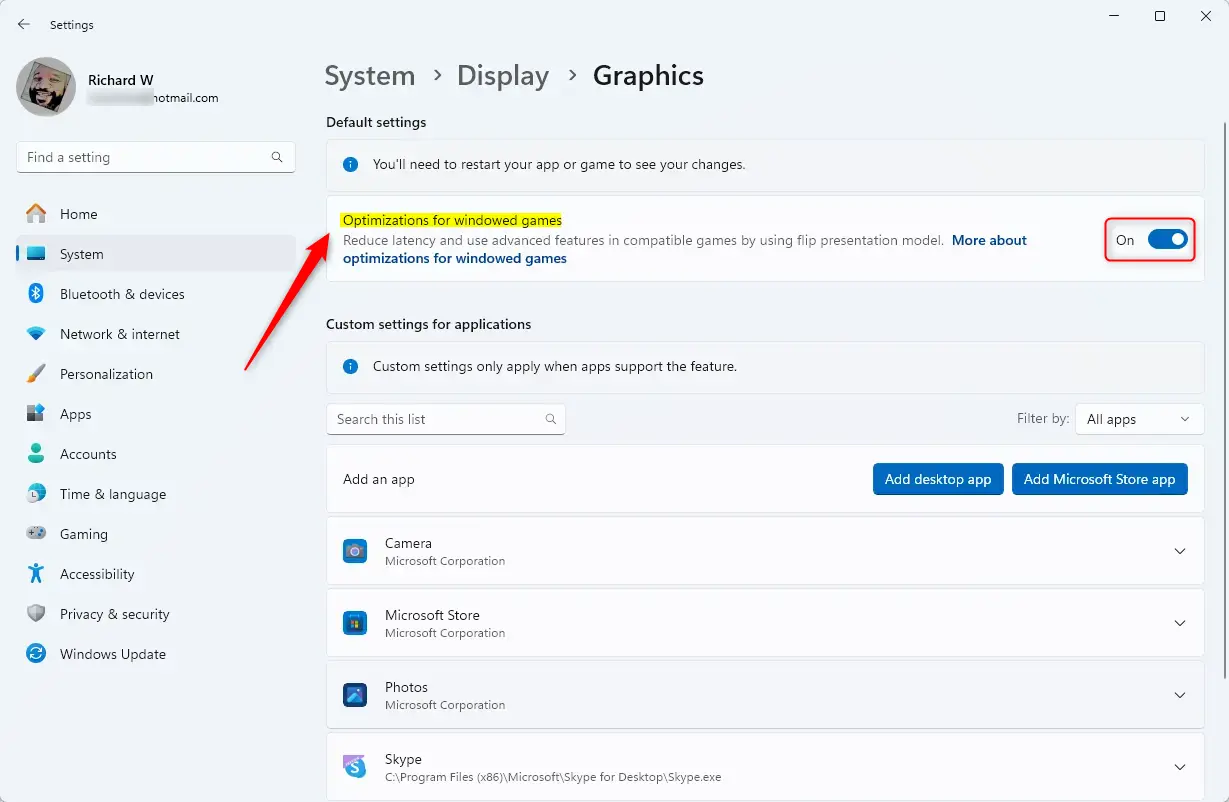
Graphics tile in Windows 11 settings for enabling windowed game optimizations - Use the toggle switch for Optimizations for windowed games to turn it On or Off. The change applies straight away and there is no Save button. You do not normally need to restart Windows, but close and reopen any game that was already running.
Windowed games settings
To undo the change, follow the same steps and flip the toggle back.
How to disable for specific games
Typical signs are flicker, odd colors, or a crash after you enabled the feature.
- Go to Settings System Display Graphics.
- Find your game in the list. If it is not there, add it with the option at the top of the page, then look for it again.
- Click the game, then click Options. A window opens with settings for that app.
- Select Don’t use optimizations.
- Click Save. Restart the game so it picks up the change.
To undo this, open the same Options window, clear the checkbox, and click Save. The label may read slightly differently on some builds.
Troubleshooting
If you do not see the option, ensure your Windows 11 is fully updated. The toggle is missing on builds older than 22H2, so run Windows Update and install anything pending. Then check your graphics drivers in C:\Windows\System32 or via your GPU control panel. An old or generic driver is a common reason for the option being absent, greyed out, or not working.
If a game crashes, try disabling the feature for that specific app using the steps above. If the crashes stop, you know this setting was the cause, and you can leave it on for everything else. If the game is still unstable, turn the system-wide toggle off and see whether that helps.
Summary
Turning on optimizations for windowed games is a simple setting that can make your games run better by reducing lag and improving features like Auto HDR. It is quick to try, needs no restart of Windows, and is easy to reverse. If one game does not like it, switch it off for that game only and keep the benefit everywhere else.
Have a question about this guide?
Answered by AI from this guide. Good questions may be added to this page — please don't include personal details.
Did this guide fix your problem?

About the Author
Richard
Tech Writer, IT Professional
Richard is a writer at Geek Rewind who turns complex IT tasks into clear, step-by-step guides. He draws on years of hands-on experience in system administration and enterprise IT operations, focusing on Windows, Linux and WordPress: the problems people actually run into, and the fixes that work. His server and WordPress guides come from systems he runs himself. Richard builds and maintains the platform behind Geek Rewind, from its Ubuntu servers and Nginx configuration to its custom WordPress plugins. Many new tutorials start with readers' questions, and he's always glad to answer them in the comments.
No comments yet — be the first to share your thoughts!